 Sign in
Self Host n8n How To: Docker Setup on a VPS (2026)
This guide takes you from a fresh Linux VPS to a working, HTTPS-protected n8n instance running in Docker, with persistent data, backups and a safe update routine.
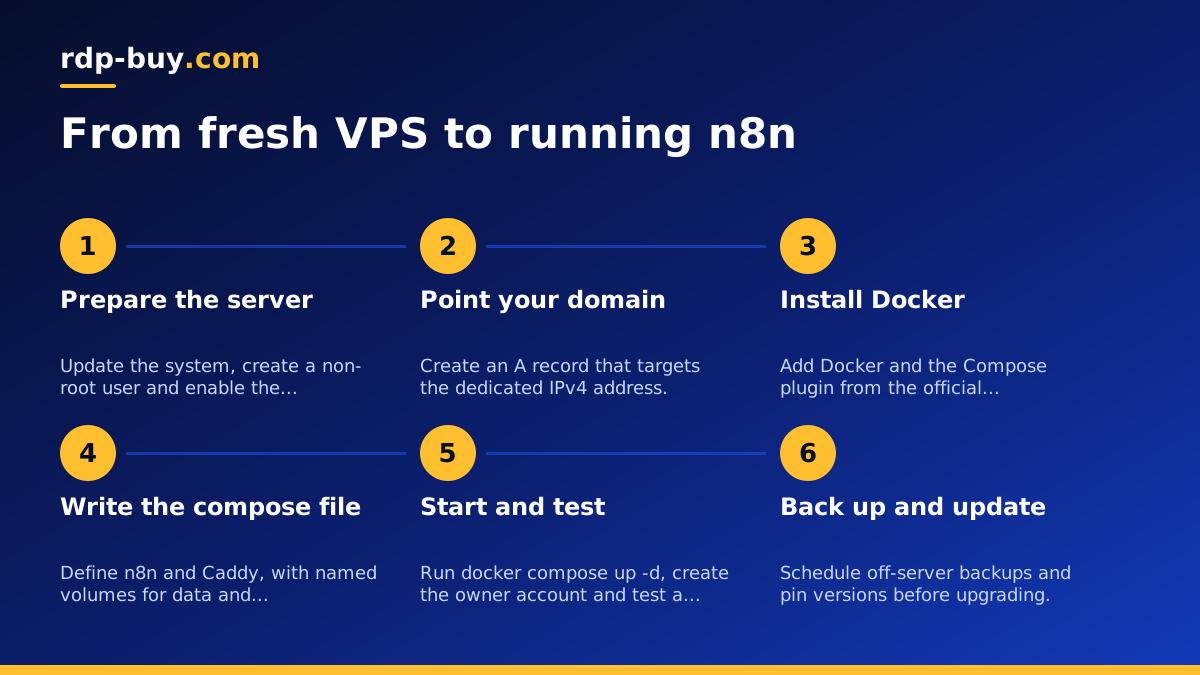
Why self host n8n on a VPS
n8n is a workflow automation tool, and many of its workflows only make sense if they run all the time: a webhook that receives orders, a schedule that checks an API every morning, or an AI agent that reacts to messages. On a laptop, those workflows stop when the lid closes or the Wi-Fi drops. On a VPS they keep running, and your workflows get a stable public address.
A VPS also gives you a dedicated IPv4 address, which helps when a third-party service wants to allow-list the server that calls it. You control the location too, so you can place n8n close to the APIs and users it talks to. If you want the broader picture first, see VPS for n8n and the AI agent hosting hub.
This guide uses Docker and Docker Compose because that is the most repeatable way to self host n8n. The whole setup lives in a few small files, so you can rebuild it on another server in minutes. It is the approach I would call the best way to self host n8n for most single-server setups, but always check the official n8n hosting documentation for the current recommended options, since defaults and variable names change between releases.
What you need before you start
Gather these items first, so the steps below run without interruptions.
- A Linux VPS with root or sudo access. rdp-buy.com Linux VPS plans come with root access and a dedicated IPv4 address, and servers are ready in minutes.
- A domain or subdomain you control, for example n8n.example.com. You need to be able to create an A record.
- An SSH client on your computer (the terminal on macOS and Linux, or Windows Terminal on Windows).
- A current Ubuntu LTS or Debian image. The commands below assume an apt-based system.
- About half an hour, plus a little time for DNS to propagate.
Step 1: Prepare the server
Log in over SSH with the details from your provider, for example ssh root@YOUR_SERVER_IP. Start by updating the system with apt update followed by apt upgrade, and reboot if the kernel was updated.
Next, create a normal user for daily work: adduser deploy, then usermod -aG sudo deploy. Copy your SSH key to that user, test a login in a second terminal, and only then consider disabling password logins for SSH. Never close your only working session until the new login is confirmed.
Then set up a basic firewall with ufw. Allow the three things you actually need and nothing else:
- ufw allow OpenSSH so you do not lock yourself out.
- ufw allow 80 and ufw allow 443 for the web proxy and HTTPS certificates.
- ufw enable to switch the firewall on.
Step 2: Point your domain at the VPS
In your DNS provider, create an A record for your chosen subdomain that points to the dedicated IPv4 address of the server. This must be in place before you start the proxy, because the automatic certificate request needs the name to resolve to your server.
You can check progress from your own computer by running nslookup n8n.example.com. When it returns your server address, move on.
Step 3: Install Docker and Docker Compose
Use the official installation instructions for your distribution from docker.com. In short, you add Docker's apt repository and install the Docker engine, the CLI and the Compose plugin. Avoid old distribution packages, which are often outdated.
Add your user to the docker group with sudo usermod -aG docker deploy, then log out and back in. Verify the install with docker --version and docker compose version. Run docker run hello-world once to confirm containers can start. If you plan to run other containers on the same machine, the Docker VPS page covers that use case.
Step 4: Write the compose file
Create a project folder, for example /opt/n8n, and move into it. You need three files there: a compose file (docker-compose.yml), a Caddyfile and an .env file. Keeping secrets and hostnames in the .env file keeps the compose file clean.
The compose file defines two services. The first is n8n itself:
- image: docker.n8n.io/n8nio/n8n. For production, pin a specific version tag instead of relying on latest, so updates only happen when you choose.
- restart: unless-stopped, so the container comes back after a reboot or crash.
- environment: N8N_HOST set to your domain, N8N_PORT set to 5678, N8N_PROTOCOL set to https, WEBHOOK_URL set to your full https address with a trailing slash, and GENERIC_TIMEZONE and TZ set to your timezone.
- volumes: n8n_data mapped to /home/node/.n8n inside the container. This is where n8n keeps its data and its encryption key.
- No published ports. Only the proxy talks to n8n, over the internal Docker network.
Step 5: Add a reverse proxy with automatic HTTPS
The second service is Caddy, a reverse proxy that requests and renews HTTPS certificates for you. HTTPS matters here because n8n handles credentials and receives webhooks from other services, many of which refuse plain HTTP.
Add Caddy to the same compose file with these settings:
- image: caddy, using a current stable tag.
- restart: unless-stopped.
- ports: 80:80 and 443:443.
- volumes: ./Caddyfile mapped to /etc/caddy/Caddyfile, plus caddy_data mapped to /data and caddy_config mapped to /config, so certificates survive restarts.
- At the bottom of the compose file, declare the named volumes: n8n_data, caddy_data and caddy_config.
Step 6: Configure the Caddyfile and start everything
The Caddyfile is very short. It contains your domain name, followed by a block that says reverse_proxy n8n:5678. That one line tells Caddy to forward all traffic for the domain to the n8n container by its service name.
Now start the stack from the project folder with docker compose up -d. Watch the logs with docker compose logs -f. You should see Caddy obtain a certificate and n8n report that it is ready.
Open your https address in a browser. n8n shows a setup screen where you create the owner account. Use a strong password and store it in a password manager. Then create a small test workflow with a Webhook trigger and call its production URL, to confirm that incoming requests reach n8n through the proxy.
Persistent storage and the database
Because the n8n_data volume is mounted into the container, your workflows, credentials and settings survive restarts and image updates. Removing the container does not remove the volume, but running docker compose down -v does, so never add the -v flag casually.
By default n8n stores data in SQLite inside that volume, which is fine for getting started and for light personal use. If you run many workflows, or want more robust handling, n8n supports PostgreSQL. You can add a Postgres container to the same compose file with its own named volume and point n8n at it through environment variables described in the official hosting docs.
One detail deserves extra care: n8n encrypts stored credentials with an encryption key. If you lose that key, backups of your credentials cannot be read. Either keep the n8n data volume backup intact, or set N8N_ENCRYPTION_KEY yourself in the .env file and store a copy somewhere safe, away from the server.
Backups you can actually restore
A backup that lives only on the same VPS is not much protection. Aim for two layers: a copy of the data volume and an export of your workflows, both stored off the server.
To archive the volume, run a throwaway container that mounts it and writes a tar file to your current folder. The pattern is: docker run --rm -v n8n_data:/data -v $(pwd):/backup alpine tar czf /backup/n8n-data.tar.gz -C /data . For a cleaner snapshot, stop n8n briefly with docker compose stop n8n first, then start it again.
For a portable copy of your workflows, run docker compose exec n8n n8n export:workflow --all --output=/home/node/.n8n/workflows.json. The file then lands in the volume and is included in the archive.
Then automate it:
- Put the backup commands in a small shell script.
- Schedule it with cron at a quiet time of day.
- Copy the resulting archive to storage somewhere else, such as another server or object storage you control.
- Once, do a real test restore on a spare machine. Until you have restored a backup, you only have a hope, not a backup.
Updating n8n safely
Updates are simple with Docker, but a little discipline avoids surprises. Read the release notes on the n8n GitHub page before changing versions, especially when a release mentions breaking changes.
The routine is short:
- Take a backup first, as described above.
- Edit the image tag in the compose file to the new version.
- Run docker compose pull to download it.
- Run docker compose up -d to recreate the container with the new image.
- Check docker compose logs -f n8n and open a few key workflows to confirm they still run.
- Free disk space occasionally with docker image prune.
Common problems and quick fixes
Most first-time issues come from a handful of causes. Webhook URLs showing localhost usually mean WEBHOOK_URL is missing or lacks the https address. A certificate that never arrives usually means the DNS record is wrong, or ports 80 and 443 are blocked by the firewall. Schedules firing at the wrong hour point to a missing timezone setting.
If the page does not load at all, run docker compose ps to see whether both containers are up, then read the logs of the one that is failing. Fix one thing at a time and restart with docker compose up -d.
Choosing a location and plan
Where the server sits affects latency to the APIs your workflows call and to the users sending webhooks. rdp-buy.com offers 33 server locations, so pick the one closest to the services your automations depend on most.
For n8n, a Linux server is the usual choice because Docker runs natively and uses fewer resources than a desktop system. If you are unsure which operating system fits, read Windows or Linux server: which to rent. When you are ready, check the Linux VPS plans, which offer monthly, half-yearly or yearly billing, and 24/7 support if you get stuck during setup.
rdp-buy.com is an independent hosting provider and is not affiliated with or endorsed by n8n or Docker.
