 Sign in
RDP Server Best Practices: Keep a Windows Server Secure and Fast
An RDP server is a Windows machine on the open internet, so a handful of habits decide whether it stays fast and safe for years. These RDP server best practices cover security, stability and plan choice, whether you already run one or are about to buy an RDP server.
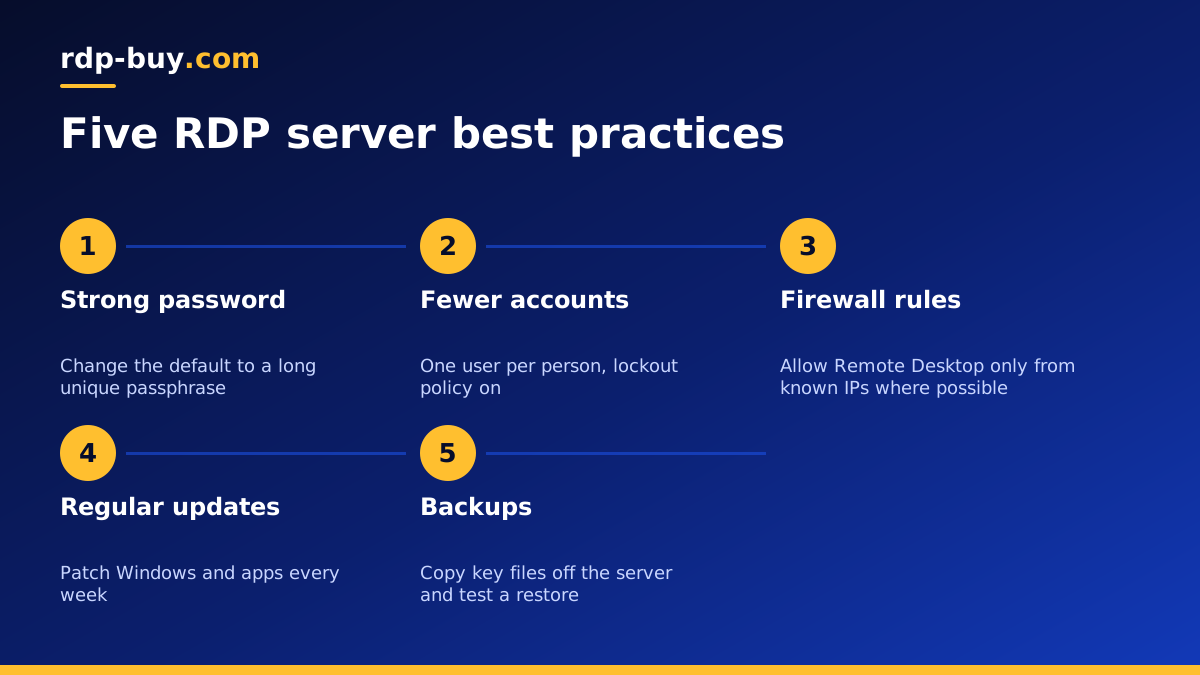
Why RDP server best practices matter
Remote Desktop makes a Windows server feel like a local PC, which is exactly why it is popular for trading, office software, automation and AI agents. The same convenience means the login screen is reachable from anywhere, and automated scanners constantly try common usernames and passwords against public servers.
The good news is that a small set of practices blocks the vast majority of trouble. None of them need special tools: they use settings already built into Windows Server. Work through them once when your server is new, then keep a short routine going.
1. Use strong, unique passwords and change the default
The administrator password in your welcome email is meant to get you in, not to stay forever. Change it on your first login to a long passphrase that you do not use anywhere else, and store it in a password manager.
Length matters more than complexity. A phrase of several unrelated words is far harder to guess than a short string of symbols, and it is easier to type when you need it.
2. Limit who can log in
Every account that can sign in over Remote Desktop is another door. Keep the list short.
- Create a separate standard user for each person instead of sharing the administrator account.
- Add only the users who need remote access to the Remote Desktop Users group.
- Remove or disable accounts as soon as someone no longer needs access.
- Consider renaming the built-in Administrator account so automated guesses at that name fail.
- Turn on an account lockout policy so repeated wrong passwords temporarily lock the account.
3. Keep Network Level Authentication on
Network Level Authentication (NLA) makes a user prove who they are before a full desktop session is created. It reduces the load from failed attempts and closes off some older attack routes. It is on by default in modern Windows Server versions; check it under System Properties, Remote tab, and leave the option requiring NLA ticked. Current Remote Desktop clients on Windows, Mac, iOS and Android all support it.
4. Restrict the Remote Desktop port with the firewall
Windows Defender Firewall can limit which IP addresses may reach Remote Desktop. If you always connect from a fixed office or home IP, add a rule so only those addresses can connect. This single step removes almost all scanning noise from your logs.
If your own IP changes often, you can still close everything except Remote Desktop and the specific ports your software needs. Some people also move Remote Desktop to a non-standard port; that reduces log noise but is not a substitute for strong passwords and lockout rules.
5. Patch Windows on a schedule
Microsoft releases security updates regularly, and many fixes concern remote access components. Pick a quiet time each week, run Windows Update, and restart when asked. If your server runs a trading terminal or bot, schedule updates for a time markets are closed or the bot is idle, and set your software to start again automatically after a restart.
Keep your installed applications updated too. Browsers, PDF readers and trading platforms are common targets.
6. Keep Defender and the firewall on
Windows Server includes Microsoft Defender Antivirus and the firewall. Leave both on unless you have a specific reason not to, and add exclusions only for folders a vendor tells you to exclude. Installing several antivirus products at once usually slows the server without making it safer.
7. Disconnect instead of signing out, and know the difference
Closing the Remote Desktop window disconnects your session but leaves your programs running. Signing out closes them. For servers that run bots, terminals or agents, disconnect when you leave. For shared servers, sign out of sessions you no longer need so they do not hold memory.
You can also set session time limits in Group Policy to end idle or disconnected sessions after a period you choose, which helps on servers with several users.
8. Back up what matters
Decide which files you cannot afford to lose: trading profiles, configuration folders, databases, scripts and documents. Copy them to a location outside the server on a schedule, such as cloud storage or another machine. Test a restore once so you know the backup works. A server you can rebuild quickly from backups is far less stressful to run.
9. Size and place the server correctly
Many problems that look like security or stability issues are actually a server that is too small. If memory is constantly full, Windows slows down, updates take longer and programs crash. Check Task Manager during your busiest hours; if memory or CPU stays near the top, move to a larger plan. The guide on which RDP plan you need helps with sizing.
Location matters too. Put the server near the services it uses most, such as your broker or the APIs your bots call. rdp-buy.com has 33 locations, listed on the server locations page.
10. Read the logs now and then
Windows records failed sign-ins in the Security event log. You do not need to read every line, but a quick look each week shows whether someone is guessing at a specific username or whether lockouts are triggering. A sudden rise in failures is a cue to tighten firewall rules or rename an account that attackers have learned about. The Application and System logs are the place to look when a program crashes or a service fails to start after an update.
11. Extra care for servers that run bots and AI agents
Servers that run unattended software need a few additions. Run each bot or agent under its own Windows user where you can, so a problem in one cannot touch the others. Keep API keys in the program's own settings or environment variables rather than in text files on the desktop, and rotate them if a file ever leaks.
Make sure every unattended program starts again after a restart, using the Startup folder, Task Scheduler or a service wrapper, and check after each update cycle that it did. If you run AI agents that control a browser or the desktop, the Windows RDP for AI agents page explains how to give them room without risking the rest of the server.
A weekly RDP server checklist
Once the setup work is done, a ten minute weekly routine keeps things in order.
- Run Windows Update and restart if needed.
- Check that your key programs restarted and are running.
- Look at free disk space and clear old logs or installers.
- Glance at the Security event log for unusual failed logins.
- Confirm last week's backup completed.
- Review the list of users with remote access.
Choosing an RDP server that makes best practice easy
Good habits are easier on a server that gives you full control. Every Windows plan on rdp-buy.com includes full administrator access, a dedicated IPv4 address that you can allowlist with brokers and services, the Windows licence in the price, and 24/7 support. Servers are ready in minutes, and billing can be monthly, half-yearly or yearly.
Browse the Windows RDP plans to pick a size, or the admin RDP plans if you want full control for a team. You can pay by card, PayPal or crypto.
