 Sign in
Buy RDP for Mac: How to Run Windows Software From Your Mac
If you need Windows programs but work on a Mac, you can buy RDP: a Windows server in a data centre that you open in a window on your Mac. This guide explains when that beats running Windows locally, how to connect, and how to choose a plan when you buy RDP.
Why Mac users buy RDP
Macs are excellent machines, but some software still only runs on Windows: MetaTrader terminals and expert advisors, accounting and tax tools, certain industry apps, older business software, and automation tools that drive Windows desktop programs. Mac users have a few ways to get at that software, and a remote Windows server is often the simplest.
With an RDP server, Windows runs in a data centre, not on your Mac. You open it in a window using Microsoft's free Windows App (previously called Microsoft Remote Desktop) from the Mac App Store, work as if it were a PC, then close the window. Your programs keep running on the server while your Mac sleeps, travels or restarts.
That last point is often the reason people buy RDP for Mac rather than installing Windows locally: a trading bot, a scraper or a scheduled export keeps working around the clock without your laptop staying open.
RDP server vs running Windows on your Mac
Before you buy, compare the main options honestly.
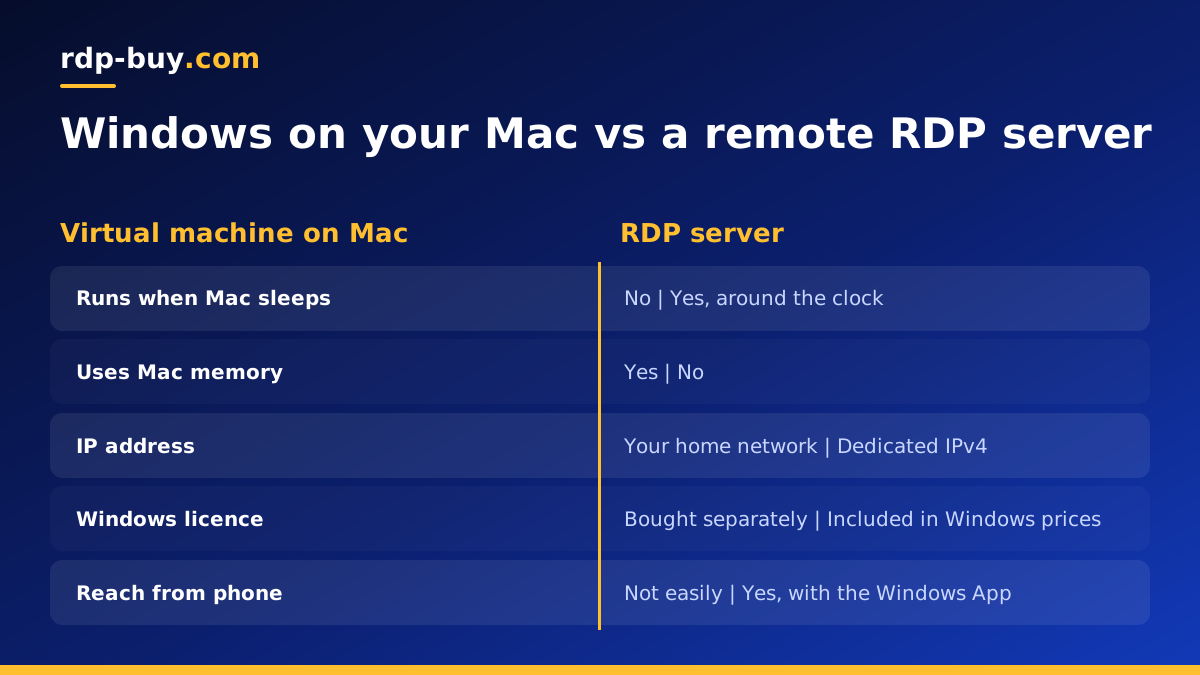
- A virtual machine on your Mac runs Windows locally. It works offline and is good for occasional use, but it uses your Mac's memory and battery, stops when the Mac sleeps, and on Apple silicon Macs it runs the Arm version of Windows, which can affect some older software.
- A remote Windows server over RDP runs a standard Windows Server build on server hardware. It stays on 24/7, does not touch your Mac's resources, and has its own dedicated IP address. You need an internet connection to use it.
- A second physical PC works but means extra hardware at home, power use and no access when you are away unless you open it to the internet.
Who gets the most from an RDP server on a Mac
An RDP server is the best fit when any of these apply to you:
- You need Windows software to keep running when your Mac is closed, such as a trading terminal or a bot.
- You want the same Windows desktop from your Mac, your iPhone and an office PC.
- You need a fixed IP address for a broker, a bank tool or an allowlisted service.
- You do not want Windows taking space, memory and battery on your Mac.
- You share one Windows machine with a colleague or a small team.
How to connect to Windows RDP from a Mac
Connecting takes a few minutes once you have your server details:
- Install the free Windows App from the Mac App Store.
- Click the plus button and add a PC, entering your server's IP address.
- Add your user account with the username and password from your welcome email.
- Double-click the server to connect, and accept the certificate prompt on first use.
- Use the app settings to choose display size, map a Mac folder for file transfer, and set how keyboard shortcuts behave.
Working comfortably on Windows from macOS
A few small adjustments make a remote Windows desktop feel natural on a Mac. Keyboard shortcuts differ: in the Windows session, Control usually does what Command does on the Mac, so Control C copies and Control V pastes. The Windows App can map some Mac shortcuts for you, which is worth checking in its preferences.
Clipboard sharing works both ways, so you can copy text between macOS and Windows. To move files, either map a Mac folder as a drive in the connection settings or drag files into the session. Our guide to connecting to your RDP server covers more of these settings.
When you are done, close the window rather than signing out if you want your programs to keep running. Closing disconnects your session; signing out ends it.
How to size an RDP plan for Mac use
Your Mac's specs do not matter for the server; only the work you do on Windows does. List what you will run at the same time. One trading terminal, an office suite or a single desktop app is light. Several terminals, a browser with many tabs, or a bot that runs a browser needs more memory. Compiling code or processing large files needs more CPU cores.
If you are unsure, start with a mid-range plan on monthly billing and check Task Manager after a week of normal use. The guide on which RDP plan you need explains this step by step.
Choosing a location
Pick the server city by what the Windows software talks to. For trading, that is your broker's servers. For office work, it is wherever you and your colleagues are, so the desktop feels responsive. For bots and automation, it is the websites and APIs they use. rdp-buy.com has 33 locations, listed on the server locations page, so most people can find one in their own region.
What you get when you buy RDP for Mac use
Every Windows RDP server includes full administrator access, a dedicated IPv4 address and the Windows licence in the price. Servers are ready in minutes after payment, support is available 24/7, and billing can be monthly, half-yearly or yearly.
You can pay by card, by PayPal or with crypto. If you prefer PayPal, the buy RDP with PayPal page walks through the steps; for digital currency see buy RDP with crypto.
First steps after your server is ready
Once connected for the first time, spend a few minutes on the basics before installing your software.
- Change the administrator password to a long passphrase stored in your Mac's password manager.
- Run Windows Update until nothing is left, then restart.
- Install your Windows software and set it to start on login or as a scheduled task if it must run unattended.
- Save the connection in the Windows App so you can reach it from your Mac and iPhone in one click.
Ready to buy RDP for your Mac?
If you need Windows software that keeps running while your Mac is closed, a remote server is the cleanest setup. Browse the Windows RDP plans, pick a size from the checklist above and a city near the services you use. If budget is the main concern, the cheap RDP plans are a good starting point, and 24/7 support can help you choose.
