 Sign in
Buy VPS Server Windows: How to Choose the Right Windows Plan
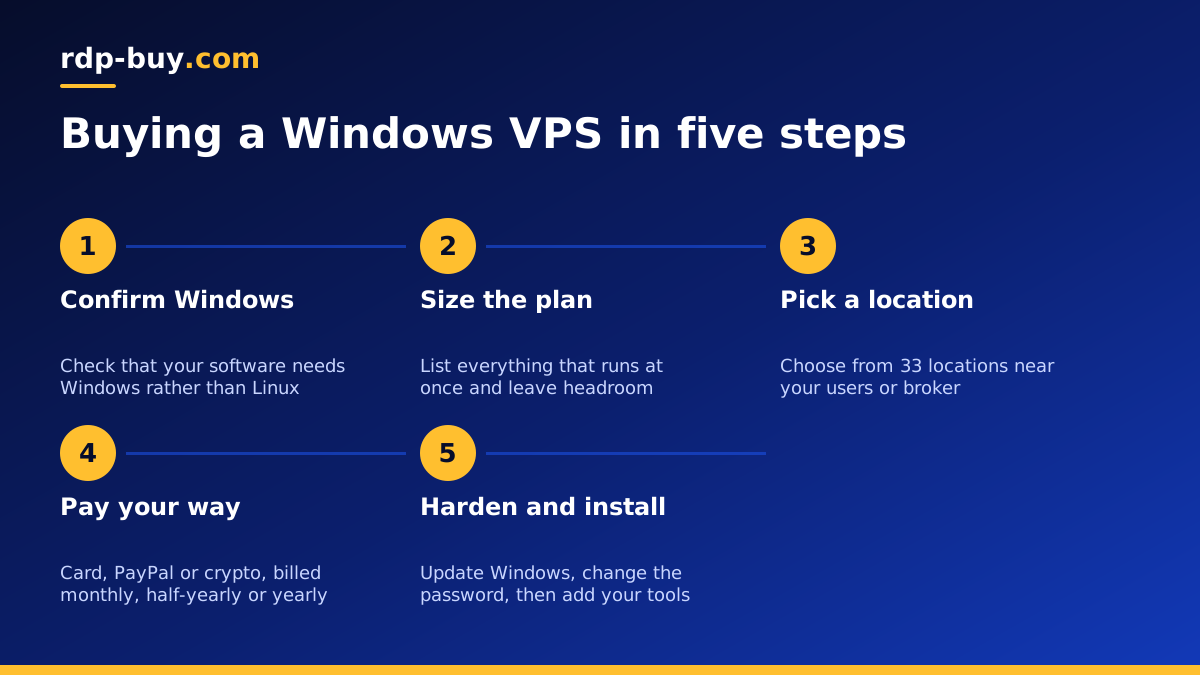
If you want to buy a VPS server with Windows, the choice comes down to three things: whether your software truly needs Windows, how much CPU and memory it uses, and where your users are. This guide walks through each decision so you can buy VPS hosting that fits the job the first time.
Why people buy a VPS server with Windows
A Windows VPS is a virtual server that runs a full copy of Windows Server and stays online around the clock. You reach it over Remote Desktop, see a normal Windows desktop, and install software the same way you would on a PC. The difference is that it lives in a data centre, so it does not depend on your home power, your Wi-Fi or a laptop lid staying open.
Most buyers fall into a few groups. Traders run MetaTrader terminals and expert advisors that must stay connected while they sleep. Small teams need a shared Windows machine for accounting tools or legacy desktop apps. Developers test .NET builds, run scheduled tasks or host software that only ships as a Windows installer. More recently, people run AI agents and browser automation that need a real Windows desktop to click through.
If none of your tools need Windows, a Linux server is usually leaner and simpler to keep up to date. Before you buy a Windows VPS, check whether the software you plan to run has a Linux version. If it does, compare both options side by side; if it does not, Windows is the right base.
Windows VPS or Linux VPS: a quick decision test
Ask yourself these questions in order. The first answer that matches usually settles it.
- Does your main program ship only as a Windows .exe or .msi? Choose Windows.
- Do you need a graphical desktop you can log into and click around? Windows gives you that out of the box through Remote Desktop.
- Are you hosting websites, Docker containers, databases or n8n workflows? Linux is the natural fit and usually needs fewer resources.
- Is your team comfortable with a command line over SSH? If not, Windows lowers the learning curve.
- Do you need both? Many people run a Windows server for desktop tools and a small Linux server for web services.
How to size a Windows VPS before you buy
Windows Server itself uses more memory than a minimal Linux install, so leave room for the operating system before you count your own applications. A sensible way to size a plan is to list everything that will run at the same time, then add headroom so updates and background services do not slow you down.
Think about CPU in terms of parallel work. One trading terminal or one automation script is light. Several terminals, a browser with many tabs, or a build process that compiles code will use more cores. Memory matters most for browsers, terminals with many charts, and anything that keeps data in RAM. Disk space fills up faster than people expect on Windows because of updates, logs and installers, so pick a plan with storage to spare.
If you are unsure, start with a mid-sized plan on monthly billing, watch Task Manager for a week, then move up or down. Our guide on which RDP plan you need covers this process in more detail.
- List every program that runs at once, including browsers and background tools.
- Leave headroom for Windows updates and antivirus scans.
- Choose more memory if you run browsers or many terminals.
- Choose more cores if you compile code, render or run several bots in parallel.
- Pick storage with room for updates, logs and backups.
Choose a server location close to what matters
Location affects how responsive the server feels and which IP address websites see. Put the server near the thing it talks to most. For a trader that is the broker's servers. For a team using Remote Desktop all day, it is the office. For an AI agent, it is often the APIs and websites the agent calls.
rdp-buy.com offers 33 server locations, which you can browse on the server locations page. If your users or services are in the United States, a USA RDP server in the nearest city is a common choice. If they are in Europe, look at the UK or Germany.
What you get when you buy a Windows VPS here
Every Windows server comes with full administrator access, so you can install any software, change settings and create extra user accounts. Each server has its own dedicated IPv4 address, which helps with allowlists, broker logins and services that dislike shared IPs.
The Windows licence is included in Windows prices, so there is no separate licence to buy or activate. Servers are ready in minutes after payment, and support is available 24/7 if something does not behave as expected. Billing is monthly, half-yearly or yearly, so you can start short and commit for longer once the setup proves itself.
Paying for your Windows VPS
You can pay by card, PayPal or crypto. Card is the quickest for most people; see the guide to buying RDP with a card. PayPal suits buyers who prefer not to share card details with a new provider, and the buy RDP with PayPal page explains the flow. If you prefer digital currency, buy RDP with crypto walks through it step by step.
Whichever method you use, keep the order email. It contains your server details and is the fastest reference if you ever contact support.
First steps after your Windows server is ready
Once you receive the IP address and login details, connect with the Remote Desktop app built into Windows, or a Remote Desktop client on Mac, Linux, iOS or Android. Our guide on how to connect to your RDP server covers each platform.
Then spend ten minutes on basic hardening before you install anything else.
- Change the administrator password to a long, unique passphrase stored in a password manager.
- Run Windows Update and restart until no updates remain.
- Check that Windows Defender and the firewall are on.
- Create a separate standard user for daily work if others will log in.
- Install your main software and set it to start automatically after a reboot.
- Set up a simple backup of important files to another location.
Common mistakes when buying a Windows VPS
The most common mistake is buying the smallest plan and then installing a heavy browser, several terminals and an antivirus suite on top. Windows will run, but slowly. The second is picking a location by habit instead of by where the work happens. The third is leaving the default password in place and never running updates.
Another frequent issue is closing the Remote Desktop window with the X button and assuming the server stops. It does not: closing the window only disconnects your session, and your programs keep running. Signing out, on the other hand, closes them. Knowing the difference saves a lot of confusion for traders and bot users.
Monthly, half-yearly or yearly billing: which to pick
Monthly billing is the safest start when you are testing a new workload or are not yet sure about the plan size. It lets you change size or location without being tied to a long term.
Half-yearly billing suits setups that already work and that you expect to keep for a season, such as a trading strategy you plan to run for several months. Yearly billing is for servers that have become part of your routine, such as a team desktop or an always-on automation box, where you would rather not think about renewals.
A practical pattern is to start monthly, confirm the size and location are right over the first few weeks, then switch to a longer term at renewal once you know the server is a keeper.
Ready to buy VPS server Windows plans?
If your software needs Windows, start with the Windows VPS hosting plans and pick a size based on the checklist above. If you found that your workload runs fine on Linux, compare the Linux VPS plans instead, since they are lighter for web services, Docker and automation tools.
Not sure which side you are on? The guide on Windows or Linux server lays out the trade-offs in plain terms, and support is available 24/7 to help you pick before you order.
