 Sign in
Buy VPS and Domain: How to Get Both and Connect Them Properly
To put a website or app online under your own name, you buy VPS hosting for the server and a domain name for the address, then connect the two with DNS. This guide covers both purchases and every step in between, so you can buy VPS capacity and have your domain pointing at it the same day.
Buy VPS and domain: two products, one goal
A VPS and a domain do different jobs. The VPS is the computer that runs your website, app, API or bot. It has a dedicated IP address, which is a string of numbers that computers use to find it. The domain is the human friendly name, such as yourbrand.com, that people type into a browser.
You can buy them from the same company or from different ones. Many people buy the domain from a domain registrar and the server from a hosting provider that specialises in servers. That split is common and works perfectly well, because DNS links the two no matter who sold each one.
rdp-buy.com sells servers, not domain names, so if you host with us you will register the domain with a registrar of your choice and point it at your server. The rest of this guide shows exactly how.
Step one: choose and buy your VPS
Start with the server, because you need its IP address to finish the domain setup. Think about three things.
- Size. A personal site or small blog runs on a small plan. A shop with a database, several sites or Docker containers need more memory.
- Location. Pick a data centre near most of your visitors so pages load quickly. rdp-buy.com offers 33 server locations.
- Operating system. Linux, such as Ubuntu or Debian, is the natural choice for web hosting. Choose Windows only if your app needs it.
- Billing. Monthly while you build, then half-yearly or yearly once the site is live.
Step two: choose and register a domain
Pick a name that is short, easy to spell and matches your brand. Check it is not someone else's trademark. Choose an extension that suits your audience: a global one for an international audience, or a country code if you focus on one country.
When you register, look for a registrar that lets you edit DNS records easily, includes WHOIS privacy if available for your extension, and offers two factor authentication on your account. Domain theft is rare but painful, so protect the login. Turn on auto renew so the name never lapses by accident.
Step three: point your domain at the VPS
This is where the two purchases meet. In your registrar's DNS settings, you create records that tell the internet which IP address your domain uses.
- Create an A record for the root of your domain (often shown as @) with the value set to your VPS's dedicated IPv4 address.
- Create a second A record for www pointing to the same IP, or a CNAME record for www pointing to the root domain.
- If your server has an IPv6 address you use, add matching AAAA records.
- Save the changes and wait for DNS to update. This usually happens quickly but can take longer depending on caching.
- Check the result with a DNS lookup tool or by running a ping to your domain and confirming it returns your server's IP.
Step four: prepare the server
While DNS updates, set up the VPS. Connect over SSH with the login you received. Update the system packages, create a non root user with sudo rights, and switch to SSH key login. Turn on a firewall and allow only SSH, HTTP and HTTPS.
Then install a web server. Nginx and Apache are both popular and well documented. If you plan to run several apps, Docker with a reverse proxy keeps each one in its own container. The Docker VPS page explains that approach.
Step five: tell the web server about your domain
Your web server needs to know which site to show for which domain. In Nginx this is a server block, in Apache a virtual host. Set the server name to your domain and its www version, and point the document root at the folder holding your site files or set it to proxy requests to your app.
Reload the web server and visit your domain in a browser. If you see your site or a default welcome page, the domain and the VPS are talking to each other.
Step six: add free SSL
Every site should use HTTPS. Let's Encrypt provides free certificates, and the Certbot tool can request one and configure Nginx or Apache for you. Run Certbot with your domain and www version, choose to redirect HTTP to HTTPS, and confirm the automatic renewal timer is active.
DNS must already point at your server for this to work, because the certificate authority checks that your domain reaches your VPS before issuing a certificate.
Common problems and quick fixes
If something does not work, these are the usual causes.
- Domain still shows the registrar's parking page: DNS has not updated yet, or the A record has a typo in the IP.
- Browser cannot connect: the firewall is blocking ports 80 and 443, or the web server is not running.
- Wrong site appears: the server block or virtual host has the wrong server name.
- Certificate request fails: DNS is not pointing at the server yet, or port 80 is closed.
- Email stops working after the change: you removed or changed MX records. Leave mail records alone unless you are moving email too.
Should you host email on the same VPS?
You can, but running your own mail server takes ongoing care: spam filtering, reputation and correct DNS records for SPF, DKIM and DMARC. Many site owners keep their website on the VPS and use a separate email service for their domain. That keeps the server simple and email reliable. If you do run mail yourself, the dedicated IPv4 address on your server helps, because its reputation belongs to you alone.
Using subdomains for apps, agents and tools
Once one domain points at your VPS, subdomains make it easy to host more than a website. Create an A record such as app, n8n or status pointing to the same IP, then add a matching server block or reverse proxy rule on the server. Each tool gets its own clean address and its own SSL certificate.
This is a common pattern for self hosted automation. You might run your main site at the root domain, an n8n instance at a subdomain for webhooks, and a small dashboard at another. Webhook services and APIs prefer a stable HTTPS address, and a subdomain on your own domain gives them exactly that. The VPS for n8n page covers that setup.
Keeping your site and server healthy
A live site needs a little routine care. None of it takes long, but skipping it is how small problems become outages.
- Install security updates on the server regularly.
- Take backups of site files and databases, and store a copy off the server.
- Check that SSL certificates renew automatically before they expire.
- Keep your domain on auto renew and your registrar contact email current.
- Watch disk space, since logs and uploads grow quietly over time.
- Review who has SSH access and remove old keys.
Getting your VPS and domain live today
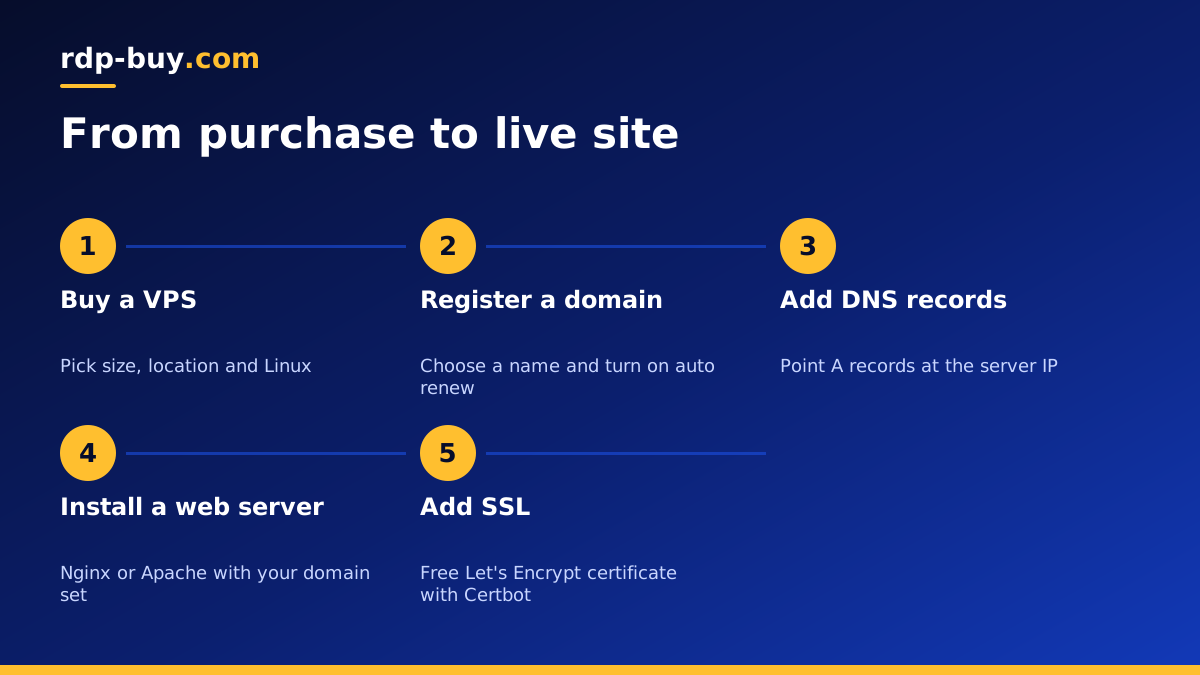
The order is simple: buy the server, register the domain, point the A records at the server's IP, install a web server and add SSL. Most of the work takes less time than reading this guide.
When you are ready to start, compare the Linux VPS hosting plans, or look at cheap VPS options for a first site. Every plan includes full root access, a dedicated IPv4 address and 24/7 support, servers are ready in minutes, and you can pay by card, PayPal or crypto.
