 Sign in
VPS Backup Guide: How to Protect Your Server Data in 2026
A VPS backup plan is the difference between a bad afternoon and a lost project. This guide explains what to back up, which tools to use, where to store copies and how to prove your restores work, whether you run a small site or a busy server on VPS hosting.
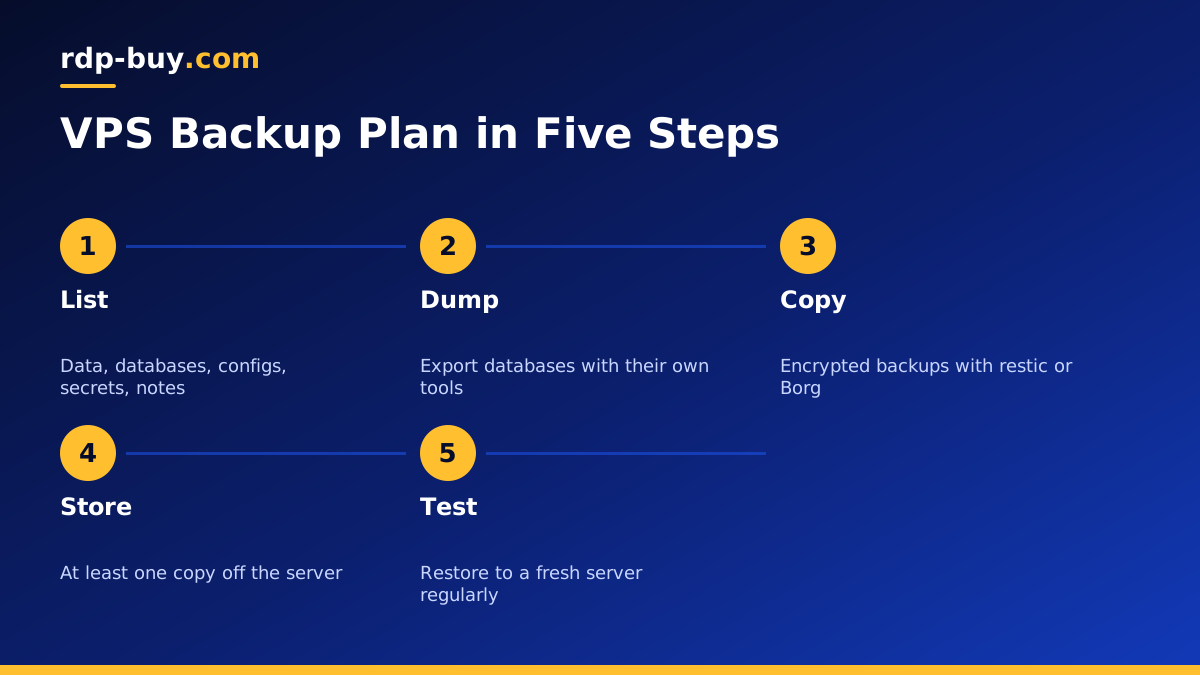
Why Every VPS Needs Its Own Backup Plan
A VPS gives you full root control, and with it the responsibility for your data. Disks can fail, updates can go wrong, a script can delete the wrong folder, and an attacker can encrypt or wipe files. Any of these can happen on the best hardware in the best data centre. A backup is what lets you recover.
Provider snapshots, where available, are useful but not enough on their own. A snapshot usually lives in the same platform as the server, and if you lose access to the account or the snapshot is taken while a database is mid write, it may not save you. A real VPS backup plan keeps independent copies that you control, outside the server.
The good news is that a solid plan does not need expensive tools. Open source software, a bit of scripting and somewhere safe to store copies are enough for most servers.
What to Back Up on a VPS
Start by listing what you would need to rebuild the server from scratch. You do not need to back up the operating system itself, since you can reinstall it in minutes. Focus on the things that are unique to you.
- Application data: website files, uploads, Docker volumes and any folder your apps write to.
- Databases: MySQL, MariaDB, PostgreSQL, MongoDB or SQLite files, exported properly.
- Configuration: web server configs, compose files, environment files, cron jobs and systemd units.
- Secrets: encryption keys and certificates your apps need, stored securely.
- Notes: a short document listing what is installed and how it fits together.
Back Up Databases the Right Way
Copying the raw files of a running database is risky, because the files can change while you copy them and the result may not open. Use the database's own export tools instead. For MySQL and MariaDB, mysqldump or mariadb-dump with the single transaction option produces a consistent export. For PostgreSQL, pg_dump does the same job. For SQLite, the sqlite3 backup command copies a database safely while it is in use.
Schedule the dump to run before your file backup, then include the dump file in the backup. That way each backup contains a clean, consistent copy of the database alongside the files that go with it.
If your apps run in Docker, run the dump command inside the database container, for example with docker compose exec, and write the output to a folder that your backup tool reads. Our post on self hosting n8n with Docker Compose shows a typical layout where this applies.
Choose a Backup Tool
Several mature, free tools handle VPS backups well. Each one supports encryption and incremental backups, which means only changed data is sent after the first run, saving time and storage.
- restic: simple to use, encrypts everything, and supports many storage backends including S3 compatible storage and SFTP.
- BorgBackup: efficient deduplication and compression, best used with a remote server over SSH.
- rsync: a basic file sync tool, fine for simple copies, but without built in versioning or encryption.
- Rclone: great for moving files and backup archives to cloud storage providers.
Where to Store Your Backups
The most important rule is simple: keep at least one copy off the server. A backup stored on the same disk disappears with the disk. Good options include S3 compatible object storage, a second VPS in another location, or a storage box from a different provider.
A popular guideline is to keep several copies, on more than one type of storage, with at least one copy somewhere else entirely. For a single VPS, that usually means local snapshots for quick restores plus encrypted backups in a separate location. If you run servers in more than one region, a second server in a different location can hold backups for the first, and the other way round. rdp-buy.com offers 33 server locations, so this kind of cross location setup is easy to arrange.
Set a Schedule and a Retention Policy
How often you back up depends on how much work you can afford to lose. A blog that changes once a week can be backed up daily. A store or app with constant orders may need database dumps several times a day. Schedule jobs with cron or systemd timers, and log the result so you can see when one fails.
Retention decides how long you keep old backups. A common pattern keeps daily backups for a short period, weekly backups for longer and monthly backups for longer still. restic and Borg both have a prune or forget command that applies a policy like this automatically. Keeping older versions matters because some problems, such as a slowly corrupted file or a quiet intrusion, are only noticed later.
Protect Backups From Attacks
If an attacker gets root on your server, they may try to delete your backups too. Reduce that risk by giving the server write only or append only access to the backup location where your tool and storage support it. Borg supports append only mode on the remote side, and many object storage services support object lock or versioning.
Encrypt every backup and store the encryption password somewhere other than the server, such as a password manager. Without that password, the backup cannot be restored, so treat it as carefully as the data itself.
Test Your Restores
A backup you have never restored is only a guess. Schedule a restore test, for example once a month. Spin up a fresh test server, restore the latest backup, load the database and start the app. Write down every step and how long it took, so a real recovery is calm and quick.
A test server for an hour or two is a small cost compared with discovering a broken backup during an outage. Because new servers are ready in minutes, it is easy to make restore testing a habit.
- Restore to a fresh server, not over your live one.
- Check that files open, the database loads and the app starts.
- Record the steps and the time taken in your runbook.
- Fix anything missing and update the backup job.
Choosing a VPS That Makes Backups Easy
Good backups need full root access, so you can install tools like restic or Borg and run database dumps on a schedule. A dedicated IPv4 address helps when your storage provider allows access only from known addresses. A choice of locations lets you keep a backup server far from your main one.
When you are ready, buy a VPS for your main workload, and consider a second small server in another location as a backup target. Every rdp-buy.com plan includes full root access, a dedicated IPv4 address, 24/7 support and monthly, half-yearly or yearly billing. For routine care beyond backups, read our Linux VPS maintenance routine.
