 Sign in
Linux VPS vs Windows VPS: Which Should You Buy in 2026?
The Linux VPS vs Windows VPS decision comes down to one thing: what software you need to run and how you want to manage it. This guide compares both side by side so you can buy VPS hosting with the right operating system the first time.
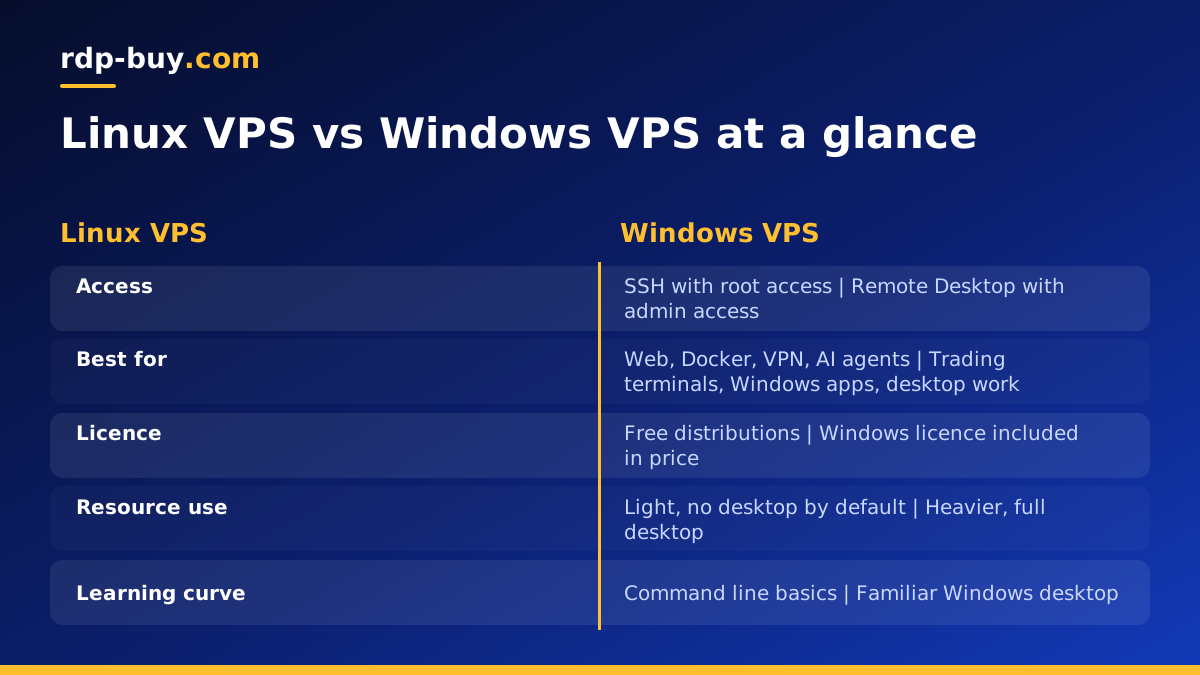
Linux VPS vs Windows VPS: the quick answer
Pick a Linux VPS if you plan to run web servers, databases, Docker containers, VPN software, bots or AI agents such as n8n, OpenClaw or Hermes Agent. Linux is light, has no licence to pay for and is what most server software is written for first.
Pick a Windows VPS if your software only runs on Windows, if you need a full graphical desktop that you log into with Remote Desktop, or if you use trading platforms, .NET applications or Windows only business tools. A Windows server behaves like a Windows PC that never switches off.
Both are full virtual private servers with their own resources, their own dedicated IPv4 address and full control. The difference is the operating system and everything that follows from it: how you connect, how you install software, and what the plan includes.
How you manage each one
A Linux VPS is usually managed from a terminal over SSH. You type commands to install packages, edit configuration files and restart services. It feels unfamiliar at first, but it is fast once you learn the basics, and almost every guide for server software is written with Linux commands. You get root access, which means nothing on the machine is off limits.
A Windows VPS is managed through Remote Desktop. You see a normal Windows desktop with a Start menu, File Explorer and Server Manager. You install programs with installers, the same way you would on a laptop. You get full administrator access, so you can change any setting and install any program.
If you have never used a command line and do not want to, Windows will feel more natural. If you are comfortable copying commands from documentation, Linux opens up a much larger world of free server software.
Software support: the deciding factor
Start from your software list, not the operating system. Write down every program the server must run, then check which platform each supports.
- Best on Linux: Nginx and Apache, MySQL and PostgreSQL, Docker and Docker Compose, WireGuard and other VPN tools, Node.js and Python apps, n8n, OpenClaw, Hermes Agent and Claude Code (by Anthropic).
- Best on Windows: MetaTrader and other desktop trading terminals, .NET Framework apps, Microsoft SQL Server setups that rely on Windows tools, browser automation that needs a visible desktop, and any program that only ships a Windows installer.
- Works on both: many Python and Node.js scripts, browsers, most databases and a lot of developer tooling. In this case Linux is usually lighter on resources.
Resource use and performance
Linux has no graphical desktop by default, so more of the server's memory and CPU go to your actual applications. A small Linux plan can comfortably run a web server, a database and a few background services.
Windows Server runs a full desktop environment and more background services, which need more memory just to stay comfortable. Plan for a slightly larger Windows plan than you would choose for the same job on Linux. That is not a weakness, simply the cost of having a full Windows desktop available at all times.
If the same software runs on both systems and you do not need a desktop, Linux will usually give you more headroom on the same size plan.
Licensing and what the plan includes
Linux distributions such as Ubuntu and Debian are free to use, so a Linux VPS price covers the server itself. Windows Server needs a licence. Some providers charge for it separately, which can make a cheap looking Windows plan more expensive at checkout.
At rdp-buy.com the Windows licence is included in Windows prices, so the plan you see is the plan you pay for. You can compare Windows VPS hosting plans or the Windows RDP plans with that in mind.
Security differences
Both systems can be run securely. The tasks are similar, only the tools differ.
- Linux: use SSH keys instead of passwords, turn off root password login, enable a firewall such as UFW, install updates regularly and run services as non root users.
- Windows: use a strong password, consider changing the Remote Desktop port, enable Network Level Authentication, keep Windows Update on and use the built in firewall to limit who can reach port 3389.
- Both: keep backups, remove software you do not use and watch login attempts.
Which to choose for common jobs
Here is how the Linux VPS vs Windows VPS choice usually plays out for real workloads.
- Website or blog: Linux. Web servers and content systems run best there.
- VPN server: Linux. WireGuard and OpenVPN are easy to install and light to run.
- Forex or crypto trading terminal: Windows, because most desktop trading platforms are Windows programs. See forex RDP plans.
- AI agents and automation: Linux for n8n, OpenClaw, Hermes Agent and Docker based stacks. Windows if your agent drives Windows desktop apps.
- Remote work desktop: Windows, so you have a familiar desktop from any device.
- Development and testing: Linux for most stacks, Windows for .NET desktop work.
Can you switch later?
Yes, but it is not a button you press. Moving from Linux to Windows or the other way means a fresh server, reinstalling your software and moving your data. That is why it pays to decide carefully before you order. If you are unsure, start with a monthly plan, test your software, and move to a half-yearly or yearly cycle once you are confident.
The guide on the difference between RDP and VPS explains how the two product types are packaged, which can help if you are still deciding.
Buying the right VPS for your workload
Once your software list points one way, buying is simple. For Linux, browse the Linux VPS plans, choose a location from the 33 server locations close to your users, and connect over SSH as soon as your server is ready. For Windows, choose a Windows plan with the licence already included and connect with Remote Desktop.
Every plan comes with full root or admin access, a dedicated IPv4 address, 24/7 support and monthly, half-yearly or yearly billing, and you can pay by card, PayPal or crypto.
