 Sign in
RDP for Multiple Users: How to Share a Windows Server Safely
One Windows server can serve several people over Remote Desktop, but how many and under what rules depends on the Windows edition and licensing. This guide explains how multi user RDP works, how to set up separate accounts safely, and what to check before you buy an RDP server for a team.
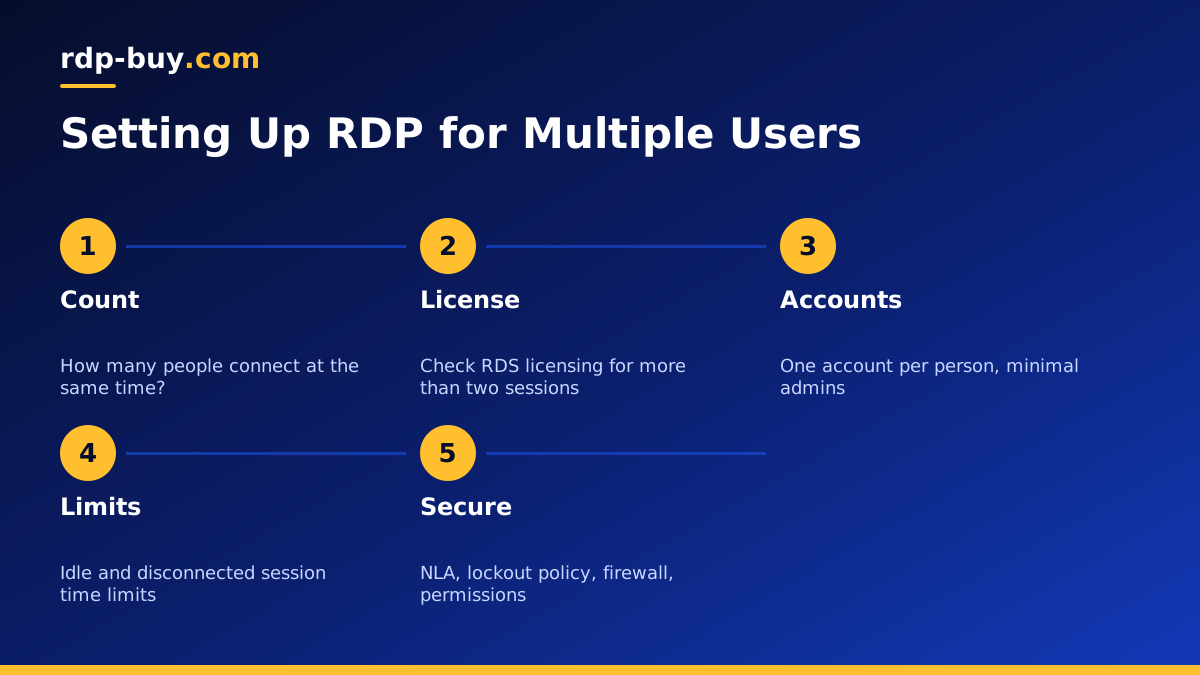
Can RDP Handle Multiple Users?
Yes, but the answer depends on which Windows you run. Desktop editions such as Windows Pro allow only one interactive session at a time. If a second person connects, the first one is signed out or asked to give up the session. That makes desktop Windows a poor fit for a shared team machine.
Windows Server is built for this. Out of the box, it allows two simultaneous remote sessions for administration, which is enough for an owner and one helper, or two admins working at once. For more people working at the same time, Microsoft expects you to install the Remote Desktop Session Host role and license each user or device with Remote Desktop Services client access licences, usually called RDS CALs.
So the practical question is not whether RDP supports multiple users, but how many people need to be connected at the same moment, and whether your licensing covers them. If you only need a few people taking turns, separate accounts on a standard Windows Server are often enough.
How Multi User RDP Sessions Work
Each person who connects over RDP gets their own session. A session is a private desktop with its own open programs, its own clipboard and its own user profile. Two people logged in at the same time do not see each other's windows, even though they share the same CPU, memory and disk underneath.
When someone disconnects without signing out, their session keeps running on the server. Programs stay open and they can reconnect later to pick up where they left off. This is useful for long running work, but it also means disconnected sessions keep using memory, so it is good practice to sign out when you are finished or to set a time limit for idle sessions.
- Separate desktops: each user sees only their own programs and files.
- Shared hardware: all sessions draw on the same CPU, memory and disk.
- Disconnected sessions: keep running until the user signs out or a time limit ends them.
- Profiles: each user has their own folders, settings and browser data.
Licensing: What You Need to Know
Licensing is where many teams get caught out, so it is worth being clear. The Windows Server licence lets you run the server and covers the two administrative remote sessions. It does not by itself cover a full remote desktop service for many users. For that, Microsoft requires the Remote Desktop Session Host role plus RDS CALs, either per user or per device.
Microsoft's licensing terms change over time and can be detailed, so check the current rules for your use case before you plan a larger rollout. If you are renting a server, ask your provider's support team which licences are included and what they can add. On rdp-buy.com, the Windows licence is included in Windows prices, and our 24/7 support team can answer questions about adding remote desktop users.
Setting Up Separate User Accounts
Never share one login between several people. Shared accounts make it impossible to know who did what, they force everyone to know the admin password, and they cause conflicts when two people try to use the same session. Give everyone their own account instead.
On a standalone Windows Server, open Computer Management, go to Local Users and Groups, and create a user for each person. Add the accounts that should connect remotely to the Remote Desktop Users group. Only add people to the Administrators group if they truly need to install software or change system settings.
- Create one account per person with a strong, unique password.
- Add remote users to the Remote Desktop Users group.
- Keep the Administrators group as small as possible.
- Remove accounts promptly when someone leaves the team.
Session Limits and Good Housekeeping
A shared server stays fast when sessions are tidy. Use Group Policy, under the Remote Desktop Session Host settings, to set a time limit for disconnected and idle sessions. That frees memory from sessions people forgot about. You can also limit each user to a single session, so the same person does not end up with several copies of their desktop.
Task Manager has a Users tab that shows who is connected and how much each session is using. If one person's programs slow everyone down, you will see it there. For heavier shared use, choose a server with enough memory for every active user plus some spare, since memory is usually the first resource to run short.
Security for a Shared RDP Server
More users means more passwords that could be guessed or leaked. Protect the server accordingly. Keep Network Level Authentication turned on, set an account lockout policy for repeated failed logins, and keep Windows updated. If your team works from fixed locations, allow RDP only from those IP addresses in the Windows firewall.
Each person should only reach the files they need. Use NTFS permissions to give shared folders to the right group, and keep private folders private. If you need to move files in and out of the server, our guide on RDP file transfer covers safe options.
- Network Level Authentication on for every connection.
- Account lockout after repeated failed logins.
- Firewall rules that limit RDP to known addresses where possible.
- Folder permissions based on groups, not individual exceptions.
Common Uses for a Multi User RDP Server
Shared Windows servers suit teams that need the same Windows software from different places. A small accounting team can share one desktop app without installing it on every laptop. A trading group can give each trader their own session on a server close to their broker, which our forex RDP plans are built for. An agency can give contractors a controlled workspace without handing out access to the main office network.
Automation is another use. You might run Windows based bots or AI agent tools in one account, while people log in to their own sessions to check results. Keep the automation account separate from human accounts so you can audit and restart it without disturbing anyone. Our page on Windows RDP for AI agents covers that pattern.
Connecting From Different Devices
Each user connects with their own device and their own account. On Windows, they use Remote Desktop Connection. On Mac, iPhone and Android, they use the Windows App. Give each person the server address, their username and a first password they must change at first login. Our guide on how to connect to your RDP server walks through each platform.
Choosing an RDP Server for a Team
Start by counting how many people will be connected at the same time, not how many people have accounts. Then size memory for that number, with headroom for the busiest day. Pick a location close to most of your team, since distance affects how responsive the desktop feels. rdp-buy.com offers 33 server locations to choose from.
When you are ready, compare our Windows RDP plans. Every plan includes full admin access, a dedicated IPv4 address, the Windows licence in the price and 24/7 support. Servers are ready in minutes, and you can pay monthly, half-yearly or yearly. If you are unsure about size, our guide which RDP plan do you need helps you choose.
