 Sign in
Bare Metal Server With Proxmox: Build Your Own Private Cloud
Running Proxmox on a bare metal server lets you split one physical machine into as many private virtual machines and containers as it can handle, all under your control. This guide explains when that makes sense, how to plan it, and what to look for when you rent a bare metal server for the job.
Why Put Proxmox on a Bare Metal Server?
Proxmox Virtual Environment is an open source virtualisation platform built on Debian. It combines KVM for full virtual machines and LXC for lightweight containers, with a web interface for managing both. On a bare metal server, it turns a single physical machine into your own small cloud.
The appeal is control. Instead of renting several separate VPS plans, you rent one powerful machine and divide it however you like. You decide how much CPU, memory and disk each guest gets, which operating systems they run and how they connect to each other. Nobody else shares the hardware, so there are no noisy neighbours.
This setup suits teams that run many small services, developers who want lab environments, agencies hosting client projects in isolated guests, and anyone building a mix of Linux and Windows machines for testing. If you only need one or two servers, a regular VPS is simpler. Our guide Bare Metal vs VPS explains where the line usually sits.
What You Need Before You Start
Proxmox needs direct access to the hardware, which is why bare metal is the natural home for it. Nested virtualisation on a VPS is possible on some platforms, but it is slower and less reliable for real workloads.
- A bare metal server with CPU virtualisation support enabled, which modern server processors provide.
- Enough memory for every guest you plan to run, plus some for Proxmox itself.
- More than one disk if possible, so you can mirror storage for resilience.
- A way to install the OS: a rescue system, remote console or a Debian base install you can add Proxmox to.
- A plan for IP addresses, since guests need network access to reach the internet.
Step 1: Install Proxmox
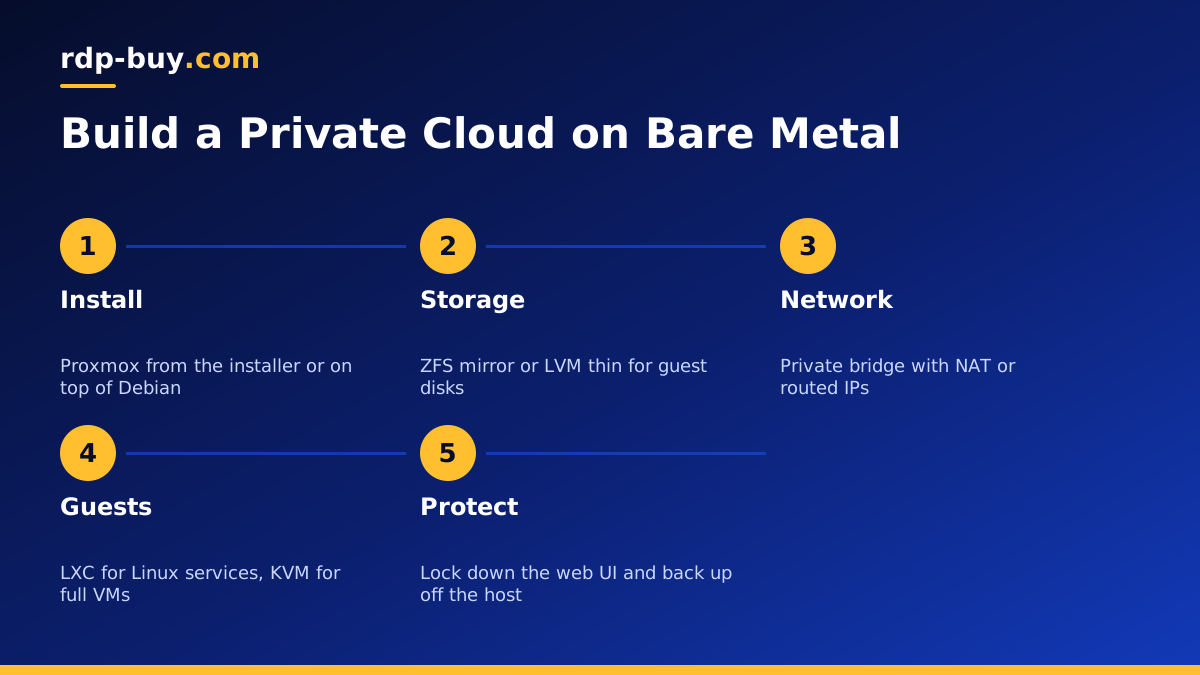
There are two common routes. If your provider offers a remote console with the ability to mount an installer image, you can boot the official Proxmox installer and follow its screens. Otherwise, install Debian first, then add the Proxmox repository and packages on top, following the official guide for installing Proxmox on Debian.
After installation, log in to the web interface over HTTPS on the server's IP address. Change the root password, set up two factor authentication for the web login, and apply all updates before creating any guests.
Step 2: Plan Your Storage
Storage is the decision that is hardest to change later. Proxmox supports several options. ZFS is a popular choice on servers with two or more disks, because it offers mirroring, checksums, snapshots and compression in one system. LVM thin provisioning is simpler and works well on a single disk or hardware RAID.
Keep guest disks on a dedicated storage pool rather than the root filesystem, and leave free space for snapshots. Snapshots let you roll a guest back after a bad update in seconds, which is one of the biggest day to day benefits of running your own hypervisor.
- ZFS mirror: good default for two disks, with snapshots and data checksums.
- LVM thin: simpler, efficient, good for single disks.
- Backups: Proxmox Backup Server or scheduled vzdump jobs to storage off the server.
Step 3: Set Up Networking
Networking on a rented bare metal server needs some thought, because data centre networks often expect traffic from one known address per port. The simplest pattern is a private bridge inside Proxmox with NAT. Guests get private addresses, reach the internet through the host, and you forward specific ports from the host's dedicated IPv4 address to the guests that need them.
If you have extra public IP addresses, you can route them to guests directly using a routed setup that matches your provider's network. Check with support before you configure this, since the right method depends on how the addresses are delivered. A reverse proxy such as Caddy or Nginx on a small guest can also serve several web apps behind one public address, each on its own domain.
Step 4: Create VMs and Containers
Use LXC containers for Linux services that do not need their own kernel, such as web apps, databases and automation tools. They start quickly and use little overhead. Use full KVM virtual machines for Windows guests, for workloads that need a specific kernel, or when you want the strongest isolation between guests.
Build a template for each operating system you use often. Install the OS once, apply updates, add your SSH keys and basic tools, then convert it to a template. New guests cloned from it are ready in moments, with the same secure baseline every time.
- LXC: light, fast, great for Linux services.
- KVM: full machines for Windows and custom kernels.
- Templates: a secure, updated base for every new guest.
Step 5: Secure the Host
The Proxmox host controls every guest, so it deserves the strongest protection. Do not expose the web interface to the whole internet if you can avoid it. Allow it only from your own IP addresses with the built in firewall, or reach it through a VPN or SSH tunnel. Use SSH keys for shell access and keep the host itself free of unrelated software.
Keep both the host and the guests updated, and schedule backups of every guest to storage that is not on the same server. A backup kept only on the host will not help if the host's disks fail.
Running AI Agents and Automation on Proxmox
A Proxmox server is a tidy home for AI agents and automation. You might run n8n in one container, Claude Code (by Anthropic) in a development VM, a vector database in another container and a Windows VM for tools that only run on Windows. Each guest has its own resources and its own snapshots, so an agent that misbehaves can be rolled back without touching the rest. Our guide on running several agents on one server covers how to divide resources between them.
Because the whole machine is yours, you can also give heavier agents more cores during busy periods and scale them back later, simply by changing the guest's settings and restarting it.
Choosing a Bare Metal Server for Proxmox
Size the server for the total of your guests, not the largest one. Memory usually runs out first, so add up what each VM and container needs and leave room to grow. More disks give you more storage options, and more cores let you run more guests side by side without contention.
When you are ready, compare our bare metal server plans. Each includes full root access, a dedicated IPv4 address, a choice of 33 server locations and 24/7 support, with monthly, half-yearly or yearly billing. If you would rather not manage a hypervisor yourself, a dedicated CPU server gives you reserved cores without the extra layer. rdp-buy.com is not affiliated with Proxmox; we provide the hardware you run it on.
