 Sign in
RDP Los Angeles: Who Needs a West Coast Windows Server
An RDP Los Angeles server puts a full Windows desktop on the US West Coast, close to Californian users and a natural bridge towards Asia Pacific. This guide covers who it suits, how to size it and how to get a US RDP server in Los Angeles running today.
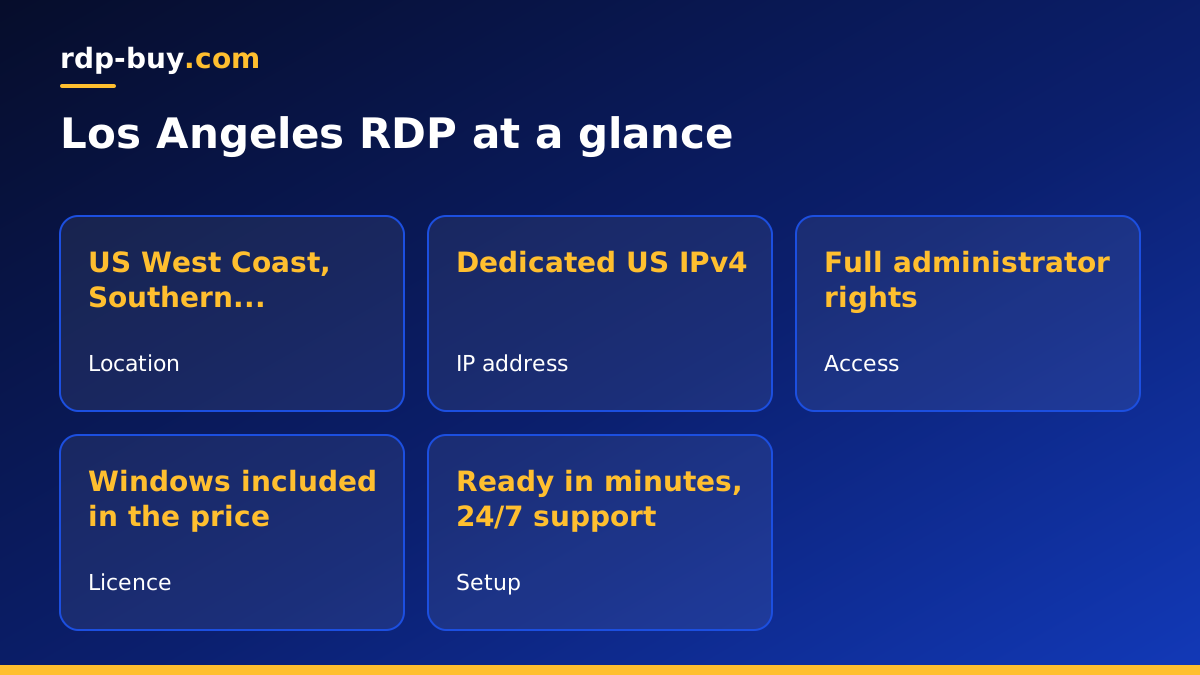
What you get with RDP in Los Angeles
A remote desktop server is a Windows computer in a data centre that you control over the internet. You connect with the Remote Desktop app from a laptop, phone or tablet and see a normal Windows desktop. Anything you install keeps running on the server after you disconnect, which is why people use RDP for trading platforms, store management, automation and remote work.
Choosing Los Angeles places that desktop in Southern California. It uses a US IP address and sits on the Pacific side of the country, which makes it a good fit if your customers, team or online services are in the West. Los Angeles is also a common gateway between the United States and Asia Pacific, so it can be a useful middle point if you work with both regions.
Every USA RDP plan from rdp-buy.com includes full administrator access, a dedicated IPv4 address and a Windows licence that is already part of the price.
Who benefits from a Los Angeles RDP server
The right location depends on where your work happens. Los Angeles is a strong choice for these groups:
- Creative and media teams who share a Windows desktop for project management, review tools, asset libraries or publishing dashboards, and whose staff work across California.
- Ecommerce sellers who manage US storefronts and marketplaces and want a stable West Coast IP address for their logins.
- Traders on Pacific time who want a platform that stays online through the US session and into the Asian session without leaving a home PC switched on.
- Remote workers and freelancers who travel but need one fixed US desktop with their tools and files always ready.
- Automation users running browser automation, scheduled jobs or AI agents that talk to West Coast services and need to run all day.
Los Angeles or another US city?
rdp-buy.com offers several US locations, including New York, Los Angeles, Dallas, Chicago, Miami, Atlanta, Seattle, Silicon Valley and Honolulu, among 33 locations in total. The server locations page lists them all.
Choose Los Angeles when your users and services are in Southern California or the wider West, or when you want a US base that also points towards Asia Pacific. If you work mostly with tech companies in the Bay Area, Silicon Valley may be a closer match, and Seattle suits the Pacific Northwest. If your audience is on the East Coast, a New York, Atlanta or Miami server will usually feel more responsive, and Dallas or Chicago are good central picks when users are spread out.
There is no penalty for trying: servers are ready in minutes, so you can add a second location later if your needs change.
Sizing your Los Angeles RDP plan
Think about the busiest moment of your day and size for that. Windows uses part of the memory on its own, so leave room for it before adding your software.
- Single user, light tasks: email, a browser and one main application. An entry plan is enough, and cheap RDP plans are a sensible start.
- Creative and business tools: several heavier applications open together. Move up to a plan with more memory.
- Shared team desktop: two or more people logged in at once. Add memory and cores for each extra person.
- Automation and agents: many browser sessions or AI agents in parallel. Prioritise cores and memory so tasks do not wait for each other. See Windows RDP for AI agents if that is your main use.
How to buy RDP in Los Angeles
Ordering takes a few minutes from start to finish:
- Open the US RDP plans and pick the size you chose above.
- Select Los Angeles as your location and choose a Windows version.
- Pick monthly, half-yearly or yearly billing.
- Pay by card, PayPal or crypto. There are guides for paying with PayPal and paying with crypto if you want the details.
- Receive your IP address and administrator login, usually within minutes.
Connecting from any device
On a Windows PC, open Remote Desktop Connection, enter your server IP address and sign in with your administrator details. On a Mac, iPhone, iPad or Android device, install Microsoft's Remote Desktop app and add the server with the same details. Our step by step guide on how to connect to your RDP server covers each platform and the most common connection problems.
Once you are connected, the desktop behaves like any Windows PC. You can install browsers, office tools, trading platforms or automation software, and copy files across with the clipboard or drive sharing built into the Remote Desktop app.
Securing and maintaining your server
Spend ten quiet minutes on security on the first day. Change the administrator password to a long unique one. Run Windows Update and let it finish. If more than one person will log in, give each a separate user account rather than sharing the administrator login. Install only the software you need, and keep a simple list of what is installed so you can rebuild quickly if you ever need to.
After that, set your important programs to launch at startup, schedule updates for your quiet hours on Pacific time, and turn off sleep in Windows power settings. This keeps the server doing its job around the clock without you having to log in and restart things by hand. If you get stuck, 24/7 support is there to help.
Common mistakes to avoid
Each of these is easy to avoid with a few minutes of planning before and after you order.
- Choosing a city far from your users because it was the first one listed. Location is free to choose, so pick the closest match.
- Buying the smallest plan for a shared team desktop and then wondering why it feels slow.
- Leaving the default password unchanged or sharing one administrator login between several people.
- Forgetting to set programs to start automatically, so a routine update stops your work until you notice.
Choosing your Los Angeles RDP plan
If the people and services you work with are on the West Coast, or you want a US base that leans towards Asia Pacific, Los Angeles is a practical home for your Windows desktop. Start with the plan that covers your busiest hour, then scale up if you need more.
When you are ready, compare plan sizes and buy RDP in the USA with Los Angeles as your location. You will be connected to your new desktop within minutes of checkout.
