 Sign in
Cheap VPS and Domain: Launch a Website on Your Own Server
A cheap VPS and domain together give you a website you fully control: the domain is your address and the VPS is the home it points to. This guide shows how to choose both, connect them with DNS and go live safely, starting from a cheap VPS plan.
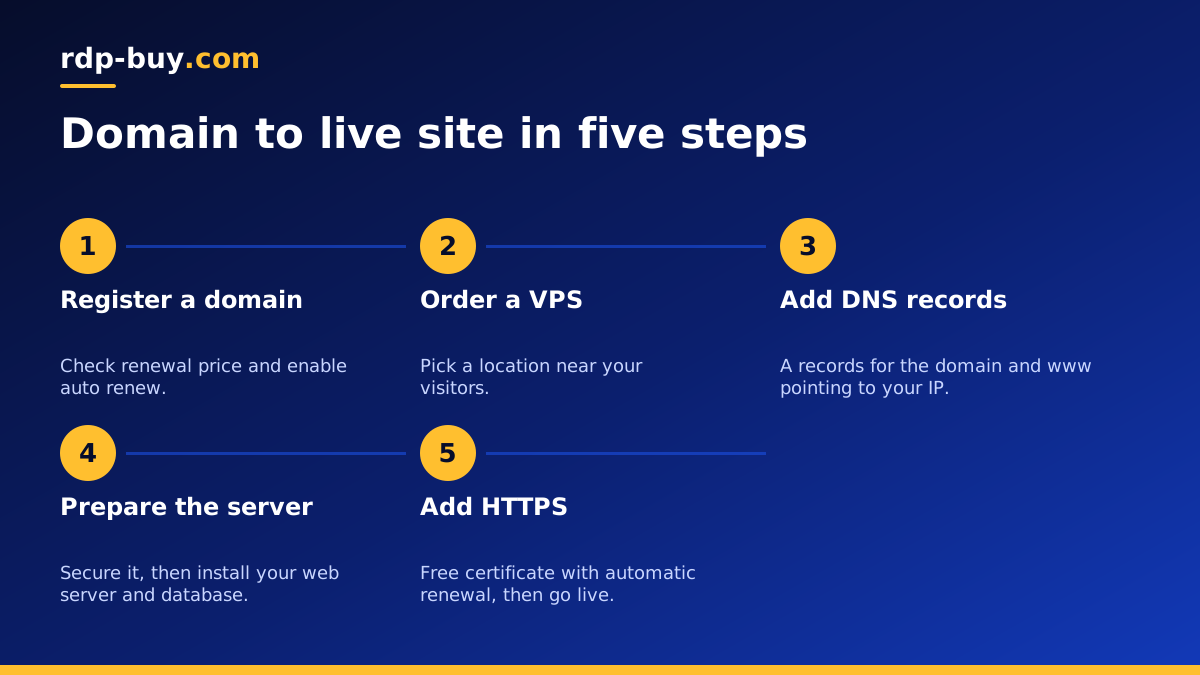
How a domain and a VPS work together
A domain name is a human friendly address such as example.com. On its own it does nothing; it needs DNS records that tell browsers which server to visit. A VPS is that server: a Linux machine with its own IP address, where your website files, database and web server live.
When someone types your domain, their device asks DNS for the IP address behind it, then connects to your VPS. Your web server answers with the page. Setting this up yourself takes a little more effort than shared hosting, but you get full root access, a dedicated IPv4 address and the freedom to run any software you like.
Buying the two separately is normal. You register the domain with any registrar you trust, rent the server from a host, then connect them with a couple of DNS records. If you want the server side first, you can buy VPS plans on rdp-buy.com and point any domain at them.
Choosing a cheap VPS for a website
Most small and medium websites need far less than people expect. A blog, a portfolio, a landing page or a small business site runs well on an entry plan with a lean stack. A busier online shop or a site with heavy plugins needs more memory. Size for your busiest hour, not your average day, and leave some room for growth.
Choose the server location closest to most of your visitors. rdp-buy.com offers 33 locations listed on the server locations page, so you can put a US site in a US city, a European site in Europe and so on. Every plan includes full root access and a dedicated IPv4 address, which is exactly what your DNS records will point to.
Choosing a domain without overpaying
A few habits keep domain costs and headaches low:
- Check the renewal price, not just the first year price, before you register.
- Prefer a common extension that your audience recognises and trusts.
- Turn on privacy protection if your registrar offers it, so your personal details are not published.
- Enable auto renew and two factor login so you never lose the domain by accident.
- Keep DNS simple. Using your registrar's DNS is fine for most sites.
Pointing your domain at the VPS
Once your server is ready, which takes minutes, note its IP address from the welcome email. Then log in to your domain registrar or DNS provider and add these records:
- An A record for the bare domain, often written as @, pointing to your VPS IPv4 address.
- An A record or CNAME for www so both example.com and www.example.com reach the server.
- Optional records for subdomains such as app or api, each pointing to the same IP or a different server.
- A sensible TTL, such as the default, so changes spread in a reasonable time.
Preparing the server
While DNS updates, prepare the VPS. Connect over SSH, create a normal user with sudo rights, switch to SSH keys and disable password login. Enable a firewall that allows only SSH, HTTP and HTTPS. Apply all updates and turn on automatic security updates.
Next, install a web server. Nginx and Caddy are both light and popular. Caddy can obtain and renew HTTPS certificates automatically, which is handy for beginners. If your site needs a database, add MariaDB, MySQL or PostgreSQL and create a separate database user for the site. For a WordPress site, install PHP with the required extensions and follow the official install steps.
If you plan to host several small sites on one cheap VPS, Docker keeps each one tidy in its own container. The Docker VPS page explains that approach.
Adding HTTPS and going live
Browsers warn visitors about sites without HTTPS, and search engines prefer secure pages. Free certificates from Let's Encrypt are the usual choice. With Caddy, HTTPS is automatic once DNS points at the server. With Nginx, install Certbot and run it for your domain names; it will configure the certificate and set up automatic renewal.
Test the site from your phone on mobile data as well as from your computer, so you know DNS has updated beyond your own network. Check that both the bare domain and www load, that HTTP redirects to HTTPS and that every page shows the padlock.
Common DNS and setup mistakes
Most launch problems with a cheap VPS and domain come from a short list of slips. Check these if the site does not load:
- Old records left in place. Remove parked page or previous host A records so they do not compete with the new IP.
- Only one of the two names set up. Make sure both the bare domain and www have records and are listed in your web server configuration.
- Firewall blocking web traffic. Allow ports for HTTP and HTTPS, not just SSH.
- Certificate requested too early. Wait until DNS points at the server before requesting HTTPS, or the check will fail.
- Testing only from your own network. Local DNS caches can show old results. Try mobile data or a different device.
- No redirect to HTTPS. Send all plain HTTP visits to the secure version so search engines see one consistent address.
Keeping a cheap VPS fast
A low cost plan can serve a lot of visitors with good habits:
- Cache pages with a page cache plugin or server side caching, so most visitors get a ready made page.
- Compress images and serve modern formats to cut page weight.
- Set cache headers on static files so repeat visitors download less.
- Avoid heavy control panels if you are comfortable on the command line; they use memory your site could use.
- Rotate logs and watch disk space each month.
- Back up off the server: files and database, on a schedule, to another location.
When to move beyond a cheap plan
Watch your server's memory and load during busy periods. If pages slow down when traffic rises, the database restarts or memory stays near full, it is time to step up a plan. Because your domain points at an IP address, you can also move to a larger server or a different city later: build the new server, copy the site, test it, then update the A records. Visitors follow the domain to the new home without needing to know anything changed.
Email for your domain
Running your own mail server on a VPS is possible but takes care: you need correct reverse DNS, SPF, DKIM and DMARC records, plus ongoing attention to spam filters. For most small sites it is simpler to use a dedicated email service for your mailboxes and keep the VPS for the website. Your VPS can still send website notifications through that service using SMTP.
If you do send mail directly from the server, the dedicated IPv4 address that comes with every plan helps, because your sending reputation is tied to an address only you use.
Pick your plan and connect your domain
With a domain registered and a plan in mind, you are ready to go live. Choose the location closest to your visitors, pick monthly billing to start or half-yearly and yearly billing for a site you will keep, and pay by card, PayPal or crypto. Compare entry plans on the low cost VPS page, or browse every size on the Linux VPS hosting page. If you are not sure what else your server can do, see what you can run on a VPS.
