 Sign in
Forex VPS vs Windows VPS: Which One Should Traders Buy?
A forex VPS and a Windows VPS are usually the same kind of machine: a remote Windows server you reach over RDP. The difference is in how the plan and location are chosen. This guide compares the two so you can buy RDP that fits how you trade.
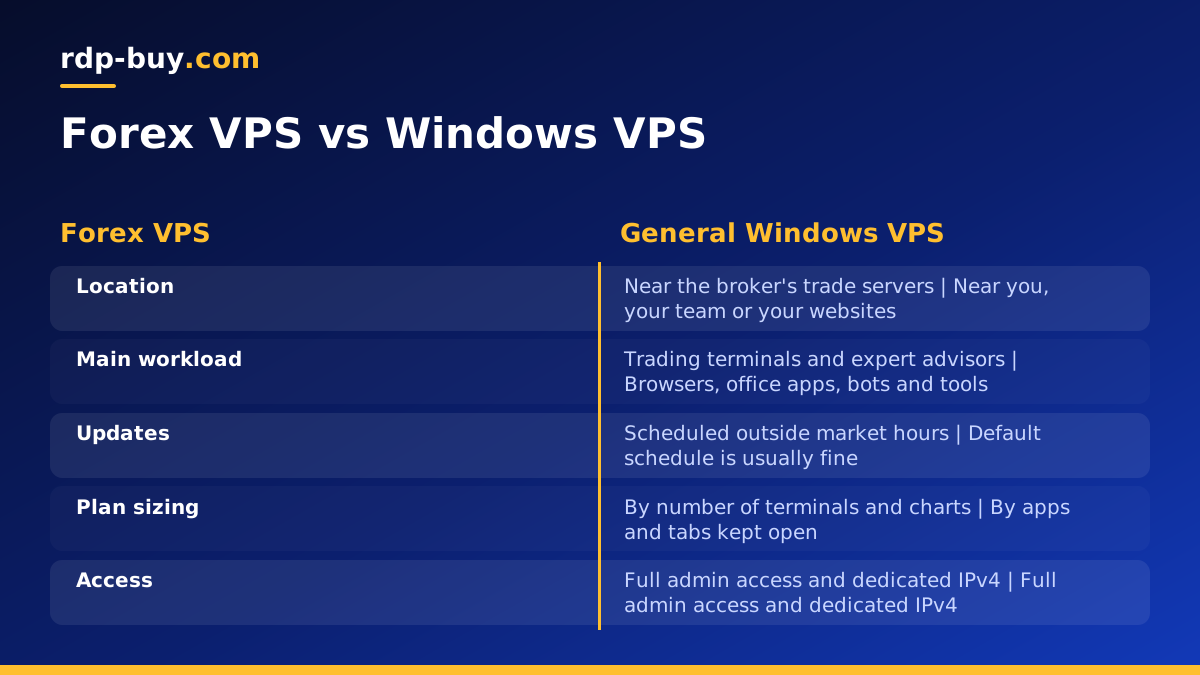
Forex VPS vs Windows VPS in one paragraph
A Windows VPS is a virtual server running Windows that you control through Remote Desktop. A forex VPS is a Windows VPS that is set up and sold with trading in mind: a location chosen near the broker, enough memory for one or more trading terminals and a configuration that keeps those terminals running all day and all night. In other words, every forex VPS is a Windows VPS, but not every Windows VPS is picked with trading in mind.
At rdp-buy.com both come as a Windows RDP server with full admin access, a dedicated IPv4 address, the Windows licence included and 24/7 support. What changes is which plan, which location and which setup steps you choose.
Why traders use a remote Windows server at all
Most retail trading platforms, such as MetaTrader 4 and MetaTrader 5, run on Windows. Expert advisors, copy trading tools and custom indicators only work while the terminal is open and connected. On a home computer, that means leaving the machine on, hoping the internet and power stay up and avoiding forced restarts at the wrong moment.
A remote server removes those worries. It sits in a data centre with stable power and connectivity, runs around the clock and is not affected when you close your laptop or travel. You log in from any device to check positions, then disconnect and leave the terminal running.
Where a forex VPS and a general Windows VPS differ
The machine underneath can be identical, so the useful comparison is about choices and priorities.
- Location: a forex VPS is placed as close as possible to the broker's trade servers. A general Windows VPS is placed near the user, the team or the websites it works with.
- Workload: a forex VPS mostly runs trading terminals and expert advisors. A general Windows VPS might run browsers, office software, bots or business apps.
- Stability settings: a trading server should control when Windows updates install and restart, and start terminals automatically after a reboot. A general server can be more relaxed.
- Plan size: each extra terminal uses more memory, so traders size the plan by the number of terminals. General users size it by the apps and browser tabs they keep open.
- Access pattern: traders log in briefly to check and adjust, while general users often work on the desktop for hours.
When a general Windows VPS is enough for trading
If you run one terminal with a manual or slow paced strategy, almost any Windows server in a sensible location will do the job. You do not need special software. What matters is that the server stays online, the terminal reconnects after a restart and the location is not on the far side of the world from your broker.
The same server can also handle other jobs, such as a browser for research or a charting tool. For a broad Windows desktop that also trades, a general plan from the Windows VPS hosting range is a good fit.
When to choose a forex RDP setup
A plan chosen specifically for trading makes sense when your results depend on timing or when several terminals must run together. Typical signs:
- You run expert advisors that open and close trades automatically.
- You manage several accounts or brokers, each with its own terminal.
- Your strategy reacts to fast price moves, so the distance to the broker matters.
- You use copy trading tools that must stay connected at all times.
- You want a server that does nothing but trade, so other software cannot slow it down.
Choosing a location near your broker
The broker usually lists its trade server names in the platform login window, and many brokers say in their documentation where those servers are hosted. Common hubs include New York, Chicago, London and Frankfurt. Pick the rdp-buy.com location closest to that hub from the 33 locations on the server locations page.
If the broker is in the United States, look at the USA RDP cities. For brokers hosted in Europe, the UK RDP and Germany RDP locations are natural choices. You can test the connection by watching the ping figure shown in the terminal's status bar after you log in to your account.
Setting up a Windows server for trading
- Connect with Remote Desktop using the IP address and admin login from your welcome email. Our guide on how to connect to your RDP server covers every device.
- Update Windows first, then set active hours so updates do not restart the server while markets are open.
- Install your platform from your broker's official website, log in and load your expert advisors.
- Enable automatic start by placing a shortcut to each terminal in the Windows Startup folder, so they relaunch after a reboot.
- Turn off sleep and screen savers that are not needed on a server.
- Secure access with a strong admin password and a firewall that only allows the ports you use.
- Disconnect instead of signing out when you leave, so the terminals keep running.
How big a plan do you need
Windows itself needs a share of memory, and each trading terminal adds more on top, especially with many charts and indicators open. One or two terminals usually fit on a smaller plan. Several terminals, many charts or extra software call for more memory and CPU cores. Watch Task Manager during a busy market session in your first week: if memory stays close to full, move up a plan.
If you want guaranteed cores that no other server shares, a dedicated CPU server is the next step. Our guide on which RDP plan you need gives more examples, and the RDP vs VPS guide explains when Linux is the better fit for other jobs.
Which server to buy: making the call
Choose a general Windows VPS when trading is one task among many and timing is not critical. Choose a trading focused setup when you run automated strategies, several terminals or a timing sensitive approach, and place it near your broker. Either way, start on monthly billing to test the plan and location, then move to half-yearly or yearly once you are happy. You can pay by card, PayPal or crypto, and the server is ready in minutes.
When you are ready, compare the forex RDP plans or browse the full range of Windows RDP servers and pick the location closest to your broker.
