 Sign in
Claude Code on Windows RDP: Run Your Agent on a Remote Desktop
Claude Code (by Anthropic) is a coding agent that works in your terminal, and some teams need it on Windows because their projects, tools or tests only run there. A Windows RDP gives it a desktop that stays online all day, and it is one of the setups covered by our AI agent hosting plans. Here is how to decide, install and keep it running.
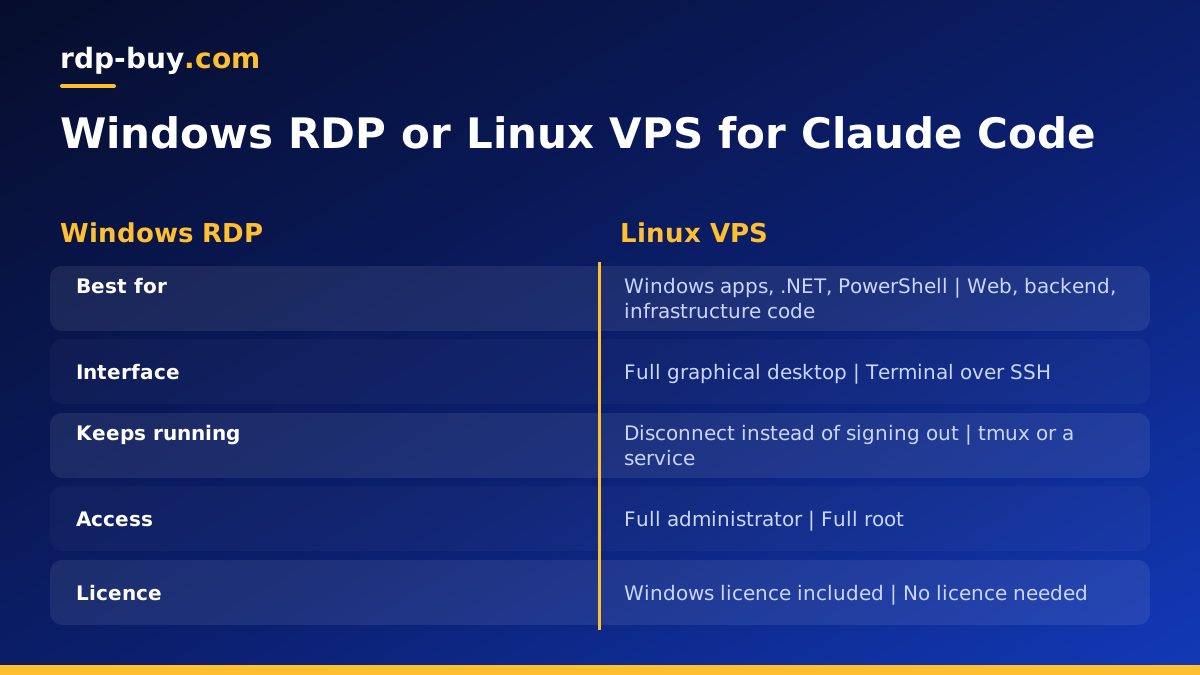
Why run Claude Code on a Windows RDP
Most guides show Claude Code running on a Linux server, and for many projects that is the simplest choice. But a lot of real work happens on Windows. If you build .NET desktop apps, maintain PowerShell automation, test software that only installs on Windows, or work with Office files and Windows only tools, the agent is far more useful when it can build and test on the same system your code targets.
A Windows RDP is a full Windows desktop in a data centre that you open with a remote desktop app. Running Claude Code there gives you a few clear benefits: long tasks keep going after you close your laptop, the agent works on a machine separate from your personal files, and you can reach the same session from home, the office or a phone.
If you are still weighing up the options, our AI agent hosting hub compares the Windows and Linux routes, and the Windows RDP for AI agents page focuses on the Windows side.
Windows RDP or Linux VPS for Claude Code
The right server depends on what your code needs, not on the agent itself. A quick way to decide:
- Choose a Linux VPS if your project is web, backend, data or infrastructure code that is deployed to Linux anyway. It is lighter, and the VPS for Claude Code page covers that route.
- Choose a Windows RDP if you build or test Windows software, depend on Windows only tools, or want a graphical desktop where you can watch the agent and open apps it creates.
- Use both if you have mixed projects. Some teams keep the agent on Linux for most work and use a Windows server for build and test steps.
- Consider WSL on the Windows server if you want Linux tools and Windows apps side by side on one machine.
What you need before you start
Before installing, make sure you have the basics ready so the setup goes smoothly.
- A Windows server with enough memory. The agent itself is light, but your IDE, compilers, test runners and browsers are not. Size for your build tools, not just the agent.
- Full administrator access to install software and change settings. Every plan includes it.
- An Anthropic account or API access, as described in Anthropic's own documentation on anthropic.com.
- Git and the language tools your project needs, such as the .NET SDK, Python or Node.js.
- A place for your code, usually a private repository on GitHub or a similar service.
Installing Claude Code on the Windows server
Once your server is ready, which takes minutes after ordering, connect with the Remote Desktop app. Our guide on how to connect to your RDP server covers every device.
Start by securing the machine: change the administrator password to a long passphrase, run Windows Update and restart. Then install Git for Windows and your project's language tools. Clone your repository into a folder such as a projects directory on the system drive.
Next, install Claude Code by following the current Windows instructions in Anthropic's documentation on anthropic.com. The steps change over time, so always use the official page rather than an old blog post. Some people run it natively in PowerShell, while others install WSL and run it inside a Linux environment on the same server. Pick the route that matches where your build and test commands run.
Open a terminal in your project folder, start Claude Code and sign in when prompted. Give it a small first task, such as explaining the project structure or running the test suite, so you can confirm it can see your files and use your tools.
Keeping sessions running when you disconnect
The main reason to use a server is that the work continues when you leave. On a Windows RDP, closing the remote desktop window with the X button disconnects you but leaves your session, terminals and programs running. Choosing Sign out from the Start menu ends them, so get into the habit of disconnecting instead.
For longer jobs, keep each task in its own terminal tab with a clear name, and ask the agent to write progress notes to a file in the repository so you can catch up when you reconnect. If you use WSL, a terminal multiplexer such as tmux adds another layer of safety, because the session survives even if the terminal window closes.
Windows Update can restart the server. Set active hours in Windows Update settings to cover the times your agent usually works, and check after updates that your tools start again.
A typical workflow with the agent on your RDP
Once everything is installed, a simple routine keeps work organised. In the morning, connect to the server, pull the latest changes from your repository and open a terminal in the project. Describe the day's task to Claude Code in plain language, for example adding a feature, fixing a failing test or upgrading a dependency, and ask it to propose a plan before it changes anything.
While the agent works, you can disconnect and get on with other things. Because the session stays alive on the server, builds and tests keep running. When you return, review the changes it made, read the test output and ask follow up questions. When you are happy, commit the work on a branch and open a pull request so a person reviews it before it reaches your main code.
If you also use automation tools such as n8n or Docker based services, they can live on a Linux server next to this one, and our Docker VPS page explains that option. Splitting roles this way keeps the Windows desktop focused on building and testing, while lighter background services run elsewhere.
Finally, keep a short notes file in the repository that records how the server is set up, which tools are installed and which commands run the build and tests. The agent can read that file at the start of each session, which saves time and keeps its work consistent.
Working safely with an agent on a server
A coding agent can run commands, edit files and install packages, so treat it like a capable new team member with access to one machine.
- Use a separate Windows user for agent work, without administrator rights unless a task needs them.
- Keep secrets out of the repository. Store API keys in environment variables or a secrets manager, never in code.
- Commit often so you can review and roll back any change the agent makes.
- Review permission prompts and only allow the commands you understand.
- Back up anything on the server that is not already in your repository.
Choosing your server for Claude Code
Think about the heaviest thing you will run, which is usually your build or your test suite, then add room for an IDE and a browser. One developer with a small project fits a modest plan. Several projects, large solutions or parallel test runs need more memory and CPU. Pick a location close to you or to the services your code talks to from our 33 server locations.
When you are ready, compare the plans on the agent hosting page or go straight to Windows RDP plans. The Windows licence is included in Windows prices, billing can be monthly, half-yearly or yearly, and support is available 24/7. You can pay by card, PayPal or crypto.
