 Sign in
Docker VPS Hosting: How to Choose a Plan and Set It Up
Docker VPS hosting means running your containers on a Linux virtual server you control, so they stay online without your laptop. Here is how to size the server, set Docker up properly and pick a Linux VPS that fits your stack.
What Docker VPS hosting gives you
Docker packages an application with everything it needs into a container image, so it runs the same way on any machine with Docker installed. A VPS is a natural home for those containers: it is a full Linux machine with root access, it stays online around the clock and it has its own public IP address.
Put the two together and you can run a website, an API, a database, an automation tool such as n8n, or an AI agent, each in its own container, on one server you manage yourself. Updating means pulling a new image and restarting a container rather than reinstalling software by hand.
If you already know Docker on your own computer, moving to VPS hosting is mostly about choosing the right size and locking the server down.
Why not just use your own computer
Containers on a laptop stop when the laptop sleeps, loses Wi-Fi or restarts for updates. That is fine for development, but not for a webhook receiver, a scheduled workflow or a bot that users rely on.
A VPS removes those interruptions. It also gives you a stable, dedicated IPv4 address, which matters when you point a domain at your services, whitelist an IP with an API provider or run a reverse proxy with HTTPS certificates. And because the server lives in a data centre location you choose, you can place it near your users or the APIs your containers call.
How to size a VPS for Docker
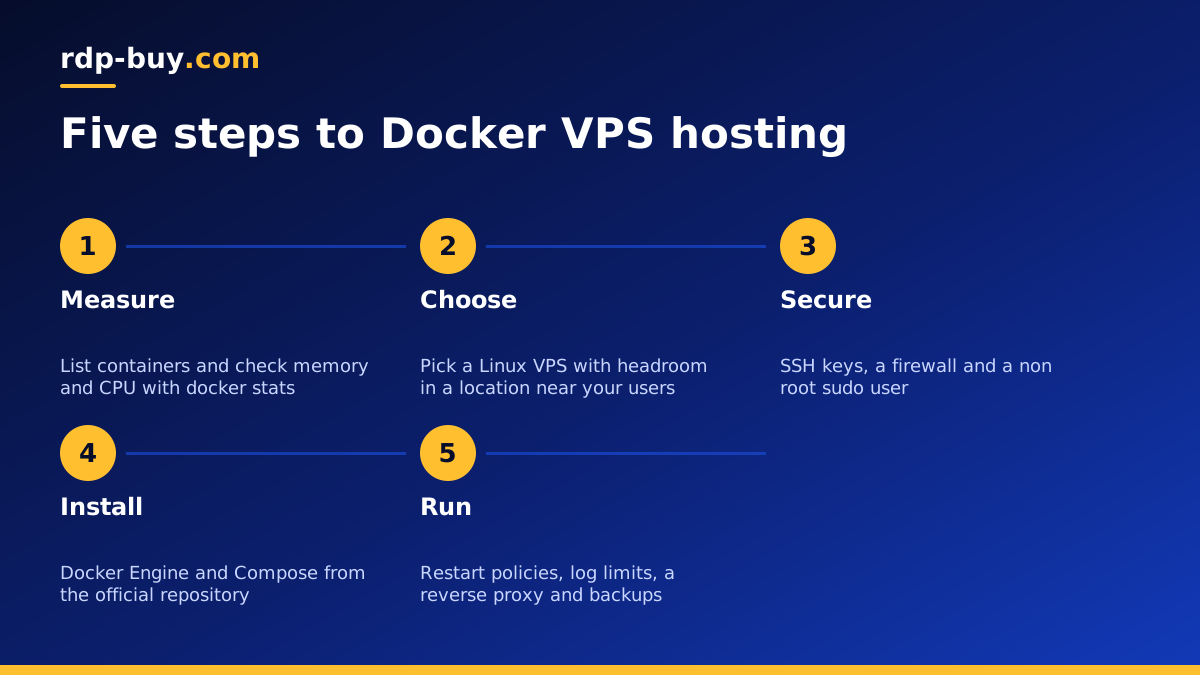
Docker itself adds very little overhead. What matters is the sum of the containers you plan to run. Work it out like this:
- List every container. Include the helpers people forget: a reverse proxy such as Traefik or Caddy, a database, a cache, and any monitoring container.
- Check memory first. Databases and anything built on Java or Node.js tend to be the hungriest. Running docker stats on your own machine while the stack is busy gives you a realistic picture.
- Count CPU work, not containers. Ten idle containers need less CPU than one container that converts video or builds code.
- Leave room for images and volumes. Images, logs and database volumes grow over time, so choose more disk than the first install needs.
- Add headroom. Pick a plan a step above your measured use so that updates, image pulls and busy moments do not push the server into swapping.
Setting up Docker on a fresh VPS
Once your server is ready, connect over SSH as root and follow these steps. They work on current Ubuntu and Debian images.
- Update the system packages, then create a normal user with sudo rights so you are not working as root all the time.
- Set up SSH key login and turn off password login for SSH.
- Install Docker Engine and the Compose plugin from the official repository, following the instructions on docker.com rather than an old distribution package.
- Add your user to the docker group, log out and back in, and run a test container to confirm it works.
- Enable a firewall such as UFW, allow SSH, HTTP and HTTPS, and keep every other port closed. Remember that ports published by Docker can bypass UFW rules, so bind internal services to 127.0.0.1 or keep them on a private Docker network.
- Create a folder for each project with a compose.yaml file, and keep those files in Git so you can rebuild the server at any time.
Keeping containers running 24/7
The point of Docker VPS hosting is that services keep working while you are away. A few settings make that reliable.
Give every service a restart policy such as unless-stopped, so containers come back after a crash or a server reboot. Add health checks to the services that support them, so Docker knows when an app is stuck rather than just running.
Limit log size in the Docker daemon settings so a chatty container cannot fill the disk. Put a reverse proxy in front of web services to handle HTTPS certificates automatically, and keep databases off the public internet entirely.
Finally, back up what matters: your compose files and the named volumes that hold data. A simple nightly job that archives volumes and copies them off the server is better than no backup at all.
Docker VPS hosting for AI agents and automation
Many AI and automation tools ship as Docker images, which makes a VPS one of the easiest ways to run them around the clock. n8n has an official image and a documented Compose setup, and several agent frameworks on GitHub provide their own compose files.
For these workloads, the server mainly waits on external APIs, so memory and stable uptime matter more than raw CPU. Place the server close to the APIs and users your agents talk to, and keep API keys in environment files that are never committed to Git.
If you want a setup tuned for one tool, see VPS for n8n, VPS for OpenClaw or the wider AI agent hosting hub. The Docker VPS page lists plans that suit container stacks.
Choosing between a VPS, Windows and a bigger server
Docker runs best on Linux, so a Linux VPS is the default choice. Windows servers can run containers too, but most images published for servers are Linux images, and you will get a simpler, lighter setup on Linux.
If your containers keep the CPU busy all day, for example building software, processing data or running many services for many users, consider a dedicated CPU server where the cores are not shared. For most stacks, though, a well sized VPS is plenty, and it can be resized when you need more.
Picking your Docker VPS plan
Take the memory, CPU and disk you measured, add headroom, and choose the matching plan when you buy a Linux VPS at rdp-buy.com. Every plan includes full root access and a dedicated IPv4 address, and you can choose any of the 33 server locations.
Billing can be monthly, half yearly or yearly, and you can pay by card, PayPal or crypto. Your server is ready in minutes, so you can have your first compose stack running the same day, with 24/7 support if anything in the setup does not go to plan.
