 Sign in
VPS How to Use: Connect, Secure and Deploy Your Linux Server
Using a VPS comes down to five steps: log in over SSH, secure the server, install the software you need, put your project online and keep it maintained. This beginner's guide walks through each step in plain language and explains how to buy a VPS that suits a first project.
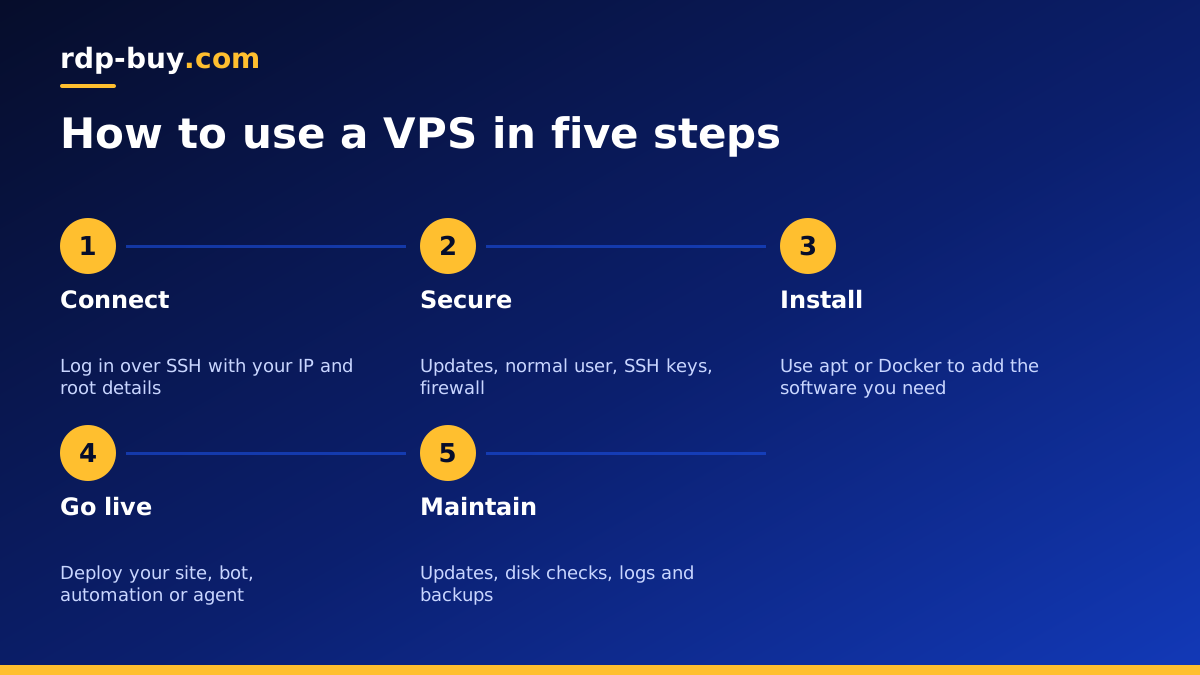
VPS how to use: the basic idea
A VPS, or virtual private server, is your own computer running in a data centre. It has an operating system, memory, CPU cores, disk space and a dedicated IP address. The difference from a laptop is that you control it remotely, it stays on all the time, and anyone on the internet can reach the services you choose to expose.
Most VPS plans run Linux, usually a distribution such as Ubuntu or Debian. There is no desktop by default. You work through a command line, typing commands that the server runs. That sounds intimidating, but a small set of commands covers most of what a beginner needs.
If you would rather have a full Windows desktop with a mouse and windows, an RDP server is the better choice. Our RDP vs VPS guide explains the difference, and the Windows RDP beginner's guide covers that path.
Step one: get your login details and connect
After you order, the server is ready in minutes and you receive three things: the server's IP address, the username (usually root) and a password. With full root access you have complete control of the machine.
To connect, you use SSH, a secure remote login tool that is built into most systems:
- Mac or Linux: open Terminal and type ssh root@ followed by your server's IP address.
- Windows: open Windows Terminal or PowerShell and type the same command. Windows includes an SSH client.
- Phone or tablet: SSH apps exist for iOS and Android if you need to check something on the go.
- The first time, you will be asked to confirm the server's fingerprint. Type yes, then enter the password.
Step two: secure the server before anything else
A new VPS is visible to the whole internet, and automated scanners will try to log in within hours. A few minutes of setup makes those attempts useless:
- Update the system. On Ubuntu or Debian, run apt update and then apt upgrade to install the latest security fixes.
- Create a normal user. Use adduser to create your own account and give it sudo rights, so you do not work as root all day.
- Use SSH keys. Generate a key pair on your computer, copy the public key to the server, and confirm you can log in with it.
- Turn off password login. Once keys work, disable password authentication and direct root login in the SSH settings.
- Enable a firewall. Allow SSH and the web ports you need, and block everything else.
- Turn on automatic security updates so patches arrive even when you forget.
Step three: install the software you need
Linux uses a package manager to install software, which is a bit like an app store on the command line. On Ubuntu and Debian it is called apt. You type apt install followed by the package name, and the system downloads and configures it.
For many beginners, the easiest route is Docker. Docker packages an application and everything it needs into a container, so you can run a website, a database or an automation tool with a single command or a short configuration file. Once Docker is installed, thousands of ready made images are available. The Docker VPS page explains how to get started, and the official documentation on docker.com covers installation in detail.
Common first installs include a web server such as Nginx or Caddy, a database such as PostgreSQL or MySQL, a runtime such as Node.js or Python, and tools like git for pulling your code onto the server.
Step four: put your first project online
What you do next depends on your goal. Here are the most common beginner projects and how they fit together:
- A website: install a web server, upload your files or deploy WordPress, point your domain to the server's dedicated IPv4 address, and add a free TLS certificate so the site loads over HTTPS.
- An automation tool: run n8n in Docker to connect your apps and schedule tasks. See VPS for n8n.
- An AI agent: install OpenClaw, Hermes Agent or Claude Code (by Anthropic) and keep it running around the clock. The AI agent hosting hub has guides for each.
- A bot or script: upload your code, install its runtime, and run it under a process manager or as a system service so it restarts automatically.
- A personal VPN: install a VPN server so your devices can connect through your own server.
Step five: keep it running and maintained
A server is not a one time setup. A light routine keeps it healthy:
- Check that updates are installing and reboot when the system asks.
- Watch disk space with df, because logs and backups grow over time.
- Set up log rotation so old logs are compressed and removed.
- Back up anything you cannot rebuild, and store copies away from the server.
- Test restoring a backup once, so you know it works before you need it.
Useful commands every beginner should know
You do not need to memorise hundreds of commands. These cover most daily tasks: ls lists files in a folder, cd changes folder, nano opens a simple text editor, cat shows a file's contents, systemctl starts, stops and checks services, journalctl shows service logs, df and free show disk and memory use, and top or htop show what is using the CPU.
When something goes wrong, the logs almost always explain why. Reading the last lines of a service's log is the single most useful troubleshooting habit you can build.
Common beginner mistakes to avoid
Working as root for everything makes one typo very costly. Leaving password login enabled invites brute force attempts. Opening every port in the firewall exposes services you did not mean to share. Skipping backups turns a small mistake into a lost project. And choosing a plan that is far too small leads to crashes when memory runs out, while one that is far too large wastes money. Avoid these, and a VPS is a reliable, flexible tool.
Choosing your first VPS plan
For a first project, keep it simple. Pick a location near the people who will use your site or app, choose an entry plan if you are running one website or one tool, and step up if you plan to run several containers or a database. Monthly billing lets you learn without a long commitment, and you can move to half-yearly or yearly later.
When you are ready, open the Linux VPS plans page, choose one of our 33 locations, select a size and pay by card, PayPal or crypto. You get full root access, a dedicated IPv4 address and 24/7 support, with the server ready in minutes. If cost is the main factor, start with the cheap VPS options.
