 Sign in
VPS vs Server: Which One Should You Buy for Your Project?
When people compare a VPS vs server, they usually mean a virtual private server against a whole physical machine. This guide explains the real difference, which workloads suit each, and how to decide before you buy VPS hosting or a full server.
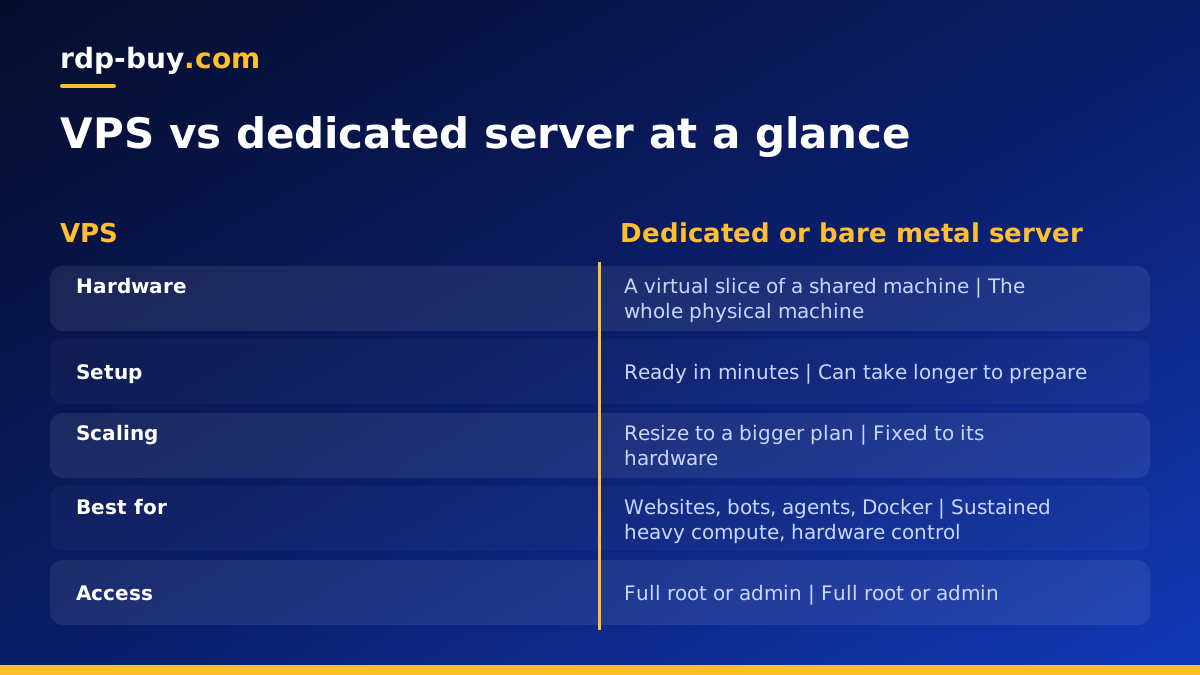
VPS vs server: the short answer
A VPS is a slice of a physical machine. A hypervisor divides one powerful server into several isolated virtual machines, and each one gets its own operating system, its own allocated CPU cores, memory and disk, and its own IP address. You log in as root (Linux) or administrator (Windows) and use it like any computer you own.
A server, in the narrow sense people mean in this comparison, is the whole physical machine. A dedicated server or a bare metal server gives you every core, every gigabyte of memory and every disk in the box, with nobody else running workloads on it.
For most websites, bots, automation tools, trading platforms, VPN endpoints and AI agents, a VPS is the sensible starting point. It is quick to deploy, simple to resize and easy to replace. A physical server makes sense when a workload needs consistent heavy compute all day, needs hardware level control, or has outgrown the largest VPS plan. If you are at the start of a project, a Linux VPS plan is usually where to begin.
How a VPS works under the hood
On a VPS, the hypervisor is the layer that keeps tenants apart. Your virtual machine cannot see the files, memory or processes of other virtual machines on the same host. From inside, you see a normal operating system: you can install packages, open ports in your firewall, run Docker, schedule cron jobs and reboot whenever you like.
What you share is the physical hardware. Your allocated resources are reserved for you, but the host itself is shared, which is why VPS plans can be offered in many small sizes. That sharing is also the reason a VPS can be ready in minutes: the provider only has to create a new virtual machine on hardware that is already running.
At rdp-buy.com every VPS comes with full root access and a dedicated IPv4 address, and you can pick from 33 server locations so the machine sits close to the users or services it talks to.
How a dedicated or bare metal server differs
A dedicated server removes the neighbours. All the hardware resources belong to one customer. A dedicated CPU server guarantees that the processor cores you pay for are never shared, which matters for workloads that keep the CPU busy for hours, such as compiling large codebases, rendering, data processing or running many containers at once.
A bare metal server goes one step further: there is no virtualisation layer between you and the hardware at all. That suits software that wants direct access to the hardware, custom hypervisors of your own, or licensing models tied to physical machines.
The trade off is flexibility. Physical machines take longer to provision than a virtual machine, and moving to a different size usually means moving to a different machine.
Side by side: what actually changes
Here is how the two options compare on the points that matter when you are about to buy:
- Isolation: a VPS is isolated by the hypervisor; a dedicated server is isolated by being a separate physical machine.
- Performance consistency: a VPS gives you reserved resources on shared hardware; a dedicated or bare metal server gives you the whole machine, so heavy sustained loads stay predictable.
- Setup time: a VPS is usually ready in minutes; physical servers can take longer because hardware has to be prepared.
- Scaling: a VPS can move to a bigger plan easily; a physical server is fixed to its hardware.
- Control: both give you full root or admin access to the operating system; bare metal adds control over the hardware layer itself.
- Cost structure: a VPS lets you pay only for the slice you need, while a physical server means paying for an entire machine whether you use all of it or not.
Which workloads suit a VPS
A VPS covers the large majority of real projects. If your workload fits in a few cores and some memory, there is little reason to pay for an entire machine.
Good fits include:
- Websites, blogs and small web apps, including a reverse proxy in front of them.
- Automation tools such as n8n, which run workflows on a schedule. See VPS for n8n for a setup suited to it.
- AI agents that need to stay online around the clock, such as OpenClaw, Hermes Agent or Claude Code (by Anthropic) running on a server. Our AI agent hosting hub covers each one.
- Docker stacks with a handful of containers, covered on the Docker VPS page.
- A personal VPN, a Discord or Telegram bot, a monitoring node or a development sandbox.
- Trading platforms on a Windows VPS that must keep running when your own computer is off.
Which workloads need a full server
Move to a dedicated or bare metal server when the signs are clear, not just because the word server sounds more serious. Typical signs are:
- Your CPU sits near full load for long periods, and jobs take longer at busy times.
- You need the largest VPS plan and still run short of memory or cores.
- You run your own virtualisation, or software that must see the physical hardware.
- Your compliance or licensing rules require a single tenant machine.
- You run a database or analytics workload that reads and writes to disk constantly and needs the whole disk subsystem to itself.
A simple way to decide
Start with the workload, not the product name. Write down what will run on the machine, how many people or processes will use it at the same time, and whether it must stay online all the time.
If the answer is one application, a few services or an agent that runs around the clock, choose a VPS sized a little above what you need today. Watch its CPU and memory for a few weeks with tools such as htop or the built in Task Manager on Windows. If it stays comfortable, you chose well. If it is constantly stretched, move to a larger VPS first, and only then consider a physical server.
Also decide on the operating system. A Linux VPS is the natural home for web apps, Docker and most AI agents, while Windows suits desktop software, trading terminals and anything that needs a remote desktop. Our guide on Windows or Linux server walks through that choice, and RDP vs VPS explains how a Windows remote desktop fits in.
Finally, pick a location close to your users or the APIs your software calls. You can see all 33 options on the server locations page.
Common mistakes when comparing a VPS and a server
The most common mistake is buying too much hardware for a project that has not launched yet. A physical machine sitting mostly idle costs more than a VPS that can grow with you.
The opposite mistake is staying on a tiny VPS while the workload is clearly suffering. If pages load slowly at busy times or an agent misses scheduled runs, resize before it hurts your users.
A third mistake is ignoring the location. A powerful server on the wrong continent can feel slower to your users than a modest VPS close to them.
Last, people forget about management. With both a VPS and a dedicated server you are responsible for updates, firewall rules and backups. Choose an option you are comfortable maintaining.
Choosing your plan and ordering
If the comparison points to a virtual machine, browse the plans and buy a VPS that matches your workload, then grow it as you need. You get full root access, a dedicated IPv4 address, a choice of 33 locations and billing that can be monthly, half yearly or yearly. Payment works by card, PayPal or crypto, including through the buy VPS with crypto checkout.
If your workload has clearly outgrown a VPS, look at a dedicated server or a bare metal server instead. Either way, servers are ready in minutes and 24/7 support is available if you get stuck during setup.
