 Sign in
How to Buy RDP: A Step by Step Guide for First Time Buyers
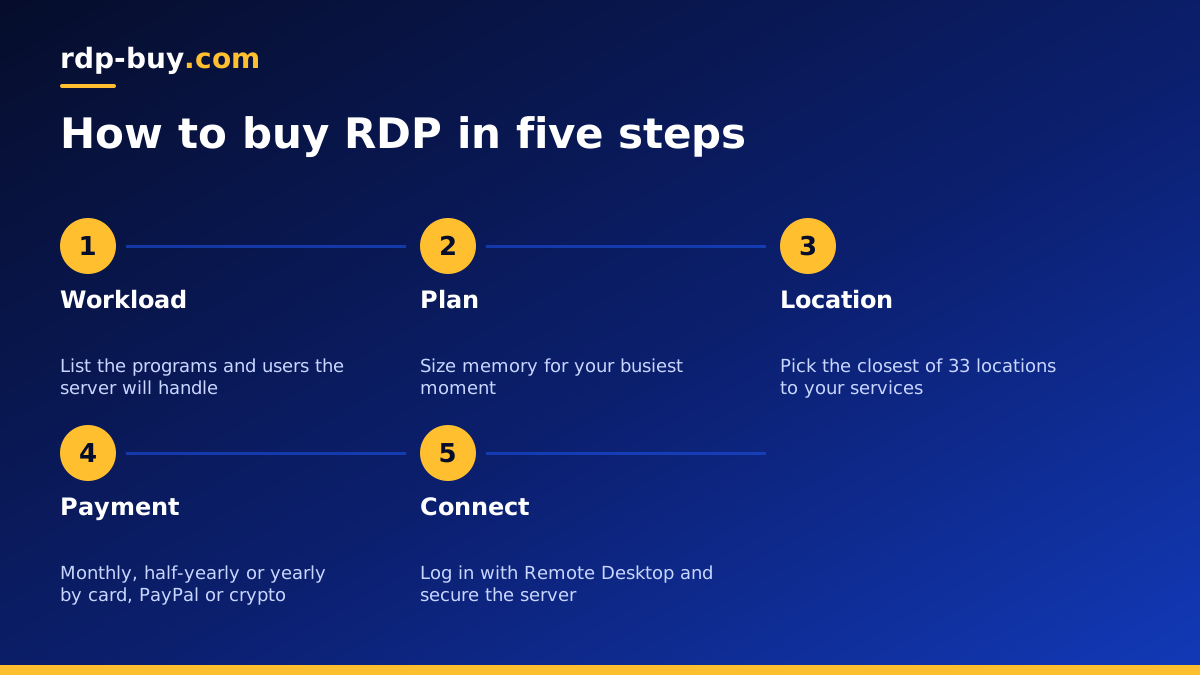
Knowing how to buy RDP comes down to five decisions: what you will run, which plan fits, where the server should live, how you will pay and how you will connect. This guide takes you through each one so you can buy RDP with confidence the first time.
What you are buying when you buy RDP
RDP stands for Remote Desktop Protocol, the Microsoft technology that lets you control a Windows computer from another device. When people talk about buying RDP, they mean renting a Windows server in a data centre and connecting to its desktop over the internet. You see a full Windows screen, you can install programs and the machine keeps running when you close the window.
A Windows RDP server from rdp-buy.com comes with full admin access, a dedicated IPv4 address and the Windows licence included in the price. It is ready in minutes after you order, and support is available 24/7.
That makes an RDP different from a shared remote desktop where several users sit on one machine. You are the administrator, so you decide what is installed, which users exist and which ports are open. If you are still deciding between Windows and Linux, the RDP vs VPS guide explains the difference.
Step 1: Decide what you will run on the server
Everything else follows from this. Write down the programs and tasks you want the server to handle, and how many people will log in. A few common cases:
- Trading platforms such as MetaTrader, running expert advisors around the clock. The forex RDP page covers this use.
- Browser based work such as managing ad accounts, social media or marketplaces from one stable Windows desktop.
- Windows only software for accounting, design or business tools that you want to reach from a Mac, a tablet or a Chromebook.
- Automation and bots that must stay online when your own computer is off, including AI agents on Windows, described on the RDP for AI agents page.
- Remote office use where a small team shares files and apps on one server.
Step 2: Choose a plan that matches the workload
Windows needs more memory than Linux just to run the desktop, so start by looking at memory. A single user with a browser and one or two programs is comfortable on a smaller plan. Several browser profiles, many trading terminals or heavy business software need more memory and more CPU cores. Storage matters if you keep large files, logs or many installed applications.
A useful rule is to size for the busiest moment of your day, not the quietest. Open everything you normally run, then add a little room. If you are unsure, our guide on which RDP plan you need walks through typical workloads. If you need guaranteed cores, a dedicated CPU server is the next step up.
If you plan to give several people their own logins, check the plan details carefully. An admin RDP gives you full control of the server, and the admin RDP page explains what that includes.
Step 3: Pick the right server location
rdp-buy.com offers 33 locations. Choose the one closest to whatever the server talks to most. For a trader, that is the broker's servers. For someone managing US accounts, it may be a US city so the server has a US IP address. For a team in one country, it is usually the nearest location to that team.
Distance affects how responsive the desktop feels, because every mouse click and screen update travels to the server and back. The server locations page lists every city. Popular choices include the USA RDP, UK RDP and Germany RDP locations.
Step 4: Choose a billing term and payment method
Billing is available monthly, half-yearly or yearly. Monthly billing suits a first server or a short project, because you can test the plan and location before committing. Once your setup is stable, a longer term saves you from renewing every month.
You can pay by card, PayPal or crypto. Pick whichever is simplest for you:
- Card: the quickest route for most people. See buy RDP with card.
- PayPal: useful if you prefer not to enter card details on another site. See buy RDP with PayPal.
- Crypto: for buyers who already hold digital currency or want to buy Windows RDP with crypto. See buy RDP with crypto.
Step 5: Place the order and connect
Once you have chosen the plan, location and billing term, the order itself takes a few minutes. You confirm the details, pay, and the server is ready in minutes. You receive the IP address, the administrator username and a password.
To connect from Windows, open Remote Desktop Connection, enter the IP address and log in. On a Mac, install the Windows App from Microsoft (formerly Microsoft Remote Desktop). On iOS and Android, the same app is available from the app stores. The full walkthrough is in our guide on how to connect to your RDP server.
What to do in the first hour after you buy RDP
A new server is a clean slate. A few minutes of setup now prevents most problems later.
- Change the administrator password to a long, unique one and store it in a password manager.
- Run Windows Update and restart until no more updates are offered.
- Check the firewall and close any port you do not need. Consider limiting RDP access to your own IP address if it does not change often.
- Create separate user accounts for anyone else who will log in, instead of sharing the administrator account.
- Install your software and set programs that must run all the time to start automatically after a reboot.
- Plan backups of important files to a second location.
Mistakes to avoid when you buy Windows RDP
Most buying problems come from a handful of avoidable choices. Picking a location far from your broker or your users makes the desktop feel slow, even on a large plan. Choosing the smallest plan for a memory hungry workload leads to freezes when Windows runs short of memory. Sharing one administrator login across a team makes it impossible to see who changed what. And skipping updates leaves the server open to known security issues.
It is also worth reading the terms of the software and services you plan to use on the server. A remote desktop is a normal computer in a data centre, so the same licence and account rules apply as on your own PC.
How to tell you picked the right RDP server
After a few days of normal use, check how the server behaves. Open Task Manager during your busiest hour and look at memory and CPU. If memory sits close to full, programs will slow down or close, and a larger plan is the fix. If the desktop feels sluggish even though memory and CPU look fine, the location is often the cause, and a city closer to you or to your broker will feel better.
Also check that everything restarts cleanly. Reboot the server once on purpose and confirm your trading terminals, bots or apps come back on their own. A server that recovers by itself after an update is one you can leave alone, which is the main reason to rent a remote desktop in the first place.
If anything looks wrong, 24/7 support can help you read the signs and decide whether to change the plan or the location.
Ready to buy RDP? Choosing your plan
Start with the workload, choose a plan with enough memory for your busiest moment, put the server near the services it talks to and begin on monthly billing if you are still testing. Pay by card, PayPal or crypto, connect with the Remote Desktop app and secure the server in the first hour.
When you are ready, compare the plans and choose your Windows RDP. If cost is the main concern, the cheap RDP plans are a good place to start, and you can move up a plan later as your needs grow.
