 Sign in
Buy Dedicated Server Hosting: A Practical Checklist for 2026
Before you buy a dedicated server, it pays to know what workload it will carry, which resources matter most and how you will manage it. This checklist walks through each decision so you can choose a dedicated server with confidence.
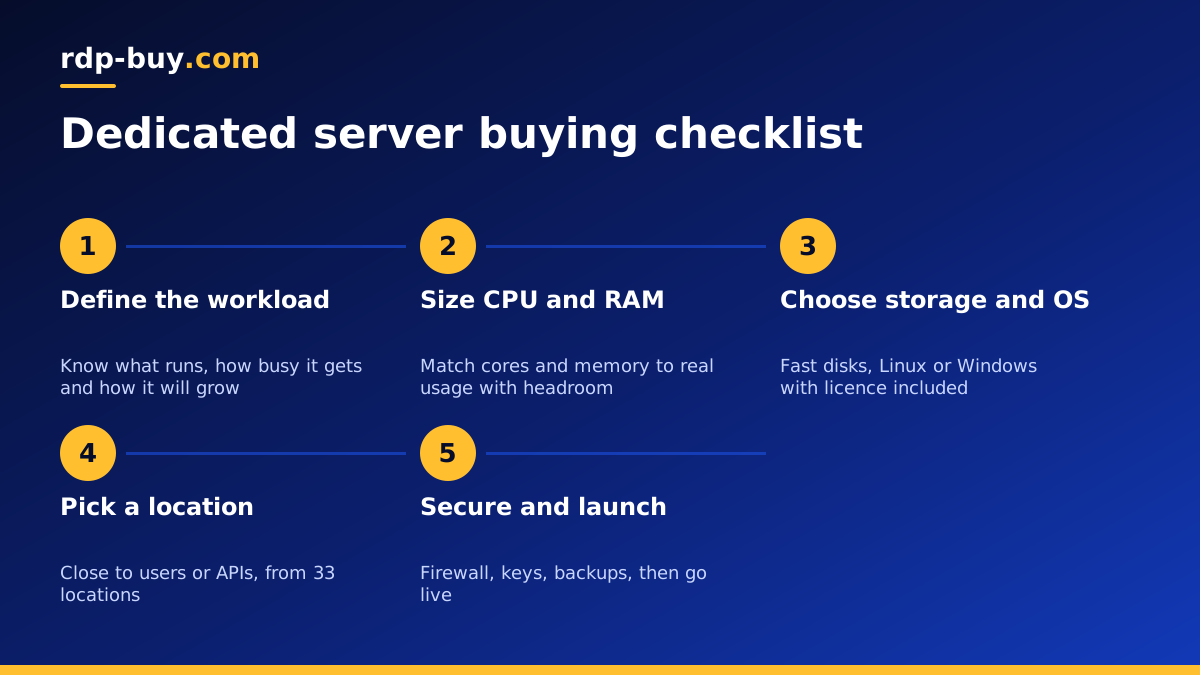
What you get when you buy a dedicated server
A dedicated server gives your workload processing power that is not shared with other customers. Depending on the provider, the term covers two related products. One is a whole physical machine rented to a single customer. The other is a dedicated CPU server: a virtual server whose processor cores are reserved for you alone, rather than shared with neighbours as on a standard VPS.
Both options solve the same problem. On a shared VPS, CPU time is pooled, so a busy neighbour can affect how quickly your tasks run. With dedicated resources, the cores are yours, which gives steady performance for databases, game servers, build pipelines and AI workloads. If you want an entire physical machine with nothing virtualised, look at a bare metal server instead.
Whichever you choose, you should expect full root or administrator access, your own operating system, a dedicated IPv4 address and the freedom to install any software you need.
Step 1: Define the workload first
The most common mistake when people buy a dedicated server is starting from the hardware list instead of the job. Write down exactly what the server will run and how it behaves:
- Is the load steady all day, such as a database or game server, or spiky, such as a nightly batch job?
- Is it limited by CPU, memory, disk or network traffic?
- How many users, players, requests or agents will it serve at the same time?
- Does it need Windows, or will Linux do?
- How fast is the project likely to grow over the next year?
Step 2: Size the CPU
CPU is usually the reason people move from a VPS to dedicated resources. Count how many tasks run in parallel. Web servers, game servers with many players, compilers, video encoders and AI agents running several jobs at once all benefit from more cores. Single threaded applications, such as some older game servers, care more about the speed of each core than the number of cores.
If you already run the workload somewhere, look at its CPU graphs during busy periods. Sustained high usage, or tasks queuing up, is a clear sign that reserved cores will help.
Step 3: Size memory and storage
Memory should hold your operating system, your applications and your working data with headroom to spare. When a server runs out of RAM, it starts swapping to disk and everything slows down. Databases, caches, Java applications, game servers with large worlds and containers running side by side all need generous memory.
For storage, check both capacity and type. Fast SSD or NVMe storage helps databases and anything that reads and writes many small files. Plan space for backups, logs and growth, not just for today's data. If you store important data, decide how you will back it up off the server before you go live.
Step 4: Choose the operating system
Linux distributions such as Ubuntu, Debian or AlmaLinux are the usual choice for web hosting, Docker, databases and most server software. Windows Server makes sense when you need Windows-only applications, a full desktop over Remote Desktop, or tools built on .NET. On rdp-buy.com, the Windows licence is included in Windows prices, so you do not need to buy one separately.
If you are unsure, our guide on Windows or Linux server compares the two in plain terms.
Step 5: Pick the right location
Distance matters. A server close to your users gives quicker responses, and a server close to the APIs or services your software calls reduces delay on every request. For a game server, choose a location central to your players. For trading tools, choose one near the broker. For AI agents, choose one near the model APIs or the users the agent serves.
With 33 server locations to choose from, you can match the location to your audience instead of accepting whatever region is closest to the provider. You can browse them on the server locations page.
Step 6: Check access, support and billing
Before ordering, confirm the practical details that affect daily life with the server:
- Full root or admin access so nothing blocks the software you need.
- A dedicated IPv4 address for DNS records, allow lists and webhooks.
- 24/7 support in case the server stops responding at an awkward hour.
- Flexible billing, such as monthly, half-yearly or yearly terms, so you can test before committing longer.
- Fast provisioning, so the server is ready in minutes rather than days.
Dedicated server vs VPS: do you really need dedicated?
Not every project needs dedicated resources. A standard VPS is a good fit for small websites, personal tools, a single n8n instance or a light AI agent. Move up to a dedicated CPU server when you see sustained CPU load, when performance must stay consistent, or when you run several heavy services together. Our article What Is a VPS? explains how shared virtual servers work if you want to compare.
A simple rule: if a slowdown would cost you players, customers or trades, dedicated resources are worth considering. If occasional slowdowns are harmless, a VPS is usually enough and you can upgrade later.
Matching common workloads to dedicated resources
It can help to see how typical projects map onto the decisions above. These are starting points, not fixed rules, so always confirm with your own measurements once the server is running.
Game servers for titles such as Palworld, ARK, Valheim or Minecraft usually need strong single core speed and plenty of memory, because the world state lives in RAM and the main game loop often runs on one thread. A location close to most players matters as much as the hardware.
Databases and busy web applications reward fast storage and enough memory to keep frequently used data cached. Steady CPU is important when many requests arrive together, which is exactly where reserved cores make a difference over shared ones.
AI agents and automation platforms, such as n8n, OpenClaw, Hermes Agent or Claude Code (by Anthropic), spend much of their time waiting on remote model APIs, but they can become CPU heavy when they run browsers, build code or process files in parallel. If you run several agents side by side, dedicated cores keep each one responsive. Our AI agent hosting hub covers these setups in more depth.
Build servers, CI runners and media encoding jobs are almost entirely CPU bound. They finish sooner and more predictably on dedicated cores, and they are a classic reason to buy a dedicated server rather than share processor time.
Common mistakes to avoid
A few habits save a lot of trouble after you buy a dedicated server:
- Buying the largest plan up front instead of measuring the workload first.
- Ignoring location and placing the server far from users or APIs.
- Leaving the default password and open ports in place after setup.
- Skipping backups because the hardware feels reliable.
- Forgetting to monitor CPU, memory and disk so you know when to scale.
First steps after your server is ready
Log in with the credentials you received, update the system, create a non-root user, set up SSH keys or a strong administrator password, and enable a firewall that only opens the ports you need. Then install your stack. Many people use Docker to keep applications isolated and easy to update. Set up monitoring and an off-server backup before you move real traffic or players onto the machine.
Choosing your dedicated server plan
Start from the workload, size the CPU, memory and storage around it, pick the operating system and a location close to the people and services it serves, and confirm the access and support you need. With those answers written down, choosing a plan takes minutes.
When you are ready, compare the dedicated CPU server plans, choose one of the 33 locations, and get a server with full root or admin access, a dedicated IPv4 address and 24/7 support, ready in minutes.
