 Sign in
RDP vs VNC: Which Remote Desktop Protocol Should You Use?
RDP and VNC both let you see and control a computer from somewhere else, but they work in very different ways. If you want a fast Windows desktop in the cloud, an RDP server is usually the better fit, while VNC shines for cross-platform screen sharing.
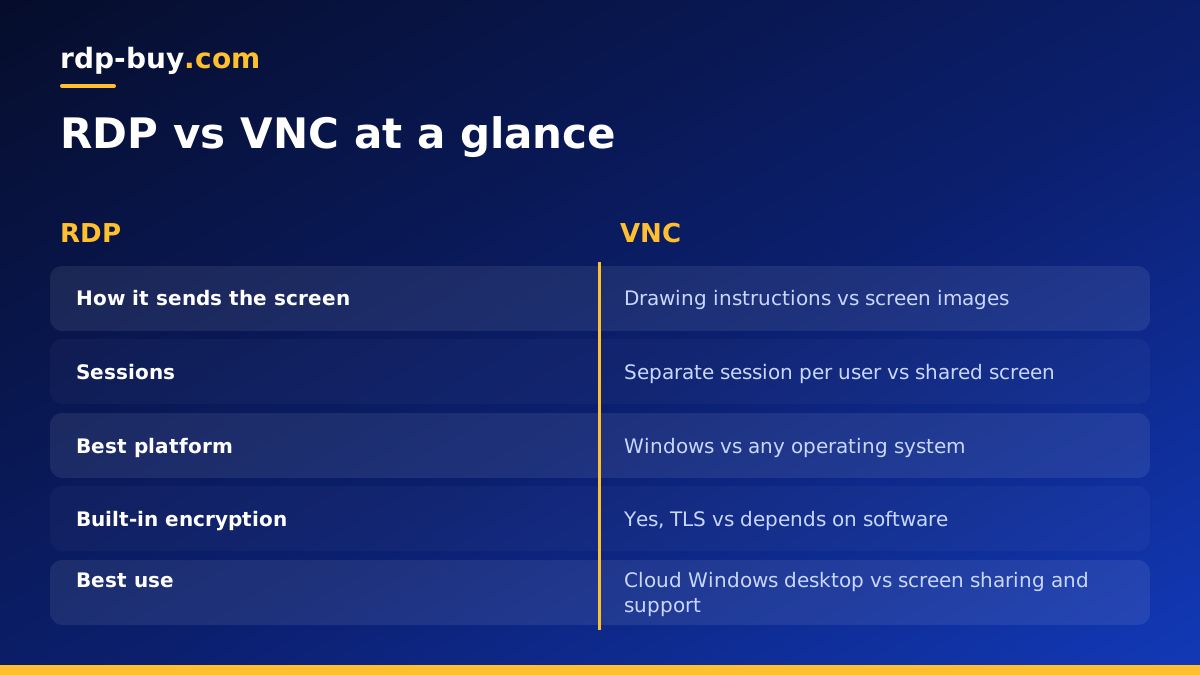
RDP vs VNC in one paragraph
RDP, the Remote Desktop Protocol, was created by Microsoft and is built into Windows. It sends drawing instructions and creates a separate user session on the remote machine, which makes it feel smooth and responsive. VNC, Virtual Network Computing, is an open approach that works on almost any operating system. It sends images of the screen and mirrors whatever is already displayed on the remote computer.
In practice, RDP is the standard way to work on a Windows server, such as a Windows RDP plan, while VNC is common for Linux desktops, Raspberry Pi boards, Macs and situations where you need to watch exactly what another person sees.
How RDP works
When you connect with RDP, the Windows machine starts or resumes a user session just for you. Instead of sending raw pixels, the protocol sends information about what to draw: windows, text, menus and bitmaps where needed. The client on your device then rebuilds the screen. This is why RDP often feels close to working on a local computer, even over an ordinary internet connection.
RDP also redirects many local resources. You can copy and paste between your device and the server, map local drives, print to your own printer, play audio and use multiple monitors. Windows Server can host several RDP sessions at once with the right licensing, so different users each get their own desktop.
You can learn more about the protocol itself in our article What Is RDP?, which covers ports, encryption and clients in detail.
How VNC works
VNC uses a protocol called RFB, which stands for remote framebuffer. A VNC server captures the screen of the remote machine, breaks it into regions and sends the parts that changed to your viewer. Your mouse and keyboard input goes back the other way.
Because it works at the level of screen images, VNC does not care much about the operating system. There are VNC servers and viewers for Windows, Linux, macOS and many embedded devices. The trade off is that sending images uses more bandwidth than sending drawing commands, so VNC can feel slower, especially with video, animations or large screens.
By default, VNC shares the existing console session. If someone is sitting at the remote machine, you both see and control the same screen. That is ideal for helping someone with a problem, but less suited to giving several people their own desktops.
Key differences between RDP and VNC
Here are the points that usually decide the choice:
- Sessions: RDP creates a separate session per user; VNC mirrors the current screen.
- Responsiveness: RDP sends drawing instructions and tends to feel smoother; VNC sends screen images and can lag on busy screens.
- Platforms: RDP hosting is native to Windows, though clients exist for Mac, Linux, iOS and Android; VNC runs on almost anything.
- Features: RDP has built-in clipboard, drive, printer, audio and multi-monitor redirection; VNC features vary by the software you choose.
- Security: modern RDP uses TLS encryption and Network Level Authentication; plain VNC often needs an SSH tunnel or a VPN to be safe.
- Setup: RDP is a toggle in Windows settings; VNC needs a server package installed and configured.
Security: what to watch with each
Both protocols are targets for automated attacks when exposed to the internet, so treat either one with care. With RDP, enable Network Level Authentication, use a long unique password, keep Windows updated and consider restricting which IP addresses may connect. Changing the default port reduces noise from scanners but is not a security control on its own.
With VNC, never expose an unencrypted server directly to the internet. Bind it to localhost and connect through an SSH tunnel, or place it behind a VPN. Some commercial VNC products add their own encryption and accounts, which helps, but the safest habit is to keep the port closed to the public.
On a rented server with full admin access, you control the firewall, so you can apply these rules yourself from day one.
When RDP is the better choice
RDP is usually the right protocol when the remote machine runs Windows and you want to work on it as your own computer. Typical cases include:
- Running a Windows desktop in the cloud that stays on 24/7, for trading platforms, browser automation or office apps.
- Hosting AI agents and tools that need a Windows environment, as described on our Windows RDP for AI agents page.
- Giving several team members their own sessions on one Windows server.
- Working from a laptop, tablet or phone with a smooth experience over normal connections.
When VNC is the better choice
VNC makes more sense when the remote machine is not running Windows, or when you need to see the exact screen someone else is using. Good examples:
- Adding a graphical desktop to a Linux VPS for occasional use, through an SSH tunnel.
- Remote support where you need to watch and guide another person's session.
- Controlling Macs, single board computers or devices with no RDP server.
- Mixed environments where one viewer needs to reach many different operating systems.
Can you use RDP on Linux?
Yes, partly. Linux desktops can run xrdp, an open source server that accepts RDP connections, so you can use the standard Windows Remote Desktop client to reach a Linux machine. It works well for light desktop use. Still, most Linux servers are managed over SSH without a desktop at all, which is lighter and more secure. If you mainly want a graphical Windows environment, a Windows server is simpler. Our Windows or Linux server guide explains the trade offs.
Choosing a remote server for your workload
If your goal is a dependable remote desktop you can reach from anywhere, RDP on a Windows server is the straightforward answer. It is fast, built in, and every major device has a client. VNC remains a useful tool for Linux desktops and screen sharing, especially when wrapped in SSH.
To get started, pick a Windows RDP server in one of 33 locations close to you or the services you use. The Windows licence is included in Windows prices, you get full admin access and a dedicated IPv4 address, and the server is ready in minutes. Then follow our guide on how to connect to your RDP server.
