 Sign in
What Is RDP? How Remote Desktop Protocol Works in 2026
RDP, short for Remote Desktop Protocol, lets you see and control a Windows computer from another device as if you were sitting in front of it. This guide explains how RDP works, what you need to use it, how to keep it safe, and when renting a Windows RDP server is a better choice than leaving your own PC running.
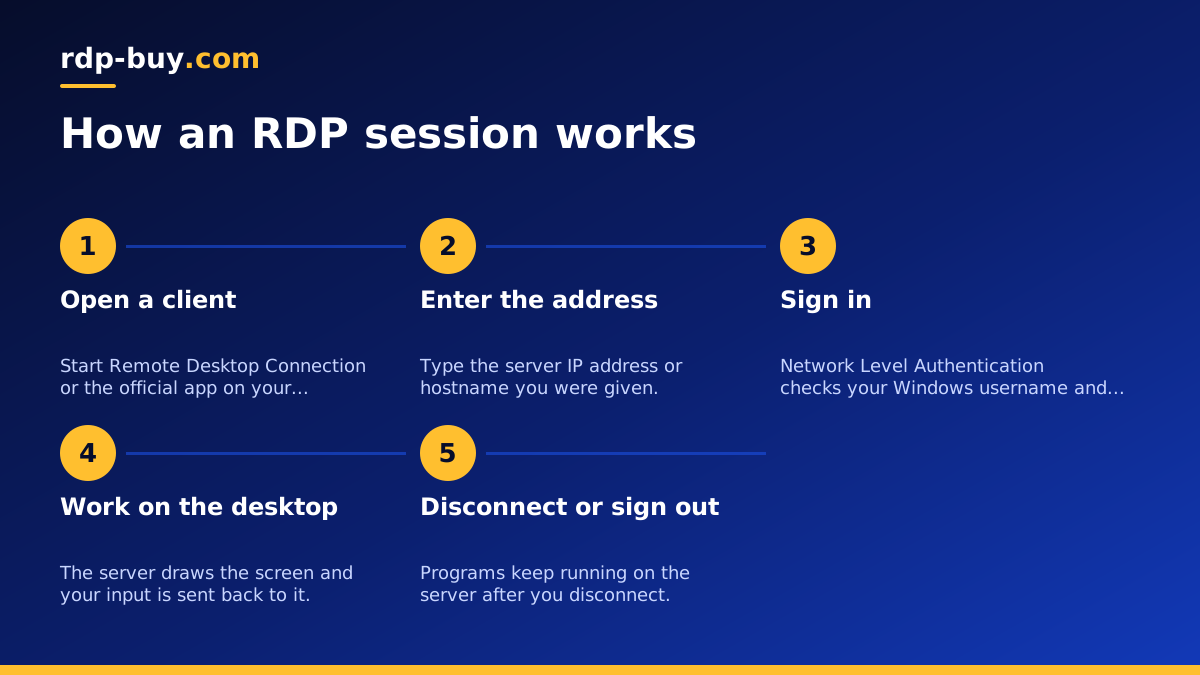
RDP in one paragraph
RDP is a protocol created by Microsoft that sends the screen of a Windows machine to a remote client and sends your keyboard and mouse input back. The computer you connect to runs the RDP host service, and the device you use runs an RDP client. Once connected, you get a full Windows desktop: the Start menu, File Explorer, your installed apps and the command line, all running on the remote machine rather than on the device in your hands.
Because the work happens on the remote computer, the device you connect from can be modest. A small laptop, a Mac, a tablet or even a phone can control a powerful Windows server. That is the main reason people search for RDP: they want a Windows desktop that lives somewhere else, stays online, and is reachable from anywhere.
How Remote Desktop Protocol works behind the scenes
When you open a connection, the client contacts the host over the network and the two sides agree on encryption and settings such as screen size and colour depth. You then sign in with a Windows username and password. Modern Windows uses Network Level Authentication, which checks your credentials before a full session starts, so the server does less work for unauthenticated visitors.
After sign in, the host draws the desktop and sends compressed graphical updates to your client. Only the parts of the screen that change are sent, which keeps the session responsive. RDP also uses separate virtual channels for extras, so it can carry more than pictures of a screen.
- Clipboard sharing: copy text or files on your device and paste them into the remote desktop.
- Drive redirection: make a local folder appear inside the remote session to move files across.
- Audio and printing: play remote sound locally and print to a printer near you.
- Multiple monitors: spread the remote desktop across more than one screen.
- Session persistence: close the client and the programs on the server keep running until you sign out.
What you need to use RDP
There are two sides to every RDP connection, and both need to be ready.
The host. This is the Windows machine you connect to. Remote Desktop hosting is available on Pro, Enterprise and Server editions of Windows. Home editions can act as a client but not as a host. On a Windows Server, Remote Desktop is normally enabled from Server Manager or the System settings, and the user you sign in with must be allowed to connect.
The client. Windows already includes Remote Desktop Connection, which you can open by typing mstsc in the Run box. Microsoft also publishes official Remote Desktop apps for macOS, iOS and Android. On Linux, open source clients such as Remmina and FreeRDP speak the same protocol.
The address and credentials. You need the IP address or hostname of the host, plus a username and password. If you rent a server, the provider sends these when it is ready. Our guide on how to connect to your RDP server walks through each client step by step.
Common uses for an RDP server
People use RDP for very different jobs, but almost all of them come down to needing a Windows computer that is always on and reachable.
- Remote work: reach a Windows desktop with your apps and files from home, a client site or while travelling.
- Trading platforms: keep MetaTrader or other Windows trading software running around the clock, close to the broker, without relying on a home connection. See our forex RDP plans for that use.
- Automation and bots: run scheduled scripts, browser automation or AI agents that must stay online when your laptop is closed. The Windows RDP for AI agents page covers this in more detail.
- Windows only software from a Mac: use accounting, engineering or business tools that only run on Windows without installing Windows locally.
- Testing and development: test sites, installers and apps in a clean Windows environment you can rebuild when needed.
- Team access: give a few people a shared Windows machine with the same tools installed, each with their own account.
RDP vs other remote access tools
RDP is not the only way to control a computer remotely, so it helps to know where it fits.
RDP vs VNC. VNC shares the actual physical screen of a machine, so anyone watching the monitor sees what you do. RDP creates its own Windows session, which is usually smoother on Windows and lets the console stay locked while you work. VNC is more common on Linux desktops and for helping someone on a screen they are already using.
RDP vs screen sharing apps. Tools built for remote support relay the connection through the vendor's servers and are aimed at quick help sessions. RDP connects you directly to a machine you control, which suits long working sessions and servers that run all day.
RDP vs SSH. SSH gives you a text terminal, mainly on Linux. It is ideal for servers you manage with commands. RDP gives you a full graphical Windows desktop. If you are deciding between the two kinds of server, read RDP vs VPS: the difference and Windows or Linux server: which to rent.
How to keep an RDP connection secure
Any machine reachable from the internet attracts automated login attempts, and RDP hosts are a popular target. The protocol itself is encrypted, so most problems come from weak setup rather than from RDP. These habits make a big difference.
- Use a long, unique password for every account that can sign in, and change the default password you receive straight away.
- Keep Network Level Authentication on so credentials are checked before a session starts.
- Turn on account lockout in local security policy so repeated wrong guesses lock the account for a while.
- Limit who can connect by adding only the users who need it to the Remote Desktop Users group, and rename or disable accounts you do not use.
- Restrict by IP where you can with Windows Defender Firewall rules, so only your own addresses can reach the RDP port.
- Install Windows updates regularly, since security fixes for Remote Desktop are delivered through them.
- Sign out rather than just disconnect when you are finished with work that does not need to keep running.
Your own PC or a rented RDP server?
You can enable Remote Desktop on a Windows Pro machine at home, but that only works while the PC is on, awake and connected, and it means opening your home network to the internet. Power cuts, router restarts, sleep settings and a changing home IP address all break the connection at the worst moments.
A rented RDP server runs in a data centre instead. It stays on all day, has its own dedicated IPv4 address, and you can pick a location close to the people, brokers or APIs it needs to reach. You keep full admin access, so you install and configure software exactly as you would on your own computer, without your laptop having to stay open.
Choosing an RDP server plan
Start with the workload. A single trading terminal or a light automation task needs far less than several users working at once or a browser running many tabs all day. Our guide on which RDP plan you need matches common workloads to sensible sizes.
Next, pick a location. Choosing the region nearest to you keeps the desktop responsive, while choosing the region nearest to a broker or service keeps that traffic short. rdp-buy.com offers 33 server locations, including dedicated pages for USA RDP and UK RDP.
Finally, check the practical details. With rdp-buy.com the Windows licence is included in Windows prices, every server comes with full admin access and a dedicated IPv4 address, billing can be monthly, half-yearly or yearly, servers are ready in minutes, and support is available 24/7. When you know what you need, you can buy RDP and be signed in to your new desktop shortly after.
