 Sign in
Linux Server Best Practices: Set Up a New VPS the Right Way
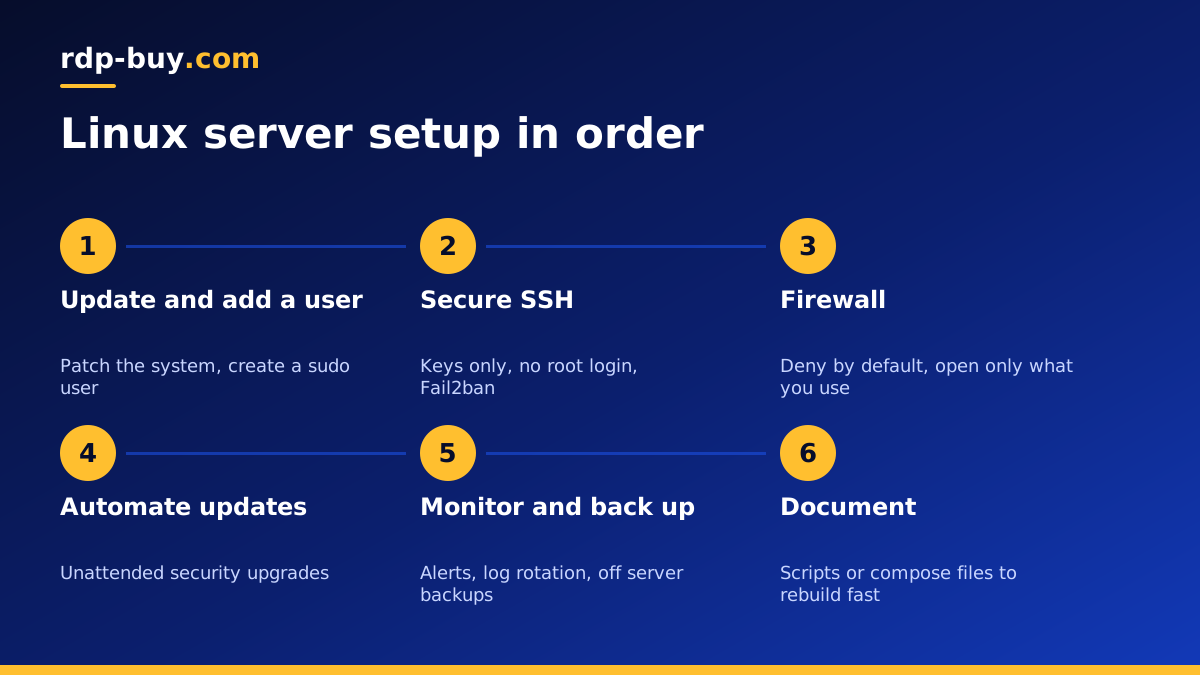
Following Linux server best practices from the first login saves you from most security and reliability problems later. This guide walks through the setup in the order to do it, whether you have just chosen to buy a Linux VPS or are tidying up a server you already run.
Why best practices matter on a Linux VPS
A Linux VPS with a public IP address starts receiving automated login attempts and scans within moments of going online. Most of them are harmless noise, but a server with a weak password, an open database port or old software can be taken over without anyone targeting you personally.
Good habits also make the server easier to live with. When updates are automatic, logs are rotated, services restart on their own and backups run every night, the server keeps working while you focus on the project it is there to support.
The steps below assume a fresh Ubuntu or Debian Linux VPS with root access, but the same ideas apply to any distribution.
Step 1: update first, then create a normal user
Log in over SSH as root and update the package lists and installed packages straight away. A new image may be several weeks old, and the first round of updates often includes security fixes.
Next, create a normal user for daily work and give it sudo rights. Working as root all the time makes mistakes more dangerous and makes logs harder to read. Use a long, unique password for this user even though you will mostly log in with keys.
Set the hostname and the time zone while you are here. Correct time matters more than it seems: logs, scheduled jobs and certificate checks all depend on it.
Step 2: lock down SSH
SSH is the front door of your server, so secure it before anything else goes online.
- Create an SSH key pair on your own computer and copy the public key to the new user on the server.
- Open a second terminal and confirm you can log in with the key before changing anything else.
- In the SSH server configuration, turn off password authentication and turn off direct root login.
- Restart the SSH service and test again from a new session, keeping your existing session open until you are sure it works.
- Optionally move SSH to a non standard port to cut down log noise. It is not real security on its own, but it keeps logs readable.
- Install Fail2ban or a similar tool to block addresses that keep failing to log in.
Step 3: turn on a firewall
Close every port you do not need. On Ubuntu, UFW makes this simple: deny incoming traffic by default, allow outgoing traffic, then allow only SSH and the ports your services use, such as HTTP and HTTPS for a website.
Keep databases, admin panels and caches off the public internet. Bind them to 127.0.0.1 or a private network, and reach them through an SSH tunnel when you need to. If you use Docker, remember that published container ports can bypass UFW rules, so bind internal services to localhost in your compose files.
Review the firewall rules whenever you add or remove a service, so old openings do not linger. A quick look at the list of listening ports with the ss command shows exactly what is reachable from outside.
Step 4: automate security updates
Most break ins exploit known problems that already have a fix. Automatic security updates close those gaps without you having to remember.
On Ubuntu and Debian, install and enable unattended upgrades for security packages. Decide whether the server may reboot automatically at a quiet hour when the kernel is updated, or whether you will reboot it yourself after checking. Either way, check every few weeks whether a reboot is pending.
For software you install outside the package manager, such as Docker images or applications from GitHub, set a reminder to update them on a regular schedule.
Step 5: run services the tidy way
How you run your applications matters as much as how you secure the system.
- Run each application as its own unprivileged user, never as root.
- Use systemd units or Docker restart policies so services start at boot and restart after a crash.
- Put web apps behind a reverse proxy such as Nginx or Caddy and serve them over HTTPS with automatic certificates.
- Keep secrets such as API keys in environment files with tight permissions, not inside code or Git.
- Remove software and accounts you no longer use. Every running service is something that needs updating.
Step 6: watch disk, memory and logs
A surprising number of outages are caused by a full disk rather than an attack. Make sure logs rotate, limit Docker container log size, and clean up old images and packages from time to time.
Install a simple monitoring tool so you know when something goes wrong before your users do. Even a basic setup that alerts you when the disk is nearly full, memory runs out or a service stops is enough for a single server. Tools such as htop, journalctl and df are worth learning for quick checks by hand.
Read the authentication log now and then. Repeated failed logins from many addresses are normal background noise, but a successful login you do not recognise is an emergency.
Step 7: back up and test restores
A backup you have never restored is only a hope. Decide what actually needs saving: application data, databases, configuration files and the scripts or compose files that rebuild the server.
Use the database's own dump tool rather than copying live database files. Schedule a nightly job that archives what matters and copies it to storage outside the server, so a lost or compromised server does not take the backups with it. Keep several days of history, not just the latest copy.
Every so often, restore a backup onto a fresh test server and confirm the application works. It is the only way to know your backups are complete.
Step 8: document and automate the build
Write down every change you make, or better, put it in a script. A shell script, an Ansible playbook or a set of Docker compose files turns a server you built by hand into one you can rebuild in minutes.
That pays off in several ways. You can recover quickly from a failure, move to a bigger plan or a new location without stress, and spin up an identical test server before risky changes. It also makes handing the server to a colleague much easier.
Common mistakes to avoid
Even experienced admins slip into a few habits that cause trouble later. Watch out for these:
- Leaving password login for SSH switched on after adding keys, which keeps the server open to guessing attacks.
- Opening a database or admin panel to the whole internet just to test something, and forgetting to close it.
- Running every application as root because it was quicker during setup.
- Copying commands from old tutorials that install software from unofficial sources.
- Keeping backups only on the same server they are meant to protect.
- Skipping updates for months because the server seems to be working fine.
- Making changes by hand with no notes, so nobody can rebuild the server after a failure.
Best practices for servers that run AI agents
Servers running automation tools and AI agents, such as n8n, OpenClaw, Hermes Agent or Claude Code (by Anthropic), deserve some extra care because they often hold API keys with real spending power.
Give each agent its own user and its own directory, store keys in environment files readable only by that user, and limit what the agent can reach on the file system. Log what agents do, set spending limits with your API providers, and restrict inbound access to admin dashboards with the firewall or an SSH tunnel. The AI agent hosting hub and VPS for Claude Code page cover setups for these tools.
Choosing a VPS that makes good practice easy
Best practices are easier when the server gives you full control. At rdp-buy.com you can buy VPS hosting with full root access, a dedicated IPv4 address and a choice of 33 server locations. Billing can be monthly, half yearly or yearly, and you can pay by card, PayPal or crypto.
Servers are ready in minutes, so you can work through this checklist the same day, and 24/7 support is available if you get locked out or something does not behave as expected. If you prefer Windows, look at the Windows VPS plans, and read Windows or Linux server if you are still deciding.
