 Sign in
Bare Metal Server Setup: Your First Steps After Handover
A bare metal server gives you a whole physical machine, which means the setup choices that a VPS makes for you are now yours. This guide covers the first steps after handover, from secure access to disks, firewalls and backups, so your bare metal server is ready for real work.
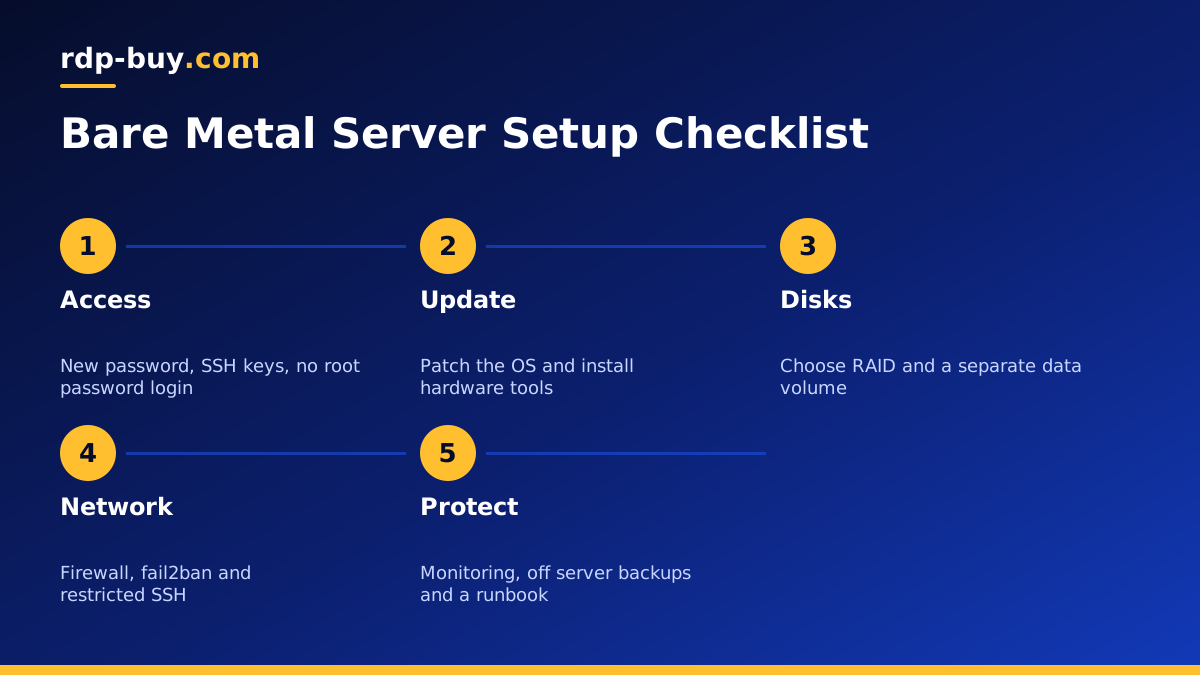
Why Bare Metal Server Setup Deserves a Plan
On a VPS, a hypervisor hides the hardware from you. You get virtual disks and a virtual network card, and the provider handles everything underneath. On bare metal, the operating system talks to the real hardware. That is the whole point: no shared hypervisor, no neighbours, and full control over how the machine is used.
With that control comes responsibility. You decide how the disks are arranged, which kernel and drivers you run, how the network is configured and whether you add your own virtualisation layer on top. A little planning in the first hour saves painful rebuilds later, because changing disk layout on a machine full of data is much harder than getting it right at the start.
If you are still deciding whether bare metal is right for you, our guide Bare Metal vs VPS explains when the move makes sense.
Step 1: Secure Your First Login
Your provider hands over an IP address and initial credentials. Log in over SSH for Linux or RDP for Windows, and change the initial password straight away. On Linux, add your SSH public key, create a normal user with sudo rights and test that you can log in with the key before you disable password logins and direct root login in the SSH configuration.
Keep a note of how to reach the server if networking breaks. Many providers offer an out of band console or rescue mode. Find it now, while everything works, rather than during an emergency.
- Change the initial password immediately.
- Add SSH keys and test them in a second session.
- Disable password and direct root logins once keys work.
- Locate the rescue or console option in your control panel.
Step 2: Update the Operating System and Firmware Tools
Run a full system update before you install anything else. On Ubuntu or Debian that means apt update followed by apt upgrade, then a reboot if the kernel changed. On Windows Server, run Windows Update until no more updates appear.
Install the tools that help you see the hardware. On Linux, packages such as smartmontools let you check disk health, lm-sensors shows temperatures on supported boards, and lshw or dmidecode list the installed components. Record what you find, including disk models and serial numbers, so you can quote them if a part ever needs replacing.
Step 3: Plan Your Disks and RAID
Disk layout is the biggest decision in bare metal server setup. If your server has more than one drive, decide early whether you want redundancy, raw capacity or a mix. Mirroring two drives protects you if one fails. Striping gives more space and speed but no protection. Other RAID levels balance the two.
On Linux, software RAID with mdadm is mature and flexible, and ZFS adds checksums, snapshots and compression if you are comfortable managing it. Whatever you choose, remember that RAID is not a backup. It keeps the server running through a disk failure, but it will happily mirror a deleted file or a corrupted database to every drive.
- Mirror: good default for system disks and databases.
- Separate data volume: keeps application data away from the operating system.
- Monitoring: set smartd or your RAID tool to email you when a disk reports problems.
Step 4: Lock Down the Network
A fresh server on the public internet sees automated scans within minutes. Enable a host firewall before you start any services. On Ubuntu, ufw is the simplest option: allow SSH, allow only the ports your applications need, and deny the rest. On other distributions, nftables or firewalld do the same job.
Install fail2ban or a similar tool to block repeated failed logins. If only your team needs SSH access, restrict it to your office or VPN addresses. Your server comes with a dedicated IPv4 address, so you can also give partners and APIs a fixed address to allowlist on their side.
Step 5: Decide How You Will Run Workloads
Bare metal gives you several ways to use the machine. You can install applications directly on the host, which is simple and gives the most direct hardware access. You can run containers with Docker, which keeps applications isolated and easy to update. Or you can install your own hypervisor, such as KVM or Proxmox, and split the server into private virtual machines that only you control.
For AI agents and automation, containers are a popular middle ground. Each agent, database or tool runs in its own container, with resource limits so one runaway process cannot starve the rest. Our guide on running several agents on one server covers that pattern, and it scales well on a machine with plenty of cores.
Step 6: Add Monitoring and Backups
You want to know about problems before your users do. At a minimum, track CPU load, memory, disk space, disk health and whether your key services are running. Lightweight agents such as node exporter with Prometheus, or simpler tools such as Netdata, give you graphs and alerts without much setup.
For backups, follow a simple rule: keep copies in more than one place, and at least one copy off the server. Back up databases with their own dump tools, back up configuration files, and test a restore on another machine. A backup you have never restored is a hope, not a plan.
- Alerts for disk space, disk health and service failures.
- Scheduled database dumps copied off the server.
- Configuration kept in a private git repository.
- A tested restore process written down.
Step 7: Document Everything
Write a short runbook as you go. Note the disk layout, RAID setup, firewall rules, installed services, open ports, backup schedule and where credentials are stored. Future you, or a teammate covering for you at night, will be grateful. It also makes it much faster to rebuild the server or move to a second one if you ever need to.
Choosing the Right Bare Metal Server
Match the hardware to the job. Databases and storage heavy workloads care about disks and memory. Build servers, game servers and many parallel agents care about cores. Pick a location close to your users or the APIs your software calls, and leave headroom for growth so you are not planning another migration in a few months.
When you are ready, compare our bare metal server plans. You get full root or admin access, a dedicated IPv4 address, a choice of 33 server locations and 24/7 support, with monthly, half-yearly or yearly billing. If you do not need a whole machine yet, a dedicated CPU server is a lighter step up from a VPS.
