 Sign in
Linux VPS Hosting: A Maintenance Routine That Keeps You Safe
Linux VPS hosting gives you full root control, which also means nobody else is looking after the server for you. This routine covers what to check daily, weekly and monthly so your server stays fast, patched and recoverable, whether it runs on Linux VPS hosting from us or anywhere else.
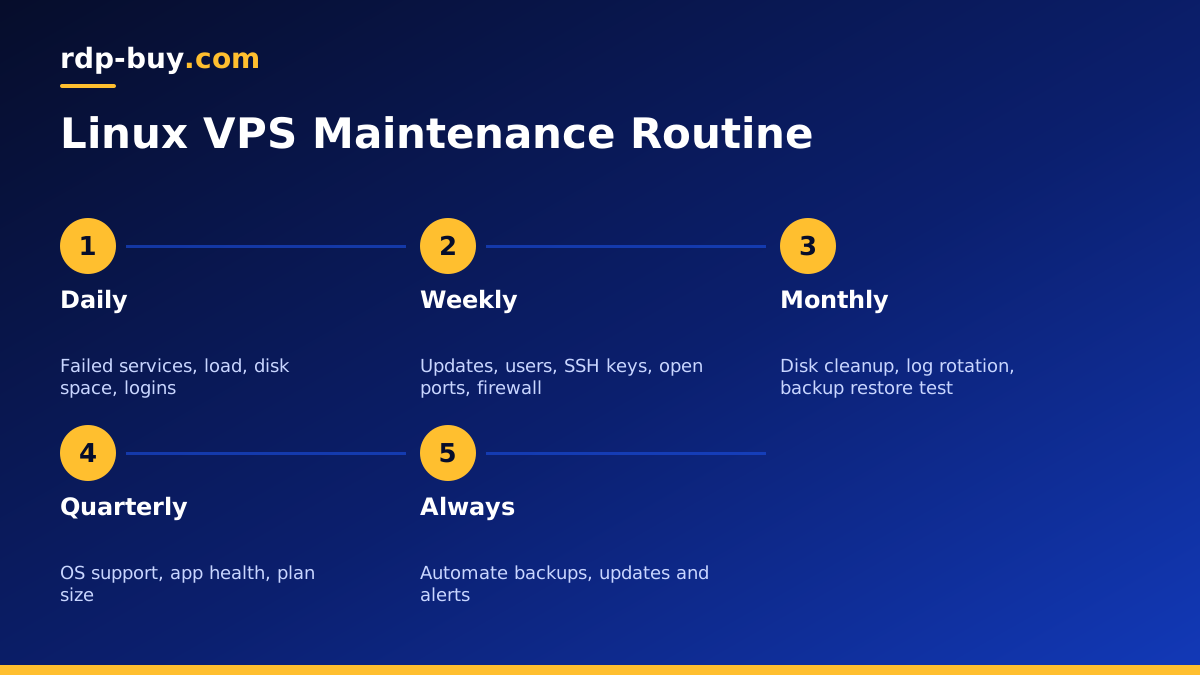
Why Linux VPS Hosting Needs a Routine
Most Linux servers do not fail in a dramatic way. They drift. Packages fall behind, logs slowly fill the disk, an old test service keeps listening on a public port, and a backup job quietly stopped working months ago. Each problem is small, but together they turn into outages and security incidents.
A simple maintenance routine stops that drift. It does not need special tools or much time. A few minutes a day, a short weekly review and a slightly longer monthly check are enough for most single servers. The aim is to notice problems while they are still easy to fix.
This guide assumes a common distribution such as Ubuntu, Debian, Rocky Linux or AlmaLinux, and that you log in over SSH. If you are setting up a brand new server, start with our guide VPS How to Setup, then come back here once the basics are in place.
Daily: Quick Health Checks
The daily check should take a couple of minutes. Better still, automate it so the server tells you when something is wrong and you only log in when you need to.
- Services: run systemctl --failed to see any service that has stopped unexpectedly.
- Load and memory: a quick look at htop or uptime shows whether something is running away.
- Disk space: df -h shows whether any filesystem is getting full.
- Logins: last and the auth log show who logged in and whether there were unusual failures.
- Alerts: if you use monitoring, confirm alerts are still arriving, so silence really means healthy.
Weekly: Updates and Security Review
Once a week, apply updates. On Debian and Ubuntu, run apt update and apt upgrade. On Rocky Linux and AlmaLinux, run dnf upgrade. Read the list of packages before you confirm, so you notice when something important such as the kernel, OpenSSL or your database is changing. Reboot if the kernel was updated, at a time that suits your users.
For security fixes, you can let the system install them automatically. Ubuntu and Debian offer unattended-upgrades, and the Red Hat family offers dnf-automatic. Automatic security updates, plus a manual weekly review for everything else, is a sensible balance for most servers.
Use the same weekly slot to review access. Check which users exist, which SSH keys are in each authorized_keys file, and remove anything you no longer need. Run ss -tulpn to list every listening port, and make sure each one belongs to a service you meant to expose.
- Apply package updates and reboot if the kernel changed.
- Confirm automatic security updates are still running.
- Remove old users and SSH keys.
- List listening ports and close anything unexpected.
Weekly: Check the Firewall and Login Protection
Your firewall rules should match the services you actually run. On Ubuntu, ufw status verbose lists them clearly. If you opened a port for a test months ago, close it now. If SSH only needs to be reachable from your office or VPN, restrict it to those addresses.
If you use fail2ban, run fail2ban-client status to confirm the jails are active. A steady stream of blocked addresses is normal for any server with a public IP. What matters is that blocking still works and that your own address is not on the list.
Monthly: Disk, Logs and Cleanup
Logs and old files are the most common reason a Linux VPS runs out of space. Once a month, look at what is taking room. The du command, or a friendlier tool such as ncdu, shows the biggest folders quickly.
Check that logrotate is rotating your application logs, not only the system ones. Limit the size of the systemd journal with journalctl --vacuum-size or a setting in journald.conf. If you use Docker, docker system df shows how much space images, containers and volumes use, and docker image prune removes old images you no longer need. Be careful with volume pruning, since volumes often hold real data.
- Find large folders with du or ncdu.
- Make sure application logs rotate.
- Cap the systemd journal size.
- Prune unused Docker images, but review volumes by hand.
Monthly: Test Your Backups
A backup only counts if you can restore it. Once a month, pick one backup and restore it somewhere safe, such as a temporary folder or a second server. Confirm the files open, the database loads and the application starts. Note how long the restore took, so you know what to expect in a real emergency.
Keep at least one copy of your data outside the server itself. Tools such as restic and BorgBackup make encrypted, incremental backups to remote storage straightforward. For databases, use their own dump tools rather than copying live data files, which can be inconsistent while the database is running.
Quarterly: Bigger Picture Checks
Every few months, step back and look at the server as a whole. Is the distribution release still supported, or is an upgrade due? Are the applications you run still maintained? Has your workload grown enough that CPU or memory is often near its limit?
This is also the right time to review cost and fit. If the server is mostly idle, a smaller plan may do. If it is often busy, moving up a size, or from a shared VPS to a dedicated CPU server, can be cheaper than the time you spend working around slowdowns. Our post Dedicated Server vs VPS explains the signs to look for.
Automate the Boring Parts
Most of this routine can run on its own. Schedule backups with cron or systemd timers. Turn on automatic security updates. Use a simple monitoring tool, such as Netdata or an uptime checker, to alert you about full disks, failed services and high load. Keep your configuration files in a private git repository, so changes are tracked and easy to undo.
Once automation handles the routine, your weekly and monthly checks become reviews rather than chores. You are confirming that the automation still works and deciding what to improve, which is a much better use of your time.
Picking a Linux VPS That Is Easy to Look After
A good host makes maintenance easier. Full root access means you can install any tool you need. A dedicated IPv4 address means your firewall rules and allowlists stay stable. A wide choice of locations means you can place the server close to your users, and fast provisioning means you can spin up a test server to try an upgrade before you touch production.
rdp-buy.com offers all of that: full root access, a dedicated IPv4 address, 33 server locations, 24/7 support and servers ready in minutes, with monthly, half-yearly or yearly billing. When you are ready, buy a VPS sized for today's workload and grow it as your needs change. If you want to stay within a tight budget, our cheap VPS plans are a good place to start.
