 Sign in
RDP Not Working? How to Fix Common Remote Desktop Errors
When RDP is not working, the cause is almost always one of a short list: the server is unreachable, the port is blocked, the login is rejected, or the session itself misbehaves. This guide walks through each one in order so you can get back into your Windows RDP server quickly.
RDP Not Working: Start With the Right Question
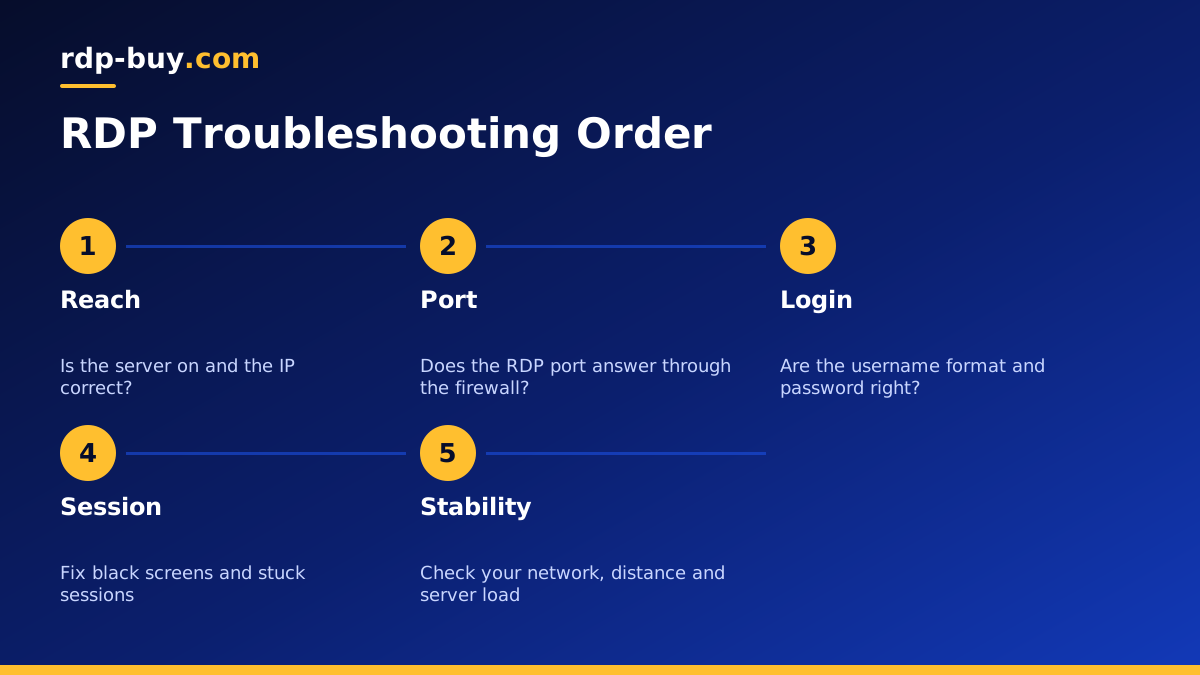
Remote desktop problems feel random, but they fall into clear layers. First, can your device reach the server at all? Second, is the RDP service listening and allowed through the firewall? Third, does the server accept your username and password? Fourth, once you are in, does the session behave? Working through these layers in order saves a lot of guessing.
Write down the exact error message before you change anything. Messages such as "Remote Desktop can't connect to the remote computer", "The credentials did not work" or "An authentication error has occurred" point to different layers, and the wording tells you where to look first.
If you rent your server, keep your provider's control panel open in another tab. It usually gives you a web console that works even when RDP does not, plus a reboot button and a view of the server's status. That console is your safety net for most of the fixes below.
Step 1: Check That the Server Is Reachable
Start with the basics. Confirm that the server is running in your control panel. Then check that you are using the right IP address or hostname, with no extra spaces, and the right port if you changed it from the default.
From a terminal on your own computer, you can test the port directly. On Windows, PowerShell has Test-NetConnection with the server IP and the port number. On Mac or Linux, a tool such as nc can check whether the port answers. If the test fails, the problem is the network path or the firewall, not your password.
- Server shows as running in the control panel.
- Correct IP address, and the correct port after a colon if it is not the default.
- Your own internet connection works and is not on a network that blocks outgoing remote desktop traffic, such as some office or hotel Wi-Fi.
Step 2: Check the Firewall and the RDP Service
If the server is up but the port does not answer, open the web console from your provider and log in there. Check three things inside Windows.
First, confirm that Remote Desktop is enabled in Settings, under System and Remote Desktop. Second, open Windows Defender Firewall and make sure the Remote Desktop rules are enabled for the network profile the server uses. If you changed the RDP port, you need a matching inbound rule for the new port as well. Third, open Services and confirm that Remote Desktop Services is running. Restart it if it looks stuck.
A common trap is a firewall rule that only allows your old home IP address. If your internet provider changed your IP, your own rule now blocks you. Update the rule from the console with your current address, or loosen it temporarily while you fix the problem.
Step 3: Fix Login and Credential Errors
If the connection opens but your login is refused, the problem is authentication. Check the username format first. Local accounts sometimes need a prefix such as the computer name or a dot and backslash before the username. Make sure Caps Lock is off and that your client is not filling in an old saved password.
Repeated failures can trigger an account lockout policy, which blocks logins for a period even with the right password. Wait for the lockout to expire, or clear the lockout and reset the account from the console. From the console you can also set a new password with the Local Users and Groups tool or the net user command.
Messages that mention CredSSP or an authentication error usually mean the client and server disagree about security settings, often because one side is missing updates. Install the latest Windows updates on the server and update your client app, then try again.
Step 4: Solve Black Screens and Frozen Sessions
Sometimes you connect and log in, but you only see a black screen or a frozen desktop. This is usually a session or display issue rather than a network one.
- Wait briefly: after a reboot or update, the first login can take a moment while Windows finishes setting up the profile.
- Reconnect: close the client fully and connect again, which often refreshes a stuck display.
- Lower display settings: reduce the colour depth or turn off bitmap caching in the client options.
- Sign out old sessions: from the console, use Task Manager on the Users tab to sign out a stuck session.
- Restart Explorer: if the taskbar is missing, start explorer.exe from Task Manager.
Step 5: Fix Dropped Connections and Lag
If RDP works but keeps disconnecting, look at the connection between you and the server. Unstable Wi-Fi, a VPN on your device, or a long route to a distant server can all cause drops. Try a wired connection, pause the VPN, and see whether the problem follows you to a different network.
Distance matters too. A server on the other side of the world will always feel slower than one in your region. If you work from one place most of the time, choose a server location close to you. rdp-buy.com offers 33 server locations, which you can compare on our server locations page.
Inside the session, heavy programs can make the desktop itself feel sluggish. Open Task Manager and check whether CPU or memory is maxed out. If it often is, the server is simply too small for the work, and a larger plan will help more than any setting.
Problems on Mac, Phone and Linux Clients
On a Mac, use the current Windows App from the App Store, since older Remote Desktop versions can fail against updated servers. On iPhone and Android, check that the app has permission to use the network and that you saved the correct port with the address. On Linux, clients such as Remmina and FreeRDP may need the security mode set to match the server. Our guide on how to connect to your RDP server shows the setup for each platform.
Prevent RDP Problems Before They Start
Most RDP outages are avoidable with a little routine care. Keep Windows updated, so the client and server stay compatible. Keep a note of your firewall rules and any custom port. Store your password in a password manager, so saved logins never go stale. And always test a change, such as a new port or firewall rule, from a second session before you close the one you are using.
- Test changes from a new session before closing your current one.
- Document your port, firewall rules and admin accounts.
- Keep a second admin account for emergencies.
- Know where your provider's web console is before you need it.
When to Move to a Better RDP Server
If your remote desktop keeps failing because the machine is overloaded, too far away, or a home PC that sleeps and reboots, the fix is a better host rather than another setting. A hosted Windows server stays on around the clock and comes with a dedicated IPv4 address, so your connection details do not change.
When you are ready, compare our RDP plans and pick a location close to where you work. Every server includes full admin access, the Windows licence is included in the price, and servers are ready in minutes. Billing is monthly, half-yearly or yearly, and 24/7 support can help if you get stuck. If you are unsure about sizing, read which RDP plan do you need first.
