 Sign in
VPS How to Connect: SSH From Windows, Mac and Linux
You connect to a Linux VPS with SSH: open a terminal, run ssh root@your-server-ip, accept the host key and enter your password or key. This guide shows the exact steps on every common system, then how to make logins safer, so your new VPS hosting is ready for real work.
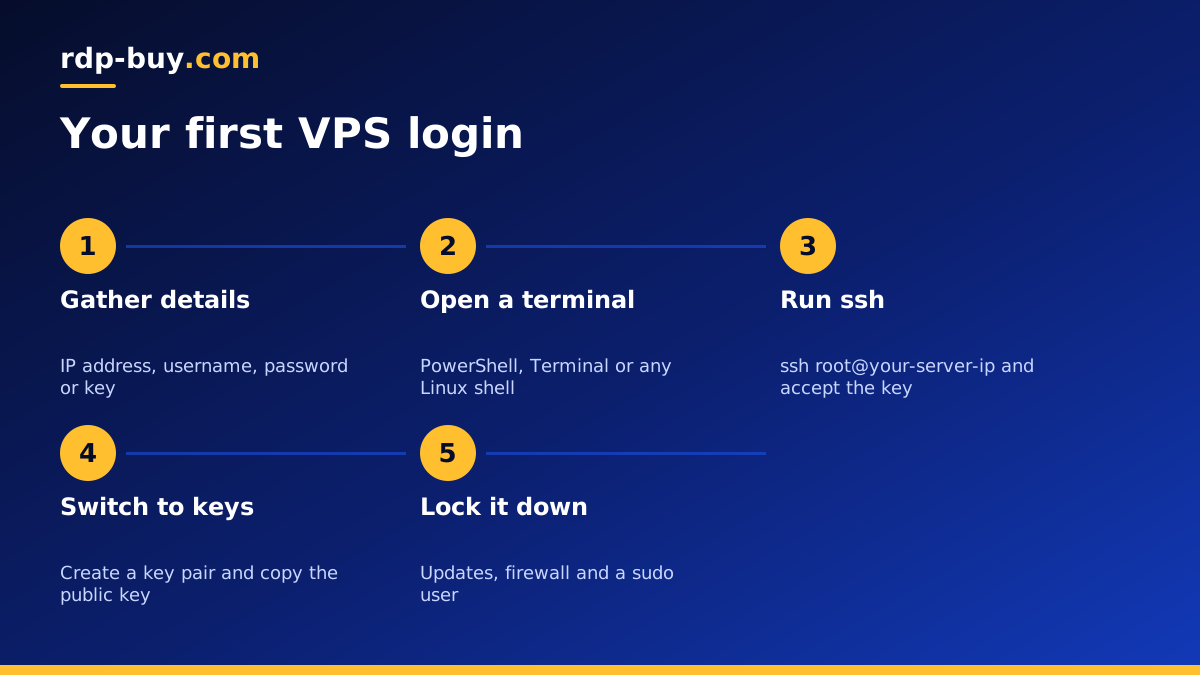
What you need before you connect to a VPS
When a VPS is created, the provider sends you a few details. Keep them together, because you need all of them for the first login.
- The server IP address: the public IPv4 address assigned to your VPS.
- The username: on most Linux images this is root for the first login. Some images use a named user such as ubuntu or debian.
- The password or SSH key: either a generated root password or the public key you supplied when ordering.
- The SSH port: port 22 by default, unless you or the image changed it.
VPS how to connect from Windows
Current versions of Windows 10 and Windows 11 include an OpenSSH client, so you do not need extra software.
Open Windows Terminal or PowerShell from the Start menu. Type ssh root@203.0.113.10, replacing the address with your server IP, and press Enter. The first time, SSH shows the server's key fingerprint and asks if you want to continue. Type yes. Then enter the password. Characters will not appear as you type; that is normal.
If the ssh command is missing, open Settings, go to Optional features and add OpenSSH Client. Older systems can use PuTTY instead: enter the IP in the Host Name box, keep port 22 and connection type SSH, then click Open and log in when prompted.
Connecting from a Mac or Linux computer
macOS and every desktop Linux distribution ship with SSH. Open the Terminal app and run the same command: ssh root@your-server-ip. Confirm the fingerprint with yes, then enter your password.
If your server uses a port other than 22, add it with a lower case p: ssh -p 2222 root@your-server-ip. If you use a key stored in a non-default file, point to it with i: ssh -i ~/.ssh/mykey root@your-server-ip.
Set up SSH keys instead of passwords
Passwords work, but keys are both safer and more convenient. A key pair has a private key that stays on your computer and a public key that you place on the server. Bots that scan the internet for weak passwords cannot guess a key.
Here is the simplest way to switch to keys.
- On your computer, run ssh-keygen -t ed25519 and press Enter to accept the default file. Add a passphrase for extra protection.
- On Mac or Linux, copy the key to the server with ssh-copy-id root@your-server-ip.
- On Windows, open the file .ssh\id_ed25519.pub in your user folder, copy its single line, log in to the server and paste it at the end of ~/.ssh/authorized_keys.
- Log out and log in again. You should get in without the server password.
- Once keys work, you can disable password logins in /etc/ssh/sshd_config by setting PasswordAuthentication to no, then restart the SSH service. Keep your current session open while you test a new one, so a mistake cannot lock you out.
Fixing common VPS connection errors
If the first connection fails, the error message usually tells you where to look.
- Connection timed out: the server is unreachable. Check the IP address, confirm the VPS is running in your client area, and make sure no firewall is blocking port 22. Some office and public networks block outgoing SSH.
- Connection refused: the server answered but nothing is listening on that port. SSH may use a different port, or the SSH service may have stopped.
- Permission denied: the username, password or key is wrong. Check for copy and paste spaces and confirm the correct user.
- Host key verification failed: the server was rebuilt and has a new key. Remove the old entry with ssh-keygen -R your-server-ip and connect again.
- Too many authentication failures: your SSH agent offered many keys. Specify the right one with the i option.
First steps after you connect
A fresh VPS is a clean system. Spend a few minutes on basics before you install anything else.
- Update packages: apt update && apt upgrade on Debian or Ubuntu, or dnf upgrade on Rocky or Alma Linux.
- Create a normal user with sudo rights and use it day to day instead of root.
- Turn on a firewall such as ufw and allow only SSH plus the ports your apps need.
- Set the correct time zone so logs and scheduled jobs make sense.
- Install fail2ban or similar to slow down repeated login attempts.
Saving connection details in an SSH config file
Typing the full command each time gets old quickly, especially if you manage more than one server. SSH reads a config file at ~/.ssh/config on Mac and Linux, or .ssh\config in your Windows user folder. Each entry gives a short name to a server along with its address, user, port and key.
A typical entry has a Host line with the nickname you want, a HostName line with the IP address, a User line, and an IdentityFile line pointing to your private key. After saving it, ssh myvps connects with all of those settings. The same nickname works with scp, rsync and editor extensions, so you only maintain the details in one place.
This is also a tidy way to document your servers. If you rebuild a VPS or move to a new location, you change one HostName line and everything else keeps working.
What to do if you lose access
It happens to everyone eventually: a lost laptop, a deleted key or a firewall rule that blocks your own address. Before that day comes, keep a second copy of your private key in a password manager or encrypted backup, and add a second public key from another device to authorized_keys.
If you are locked out anyway, most providers offer a web console in the client area that connects to the server as if you had a screen plugged in. From there you can fix the firewall, reset the root password or paste a new key. Contact support if you cannot find the console, and as a last resort you can reinstall the operating system and restore your data from backup.
Easier ways to work on a VPS
Once SSH works, several tools make daily work smoother. An SSH config file on your computer lets you save hosts under short names, so ssh myvps replaces a long command. Code editors such as VS Code have remote extensions that open folders on the server over SSH, so you can edit files as if they were local. For copying files, scp and rsync run over the same connection, and graphical tools such as WinSCP or FileZilla in SFTP mode do the same with drag and drop.
For long running jobs, use tmux or screen. They keep a session alive on the server even if your laptop disconnects, which is useful when you install large packages or run an AI agent manually for testing.
What about connecting to a Windows server?
SSH is the standard for Linux. If you rent a Windows server, you normally connect with Remote Desktop instead, which gives you a full graphical desktop. Our guide on how to connect to your RDP server covers that, and RDP vs VPS explains when each type of server makes sense.
Choosing a VPS that is easy to manage
Connection quality depends partly on distance. A server located near you feels more responsive in the terminal, while a server near your users serves your website or app faster. Many people pick the location of their audience and live with a slightly slower terminal.
When you buy a Linux VPS from rdp-buy.com, you get full root access, a dedicated IPv4 address and a choice of 33 server locations. Servers are ready in minutes, billing can be monthly, half-yearly or yearly, and 24/7 support can help if your first login does not go to plan. If you are not sure what to run yet, browse what you can run on a VPS for ideas.
