 Sign in
Best RDP Client for Windows: Built-in and Free Options Compared
The best RDP client for Windows depends on how many servers you manage: one connection is easy with the built-in tool, while dozens call for a connection manager. This guide compares the main options and shows how to set each one up for a Windows RDP server.
What an RDP client does
An RDP client is the program on your own computer that connects to a remote Windows machine using the Remote Desktop Protocol. It sends your keyboard and mouse input, receives the remote screen, and can share your clipboard, printers, drives, audio and microphone with the remote session.
Every client speaks the same protocol, so any of them can connect to any Windows server that accepts RDP. Where they differ is in comfort and scale: how they store connections, handle credentials, display several sessions, and support extras such as SSH, VNC or gateways. If you are new to the protocol, our guide on what RDP is explains the basics, and RDP vs VNC covers how it compares with other remote desktop methods.
Remote Desktop Connection (mstsc): the built-in choice
Every edition of Windows ships with Remote Desktop Connection, started by typing mstsc in the Run box. For one or two servers it is often all you need.
It supports the full feature set of RDP: multiple monitors, high resolutions, clipboard and drive redirection, printer and audio redirection, smart cards, Remote Desktop Gateway, and admin mode with the /admin switch. You can save each connection as an .rdp file with its own settings, then double click the file to connect.
The downsides appear as your list grows. There is no central list of servers, no tabs, no folders, and only basic credential saving through Windows Credential Manager. Managing many .rdp files on the desktop gets messy quickly.
- Best for: one to a few servers, quick connections, no extra installs.
- Cost: included with Windows.
- Tip: open Show Options, set display and local resources, then save the connection as a file in a dedicated folder.
Windows App: Microsoft's newer client
Microsoft's Windows App is a newer client available from the Microsoft Store. It brings together connections to Azure Virtual Desktop, Windows 365, Microsoft Dev Box and classic remote PCs in one place, with a tile view of saved connections. The same app exists on macOS, iOS and Android, so your experience is consistent across devices.
For a plain hosted server, it works much like Remote Desktop Connection with a friendlier list. Some advanced options that power users rely on in mstsc are still easier to reach in the classic client, so many administrators keep both. If you also connect from a Mac, see our guide to Windows RDP for Mac.
Remote Desktop Manager by Devolutions
Remote Desktop Manager is a connection manager rather than a single protocol client. It keeps all your connections in a searchable tree with folders, and opens them as tabs inside one window. It supports RDP alongside SSH, VNC, web consoles and many other connection types, and integrates with password managers.
There is a free edition for individuals and paid editions aimed at teams that need shared vaults, permissions and audit logs. It is a strong choice when you manage many servers across several clients or projects.
- Best for: many servers, mixed protocols, teams.
- Strengths: tabs, folders, credential vaults, broad protocol support.
- Consider: it is a large application with a learning curve.
mRemoteNG: free and open source
mRemoteNG is a free, open source, tabbed connection manager for Windows, with its source on GitHub. It supports RDP, SSH, VNC, Telnet and HTTP connections in one window, organised in a folder tree. Folders can pass settings, such as credentials or display options, down to every connection inside them.
It is popular with administrators and hobbyists who want tabs and a tidy list without paying for a licence. Store its connection file carefully, and protect it with a master password, since it holds your saved credentials.
- Best for: individuals who want tabs and folders for free.
- Strengths: open source, lightweight, multi-protocol.
- Consider: fewer team features than commercial tools.
Royal TS and other connection managers
Royal TS is another well known commercial connection manager, with a free version that limits the number of connections. It keeps connections in shareable documents, which suits small teams that pass a list of servers around. Other tools in this space include Remmina on Linux and various terminal suites that add RDP to their SSH features.
The core RDP experience is similar across all of them, because most use Microsoft's own RDP component under the hood. Choose based on how you like to organise connections and whether you need team sharing.
How to choose the best RDP client for you
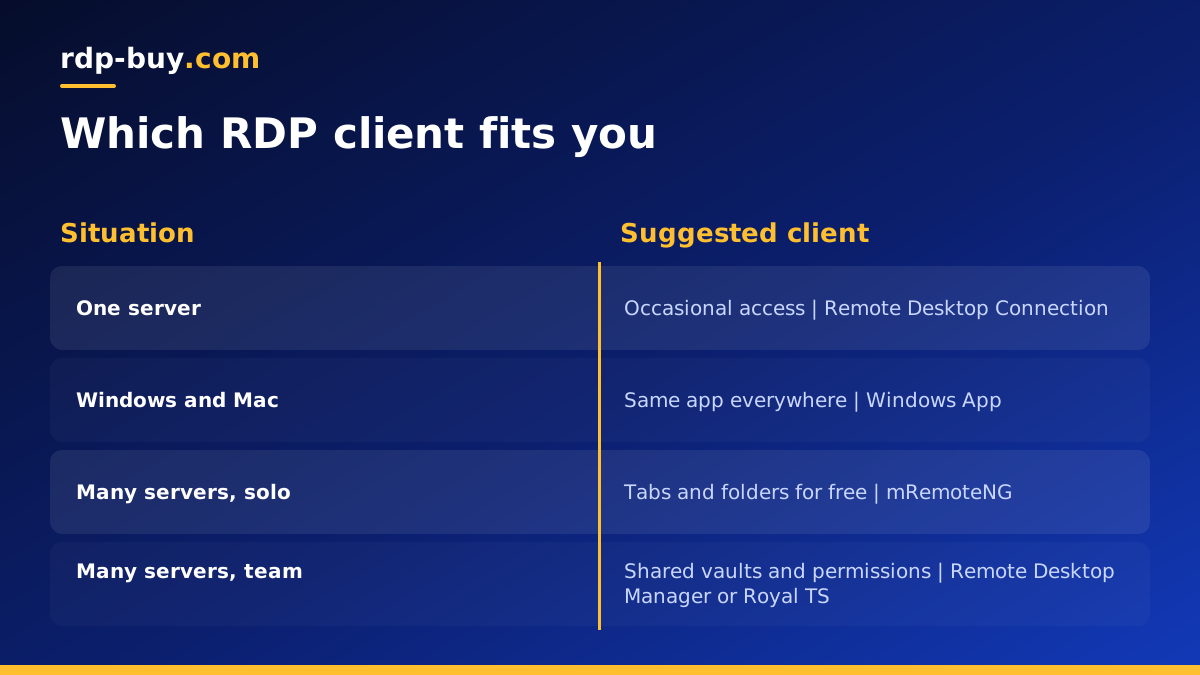
Match the tool to how you work.
- One server, occasional use: Remote Desktop Connection. Nothing to install.
- A few servers across Windows and Mac: Windows App, for a consistent look on every device.
- Many servers, working alone: mRemoteNG or the free edition of Remote Desktop Manager.
- Many servers, working in a team: Remote Desktop Manager or Royal TS with shared, permissioned vaults.
- Mixed Windows and Linux servers: any connection manager that handles both RDP and SSH in one window.
Common RDP client problems and how to fix them
Most problems are not caused by the client itself, so switching apps rarely fixes them. Work through the usual causes first, in this order, before reinstalling anything.
If none of these help, try the built-in Remote Desktop Connection as a baseline. If it connects and your third-party client does not, the issue is in that client's saved settings, and recreating the connection entry usually solves it.
- The client cannot find the server. Check the IP address or hostname for typos, confirm the server is running, and make sure Remote Desktop is enabled and allowed through the Windows firewall on the server.
- Credentials are rejected. Confirm the username format. Local accounts sometimes need the server name and a backslash before the username. Clear any old saved password for that server in Windows Credential Manager, then try again.
- A certificate warning appears every time. New servers usually present a self-signed certificate. Once you have confirmed the address is correct, tell the client to trust it so the prompt stops.
- The session is slow or choppy. Lower the resolution or colour depth, turn off wallpaper and visual effects in the experience settings, and choose a server location closer to you or to the services you use.
- Copy and paste stops working. Make sure clipboard redirection is on. Inside the session, restarting the rdpclip process often brings the shared clipboard back.
- The display is the wrong size. Turn on smart sizing or dynamic resolution so the remote desktop follows the window as you resize it.
Settings that matter in any RDP client
Whichever client you choose, a few settings improve every session. Match the display resolution to the window you actually use, rather than the largest possible, to keep the session smooth on slower connections. Turn on clipboard sharing and, when you need to move files, drive redirection for a single folder rather than your entire disk.
Keep Network Level Authentication enabled. Save credentials only on a computer you control, and use the client's master password or a password manager integration if it has one. For servers you reach often, give each connection a clear name that includes its location or role, so you never confuse production with testing.
Remember that closing the client window disconnects without signing out, so programs keep running on the server. Sign out from the Start menu when you want to end the session completely. Our guide on connecting to your RDP server walks through the first connection.
Getting a Windows server to connect to
A good client needs a reliable server on the other end. A hosted Windows server stays online around the clock, so your sessions, trading platforms and automations keep running after you disconnect.
rdp-buy.com Windows servers include full administrator access, a dedicated IPv4 address, and the Windows licence in the price. Choose from 33 locations, with monthly, half-yearly or yearly billing, 24/7 support, and servers ready in minutes. Once you have picked your client, you can buy RDP in the region you need, or read which RDP plan you need to size it first.
