 Sign in
How to Run RDP as Administrator: Admin Mode and Admin Rights
Running RDP as administrator can mean three different things: starting the Remote Desktop client with elevated rights, connecting in admin mode, or signing in to the remote machine with an administrator account. This guide covers all three, plus the errors people hit, so you can manage any Windows RDP server with full control.
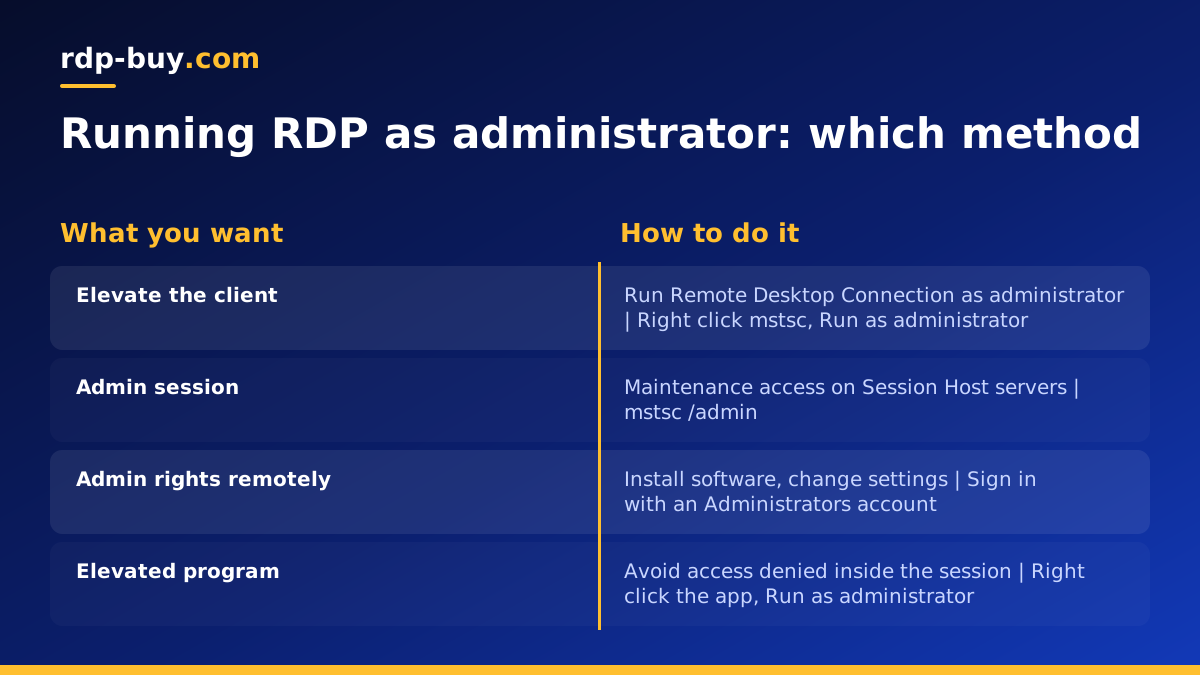
Three meanings of running RDP as administrator
Searches for how to run RDP as administrator usually come from one of these situations, and the fix is different for each.
Work out which one you need first. It saves a lot of trial and error, because elevating the client on your own PC does nothing for permissions on the remote server.
- Elevating the client on your own PC. You want the Remote Desktop Connection app (mstsc.exe) itself to run with administrator rights on your local computer.
- Admin mode on the remote server. You want to connect to the server's administrative session, often called console mode, using the /admin switch.
- Admin rights on the remote machine. You want to sign in to the server with an account that is an administrator there, so you can install software and change settings.
How to run the Remote Desktop client as administrator
You rarely need this. The client does not need elevated rights to connect, and it does not give you more rights on the remote server. It can help when a local policy, a smart card driver or a saved connection file in a protected folder needs local admin permission.
If you find you need this every time, check why. Often the real issue is a saved .rdp file stored in a protected folder. Moving it to your Documents folder removes the need to elevate.
- Press the Windows key and type Remote Desktop Connection.
- Right click the result and choose Run as administrator. Approve the User Account Control prompt.
- Alternatively press Windows key and R, type mstsc, then press Control, Shift and Enter together to launch it elevated.
- To always run it elevated, right click a shortcut to mstsc.exe, open Properties, choose Advanced, and tick Run as administrator.
How to connect in admin mode with mstsc /admin
Admin mode connects you to the administrative session on a Windows Server rather than a normal user session. On servers with the Remote Desktop Session Host role, admin mode does not use a Remote Desktop licence, which is why administrators use it to manage a server even when all user licences are taken or the licensing setup is broken.
To use it, press Windows key and R, then type mstsc /admin and press Enter. The normal connection window opens. Enter the server address and connect as usual.
You can also add the server directly with mstsc /admin /v: followed by the address, which skips the dialog. For a saved connection, open the .rdp file in a text editor and add a line that reads administrative session:i:1.
Admin mode is for maintenance. You still need to sign in with an account that has administrator rights on the server; the switch does not grant them. On a standard Windows Server without the Session Host role, the server allows a small number of administrative connections anyway, so the switch makes little difference there.
How to sign in to RDP with an administrator account
This is what most people actually need: to land on the remote desktop as a user who can install software, open firewall ports and change system settings.
On a hosted server, the welcome email gives you an administrator username and password. Use those details in Remote Desktop Connection. If your client remembers another account, click More choices, then Use a different account, and type the administrator name.
On a computer in a domain, use the domain name, a backslash, then the username. On a standalone server, you can type the server name or a single dot followed by a backslash and the username to make it clear the account is local.
Once signed in, programs still start with standard rights because of User Account Control. To run a program elevated inside the remote session, right click it and choose Run as administrator, just as you would locally. Our guide on how to connect to your RDP server covers the first sign-in in more detail.
How to give another user admin rights over RDP
Sharing the built-in administrator account between several people is a bad habit. Create separate accounts and give each one only the rights it needs.
Remove accounts as soon as someone no longer needs access. Separate accounts also make it clear in the event log who changed what.
- Sign in as administrator and open Computer Management, then Local Users and Groups.
- Create a new user with a strong, unique password.
- To let the user sign in over RDP without admin rights, add them to the Remote Desktop Users group.
- To give full control, add them to the Administrators group instead. Members of Administrators can always use RDP.
- Ask the user to sign in and change their password on first use.
Fixing common administrator RDP errors
These are the errors people meet most often when trying to connect with admin rights.
- The connection was denied because the user account is not authorized for remote login. The account is not in Administrators or Remote Desktop Users on the server. Add it, or sign in with an account that is.
- The requested session access is denied. Often caused by a Group Policy that restricts who may log on through Remote Desktop Services. Check Allow log on through Remote Desktop Services in Local Security Policy.
- No Remote Desktop licence servers available. The Session Host role is installed but licensing is not set up. Connect with mstsc /admin to reach the server and fix licensing.
- Access is denied when changing settings. You are signed in, but the program is not elevated. Right click and choose Run as administrator.
- Remote Desktop cannot connect at all. RDP may be disabled or blocked by the firewall. Our guide on enabling RDP on Windows Server shows how to turn it on safely.
Keeping administrator RDP access secure
Administrator access over the internet is valuable to attackers, so protect it carefully. Use a long, unique password for every admin account, and change the default password you received as soon as you first sign in.
Keep Network Level Authentication turned on so credentials are checked before a full session starts. Consider renaming or disabling the built-in Administrator account once you have a named admin account working, since the default name is the first one attackers try.
Restrict RDP in the Windows firewall to the IP addresses you connect from, if they are fixed. Turn on account lockout so repeated failed sign-ins are slowed down. Keep Windows updated, and sign out of admin sessions when you finish instead of leaving them open.
Getting a Windows server with full administrator access
Everything above assumes you control the remote machine. Shared remote desktops and some cheap offers only give you a limited user account, which means no software installs and no system changes.
A hosted Windows server from rdp-buy.com comes with full administrator access, a dedicated IPv4 address, and the Windows licence included in the price. Choose from 33 locations, pick monthly, half-yearly or yearly billing, and get 24/7 support if a setting gets in your way. Servers are ready in minutes. If admin rights are the main requirement, look at admin RDP plans, or buy RDP from the full Windows range and size it with our guide on which RDP plan you need.
