 Sign in
VPS vs VM: What Is the Difference and Which Do You Need?
A VPS is a virtual machine that a hosting provider runs for you on its own hardware, sells as a service and keeps online around the clock. If you want that kind of always-on server without owning hardware, VPS hosting is usually the simpler route; this guide explains exactly where the two terms overlap and where they do not.
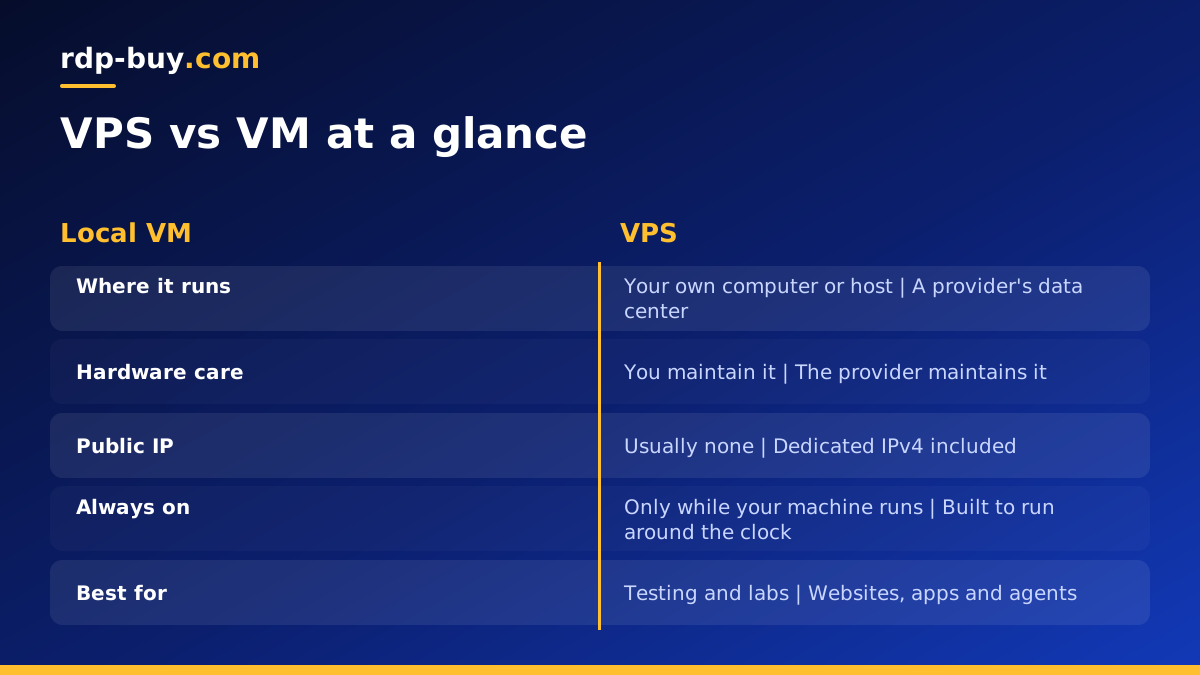
VPS vs VM: the short answer
People often search for VPS vs VM because the two terms seem to describe the same thing. In a technical sense they do: every VPS is a virtual machine. The difference is about context, ownership and responsibility rather than the underlying technology.
A virtual machine (VM) is any software-defined computer that runs on top of a hypervisor. You can create one on your laptop with VirtualBox, on an office server with Hyper-V or Proxmox, or in a large cloud account. A VM is simply a technical building block.
A virtual private server (VPS) is a VM that a hosting company creates on its own physical servers, connects to the internet with a public IP address and rents to you as a product. You get an operating system with full control, but the hardware, power, cooling, networking and hypervisor are the provider's job. When you buy VPS plans, you are buying a managed slice of somebody else's infrastructure with a VM inside it.
How virtualization works under both
Both a VPS and a VM rely on a hypervisor. The hypervisor sits between physical hardware and the guest operating systems. It divides CPU time, memory and storage into isolated portions so that several operating systems can share one physical machine without seeing each other's files or processes.
Common hypervisors include KVM, which is built into the Linux kernel, Microsoft Hyper-V, VMware ESXi and Xen. Desktop tools such as VirtualBox and VMware Workstation do the same job on a personal computer. Whatever the hypervisor, each guest believes it has its own processor, memory, disk and network card.
So the engine is identical. What changes between a home VM and a hosted VPS is where the engine runs, who looks after it and how the result reaches the outside world.
Key differences between a VPS and a VM
Once you look beyond the hypervisor, the practical differences are clear. These are the points that decide which option suits a project.
- Where it runs: a VM can run anywhere, including your own laptop. A VPS always runs in a provider's data center.
- Who owns the hardware: with a self-built VM you own or rent the host machine and maintain it. With a VPS the provider owns the host and replaces failed parts.
- Network access: a VM on a laptop usually sits behind your home router with no public address. A VPS normally comes with a public IP, so services on it are reachable from anywhere.
- Availability: a local VM stops when you close the laptop or lose power. A VPS is built to stay online all day and night.
- Responsibility: with your own VMs you manage the hypervisor, backups of the host and hardware upgrades. With a VPS you manage only the operating system and your software.
- Billing: local VMs cost whatever your hardware and electricity cost. A VPS is a recurring service, usually billed monthly or for longer terms.
When a local VM makes more sense
A VM on your own machine is a great tool, and it is the right choice in several situations.
Testing is the obvious one. If you want to try a new Linux distribution, check how an installer behaves or run an old piece of software in a sandbox, a local VM is quick to create and quick to throw away. Snapshots let you roll back after a failed experiment.
Learning is another. Students and new administrators often build small labs of VMs to practise networking, Active Directory or container orchestration without paying for anything beyond the computer they already own.
Finally, some organisations already run their own virtualization platform on hardware in an office or a colocation rack. For them, creating another VM is a matter of a few clicks, and they have staff to maintain the hosts.
When a VPS is the better choice
A VPS wins whenever the workload needs to be reachable from the internet or needs to keep running when you are not at your desk.
Typical examples include hosting a website or API, running a database that several people use, operating a game server for friends, running automation tools such as n8n, and hosting AI agents that must answer messages or run scheduled jobs at any hour. A laptop VM is a poor fit for all of these, because it sleeps, changes networks and has no stable public address.
A VPS also saves time. You do not need to buy hardware, plan for disk failures or worry about power cuts at home. The provider handles that layer, and you start from a clean operating system with root or administrator access.
- Choose a VPS for anything public facing or always on.
- Choose a VPS when you need a dedicated IPv4 address for allow lists, mail or remote access.
- Choose a VPS when you want a server close to your users or to the APIs your software calls.
- Choose a local VM for short experiments, labs and offline testing.
VPS vs VM vs dedicated server
There is a third option worth knowing. A dedicated server gives you a whole physical machine rather than a virtual slice of one. Some providers also offer dedicated CPU plans, where your virtual server has processor cores reserved only for it.
The progression is roughly this: a local VM is free to create but limited to your own hardware; a VPS is a hosted VM that shares a host with other customers inside strict isolation; a dedicated or bare metal server gives you the entire host. If your workload is heavy and constant, such as large builds or busy databases, read our guide to the dedicated CPU server and the difference between dedicated server plans and shared VPS resources.
Is a VPS secure if it shares hardware?
This is a common worry. Hypervisor isolation is designed so that one guest cannot read another guest's memory or disk. Your VPS has its own kernel, its own file system and its own network interface. Other customers on the same host cannot log in to your server or see your processes.
Most real-world security problems on a VPS come from the operating system level instead: weak passwords, open ports, outdated packages and exposed admin panels. Those risks are identical on a VM you run yourself. Good practice is the same on both: use SSH keys on Linux, strong unique passwords on Windows, a firewall that only opens the ports you need, and regular updates.
Can you run VMs or containers inside a VPS?
Running a full VM inside a VPS requires nested virtualization, which many hosts do not enable, so it is not something to count on. Containers are a different story. Docker runs happily on a Linux VPS, because containers share the host kernel instead of emulating hardware.
That makes a VPS a good home for a stack of containers: a web app, a database, a reverse proxy and an automation tool, each in its own container. Our guide on Docker vs VPS explains how the two fit together, and the Docker VPS page shows plans suited to container workloads.
How to move from a local VM to a VPS
If you have built something in a local VM and want it online, the move is usually straightforward.
- Write down what the VM runs: operating system version, packages, services, ports and data folders.
- Pick a VPS with the same operating system family and enough memory and storage for that list.
- Choose a location near your users or the services your app talks to.
- Rebuild the services on the VPS with a script or Docker Compose file, rather than copying the whole disk image.
- Copy your data across with rsync, scp or a database dump and restore.
- Point your domain at the new IP address, then lock down the firewall.
Choosing a VPS plan
Once you know a hosted VM is what you need, the choice comes down to operating system, resources and location. For Linux workloads such as web apps, Docker and automation, start with Linux VPS plans. If you need a Windows desktop you can log in to remotely, look at Windows RDP plans instead, and our guide to choosing Windows or Linux helps if you are unsure.
At rdp-buy.com every server comes with full root or administrator access, a dedicated IPv4 address and a choice of 33 server locations. Billing can be monthly, half-yearly or yearly, servers are ready in minutes and support is available 24/7. Start small, watch how your workload behaves, and move up a plan only when you need to.
