 Sign in
Admin RDP: What Full Administrator Access Gives You
Admin RDP means a Windows remote desktop where you hold the Administrator account: you can install anything, change any setting, add users, open ports and reboot, and nobody else shares the machine. This guide explains what that access gives you compared with shared or user-level RDP, who needs it, what to check before you buy RDP with admin rights, and what to do in your first hour after logging in.
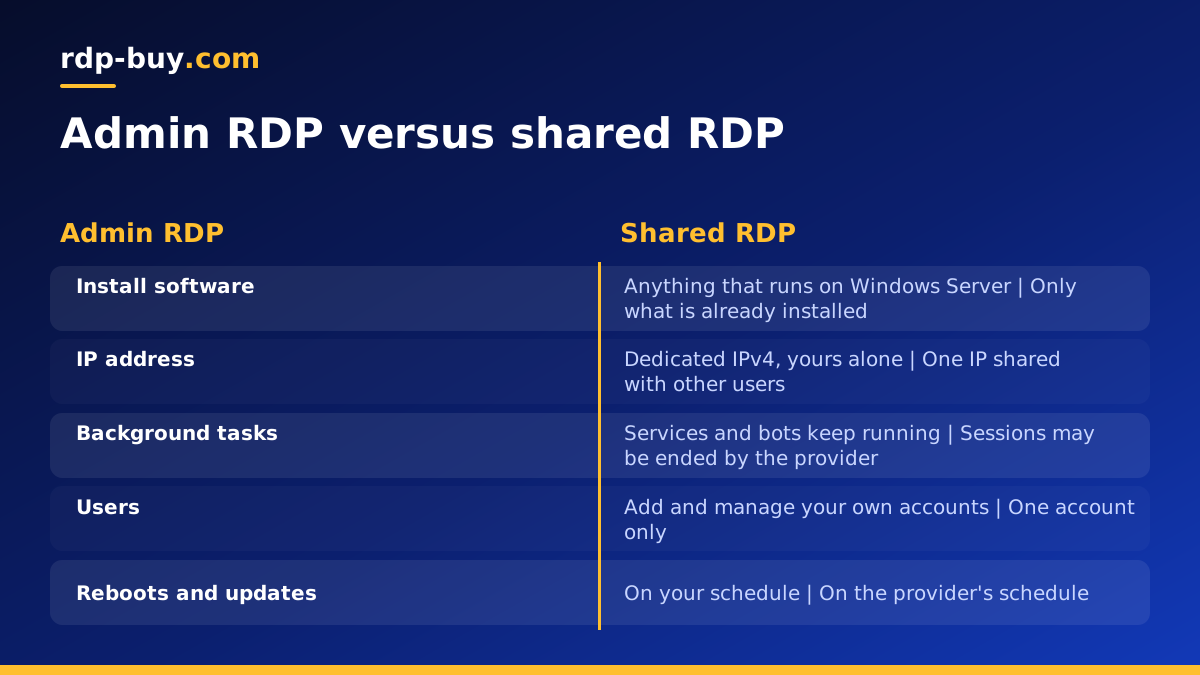
What admin RDP actually means
RDP is the protocol that gives you a Windows desktop over the internet. Admin RDP is not a different protocol; it describes the account you are given and who else is on the server. With admin RDP you log in as a member of the Administrators group on a Windows server that is yours alone. The operating system treats you the way it treats the owner of a physical PC: you can install software, change system settings, manage services, edit the registry, configure the firewall and create or remove other users.
The alternative is sometimes called shared RDP, user RDP or a slot on a server. There you receive a standard user account on a Windows machine that other customers also use. You can run programs that are already installed and save files in your own profile, but installation prompts fail, system settings are locked, the IP address is shared, and the provider decides when the server reboots. For light, occasional use that can be enough. For anything that needs to be installed, kept running or secured on your own terms, it is not.
On rdp-buy.com every Windows plan is admin RDP: full administrator access, a dedicated IPv4 address and the Windows licence included in the price. The admin RDP page lists the plans built around exactly that promise.
Admin RDP server versus shared RDP: what changes
The practical differences show up on the first day, usually the moment you try to install something. Here is what full rdp admin access changes compared with a shared seat.
- Installing software: admin RDP lets you install anything that runs on Windows Server; shared RDP limits you to whatever is already there.
- Background work: admin RDP lets you run services, scheduled tasks and bots that keep going after you disconnect; shared RDP may end your session or kill its processes.
- Network: admin RDP gives you a dedicated IPv4 address and the right to open or close ports; shared RDP puts every user behind one IP, so one person's behaviour affects everyone's reputation.
- Users: admin RDP lets you add colleagues or bots as separate Windows users with their own permissions; shared RDP gives you one account only.
- Updates and reboots: admin RDP puts you in charge of when the server patches and restarts; shared RDP reboots when the provider decides, sometimes in the middle of your job.
- Security: admin RDP lets you configure the firewall, authentication and logging; on shared RDP those settings belong to someone else, and so do the other users on the box.
Who needs an admin RDP server
Developers need admin access to install runtimes, web servers, database engines, Git, Node, Python and the build tools that go with them, and to open the ports their test services listen on. Traders who run custom indicators, expert advisors or third-party add-ons need to copy those files into the platform's folders, which a standard user cannot do; a forex RDP is simply an admin RDP set up with that use in mind.
Automation and bot operators need scheduled tasks, Windows services and browser drivers that survive a disconnect, plus a dedicated IP that strangers are not also using. Agencies that manage several client accounts need separate Windows users and browser profiles per client, and the ability to install whatever proxy or VPN client each account requires.
Anyone running AI agents needs admin access most of all. Installing Node and Python, Docker Desktop or the Windows Subsystem for Linux, Claude Code (by Anthropic), n8n or an OpenClaw runtime, and then keeping them alive as services, means touching parts of Windows that are locked on a shared server. The guide to Windows RDP for AI agents covers that setup in detail, including why a server that never sleeps beats a laptop for this job.
What to check before you buy admin RDP
Not every listing that says admin delivers the same thing, so confirm the following before paying. These are the points that decide whether the server behaves like your own machine or like a locked-down seat with a nicer label.
- Full administrator access: your login should be a member of the local Administrators group, able to create users and change system settings, not a standard account with a handful of extra rights.
- Dedicated IPv4 address: one public IP that belongs to your server only, so your reputation with brokers, email providers and APIs is yours alone.
- Licence included: the Windows Server licence should be part of the plan, with no separate activation step or extra charge later.
- Location choice: place the server near the services it talks to, not near your desk; rdp-buy.com offers 33 server locations, described on the RDP server locations page.
- Billing and payment: look for monthly, half-yearly or yearly billing and a payment method you trust; you can buy RDP with PayPal, by card or with crypto.
- Support: 24/7 support matters most late at night when a reboot hangs or a password reset is needed.
The responsibilities that come with admin access
Being the administrator means nobody else patches, backs up or protects the server for you. That is the whole point of the arrangement, but it carries duties. Windows updates are your job: the server will not install them unless you let it, and an unpatched server with remote desktop open to the internet is a target. Backups are your job too: a server can be reinstalled in minutes, but the files and configuration on it are yours to copy somewhere else, whether that is a redirected folder on your own PC, a cloud drive or an export from each application.
The firewall is your job, and so is the behaviour of everything you run. Admin rights do not change the acceptable use terms: no spam, no attacks, no scraping that breaks a site's rules, no abuse of other people's systems. A dedicated IP means any abuse is traced to you rather than to a crowd, which is one more reason to keep the server clean and to know exactly what every scheduled task on it does.
If you would rather not carry these duties, think about whether you need Windows at all. A Linux VPS has the same ownership model but a different toolset; RDP vs VPS explains the difference so you choose the right one before you pay.
- Patch: let Windows Update run and reboot on a schedule you choose.
- Back up: copy application data and configuration off the server regularly.
- Protect: configure the firewall, keep passwords long and unique, review who has accounts.
- Behave: run only software and traffic allowed by the terms of service.
First steps after your first login
Your welcome email gives the IP address, username and password. Connect with the Remote Desktop client (see how to connect to your RDP server), then spend the first half hour on the following steps, in this order, before you install a single application.
Only then install your software. Installing first and securing later is how most compromised servers begin, because the window between a fresh server going live and the first password guessing attempts is short.
- Change the Administrator password to a long, unique passphrase stored in a password manager.
- Better still, create a new administrator account with an unusual name, confirm you can log in with it, then disable the built-in Administrator account. Automated attacks try the name Administrator first.
- Open Windows Defender Firewall with Advanced Security. Confirm the Remote Desktop rule is enabled, and if you connect from fixed locations, limit its scope to your own IP addresses.
- Keep Network Level Authentication switched on in the Remote Desktop settings so clients must authenticate before a session is created.
- Run Windows Update, install everything offered, reboot, and repeat until nothing is left. Then set active hours so automatic restarts avoid your working or trading window.
- Create a standard user for daily work and for any bot or trading platform. Log in as that user for routine tasks and use the admin account only to install or change settings.
- Set the correct time zone and turn on auditing of logon events so you can review failed attempts later.
How to pick the right plan size
Admin access is identical on every plan; what changes is the memory, processor and disk behind it. Size the plan for the busiest moment of the week, not the average. One trading platform with a handful of charts, one accounting package or a single lightweight bot sits comfortably on a small plan. Several browser profiles, a platform with many indicators, a development stack with a database, or two or three bots running together need a mid-sized plan. Backtesting, several users logging in at once, or an AI agent that drives a browser and a local toolchain belong on a larger plan.
Disk is easy to forget. Windows Server itself, its updates and a few applications take a meaningful share of a small disk, so leave room for logs, data and downloads. If you are unsure, start one size larger than you think and review usage in Task Manager after a week. The guide on which RDP plan do you need goes through each workload type in turn.
Buying admin RDP: choosing your plan
When you are ready, open the Windows RDP plans page or go straight to the buy admin RDP page. Both list plans with full administrator access, a dedicated IPv4 address and the Windows licence included. Choose the location nearest the services the server will talk to, pick the size by the busiest workload you expect, then choose monthly billing for a trial or half-yearly or yearly for a server you intend to keep. Pay by card, PayPal or crypto, and the server is ready in minutes.
Then follow the first steps above before installing anything, and you will have a Windows machine that is genuinely yours: your software, your users, your schedule and your IP address.