 Sign in
Buy Windows RDP: Plans, Licence and Setup Explained
If you want to buy Windows RDP but are not sure what you are actually getting, this guide explains the product from the ground up: what a Windows RDP server is, what it is good for, how to pick a plan and location, how ordering and connecting work, and what to do in the first ten minutes after login. The Windows RDP plans on rdp-buy.com are used as the worked example throughout.
What a Windows RDP actually is
A Windows RDP is a Windows desktop that runs on a server in a data centre instead of on a machine under your desk. You log into it over the internet using Remote Desktop, the protocol built into Windows, and you see a normal desktop with a Start menu, a taskbar and a browser. Anything you can do on a Windows PC you can do here: install programs, open files, run scripts, leave applications running when you log off.
The important difference from a desktop at home is that it never needs to sleep. The server is on around the clock, with its own power, cooling and network. When you close the Remote Desktop window your programs keep running. When you reconnect from a different device, perhaps a phone on the train, the desktop is exactly where you left it.
When you buy Windows RDP from rdp-buy.com you get your own Windows installation with full administrator access and a dedicated IPv4 address. You are not sharing a login with other customers. The machine is yours to configure, and its address belongs to it alone. If you are weighing this against a Linux server, the short version is that RDP gives you a Windows desktop and a VPS usually gives you a Linux command line.
What a Windows RDP is good for
The honest answer is anything that needs Windows, needs to stay on, or needs an address that does not change. The most common uses fall into a few groups.
Desktop applications are the first. Accounting packages, office suites, design tools and in-house software that only ship for Windows all run on the remote desktop and stay available from any device. Trading platforms are the second. A platform such as a broker terminal with expert advisors needs to be running whenever the market is open, and a laptop that sleeps or loses its connection will miss trades. A forex RDP placed near the broker's servers solves both problems.
Browsers and automation tools form the third group: a clean browser with a fixed IP for managing accounts, a scraping or testing tool, a scheduled script that fills forms or downloads reports. Bots and AI agents are the fourth and fastest growing. Workflow tools such as n8n, coding agents such as Claude Code (by Anthropic), and Docker based agent stacks can all run on a Windows desktop that never shuts down, with a stable address for every API they call. The Windows RDP for AI agents page covers that use in depth.
- Desktop apps: accounting, office, design and Windows only tools.
- Trading platforms: always-on terminals with expert advisors near the broker.
- Browsers and automation: fixed IP browsing, scraping, scheduled scripts.
- Bots and AI agents: n8n, coding agents, Docker stacks running around the clock.
How to pick a Windows RDP plan by use
Plans differ in CPU, memory and storage. The simplest way to choose is to match the plan to the heaviest thing you will run at the same time, not to the total list of everything you might ever install.
If your use is a browser, email and a light application or two, the smallest plan is enough, and it is the right place to start if you want to buy Windows RDP cheap. The cheap RDP page explains exactly which jobs suit the entry plan and which ones outgrow it quickly. If you will run a trading platform with several charts, a large spreadsheet model, or a browser with many tabs open all day, step up to a middle plan so the desktop stays responsive. If you will run an AI agent, a Docker stack or several bots at once, choose a plan with more memory than you think you need, because these workloads grow and the cost of a crash at night is higher than the cost of an extra size.
Two rules make the choice safer. First, favour memory over CPU for most desktop uses, since running out of memory is what makes a Windows desktop feel broken. Second, start one size smaller than your guess on monthly billing and upgrade once the server shows you it is tight. Our guide on which RDP plan you need walks through each use with a sizing question you can answer in a minute.
The included Windows licence and choosing a location
Windows Server is licensed software, and a server without a valid licence will nag, lose features or stop. On rdp-buy.com the Windows licence is included in the plan price. That means three practical things for you.
You do not buy, enter or manage a product key. The desktop arrives activated. You are not responsible for licence compliance for the operating system itself, because the provider holds the server licence as part of running the service. And the price you see on the plan page is the price you pay, with no licence line added at checkout or on renewal. The licence covers the Windows installation only, so any paid software you install on top, such as an office suite or a trading add-on, still needs its own licence from its own vendor.
If you are deciding between Windows and Linux for the job, the included licence is one of the things that changes the comparison. Linux has no licence cost, but Windows is the only choice when the software you need runs on Windows.
A Windows RDP has a physical home, and the best location depends on what the desktop talks to most. For a trading platform, that is the broker, so pick the city nearest the broker's servers. For an agent or a bot calling APIs, pick the region those APIs live in. For a desktop you use interactively all day, pick the city nearest you so typing and scrolling feel natural. For a browser that needs to appear in a specific country, such as managing a store aimed at American customers, pick that country: the USA RDP page is the usual answer there.
rdp-buy.com offers 33 server locations, and the full list with a short note on who each one suits is on the RDP server locations page. The location is chosen on the order form and your dedicated IPv4 address belongs to that location, so decide before you pay rather than after.
How ordering and paying work
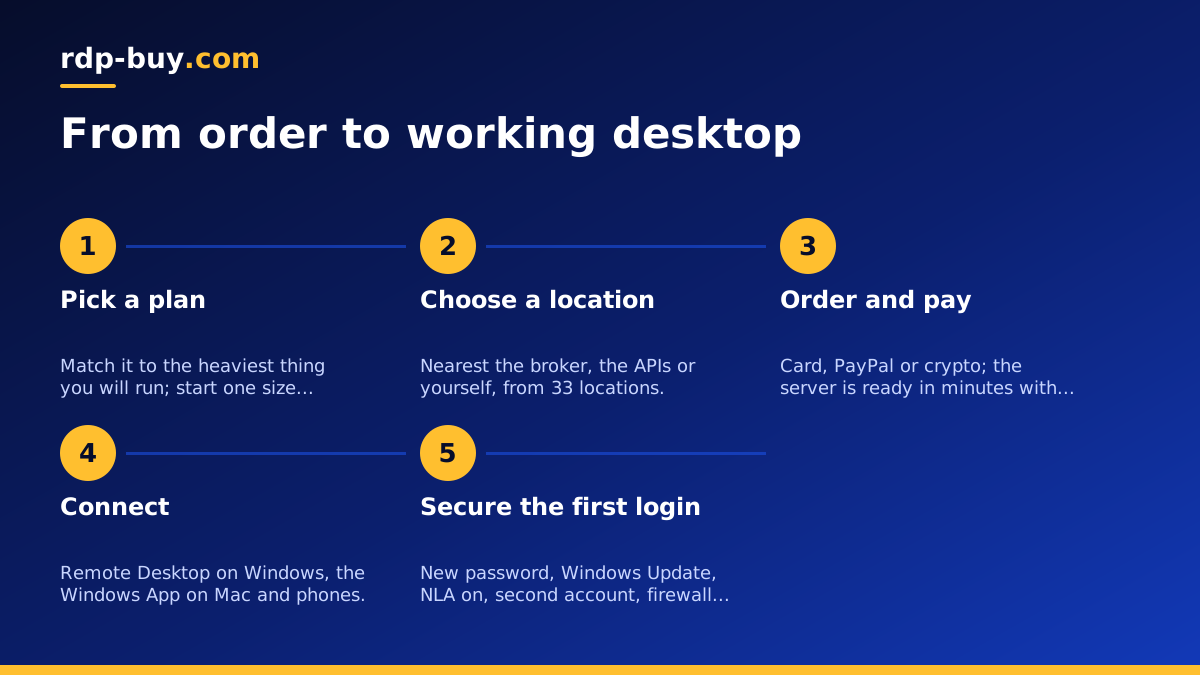
Ordering is a short form rather than a sales call. On the order page you pick the plan, choose the location, choose a billing term and choose how to pay. Billing is monthly, half-yearly or yearly; monthly is the sensible default for a first server, and the longer terms suit a desktop you already know you will keep.
Payment is by card, PayPal or crypto. Card is the quickest. PayPal keeps your card details with PayPal rather than the merchant and gives you a familiar checkout. Crypto suits buyers who prefer not to share card details or whose cards are often declined by overseas merchants. The buy RDP with card page walks through the card flow step by step, and the PayPal and crypto pages do the same for those methods.
After payment the server is built automatically and is ready in minutes. You receive an email with the server address, the administrator username and a password. Keep that email somewhere safe until you have changed the password, then delete it.
Windows RDP: how to connect from Windows, Mac and a phone
On a Windows PC the client is already installed. Open the Start menu, type Remote Desktop Connection, enter the server address from your welcome email, click Connect and enter the administrator username and password when asked. You can save the connection so the next login is one click. On a Mac, install the Windows App from the Mac App Store, add a PC with the server address and your credentials, and double click it to connect. On an iPhone, iPad or Android phone, install the same Windows App from the app store, add the PC and connect; the desktop is scaled to the screen and a touch keyboard appears when you tap a text field.
The first connection usually shows a certificate warning because the server uses a self-signed certificate. Check the address matches your server and accept it. Our full guide on how to connect to your RDP server has screenshots for each device and a short section on what to do if the connection is refused or times out.
First-login checklist: ten minutes well spent
The welcome email gives you a working desktop, but a few minutes of housekeeping on the first login make it a safe one. Do these in order before you install anything.
Change the administrator password first, to a long one you store in a password manager. Then open Windows Update and install everything that is pending, rebooting when asked; a fresh server often has updates waiting. Next, enable Network Level Authentication in the Remote Desktop settings, so that a password is checked before a desktop session is even created, which blocks a whole class of attacks on the login screen. Then create a second user account for daily use and keep the administrator account for installs and changes only. Finally, confirm the Windows firewall is on and that only Remote Desktop and the services you need are open.
With that done, install your software, set it to start with Windows if it needs to run unattended, and log off rather than shut down when you are finished. The desktop keeps working while you are away.
- Change the administrator password and store it in a password manager.
- Run Windows Update until nothing is pending, rebooting as needed.
- Enable Network Level Authentication for Remote Desktop.
- Create a second account for daily work; keep administrator for changes.
- Check the Windows firewall is on and only needed services are open.
Buy Windows RDP: which plan should you choose
Bring the sections together and the decision is short. Name the heaviest thing the desktop will run. Pick the plan one size above the minimum that handles it, or the entry plan if the job is light and you want to buy Windows RDP cheap. Choose the location nearest the broker, the APIs or yourself. Pick monthly billing for a first order. Pay by card, PayPal or crypto. Connect from your Windows PC, Mac or phone, run the first-login checklist, and install your software.
The buy RDP page lists every plan with its CPU, memory and storage and a plain note on what it suits, from a light desktop to an always-on machine for trading platforms, bots and AI agents. Every plan comes with full administrator access, a dedicated IPv4 address, the Windows licence included, your choice of 33 locations, 24/7 support, and a server that is ready in minutes after payment. If you are unsure between two sizes, take the smaller one on monthly billing and upgrade when the desktop tells you it is time.