 Sign in
Forex VPS for MetaTrader 5: Keep Your EAs Running 24/7
A forex VPS for MetaTrader 5 is a Windows desktop in a data centre that keeps your terminal open and your expert advisors trading while your own computer is off, asleep or offline. This guide explains why MT5 needs that always-on desktop, how to size a plan, how to pick a location near your broker, how to set the terminal up so it survives reboots, and how to monitor and secure it. If you already know you need one, the Windows RDP plans are the place to start.
Why a Forex VPS for MetaTrader 5 Beats a Home PC
An expert advisor is not a service that lives at the broker. It is code that runs inside your MetaTrader 5 terminal, on your machine, and it only trades while that terminal is open, logged in and connected. Close the terminal, let the laptop sleep, lose your home connection for ten minutes, or let Windows restart for an update at three in the morning, and the EA simply stops. Open positions stay open, pending orders stay at the broker, but nothing new happens and nothing is managed until you come back.
A home PC is a poor place to fix this. Residential internet drops, power flickers, a family member closes the window, the antivirus decides to scan. A forex VPS for MetaTrader 5 removes all of that. It is a Windows server in a data centre with redundant power and connectivity, running around the clock, that you reach over Remote Desktop from any laptop or phone. A forex RDP is exactly this: a Windows desktop sized and located for trading, with the Windows licence included and full administrator access so you can install whatever your broker provides.
How to Size a VPS for MT5 Without Overpaying
MetaTrader 5 itself is light. The resources you need depend on how many terminals you run, how many charts and indicators are open, and whether you backtest on the same machine. Think in three tiers rather than in specification numbers.
One terminal, a handful of EAs, a few charts. This is the most common setup and the smallest Windows RDP plan handles it comfortably. Memory matters more than raw CPU here, because Windows itself, the terminal and a Remote Desktop session all need their share. Keep the number of open charts sensible and close indicators you no longer watch.
Several terminals for several brokers or accounts. Each terminal is a separate process with its own memory footprint and its own history cache. If you run three or four terminals, step up to a plan with more memory and a second CPU core so one busy terminal does not slow the others when the market is fast.
Backtesting and optimisation on the VPS. The strategy tester is the one part of MT5 that is genuinely CPU hungry, and optimisation runs use every core you give them. If you plan to backtest on the server rather than at home, choose a plan with more cores. Many traders keep a small plan for live trading and backtest elsewhere, which is often the cheaper and safer split. The guide on which RDP plan you need walks through this sizing in more detail.
Choose a Location Close to Your Broker's Trade Server
The second decision is where the VPS sits. Orders travel from your terminal to your broker's trade server, so the shorter that path, the sooner your orders arrive and the less slippage you see on fast entries. The right location is therefore not the one closest to your home; it is the one closest to your broker.
You can check this inside MetaTrader 5 without any extra tools. Open the terminal and look at the bottom right corner of the window: the connection indicator shows the name of the trade server you are logged into and the current ping to it. Click that indicator and MT5 opens a connection menu listing the broker's access points, each with its own measured ping, and you can pick the best one. Server names often include a city or region, which tells you where to put the VPS. If the names are not obvious, your broker's support desk will tell you which data centre hosts their trade servers.
Once you know the region, pick the matching location at checkout. rdp-buy.com offers 33 server locations, and the server locations page lists them by country and city. After the VPS is live, repeat the same check from the terminal on the server: the ping shown in the connection menu should be noticeably lower than what you saw at home. If it is not, raise a ticket and ask to move the server; support is available 24/7.
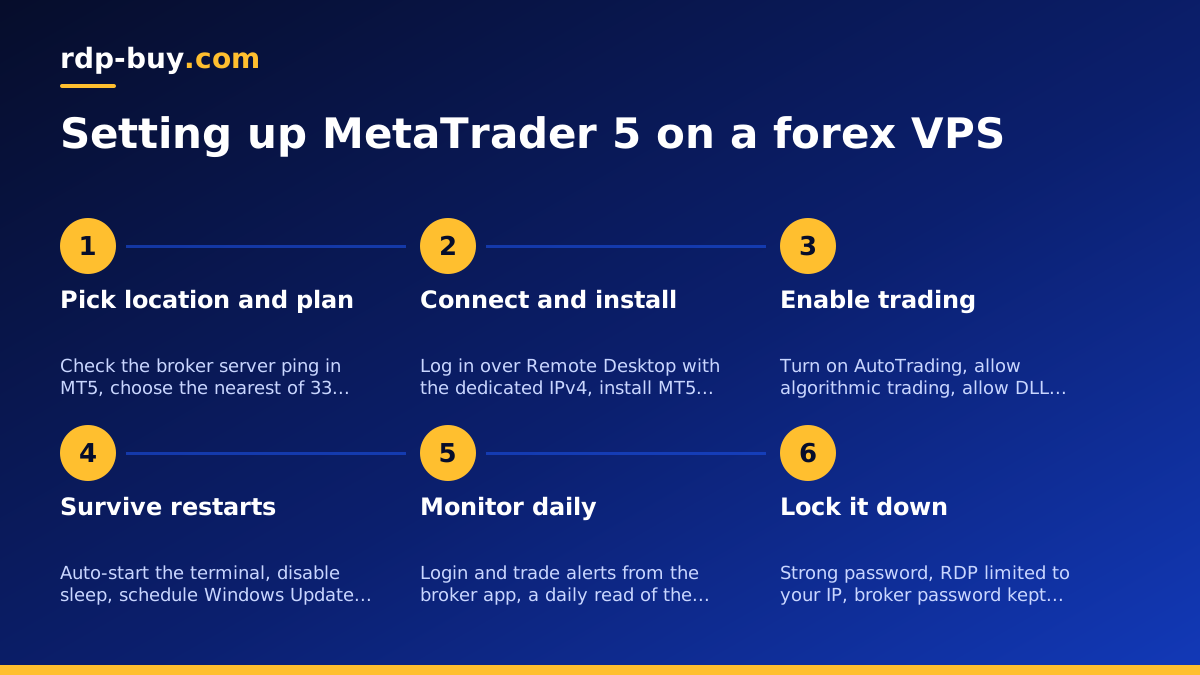
Step by Step: Installing MetaTrader 5 on Your VPS
The server is ready within minutes of payment. Follow these steps in order.
- Connect over Remote Desktop. Use the dedicated IPv4 address and administrator password from your welcome email with the Remote Desktop app on Windows, macOS or your phone. The guide on how to connect to your RDP server covers each platform.
- Download MT5 from your broker. Use the installer from your broker's client area rather than a generic download, so the terminal is preconfigured with their server list and any custom symbols.
- Log in to your trading account. Choose the trade server, enter your login and password, and confirm the connection indicator in the corner turns green and shows the server name.
- Enable AutoTrading. Click the AutoTrading button on the toolbar so it shows green, then open Tools, Options, Expert Advisors and tick Allow algorithmic trading. Without both, your EAs load but never place an order.
- Allow DLL imports only if an EA needs it. Some commercial EAs call external libraries and require the DLL imports option. Leave it off unless the vendor's documentation says otherwise, because it widens what code on the terminal can do.
- Copy your EAs and attach them. Open the data folder from the File menu, place the EA files in the Experts folder, restart the terminal, and drag each EA onto its chart. Check that the EA's icon in the chart corner shows it is active and that the Experts tab reports initialisation without errors.
- Save a profile. Once every chart and EA is in place, save the chart profile so you can restore the full layout in one click after any restart.
Keep the Terminal Running Through Reboots and Updates
A VPS runs for months, so you need the terminal to come back on its own after a Windows restart, and you need Windows to stop restarting at inconvenient times. Four settings cover it.
Auto-start the terminal. The simplest route is the startup folder: press the Windows key and R, type shell:startup, and drop a shortcut to terminal64.exe into the folder that opens. For more control, create a Task Scheduler task that runs the terminal at log on, with the option to run whether the user is logged on or not. Combine this with automatic sign-in for your Windows user so a reboot leads straight to a logged-in desktop with MT5 open.
Disable sleep and display timeouts. In Power Options, set the plan to never sleep and never turn off the display. Servers rarely sleep by default, but it takes a minute to confirm.
Tame Windows Update. Open Windows Update settings, set active hours to cover the trading sessions you care about, and pause or defer feature updates. Do not switch updates off entirely; schedule them instead for the weekend, when the forex market is closed, and reboot deliberately then so you can watch the terminal come back.
Disconnect, do not sign out. When you finish checking the terminal, close the Remote Desktop window or choose Disconnect. Signing out ends your Windows session and closes MT5 with it. This is the single most common reason a new VPS user finds their EA stopped overnight.
Monitoring Your EAs From Anywhere
Once the terminal is running on its own, build a short routine so you notice problems before the market does. Two sources tell you most of what you need.
Alerts from the broker and the terminal. Most broker apps can send a push notification when an account logs in or a trade opens. Turn those on: an unexpected login alert is your earliest warning that someone else has your password, and a quiet day with no trade alerts tells you the EA may have stalled. Inside MT5, Tools, Options, Notifications lets the terminal send push messages to the MT5 mobile app, and many EAs can be set to alert on errors.
A daily look at the Journal and Experts tabs. Connect to the VPS once a day, open the Toolbox, and read the Journal tab for connection drops or login failures and the Experts tab for errors from your EAs. It takes two minutes and catches what alerts miss, such as an EA that is running but refusing trades over a margin or symbol problem. If you prefer not to open a desktop, the investor password for your account lets a second terminal or the mobile app watch positions without being able to trade.
Security for a Trading VPS
A VPS that holds a logged-in trading terminal deserves the same care as the trading account itself. The good news is that the important steps are quick.
- Set a long, unique administrator password as soon as you first log in, and store it in a password manager rather than in a note on your desktop.
- Restrict Remote Desktop to your own IP. Open Windows Defender Firewall with Advanced Security, find the inbound Remote Desktop rule, and limit its remote addresses to the IP you connect from. If your home IP changes, update the rule rather than opening the port to everyone.
- Keep the broker password off the desktop. Let the terminal remember the login if you must, but never save the password in a text file or browser on the VPS. Use the investor password wherever read-only access is enough.
- Do not browse or install extras on the VPS. Treat it as a trading appliance: the terminal, your EAs and nothing else. Fewer programs mean fewer updates and fewer ways in.
- Keep Windows patched on your own schedule, as described above, and review the Windows Event Viewer occasionally for failed login attempts.
Choosing Your Plan and Getting Started
Match the plan to the tiers above. One terminal with a few EAs: the entry Windows RDP plan. Several terminals or heavy indicator use: a mid plan with more memory. Backtesting on the server: a plan with more cores, or keep testing at home and let the VPS trade. The forex RDP page is tuned for traders, and the full range of Windows RDP plans covers everything from a single terminal to a multi-account setup. Every plan includes the Windows licence, full administrator access, a dedicated IPv4 address and a choice of 33 locations, and the server is ready in minutes.
Billing is monthly, half-yearly or yearly, so you can start with a month to confirm the location and ping suit your broker, then move to a longer term once the setup is proven. You can buy RDP with a card, or pay by PayPal or crypto if you prefer. Pick the location nearest your broker, follow the setup steps, disconnect rather than sign out, and your expert advisors will keep trading while you sleep.