 Sign in
RDP Server Linux: Windows RDP or a Linux VPS With xrdp?
If you typed RDP server Linux into a search box, you probably want one of two things: a remote desktop on a Linux machine, or a clear answer on whether to rent a Windows RDP server or a Linux VPS. This guide covers both. It explains how xrdp gives a Linux VPS a desktop you can reach from any RDP client, where that setup works well, where it falls short, and when a true Windows RDP server is the smarter choice.
RDP Server Linux: What the Search Usually Means
The phrase RDP server Linux hides two very different questions. The first is technical: can a Linux server accept Remote Desktop connections at all, and if so, how do you set that up? The second is a buying decision: should you pay for a Windows RDP server, which has Remote Desktop built in, or a Linux VPS, which is cheaper to run as a headless server and can be given a desktop if you need one?
Both questions deserve a straight answer, because people often rent the wrong thing. Some buy a Linux VPS expecting a Windows-like desktop and spend a weekend fighting with display settings. Others buy a Windows server to run a single Docker container that would have been happier on Linux. The sections below walk through the technical part first, then the decision, so you can match the server to the job rather than the other way round.
What RDP Is, and Why Linux Needs xrdp
RDP stands for Remote Desktop Protocol. It is Microsoft's protocol for sending a full graphical desktop over the network and sending your keyboard and mouse back. Every edition of Windows Server ships with the server side of RDP, which is why a Windows RDP plan works the moment it is provisioned: you open a Remote Desktop client, enter the server's dedicated IPv4 address and your administrator password, and you are looking at a Windows desktop.
Linux does not ship with an RDP server. A fresh Linux VPS has no desktop at all; you administer it over SSH from a terminal. That is a feature for most server work, not a gap, because a desktop uses memory and CPU that a web server or an automation stack would rather keep. When you do want a graphical session on Linux, the usual answer is xrdp, an open source implementation of the RDP server side. It accepts connections from the same Remote Desktop clients you already use on Windows, macOS, iOS and Android, and hands the session to a Linux desktop environment running on the server.
The key point is that xrdp is a bridge, not a copy of Windows. You get a Linux desktop drawn through an RDP window. Anything that runs on Linux can run in that session. Anything that only runs on Windows still cannot.
How to Set Up an xrdp Linux VPS in Plain Steps
Here is the whole process described in words rather than copy-paste commands, so it works whichever distribution you picked. The exact package names differ slightly between Ubuntu, Debian, Rocky and AlmaLinux, but the sequence is the same. Start from a clean Linux VPS where you have root access, which every Linux VPS plan includes.
- Update the package lists and installed packages. Run your distribution's update and upgrade commands first so xrdp and the desktop install against current libraries.
- Install a lightweight desktop environment. XFCE is the usual choice: it is small, quick to draw over a remote link and comfortable on a modest plan. Avoid full GNOME or KDE on a small VPS; they are heavier and gain you nothing over RDP.
- Install xrdp. It is in the standard repositories on all the major distributions. On some, you also install the xorgxrdp backend package so sessions render through Xorg rather than VNC.
- Tell xrdp which desktop to start. Set XFCE as the session in the user's startup file, or in the xrdp startwm script, so a login lands on a desktop rather than a blank screen.
- Enable and start the xrdp service. Use the system service manager so xrdp starts on every boot, then confirm it is listening.
- Create a normal user for desktop logins. Logging into a desktop as root is poor practice; make a user, give it sudo if you need it, and set a strong password.
- Open the RDP port in the firewall. xrdp listens on TCP port 3389 by default. Allow it in ufw or firewalld, and in any provider-level firewall. Better still, allow it only from your own IP address.
- Connect from any RDP client. Enter the server's dedicated IPv4 address, choose the Xorg session when prompted, and sign in with the Linux user you created. You should see the XFCE desktop within a few seconds.
Where a Linux Desktop Over xrdp Works Well
For light graphical work, an xrdp session on a Linux VPS is genuinely useful. A file manager, a terminal with a few tabs, a text editor, a browser open on a monitoring dashboard, a database client, a Jupyter notebook in a browser tab: all of this is comfortable. Developers who prefer a GUI editor but want their code to live on the server get the best of both. Agent builders who run a stack of containers headless can pop in through RDP to watch a web UI or inspect a log viewer without forwarding ports through SSH.
It also suits occasional admin. If you only need a desktop once a week to click through a wizard that has no command line equivalent, xrdp costs nothing to leave installed and uses little while idle. Many people run it alongside Docker, n8n or a Python scheduler on the same box, which keeps the whole setup on one Docker-ready VPS rather than two servers.
Where It Falls Short Compared With Windows RDP
The limits show up as soon as the job depends on Windows itself. Trading terminals such as MetaTrader are Windows applications; they do not run on Linux without emulation layers that brokers do not support. Microsoft Office in its full desktop form is Windows or macOS only. A long list of browser automation tools, SEO suites, accounting packages, label printers and vendor dashboards ship as Windows installers with no Linux build. If any of those is on your list, xrdp on Linux is a dead end, and a Windows RDP server is the answer.
There are softer limits too. Audio redirection, printer sharing, multi-monitor layouts and smooth video playback are built into Windows Remote Desktop Services and work out of the box; on xrdp they range from fiddly to absent. Clipboard sharing works for text but can be inconsistent with files. The session itself feels a little less fluid, because xrdp is encoding a Linux display stack rather than using the integrated graphics pipeline Windows uses. None of this matters for a terminal and a browser. It matters a great deal if you spend eight hours a day in that desktop.
RDP vs Linux VPS: A Simple Decision Guide
Use the list below to decide. The question is not which operating system is better; it is what you need to run and how you need to reach it. Our longer guides on the difference between RDP and a VPS and on whether to rent a Windows or Linux server go deeper on each point.
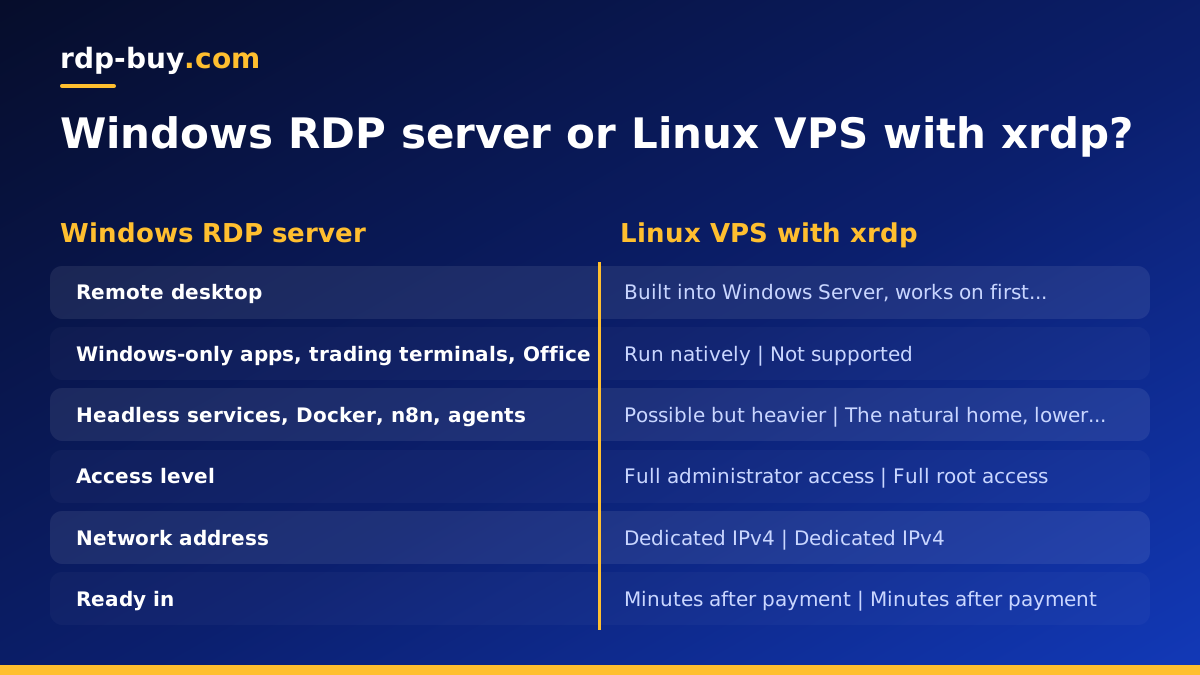
- Pick a Windows RDP server if you need a real desktop every day, if any application in your stack is Windows only, if you want to run trading terminals, Office, desktop browser automation or a virtual assistant's workstation, or if several people will share one machine over Remote Desktop. The Windows licence is included in the plan price.
- Pick a Linux VPS if the server will mostly run headless: web apps, APIs, Docker containers, n8n workflows, cron jobs, bots and AI agents. You get root access, lower overhead, and you can add xrdp later if you ever want a desktop. Start from the AI agent hosting hub if agents are the main workload.
- Pick a Windows VPS if you want Windows for a background service, a Windows-only scheduler or a .NET application, but do not care about a polished desktop experience. A Windows VPS gives you the same operating system with the emphasis on running services rather than sitting at a desktop.
- Pick both when the jobs are genuinely different, for example a Linux VPS running the automation and a small Windows RDP for the one application that insists on Windows. Two right-sized servers often cost less effort than one oversized compromise.
What You Get With Either Server
Whichever side you land on, the basics are the same at rdp-buy.com. Every server comes with full administrator access on Windows or root on Linux, so you can install xrdp, change the firewall or add whatever software you need without asking anyone. Each server has its own dedicated IPv4 address, which matters for RDP in particular: you connect to a stable address, and you can lock the RDP port to your own IP at the firewall without worrying about shared addresses.
Servers are ready in minutes after payment, and you can choose from 33 server locations, which is worth a look if latency to a particular region matters for your users or your APIs; the server locations page lists them all. Billing is monthly, half-yearly or yearly, you can pay by card, PayPal or crypto, and support is available 24/7 if the xrdp session refuses to start at two in the morning.
Choosing a Plan: Windows RDP or Linux VPS
If your checklist includes a Windows-only program or a daily desktop, go straight to the Windows RDP plans. Pick the plan by how many applications you will keep open at once rather than by the biggest number on the page; a single trading terminal or a browser-based tool needs far less than a shared workstation for three people. The guide on which RDP plan you need walks through that sizing in detail, and how to connect to your RDP server covers the first login from Windows, macOS or a phone.
If the server will run headless most of the time and a desktop is a nice-to-have, choose a Linux VPS, install XFCE and xrdp using the steps above, and keep the extra memory for your workloads. Either way, you can order, pay and be connected inside a few minutes, and the RDP server or VPS is yours to configure however you like.