 Sign in
Best RDP Client for Windows: Built-in Options and How to Choose
For most people, the best RDP client for Windows is already on their PC: Remote Desktop Connection. This guide explains when the built-in client is enough, when a different app makes sense, and which settings make any client feel faster once you buy RDP and start connecting.
What an RDP client does
Remote Desktop uses two sides. The RDP server is the Windows machine you connect to, usually a server in a data centre. The RDP client is the program on your own computer that shows the remote desktop, sends your keyboard and mouse input, and passes through things like the clipboard, printers and local drives.
The client does not change how powerful the server is, but it does change how comfortable it is to use. A good client handles high resolution screens and several monitors cleanly, reconnects after a short network drop, remembers your servers and keeps your login details safe.
If you are still choosing the machine on the other end, our guide on RDP versus VPS explains the server options, and a Windows RDP server gives you a remote desktop that stays on when your PC is off.
Remote Desktop Connection: the built-in default
Remote Desktop Connection ships with every edition of Windows. You can open it by pressing the Windows key, typing Remote Desktop Connection, or running mstsc from the Run box. Enter the server's IP address, click Connect, then sign in with the username and password you were given.
For a single server, or a handful of servers, this client is hard to beat. It is maintained by Microsoft, it supports every RDP feature that Windows Server offers, and it needs nothing extra installed. Its options panel lets you set the display size, use all your monitors, choose which local resources to share and save the connection as an .rdp file you can double-click later.
Its weaknesses show up when you manage many servers. Each connection is a separate window and a separate saved file, and there is no tabbed view or shared list of credentials.
- Best for: one to a few servers, everyday desktop work, trading terminals.
- Strengths: already installed, full feature support, multi-monitor, saved .rdp files.
- Limits: no tabs or central server list, settings stored per file.
The Windows App from Microsoft
Microsoft also offers a newer client called Windows App, available from the Microsoft Store and on other platforms. It is designed as one place to reach remote PCs, cloud PCs and virtual desktops, and it also works for a standard RDP server.
The advantage is a cleaner interface with your connections shown as tiles, and the same experience on Windows, Mac, iPhone, iPad and Android. If you switch between devices during the day, using the same app family everywhere keeps things simple.
For a plain Windows server, the classic client and the Windows App connect in much the same way. Choose the one whose layout you prefer. Some advanced options are easier to reach in the classic client, so many administrators keep both.
Session managers for many servers
If you look after several servers, for example separate machines for trading, automation and client work, a remote desktop session manager can save time. These tools keep all your connections in one tree, open them in tabs, store credentials in an encrypted vault, and often support SSH and other protocols in the same window.
When you evaluate one, check that it stores passwords encrypted, that it supports Network Level Authentication, that it handles multiple monitors and high resolution displays, and that it is still actively maintained. Download such tools only from the developer's official site or a trusted store.
- Best for: administrators and agencies with many servers.
- Strengths: tabs, folders, credential vaults, mixed protocols.
- Limits: another app to secure and update, some features need a paid edition.
How to choose the best RDP client for Windows
Ask three questions. How many servers do you connect to? How many devices do you connect from? And how important is a shared, encrypted list of credentials?
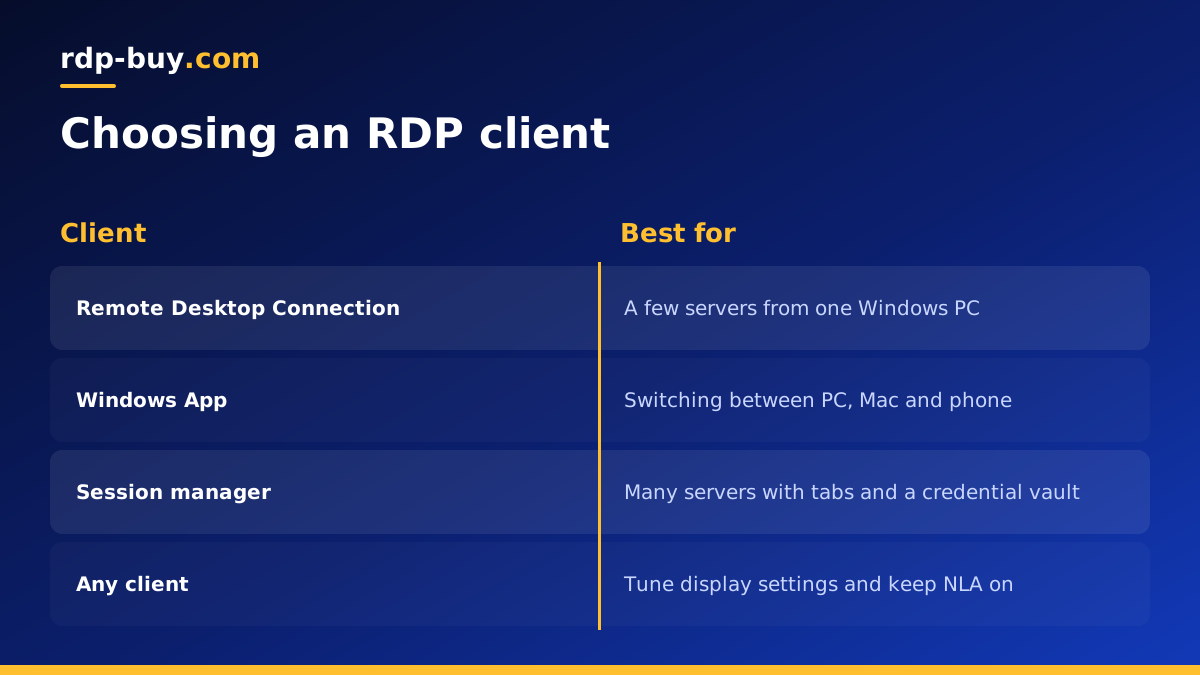
If the answer is one or two servers from one PC, use Remote Desktop Connection. If you move between a Windows PC, a Mac and a phone, the Windows App gives you a similar experience on each. If you manage many servers, try a session manager and keep the built-in client as a fallback for when you need a quick connection.
Settings that make any RDP client feel faster
The client you pick matters less than how it is set up. A few changes on the Experience and Display tabs of Remote Desktop Connection, or the matching options in other clients, make a clear difference on a slower connection.
- Let the client detect connection quality: the automatic setting adjusts visual effects to your link.
- Turn off desktop background and animations: fewer pixels to redraw means a snappier session.
- Use a sensible resolution: a full screen at your native resolution looks best, but a smaller window or one monitor can feel quicker on a weak link.
- Keep persistent bitmap caching on: the client reuses parts of the screen it has already drawn.
- Share only what you need: mapping every local drive and printer adds work. Turn on the clipboard and only the drives you use.
Fixing common RDP client problems
Most connection problems have simple causes, and the client usually tells you which one with its error message. Read the message before you change anything, then work through the likely fixes in order.
If the client cannot reach the server at all, check that you typed the IP address correctly and that your own internet connection works. If the server was just restarted, give it a few minutes to finish booting and applying updates before you try again.
If the client reaches the server but refuses your login, check the username format and the password, including the keyboard layout. A saved password that no longer matches is a common cause after a password change, so delete the saved credential and type it again.
If the session opens but feels slow or blurry, lower the display quality settings and close heavy programs on the server. If it disconnects often, try a wired connection or a different network, and choose a server location closer to you next time you order.
- Cannot connect: check the IP address, your internet and whether the server is still restarting.
- Login refused: retype the username and password and clear any saved credential.
- Slow or blurry: lower visual effects and close heavy apps on the server.
- Frequent drops: test another network and consider a closer location.
Keep your RDP client and server secure
A remote desktop is a door into your server, so treat it like one. Use a long, unique password, change it after your first login, and keep it in a password manager rather than in a saved file on a shared PC. Leave Network Level Authentication turned on so the server checks your login before it opens a session.
Keep both sides up to date. Windows updates the built-in client automatically, and Windows Server needs regular updates too. If you want to reduce automated login attempts, you can change the RDP port and limit access with the Windows firewall. Ask our 24/7 support team if you want help with any of these settings.
Pick a server that suits your client
Once you have a client you like, the experience depends on the server at the other end. Choose a location close to you or to the services you use, enough memory for what you run at the same time, and full admin access so you can configure Windows the way you want.
Every rdp-buy.com Windows server includes full admin access, a dedicated IPv4 address, the Windows licence and 24/7 support, and it is ready in minutes. Compare the plans and choose an RDP server for your workload, or read how to connect to your RDP server for a step-by-step first login. If you want a lower cost option for light use, see our cheap RDP plans.
