 Sign in
Buy RDP Online India Guide: Location, Plan Size and Payment
To buy RDP online in India, you need to make four decisions: where the server should be, how big it should be, how long to pay for and how to pay. This step by step guide walks through each one so you can buy RDP online and be connected the same day.
Why so many people in India buy RDP online
An RDP server is a Windows computer in a data centre that you use from your own device through Remote Desktop. It runs on data centre power and a data centre connection, so it keeps working through local power cuts, broadband outages and the moment you shut your laptop lid.
That makes it useful for anything that should not stop. Traders keep MetaTrader terminals and algorithmic strategies running through the session. Freelancers and agencies keep client dashboards, browsers and tools on a stable machine with a fixed IP address. Developers and students get a clean Windows environment without buying hardware. And a growing number of people run AI agents and automation tools that work through the night while their own PC is off.
Whatever the reason, the process of buying is the same. The rest of this guide covers it step by step.
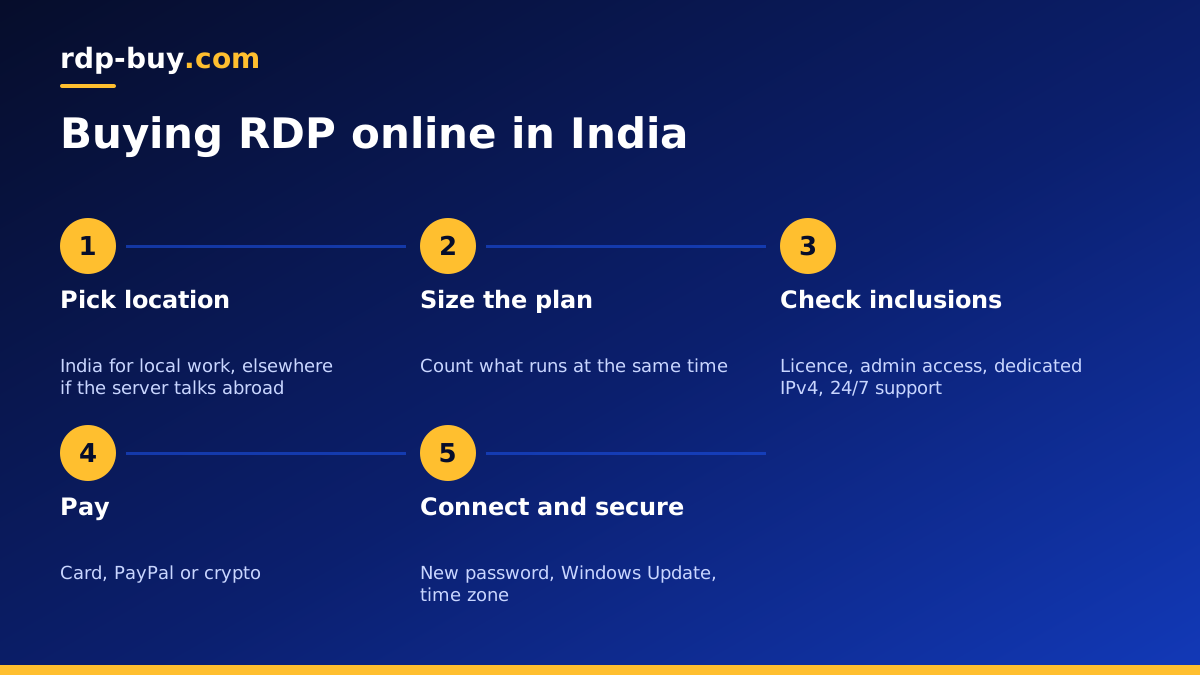
Step 1: decide whether the server should be in India
Location is the first choice because it shapes how the server feels and what it connects to well. Ask yourself one question: what will this server talk to most?
If you will mainly use the desktop yourself from India, or the server works with Indian websites, Indian brokers or customers in India, an India RDP server is usually the best fit. Your clicks and keystrokes travel a short distance, so the remote desktop feels responsive.
If the server mostly talks to services elsewhere, choose a location near them instead. A forex trader whose broker is in Europe will get faster order routing from a European location. A business serving customers across Southeast Asia might prefer a Singapore RDP server. An agent that calls APIs hosted in the United States may be better placed in a US location. rdp-buy.com has 33 locations in total, all listed on the server locations page.
- Choose India: you use the desktop yourself, or the work is mainly Indian sites and services.
- Choose near the broker: forex and CFD trading where execution speed matters.
- Choose near the API or customers: automation, AI agents and online businesses abroad.
Step 2: size the plan for what you run at once
The RDP price in India, like anywhere else, mostly comes down to memory and CPU. The trick is to size the plan for what runs at the same time, not for everything you might install.
Write a short list. Count browsers and roughly how many tabs, trading terminals, office tools, automation tools and anything else that stays open. Then match the list to a size:
- Light: one browser, office apps, a chat app or one trading terminal. An entry level plan is usually enough.
- Medium: several browsers, a few trading terminals or a couple of automation tools. Choose more memory.
- Heavy: many terminals, browser automation, development builds or several AI agent tools. Choose more memory and more CPU cores.
Step 3: understand what is in the price
When you compare RDP price in India across offers, compare what the price includes, not only the figure. A lower price that leaves out the Windows licence or gives you a shared login is not really cheaper.
On rdp-buy.com, every Windows plan includes the Windows licence, full administrator access, a dedicated IPv4 address and 24/7 support. That means you can install any software, keep a fixed IP address for whitelists and logins, and get help at any hour without paying extra for each item.
Then choose the billing period. Monthly billing is the sensible way to test a new setup. Half-yearly or yearly billing suits a server you already know you will keep.
Step 4: choose how to pay
rdp-buy.com accepts card, PayPal and crypto, so you can pay with the method that works best for you.
Many buyers in India pay by debit or credit card. If your card is new, check in your banking app that online and international transactions are switched on before you check out, since some banks keep them off by default. Our page on buying RDP with a card explains the steps.
If you prefer, you can also pay through PayPal or with crypto. The page on buying RDP with crypto covers how that works. Whichever method you use, keep the order confirmation and invoice for your records.
Step 5: connect and set up your server
Servers are ready in minutes. You receive an IP address, a username and a password. On a Windows PC, open Remote Desktop Connection, enter the IP address and sign in. On a Mac, iPhone, iPad or Android phone, install Microsoft's remote desktop app and add the server the same way. Our guide on how to connect to your RDP server has screenshots of each step.
After the first login, do three things before you install anything else: change the password to a long, unique one, run Windows Update and restart, and set your time zone so logs and trading terminals show the right time.
Then install your software. If something needs to run all the time, such as a trading terminal or an automation tool, set it to start when Windows starts. When you finish a session, close the Remote Desktop window instead of signing out, so your programs keep running.
Running trading tools and AI agents on your RDP
Two of the most common reasons to buy RDP online in India are trading and automation, and both benefit from a little extra setup.
For trading, install your terminal from your broker, log in, and attach your strategies to the right charts. Set the terminal to open when Windows starts, and check its connection status after each Windows update. If you trade with a broker abroad, compare the connection from an India location and a location near the broker before you settle on one.
For AI agents and automation, a Windows server lets you run browser based tools, scripts and scheduled tasks around the clock. Our page on Windows RDP for AI agents covers what these tools need. Keep each tool in its own folder, write its logs to disk, and use Task Scheduler to restart it after a reboot, so a single update does not leave your agent offline until you next log in.
Mistakes to avoid when buying RDP online
A few common mistakes cause most of the frustration first-time buyers run into. They are all easy to avoid once you know about them.
- Picking the nearest city by reflex: choose the location nearest to what the server talks to, which may not be India.
- Buying too big too soon: start on a modest plan with monthly billing and upgrade once you see real usage.
- Buying too small for heavy work: many browsers or terminals on a tiny plan leads to freezes. Count before you buy.
- Keeping the first password: change it straight away and store it in a password manager.
- Signing out instead of disconnecting: signing out closes your programs. Close the window to keep them running.
Ready to buy RDP online in India
Once you know where the server should be, how much it needs to run and how you will pay, ordering takes a few minutes. Pick an India location for local work, or the location nearest your broker, API or customers for everything else.
Compare the Windows plans and choose a Windows RDP plan that matches your list, or go straight to India RDP servers if you want a local location. If you want help choosing a size, read which RDP plan you need. For a Linux option, see our guide to buying a VPS server in India.
