 Sign in
Buy RDP USA With PayPal or Card: Checkout and Billing Guide
If you want to buy RDP USA without using crypto, PayPal and cards are the two familiar options. This guide explains how each works at checkout, which billing term to pick and how renewals keep your USA RDP online.
Before You Buy RDP USA: Decide What You Need
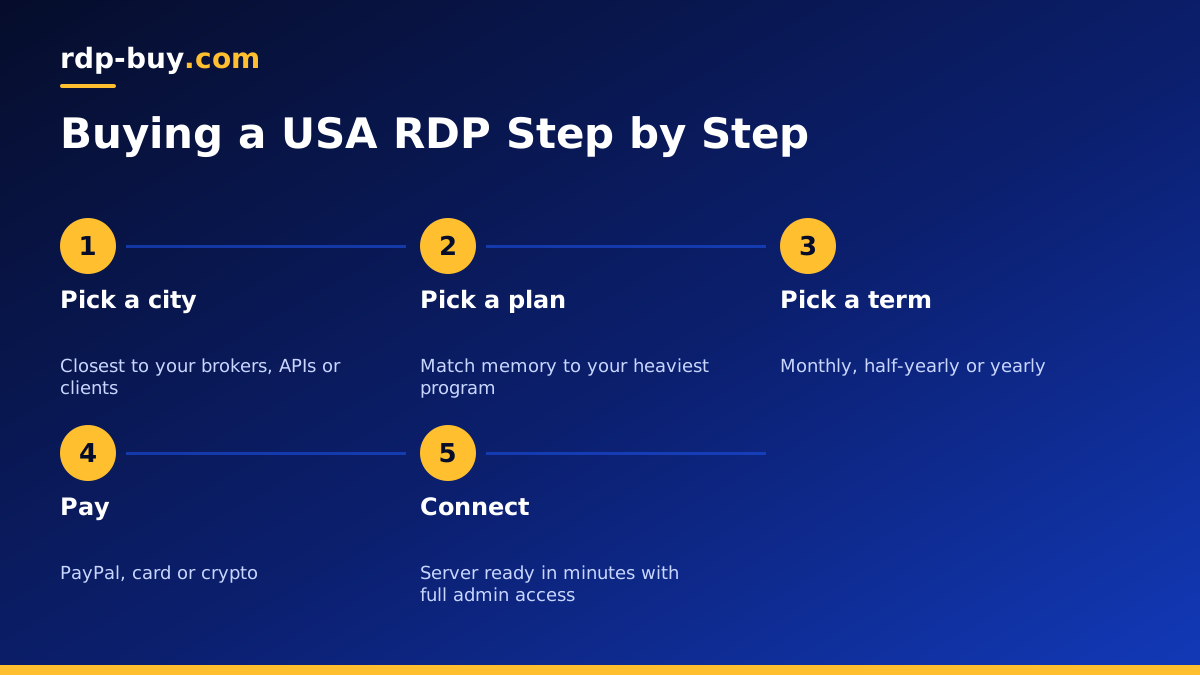
Payment is the last step of the order, but it helps to settle a few choices first so checkout takes only a few minutes. You need to know which United States city you want, roughly how much memory and CPU your software needs, and how long you want to commit for.
For the city, choose the location closest to the services your server will talk to, such as a broker or the APIs your tools use. Our guide to picking a USA RDP location walks through that choice. For the plan size, match memory to your heaviest program and leave room for Windows updates. If you are unsure, our RDP plan guide explains how to size it.
Every Windows plan at rdp-buy.com includes the Windows licence in the price, full administrator access, a dedicated IPv4 address and 24/7 support, so there are no extra add ons to decide on at checkout.
Choosing a Billing Term
rdp-buy.com offers monthly, half-yearly and yearly billing. The right term depends on how sure you are about the plan and how you like to manage costs.
- Monthly: the most flexible choice. Best when you are testing a location or plan size, or when the project may be short.
- Half-yearly: a middle ground once you know the plan fits and you want fewer renewals to manage.
- Yearly: suits long running work such as trading terminals, business desktops or automation you rely on every day.
- A common path: start monthly, confirm everything works, then move to a longer term at renewal.
How to Buy RDP USA With PayPal
PayPal is popular because you do not have to type card details into another site, and many buyers already have an account with a balance or a linked bank. The flow is simple.
Choose your USA RDP plan and city, pick a billing term and continue to checkout. Select PayPal as the payment method. You will be sent to PayPal to log in and approve the payment, then returned to the order page once it is confirmed. Your server is then set up and the login details are sent to you, usually within minutes.
A few tips help the payment go through first time. Make sure your PayPal account is verified and has a working funding source. Use the same email address for your order that you can access, since login details and invoices go there. If PayPal asks for extra confirmation, complete it in the PayPal window rather than closing it. For more detail, see our page on buying RDP with PayPal.
How to Buy RDP USA With a Card
Paying by debit or credit card is the most direct option. At checkout, select card payment and enter your card number, expiry date, security code and billing address. Some banks will ask you to confirm the payment in their app or with a one time code, which is a normal security step.
If a card payment is declined, the cause is usually on the bank side. Common reasons include international online payments being switched off, a daily limit, or a billing address that does not match the one the bank holds. Check your banking app for a blocked payment notice, adjust the setting, and try again. Our page on buying RDP with a card lists these checks.
Business buyers often prefer a company card so the purchase appears on the right statement. Enter the company name in your account details so it shows on invoices.
What Happens After Payment
Once the payment is confirmed, your US Windows server is built automatically. You receive the server IP address, the administrator username and a password. Servers are ready in minutes, so you can usually connect almost straight away.
Open the Remote Desktop app on Windows, the Windows App on Mac, or a Remote Desktop client on your phone, and enter the details. If you need help, our guide on connecting to your RDP server covers each device. Change the administrator password on your first login and run Windows Update before installing your software.
Keep the welcome email somewhere safe. It is the quickest reference if you need to reconnect from a new device or contact support.
Renewals, Invoices and Keeping the Server Online
A USA RDP stays online as long as its billing is up to date. Before each renewal date you receive an invoice in your account and by email. Pay it before the due date to avoid any interruption to the server.
If you want to change the billing term, the renewal is the natural moment to do it. Switching from monthly to yearly reduces the number of payments you need to remember, which suits servers that must run all year.
Download invoices from your client area for your records or expense claims. If your company needs specific details on invoices, such as a business name or address, update your profile before the next invoice is created.
Keeping Your Account and Payments Safe
Your client account holds your invoices, server details and payment history, so protect it as carefully as the server itself. Use a long, unique password and store it in a password manager. If you share access with a colleague, give them their own login details where possible rather than passing yours around.
Be wary of messages that ask you to pay an invoice through a link you did not expect. Always log in to your client area directly and pay from there. Real invoices will always appear in your account, so if one is not there, do not pay it.
On the server, change the administrator password on first login and never reuse it for your client account. Keep the two separate so that a problem with one does not expose the other.
Buying a USA RDP for a Team or Business
If you are buying for a company, a little planning at checkout saves work later. Decide who will own the account and receive invoices, and use a shared business mailbox rather than a personal one so renewals are never missed when someone is away.
Think about how many people will use the server at the same time. A single Windows desktop shared by a small team needs more memory than one used by a single person, and some software has its own licence rules for multiple users, so check those with the software vendor.
For teams spread across countries, choose the United States city that matches the main business need, such as the location of key clients or systems, then confirm the remote desktop feels responsive for everyone during the first billing period.
PayPal, Card or Crypto: Which Should You Use?
There is no single best method. Each suits a different kind of buyer, and the server you receive is the same whichever one you choose.
- PayPal suits buyers who already use it and prefer not to enter card details on a new site.
- Card suits buyers who want the most direct checkout and a payment that appears on their bank or company statement.
- Crypto suits buyers who hold digital currency or cannot use the other two. Our guide on buying RDP with crypto covers that route.
Ready to Buy Your USA RDP
To sum up: pick the United States city nearest your key services, choose a plan size that fits your heaviest program, select monthly billing if you are testing, and pay with whichever method you trust. After that, connect, secure the server and install your software.
When you are ready, go to our buy RDP in the USA page to compare plans and cities, then complete checkout by PayPal or card. If your budget is the main concern, you can also look at our cheap RDP plans.
