 Sign in
Cheap VPS for Pangolin: Host a Self Hosted Tunnel the Right Way
Pangolin lets you publish services from a home lab or private network without opening ports on your router, but it needs a public server to sit on. This guide explains why a cheap VPS for Pangolin works well, how to size and secure it, and how to buy a Linux VPS that suits it.
What Pangolin is and why it needs a VPS
Pangolin is an open source, self hosted tunnelled reverse proxy with built in access control, published on GitHub. In plain terms, it lets you reach web apps running at home or on a private network, such as a media server, a dashboard or a self hosted tool, through your own domain, without exposing your home IP address or forwarding ports on your router.
It works by running the Pangolin server on a machine with a public IP address. A small connector on your private network opens an encrypted WireGuard tunnel out to that server. Visitors reach your domain, Pangolin checks who they are, and traffic passes through the tunnel to the right service.
That public machine is where a VPS comes in. It needs to be online around the clock, reachable on the web ports, and have a stable address your DNS records can point to. A small VPS hosting plan is a natural fit, because the server mostly relays traffic rather than doing heavy processing.
Why a cheap VPS is usually enough for Pangolin
The apps you publish keep running on your own hardware. The VPS only runs Pangolin and its supporting components: a reverse proxy that handles HTTPS certificates, the tunnel endpoint, and a small database for users and settings. Those parts need modest memory and CPU for personal and small team use.
So rather than paying for a large server, most people are better served by a small, reliable plan with the right essentials. The cheap VPS plans are aimed at exactly this kind of light, always on workload.
What you should not skimp on are the things money cannot fix later: a dedicated public IPv4 address, full root access to install and configure everything, and a location close to you and your users.
Who a Pangolin VPS suits
A Pangolin server on a VPS is a good match for a few kinds of people:
- Home lab owners who want to reach dashboards, media servers or notes apps from anywhere without opening router ports.
- People on home connections behind carrier grade NAT, where port forwarding is not possible at all.
- Small teams that want to share internal tools with colleagues and control exactly who can sign in.
- Developers who want to show a project running on their own machine to a client through a proper domain.
- Anyone who prefers to keep their tunnel and access rules on a server they control.
What to look for in a VPS for Pangolin
Before you order, check that the server ticks these boxes:
- A dedicated public IPv4 address. Your domain points here, and the tunnel connects here. A shared or changing address breaks both.
- Full root access. You will install Docker, edit firewall rules and manage certificates, which all need root.
- Open web ports and UDP. Pangolin needs the HTTP and HTTPS ports for visitors and certificate checks, plus the UDP ports used by its WireGuard tunnels, as listed in the project's documentation.
- A location near you. Every request travels from the visitor to the VPS and through the tunnel to your network, so a VPS close to your home or office keeps that round trip short.
- A current Linux image. Ubuntu or Debian is the simplest choice and matches most guides.
- Room to grow. If you plan to publish many services or share them with more people, choose a plan you can resize later.
Choosing the location for your Pangolin server
Location matters more for a tunnel server than for many other workloads, because it sits in the middle of every connection. If you live in the United States, a server in a nearby US city keeps the extra distance small. The same logic applies in Europe or Asia.
rdp-buy.com offers 33 server locations, including several US cities through the USA VPS plans, so you can usually find one close to where your private network lives. If your users are spread out, place the server closest to the largest group or to yourself.
Setting up Pangolin on your VPS, step by step
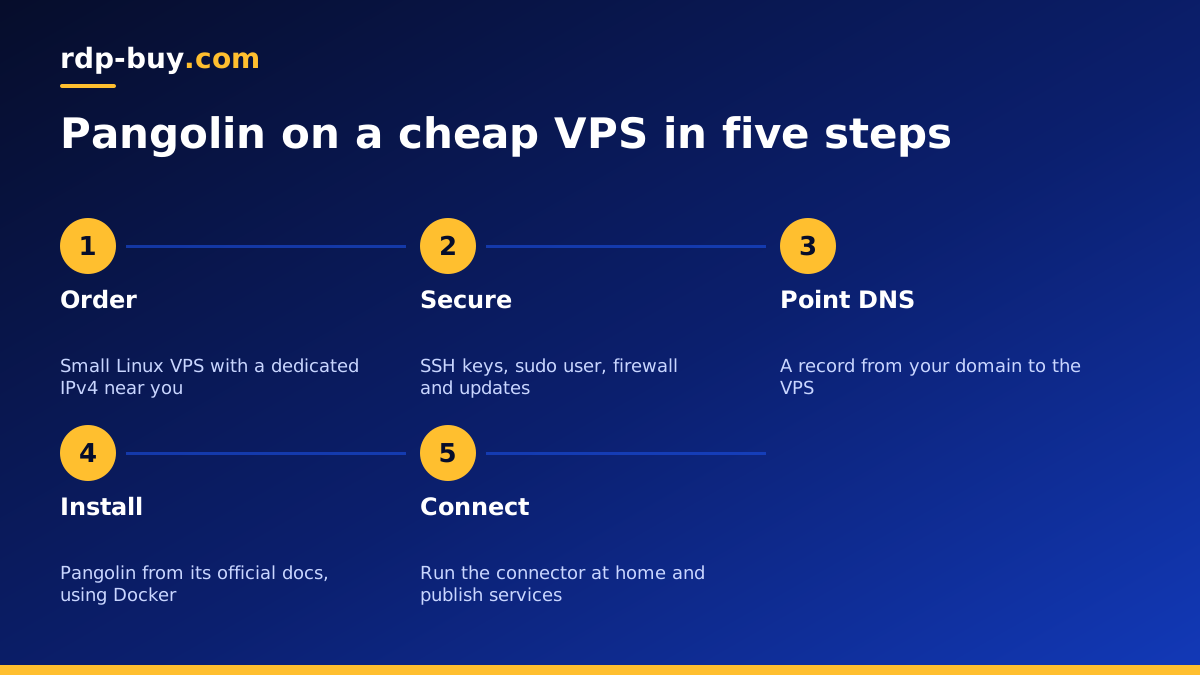
The project provides an installer and Docker based setup. Always follow the current official documentation, but the overall flow looks like this:
- Order the VPS, then log in over SSH as root and update the system packages.
- Create a normal sudo user, set up SSH key login and turn off password login for SSH.
- Point a domain or subdomain at the VPS's dedicated IPv4 address with an A record, and wait for DNS to update.
- Install Docker and the Compose plugin from the official repository on docker.com, if the installer does not do it for you.
- Run the Pangolin installer or compose setup from the project's GitHub page, entering your domain and an email address for certificates.
- Open the required ports in your firewall: SSH, HTTP, HTTPS and the WireGuard UDP ports from the documentation. Keep everything else closed.
- Log in to the Pangolin dashboard, create your organisation and a site, then install the connector on a machine in your private network using the command the dashboard gives you.
- Add resources for each service you want to publish and set who is allowed to access them.
Securing the Pangolin VPS
Your Pangolin server becomes the front door to your private services, so treat it with care. Keep SSH locked to key login, run a firewall that only allows the ports Pangolin and SSH need, and enable automatic security updates for the operating system.
Use Pangolin's access controls rather than leaving resources public. Require login for anything private, add a second factor for administrator accounts, and review which users can reach which services from time to time.
Update Pangolin and its containers regularly by pulling new images, and read release notes before major updates. Back up the configuration folder and database so you can rebuild the server quickly if you ever need to move it. Our VPS how to use guide covers connecting and hardening a new Linux server in more detail.
Keeping it online 24/7
A tunnel server is only useful if it is always there. Make sure every Pangolin container has a restart policy so it returns after a crash or a reboot. Limit Docker log size so a busy proxy cannot fill the disk.
Set up a simple external check that alerts you if your domain stops responding. On the private side, run the connector as a service that starts at boot, so a power cut at home does not leave the tunnel down after the machine comes back.
With those in place, the VPS can run for months with only routine updates, while your services stay reachable from anywhere.
Pangolin on a VPS compared with other options
There are other ways to reach home services. Forwarding ports on your router exposes your home IP and needs a static address or dynamic DNS. Hosted tunnel services are easy, but your traffic and access rules sit with a third party.
Running Pangolin on your own VPS sits between the two: you keep control of the server, the domain and the access rules, while your home network stays closed to inbound connections. If you are already comfortable with Docker, it is a tidy way to publish a home lab. The Docker VPS page covers servers suited to container setups like this one.
Picking your cheap VPS for Pangolin
For most home labs and small teams, a small Linux plan is all Pangolin needs. Choose a location close to you, then buy a cheap Linux VPS at rdp-buy.com with full root access and a dedicated IPv4 address included. Billing can be monthly, half yearly or yearly, and you can pay by card, PayPal or crypto.
Servers are ready in minutes, so you can have Pangolin installed and your first service published the same day, with 24/7 support if anything on the server side needs a hand.
