 Sign in
Self Host n8n on a VPS: A Step by Step Setup Guide
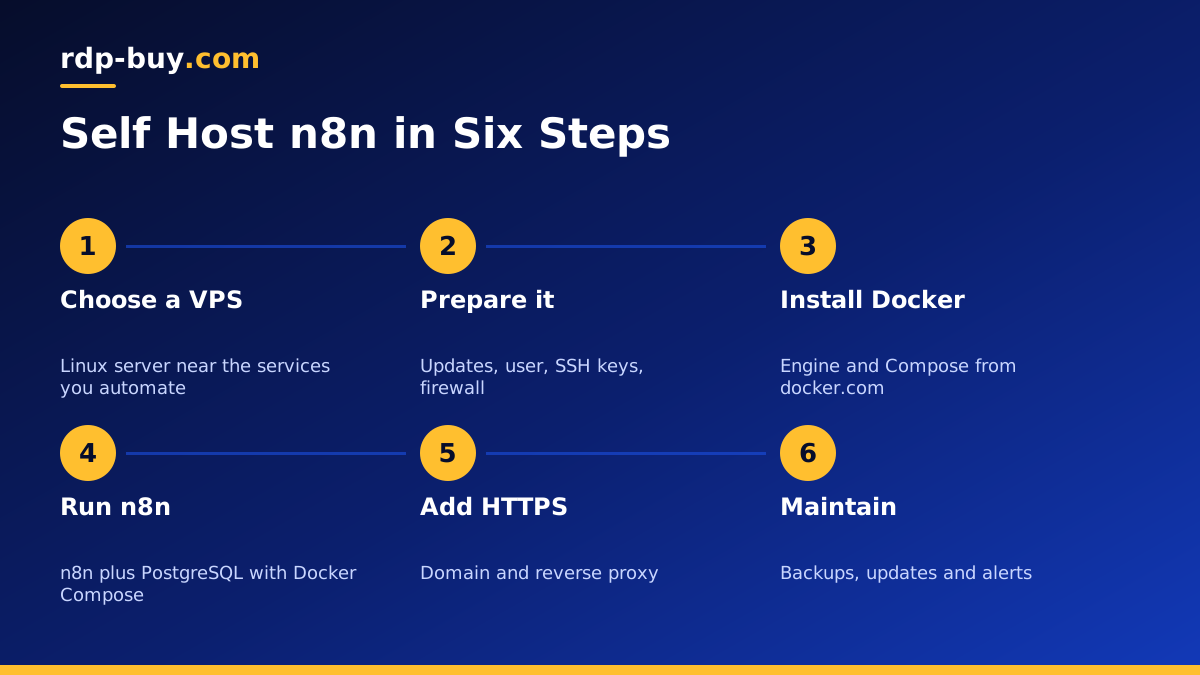
To self host n8n you need a Linux server that stays online, Docker, a domain with HTTPS and a backup routine. This walkthrough covers each step in order, from choosing AI agent hosting to running your first webhook.
Why Self Host n8n
n8n is a workflow automation tool that connects apps, APIs and AI models through visual flows. You can use the hosted version from the n8n team, or you can run the software yourself on a server you control. Self hosting gives you full control over your data, your settings and how many workflows you run, and it lets you install community nodes and custom code that a managed plan may restrict.
The trade off is responsibility. When you self host n8n, you are the one who keeps it updated, secured and backed up. The steps below are designed to make that manageable for someone comfortable with a terminal, even if they have never run a server before.
If you are still deciding between the two approaches, our comparison of n8n self hosting vs cloud covers the pros and cons in more depth. This guide assumes you have decided to run it yourself.
Step One: Choose a Server to Self Host n8n
n8n runs well on a Linux VPS. Your laptop is not a good home for it, because workflows triggered by schedules or webhooks stop the moment the laptop sleeps or loses its connection. A server in a data centre keeps running 24/7 with a fixed address that webhooks can always reach.
When choosing a plan, think about how many workflows you will run and how heavy they are. Simple flows that move data between a few apps need modest resources. Flows that process large files, call AI models in loops or run many executions at the same time need more memory. Starting with a mid sized plan on monthly billing and watching usage is a safe approach.
Location matters too. Place the server close to the apps and APIs your workflows call most. rdp-buy.com offers 33 locations, and our VPS for n8n page describes plans suited to this workload. You get root access and a dedicated IPv4 address, which you will need for the domain step later.
Step Two: Prepare the Server
Once your server is ready, connect over SSH using the details you received. Then do the basic preparation every new Linux server needs before you install anything else.
- Update the system with your distribution's package manager so you start from current packages.
- Create a normal user with sudo rights and use it instead of logging in as root for daily work.
- Set up SSH keys and turn off password logins once key login works.
- Turn on a firewall that allows only SSH and web traffic. n8n itself should sit behind a reverse proxy rather than being exposed directly.
- Set the time zone so scheduled workflows run at the times you expect.
Step Three: Install Docker
The n8n team recommends Docker for self hosting, and it makes upgrades and rollbacks much simpler. Follow the official installation guide for your Linux distribution on docker.com, which installs Docker Engine and the Docker Compose plugin from Docker's own repository.
After installation, add your user to the docker group so you can run commands without sudo, log out and back in, and confirm Docker works by running a test container. If you are new to containers, our guide to Docker VPS hosting explains the basics.
Step Four: Run n8n With Docker Compose
Create a folder for your n8n project and add a Docker Compose file. The n8n documentation includes a current example file for self hosting, and it is best to start from that rather than an old copy from a forum, because settings change between versions.
A sound setup usually contains two services: n8n itself and a PostgreSQL database. n8n can use a simple file based database, but PostgreSQL is the better choice once you depend on your workflows, because it handles growth and backups more reliably.
Pay attention to a few settings in particular. Set an encryption key and keep a copy somewhere safe, since n8n uses it to protect stored credentials and you will need the same key if you ever restore. Set the public host name and webhook address to your future domain so webhook links are built correctly. Mount a volume for n8n's data folder so nothing is lost when the container is replaced.
Start the stack with Docker Compose in detached mode, then check the logs to confirm n8n has connected to the database and is listening.
Step Five: Add a Domain and HTTPS
Webhooks from other services need a stable, secure address. Point a domain or subdomain, for example an automation subdomain of your main site, at your server's dedicated IPv4 address by creating an A record with your DNS provider.
Next, put a reverse proxy in front of n8n. Caddy, Nginx and Traefik are all common choices. The proxy receives traffic on the standard web ports, obtains a free certificate automatically and forwards requests to the n8n container. Caddy is often the simplest for beginners because it handles certificates with very little configuration.
When the proxy is running, open your domain in a browser. You should see the n8n setup screen over HTTPS. Create the owner account with a strong password, and turn on two factor authentication if it is available in your version.
Step Six: Keep n8n Running and Safe
A self hosted n8n instance is only as reliable as its maintenance. Build these habits from the first week.
- Restart policy: set the containers to restart automatically so n8n comes back after a server reboot.
- Backups: back up the PostgreSQL database and the n8n data volume on a schedule, and copy them off the server. Export important workflows as files too.
- Updates: read the n8n release notes, then pull the new image and recreate the container. Take a backup first so you can roll back.
- Monitoring: use an error workflow in n8n to alert you when a run fails, and check disk space regularly, since execution logs grow over time.
- Pruning: turn on execution data pruning so old run history does not fill the disk.
Common Problems After You Self Host n8n
Most issues with a new self hosted n8n instance come from a small number of causes. If something does not work, check these first before changing anything else.
Webhook links show the wrong address. If test or production webhook URLs point to a local address instead of your domain, the public host and webhook settings in your Compose file are missing or wrong. Fix them and recreate the container.
Credentials stop working after a rebuild. This usually means the encryption key changed. Restore the original key from your safe copy and the stored credentials will decrypt again.
Workflows stop overnight. Check that the containers have a restart policy and that the server did not run out of disk space. Full disks are a common cause of silent failures, so keep an eye on execution logs and binary data.
The editor feels slow. Heavy workflows running at the same time compete for memory. Look at server usage while executions run, and either spread schedules out or move to a larger plan.
Community nodes fail to install. Check the n8n settings that allow community packages and confirm the container can reach the package registry.
Choosing the Right Plan to Self Host n8n
The best place to self host n8n is a server that matches your workload, sits near the services you automate and gives you full control. A Linux VPS with root access ticks all three. If your workflows also drive AI agents or call language models heavily, look at plans with extra memory so executions do not queue.
rdp-buy.com servers are ready in minutes, include a dedicated IPv4 and 24/7 support, and can be billed monthly, half-yearly or yearly. Browse our hosting for AI agents and automation to compare plans, or go straight to n8n VPS plans. You can pay by card, PayPal or crypto.
