 Sign in
How to Buy VPS for the First Time: From Spec to First Login
To buy a VPS, decide what you will run on it, pick an operating system, a plan size and a location, pay, and then log in with the details you receive. This guide takes first time buyers through each step, so when you buy VPS hosting you know what to expect and what to do next.
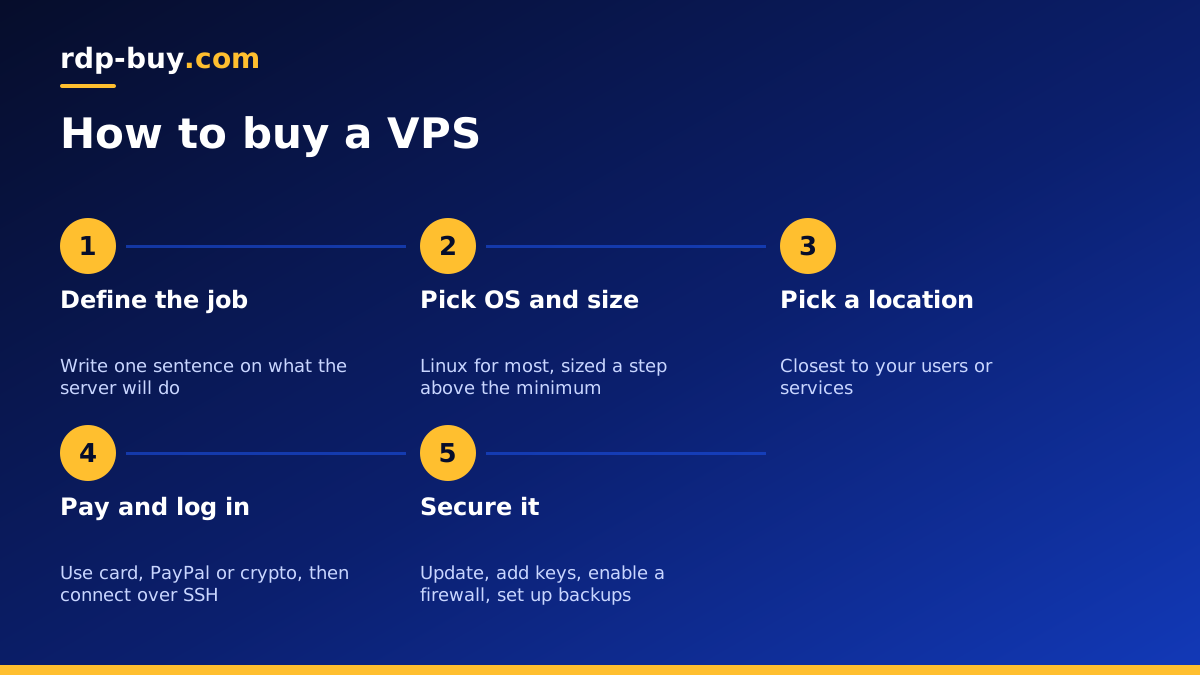
Before you buy: know what the server is for
The single most useful step comes before any pricing page. Write down in one sentence what the server will do. For example: host three WordPress sites, run a Python bot around the clock, or keep n8n online for a small team. That sentence decides almost everything that follows, from the operating system to the amount of memory.
Also decide whether a VPS is the right product at all. If you want a remote Windows desktop to log into and click around, an RDP server is usually a better fit. If you want a server for websites, apps, bots or containers, a VPS is the normal choice. Our guide to the difference between RDP and VPS covers this if you are not sure.
Step 1: choose your operating system
Most VPS buyers choose Linux. It is free of licence costs, widely documented, and it is what most web software expects. Ubuntu and Debian are the usual starting points for beginners, because answers to almost any question are easy to find online.
Choose Windows only if your software requires it, for example ASP.NET applications or desktop programs that have no Linux version. Our guide on Windows or Linux servers goes through the trade offs.
Step 2: choose a plan size
A plan is mainly three resources: processor cores, memory and disk. New buyers often overthink this. A sound approach is to look up the minimum requirements for your software, then choose a plan a step above that minimum. Here is how to think about each resource:
Do not buy for imaginary future traffic. You can move up when real usage asks for it. Starting modestly and upgrading later is normal, and it costs far less than paying for capacity you never use.
- Memory: usually the first thing to run out. Databases, Docker containers and busy web apps all want more of it.
- Processor: matters for work that computes, such as building pages, encoding or data processing. Idle bots use very little.
- Disk: allow for your software, your data, logs and any local backups, then add some spare room.
Step 3: choose a location
Pick the server location closest to whoever uses it most. If your visitors are in Germany, a server in Germany usually responds faster than one on another continent. If the server mainly talks to APIs, choose a location near those services. If a client or service expects a particular country's IP address, that decides the matter for you.
rdp-buy.com has 33 locations, listed on the server locations page. For most first time buyers, the right answer is simply the country with the most users.
Step 4: choose a billing period
You will usually see a choice of terms. rdp-buy.com offers monthly, half-yearly and yearly billing. If this is your first VPS, or the project is new, monthly is the safest choice, because you can see whether the server suits you before committing. Once you are sure, a longer term is easy to justify.
Step 5: place the order and pay
The checkout itself is simple. You pick your options, enter your contact details, and pay. Keep these practical points in mind:
After payment, servers are ready in minutes, and you receive the IP address and login details.
- Use an email address you check often, because your login details will arrive there.
- Choose a strong, unique password for your customer account and turn on any extra login protection available.
- Pick a payment method you are comfortable with. rdp-buy.com accepts card, PayPal and crypto. If you plan to pay with digital currency, see how to buy VPS with crypto before you start, so that you send the right coin on the right network.
- Read the order summary before paying, especially the plan, location and billing term.
Step 6: log in for the first time
On Linux, you connect with SSH. Mac and Linux computers have an SSH client built in through the Terminal app, and Windows includes one in PowerShell. Open your terminal and type ssh root@ followed by your server's IP address. Accept the fingerprint prompt the first time, then enter your password.
If you chose Windows, you connect with Remote Desktop instead. Our guide on connecting to your RDP server shows that process.
Once you see the command prompt, you are in. That prompt means the server is yours, with full root access to install and configure whatever you want.
Step 7: secure the server before anything else
Public servers receive automated login attempts soon after they come online, so do this first, before you install your project:
Our guide on Linux server best practices goes through this in more detail.
- Update all packages with your distribution's package manager.
- Create a normal user account and give it sudo rights.
- Generate an SSH key on your computer and add it to the server.
- Disable password login and direct root login in the SSH settings, after confirming your key works.
- Turn on a firewall, such as UFW, and open only the ports you need.
- Install Fail2ban to block repeated failed login attempts.
- Enable automatic security updates.
Step 8: install your project and set up backups
Now you can install what you bought the server for. For websites, that may be a web server and database, or a control panel. For apps and automation tools, Docker is often the easiest route, because each service stays in its own container and upgrades stay simple.
Before you call it finished, set up backups stored away from the server. A backup on the same disk does not protect you from losing that disk. Then test restoring one. A backup you have never tested is only a hope.
It also helps to keep simple notes from day one. Record the server's IP address, what you installed, which ports you opened and where the backups live. Store those notes in a password manager or a private document. Six months from now, when something needs changing, you will not remember the details, and those few lines will save you an evening of detective work.
Common first time mistakes
- Buying too large: capacity you do not use is money spent for nothing. Start sensibly and upgrade later.
- Choosing a far away location: a server far from your users makes everything feel slower, however powerful it is.
- Skipping security: leaving password login open on a public server invites trouble.
- No backups: if your project matters, keep copies somewhere else.
- Forgetting renewal: note the renewal date so a server you need does not expire.
Choosing your plan and getting started
If you have followed the steps above, you already know your operating system, size, location and billing term. All that remains is matching them to a plan. Browse the Linux VPS hosting plans, or look at the cheap VPS range if your project is small. You get full root access, a dedicated IPv4 address, and 24/7 support if you get stuck on your first login.
