 Sign in
USA RDP for Excel: Run Heavy Workbooks on a US Desktop
USA RDP for Excel moves large workbooks, long macros and scheduled data refreshes from your laptop to a remote Windows desktop that stays on all day. This guide explains who benefits, how to size a USA RDP plan, and how to set up Excel so your reports run without you.
The problem with heavy spreadsheets on a laptop
Excel is often the real engine of a small business. It holds pricing models, sales reports, stock lists and monthly accounts, sometimes tied together with years of formulas and macros. As those files grow, the laptop running them starts to struggle. A recalculation freezes the screen. A Power Query refresh ties up the machine for a long time. A macro that must run overnight stops because someone closed the lid.
A remote desktop separates the work from the device in front of you. Excel runs on a Windows server in a data centre, and your laptop becomes a window into it. You can start a long calculation, disconnect, go home, and reconnect from another device to find the job finished. The session is still exactly how you left it.
Who gets the most from this setup
Not every spreadsheet needs a server. The setup pays off most for these people:
If you open one small file a week, Excel on your own computer is fine. A server starts to make sense once a workbook is slow, needs to run on a schedule, or must be available from more than one place.
- Analysts and finance teams: who run large models that take a long time to recalculate
- Ecommerce sellers: who pull order and stock data into workbooks every day
- Agencies: who prepare reports for several US clients on a schedule
- Traders and researchers: who keep live data sheets open during market hours
- Small offices: where one important workbook needs a single, shared home
Why a US server specifically
Choose a US location if your data sources, teammates or clients are in the United States. Three things make the difference:
Short distance to data. Queries that pull from US based databases, web services or cloud storage have less distance to travel, which helps on refreshes that make many separate requests.
Shared working hours. A server close to your US colleagues gives them a responsive session when they connect, because remote desktop feels best when the server is near the person using it.
A consistent US IP address. If a data provider or company firewall only accepts known addresses, a dedicated IPv4 gives you a single stable address to add to its allowlist.
If you and your data are elsewhere, choose a location closer to you, since the distance between you and the server affects how smooth the desktop feels. All the options are on the server locations page, and our guide to picking the right US city helps within the United States.
Licensing: what is included and what is not
This is the most common point of confusion, so check it before you buy. At rdp-buy.com, the Windows licence is included in Windows prices. Microsoft Office is a separate product, and you need your own licence for Excel.
Read the terms of your Microsoft 365 or Office licence carefully. Rules on running Office on a server, especially for several users at once, differ by plan. Some subscription types are not meant for shared server use, while others are. If several people will use Excel on the same server, confirm the right licence with Microsoft or an authorised reseller first.
How to size a plan for Excel
Excel workloads vary, so base your choice on what your workbooks really do. Here is how each resource affects the result:
Memory. This is usually the priority. Large workbooks, Power Pivot data models and Power Query all load data into memory. Use the 64 bit version of Excel, since it can use much more memory than the 32 bit edition, and allow extra for Windows itself.
Processor. Excel can recalculate formulas across multiple cores, so large models benefit from more of them. Macros, however, normally run on a single thread, so a macro heavy workbook depends more on the speed of each core than on the number of cores.
Disk. Allow space for your workbooks, data extracts, temporary files and local backups. Fast storage helps large files to open and save.
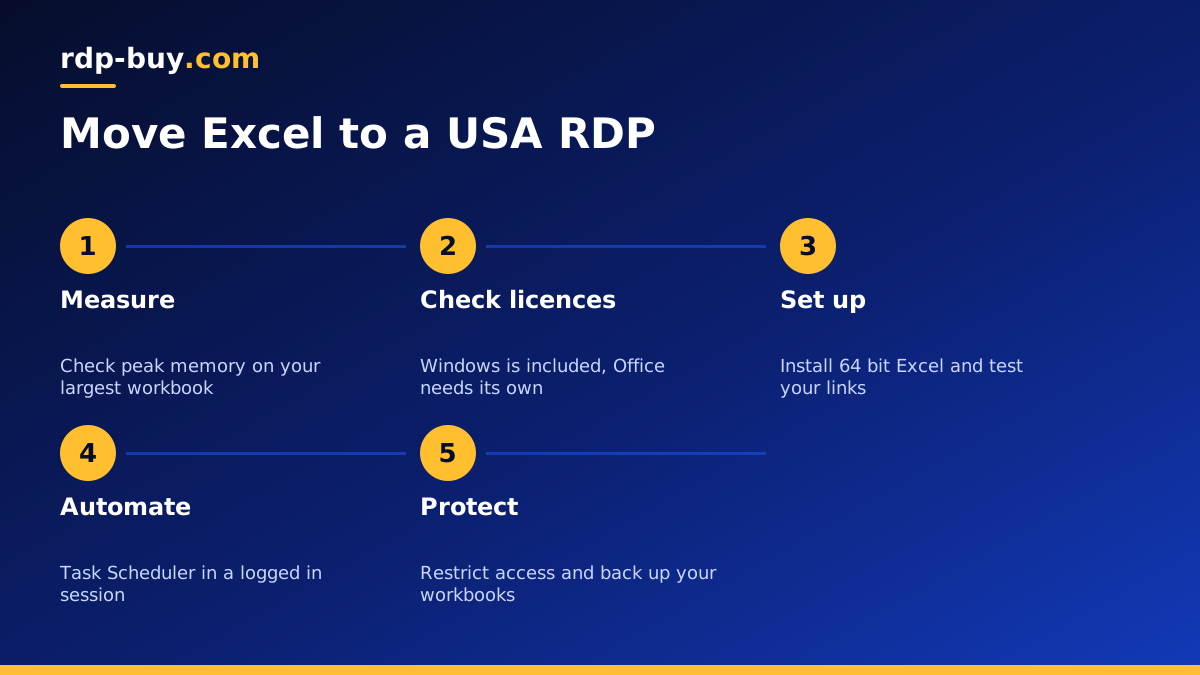
A practical way to decide is to open your largest workbook on your own machine, then watch Task Manager during a full recalculation. Note the peak memory, and pick a plan comfortably above it. Our guide on which RDP plan you need gives more help on choosing.
Setting up your Excel server
Once your server is ready, usually within minutes, follow these steps:
Then go through your workbook's connections one at a time. Saved passwords and data source settings often need to be entered again on a new machine.
- Connect with the Remote Desktop client. Our guide on connecting to your RDP server shows how.
- Install Windows updates, then change the default password to a long, unique one.
- Install the 64 bit version of Excel, and sign in with your licence.
- Copy your workbooks across, using Remote Desktop's drive sharing or a cloud storage client.
- Open each file and confirm that macros, links and data connections work. Update any file paths that pointed to your own computer.
- Add your folder to Excel's Trusted Locations, so that your own macros can run without a prompt.
- Turn off automatic sleep and screen lock behaviour that would interrupt your session.
Automating refreshes and macros
With a server that stays on, you can schedule work rather than start it by hand. The usual approach is a small script, in PowerShell or VBScript, that opens the workbook, runs the macro or refresh, saves the result and closes Excel. Windows Task Scheduler then runs it at the time you choose.
There is one thing to watch. Excel is a desktop application, and Microsoft does not recommend automating Office from a background service with no user session. It can show a dialog and wait forever. The reliable approach is to keep a user logged in, set the task to run only when that user is logged on, and then disconnect the RDP window rather than signing out. Your session keeps running on the server, and scheduled Excel tasks can run inside it.
Make your scripts tidy too. Handle errors, log every run to a text file, and have the macro close the workbook when finished, so that no stray Excel processes build up. A simple email at the end of each run tells you whether it worked.
Keeping your data safe
Business spreadsheets often hold sensitive figures, so treat the server like any office computer:
Our RDP security checklist goes through the full list.
- Use a strong password, and give each person their own account.
- Restrict RDP to your office IP addresses where you can.
- Keep Windows and Office updated.
- Do not disable macro security across the board. Use Trusted Locations for your own folder instead.
- Back up your workbooks away from the server, and keep previous versions so that a damaged file can be restored.
- Check that storing this data on a server fits your company's policies and any client agreements.
Choosing your plan
Start from your biggest workbook. Measure its peak memory, count how many people will connect at the same time, and choose a US city close to your users or data. Monthly billing is a good way to run your real files for a few weeks before moving to half-yearly or yearly.
When you know what you need, buy USA RDP with full admin access, a dedicated IPv4 address and 24/7 support. You can pay by card, PayPal or crypto, and your server will be ready in minutes.
