 Sign in
n8n on Windows Server: Run Your Workflows on an RDP Desktop
You can run n8n on Windows Server by installing it through Node.js on an RDP desktop, which suits workflows that need Windows software beside your automations. This guide explains when that makes sense, and how to install, protect and keep n8n online on a Windows RDP for AI agents, one option within AI agent hosting.
Should you run n8n on Windows at all?
Most self hosted n8n installs run on Linux with Docker, and if your workflows only call web APIs, that is the simpler path. A VPS for n8n is usually the right starting point, and our guide on self hosting n8n on a VPS covers that route.
A Windows server earns its place when your automation needs to touch something that only lives on Windows. These are the common cases:
With full admin access to a remote desktop, n8n can sit next to those programs on the same machine, and its Execute Command node can launch local scripts. That combination is the main reason to choose this setup.
- Workflows that read or write files for desktop apps, such as Excel files on a shared folder
- Accounting, trading or line of business software with no Linux version
- Teams who are at home on a Windows desktop and do not want a terminal
- Automations that sit alongside browser sessions you want to see and control
- Scripts in PowerShell that already run your business
What you need before you begin
Before you install anything, get these things ready:
n8n is developed by a separate company, and its official documentation is the best reference for current requirements. Check it before you install, because supported Node.js versions change over time.
- A Windows server you can reach over Remote Desktop, with admin rights
- A plan with enough memory for Windows and n8n together. Windows uses more memory than a minimal Linux install, so allow extra if you also run other desktop apps.
- A list of the apps and services your workflows will connect to, so you can choose a location near them
- A domain name, if you want to reach the editor over HTTPS from other devices
Step 1: connect and prepare Windows
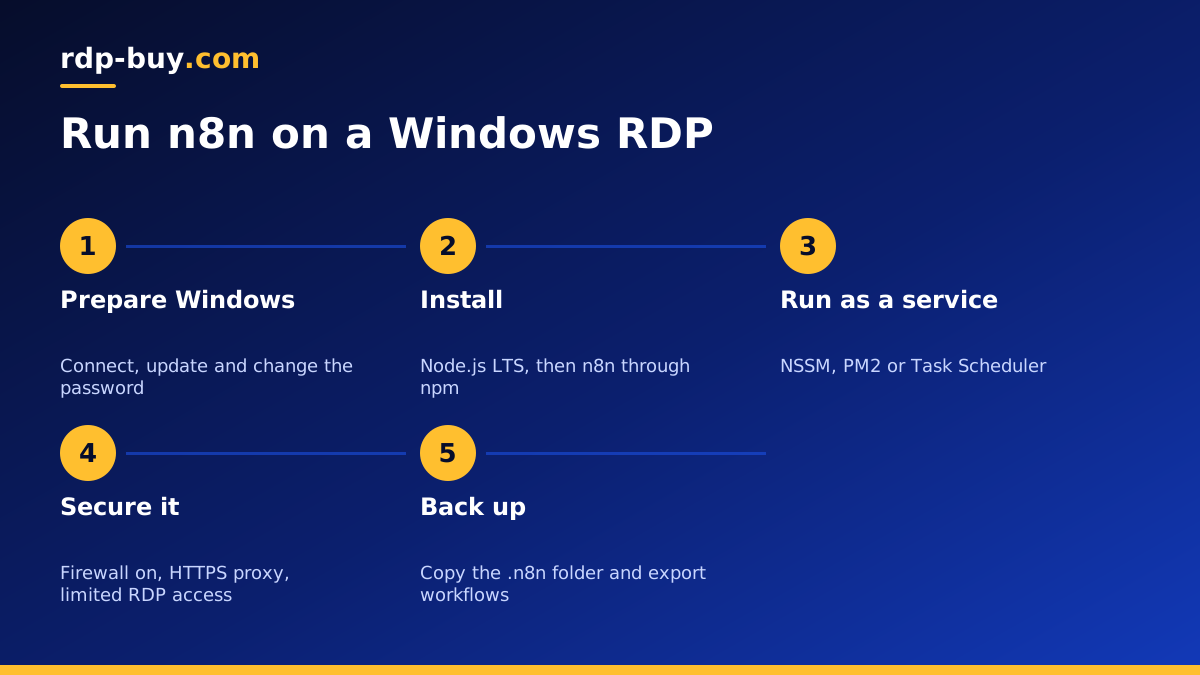
Connect to your server with the Remote Desktop client. If this is your first time, read how to connect to your RDP server. Once you are in, install Windows updates and reboot. Change the default password to a long unique one, and if you plan to share the machine, create a separate standard user rather than sharing the admin account.
Step 2: install Node.js and n8n
Download the current LTS release of Node.js from its official site, choosing a version that the n8n docs list as supported. Run the installer, then open PowerShell and confirm that node and npm both print a version number.
Install n8n globally with npm install n8n -g. When it completes, type n8n start. The first start creates a data folder in your user profile, called .n8n, which holds your workflows, settings and an SQLite database. Open a browser on the server, visit localhost on port 5678, and create the owner account.
Test one simple workflow right away, such as a manual trigger that writes a small file. If that works, the core install is sound.
Step 3: keep n8n running after you log off
This is the step that trips up most Windows users. A program started in your PowerShell window can stop when the window closes, or when your session ends. You want n8n to run as a background service that survives logoff and reboot. There are two common ways to do that.
A service wrapper. A tool such as NSSM registers n8n as a real Windows service. You point it at the n8n command, set the startup type to automatic, and define a restart on failure. Run it under your user account so it finds the same .n8n folder. This is the most reliable option for an always on server.
PM2. This Node.js process manager can also keep n8n alive and restart it, and a helper package can start it when Windows boots.
A simpler fallback is Task Scheduler with a trigger at startup, set to run whether or not a user is logged on. Whichever you pick, reboot the server once as a test and confirm that n8n returns on its own. In a remote desktop session, always use Sign out rather than leaving things to chance, and confirm the service still runs afterwards.
Step 4: secure the editor
The n8n editor can trigger code on your server, so treat it as you would an admin panel. Do not simply open port 5678 to the whole internet.
Our RDP security checklist covers the Windows side of this.
- Keep the Windows Firewall on, and block outside access to port 5678 unless you need it.
- For personal use, open the editor only inside your RDP session on localhost. That needs no public access at all.
- For team use or incoming webhooks, place a reverse proxy, such as Caddy or IIS, in front of n8n, using HTTPS and your own domain.
- Limit RDP access. Use a strong password, and restrict the port to your own IP addresses if you can.
- Set the WEBHOOK_URL environment variable, so that webhook addresses in n8n use your public domain.
- Set a fixed N8N_ENCRYPTION_KEY, and store a copy safely, since it protects your saved credentials.
Step 5: connect Windows software to your workflows
Now you get the benefit of this setup. The Execute Command node can run a PowerShell script or a batch file on the same machine. n8n can also read and write files in local folders, so a workflow can drop a CSV where a desktop program picks it up, and collect the output later. Note that newer n8n versions can restrict these nodes by default, so check the docs for the settings that apply to your version.
Keep one important limit in mind. Programs started from a Windows service do not normally have a visible desktop. If you need to automate a graphical program, let n8n call a scheduled task that runs in your logged in session, or use a tool designed for that job. Test this carefully before you rely on it.
Backups and updates
Your n8n data lives in the .n8n folder. Back that folder up regularly to storage off the server, and also export your workflows to JSON or commit them to Git. A snapshot of a working setup is worth having too, if your host offers one.
To update, read the release notes, back up first, then stop the service, run npm update for n8n, and start the service again. Test your key workflows after each update. Updating in small, regular steps is much safer than jumping many versions at once.
Choosing a location and plan
Pick a location near the services your workflows call most. If those are mainly American SaaS tools, a USA RDP may be the natural choice. Other teams should look at the full list of 33 server locations.
For memory, start from what Windows needs, then add n8n, then add every desktop app you will keep open. The Windows licence is included in Windows prices, so you do not need to buy one separately. Billing can be monthly, half-yearly or yearly, and you can pay by card, PayPal or crypto.
When your needs are clear, compare the plans on our Windows RDP hosting for AI agents page. If you have realised that your workflows do not need Windows after all, go to our AI agent hosting hub for Linux options. Either way, you get full admin or root access, a dedicated IPv4 address and 24/7 support.
