 Sign in
Console vs RDP: When to Use Each to Reach a Windows Server
Console access shows you the server's own screen, as if a monitor were plugged into it, while RDP opens a network session through Windows itself. You use RDP for everyday work on a Windows RDP server, and the console for the moments when RDP cannot reach the machine at all.
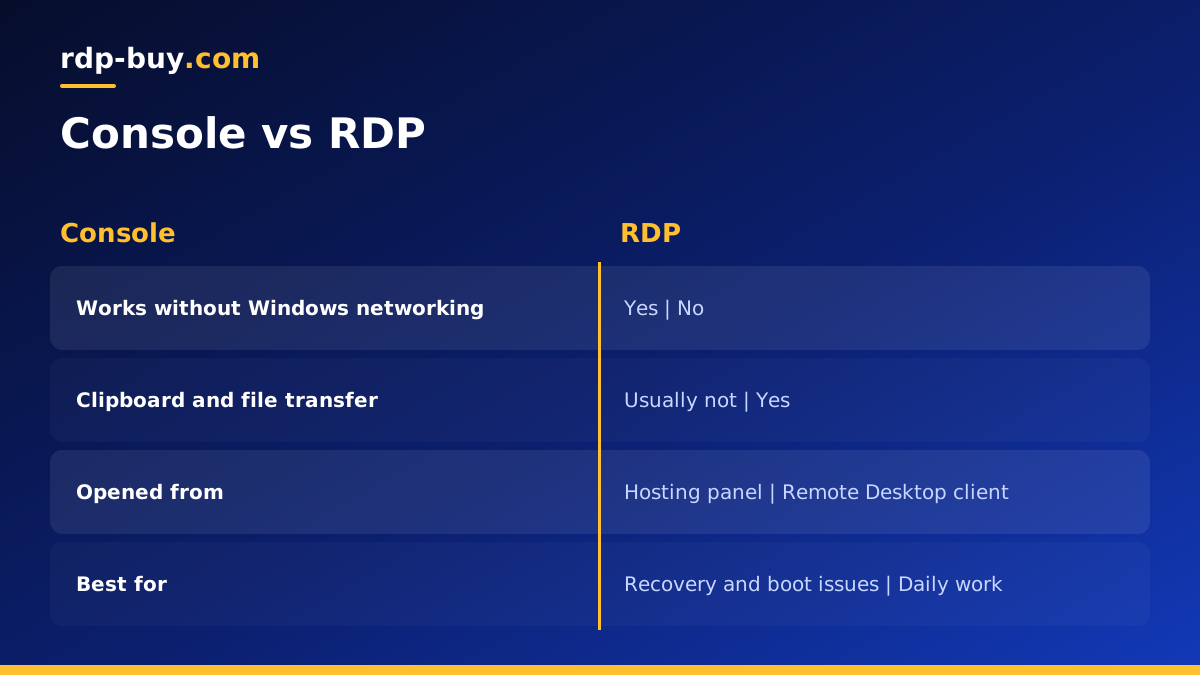
Console vs RDP in one paragraph
The console is the direct display and keyboard of a computer. On a physical machine it is the monitor and keyboard plugged into the back. On a virtual server it is a virtual screen your hosting provider lets you view from a web panel, often through a browser based viewer. Remote Desktop Protocol, or RDP, is different: it is a service running inside Windows that accepts connections over the network and creates a session for you. If Windows, its network settings or its firewall are not working, RDP is not available, but the console still is.
That one difference explains almost everything else. RDP is the comfortable way to use an RDP server every day. The console is the recovery route you are glad to have when something breaks.
What console access really is
On a virtual private server, the hypervisor that runs your machine can show its screen output directly. Hosting panels expose this as a console, sometimes labelled VNC, KVM or noVNC. You see the server exactly as it is, including the boot process, the Windows sign in screen, or an error that stopped Windows from starting.
Because the console sits outside the operating system, it does not depend on network settings, firewall rules or the Remote Desktop service. You can sign in even if you blocked RDP by mistake, changed the IP configuration wrongly or turned off the network adapter.
The trade off is comfort. Console viewers usually have a fixed resolution, no clipboard sharing, no file transfer and a less smooth display. Typing special characters can be awkward depending on keyboard layout. It is a tool for fixing things, not for spending the day in.
What an RDP session gives you
An RDP session is designed for daily use. It adapts to your screen size, supports multiple monitors, shares the clipboard, can map local drives and printers, and feels responsive for browsers, office tools and trading platforms. You connect with Remote Desktop Connection on Windows or the Microsoft Remote Desktop apps on Mac, iPhone, iPad and Android.
RDP also supports several users on the same server, each in their own session, depending on licensing. That makes it the natural choice for a team sharing a Windows machine. The guide on how to connect to your RDP server walks through the first connection.
The old console switch and mstsc /admin
Many people meet the word console through the Remote Desktop client itself. Older versions of Remote Desktop Connection had a /console switch that connected you to the session shown on the server's physical screen, known as session zero on older Windows versions. Newer versions replaced it with /admin.
Today, running mstsc /admin opens an administrative RDP session. It is still an RDP connection over the network, so it is not a substitute for real console access, but it does bypass some Remote Desktop Services licensing checks so administrators can manage a server even when user licences are an issue. If elevated access is the main reason you need a remote server, see the admin RDP plans.
Side by side: console vs RDP
Here is how the two compare on the points that usually matter.
- Depends on Windows networking: RDP yes; console no.
- Works during boot or when Windows fails to start: RDP no; console yes.
- Clipboard, file transfer and printers: RDP yes; console usually no.
- Screen size and multiple monitors: RDP adapts; console is usually fixed.
- Several users at once: RDP can support it; console shows one screen.
- Where you open it: RDP from a client app; console from your hosting panel.
- Best use: RDP for daily work; console for recovery and troubleshooting.
When you need the console
Most people go months without opening the console, then need it urgently. These are the usual reasons.
- Firewall mistakes: you blocked port 3389 or changed the RDP port without allowing the new one.
- Network changes: a wrong static IP, gateway or DNS setting cut the server off.
- Windows updates: an update is stuck on a configuring screen and you want to see progress.
- Boot problems: Windows will not start and you need to see the error.
- Password issues: an expired password blocks RDP with Network Level Authentication, as covered in the guide on changing a Windows RDP password.
- Remote Desktop service stopped: the service crashed or was disabled and needs restarting.
How to recover RDP access from the console
When RDP fails, a calm sequence usually gets you back in within a few minutes.
- Step 1: open the console from your hosting panel and sign in with your Windows account. Use the panel's send Ctrl+Alt+Delete button if the sign in screen asks for it.
- Step 2: open PowerShell as Administrator and check the service with Get-Service TermService. Start it if it is stopped.
- Step 3: check that Remote Desktop is enabled in Settings, under System, then Remote Desktop.
- Step 4: check the firewall with Get-NetFirewallRule -DisplayGroup 'Remote Desktop' and enable the rules or your custom port rule.
- Step 5: run ipconfig /all to confirm the network settings look right.
- Step 6: try RDP again from your own device, then close the console.
Console vs RDP on a Linux server
The same idea applies to Linux, with SSH in the role that RDP plays on Windows. SSH is the network service you use every day, and the console is the fallback when SSH stops answering. Typical causes are a firewall rule that blocks port 22, a broken SSH configuration file or a network change that went wrong. From the console you sign in at a text prompt, fix the file or rule, restart the service and reconnect.
If you run a Linux VPS with a graphical desktop through xrdp, there are three layers: the console, SSH and RDP. The console still works when both network services fail. Our guide to RDP servers for Linux covers that setup.
Which one should you reach for first?
In practice the order is simple. Try RDP first, because it is faster and more comfortable. If RDP times out or refuses the connection, check from your own side: is your internet working, is the address and port correct, and did anything change on your network? If all of that looks fine, open the console and look at the server directly. You will usually see the cause within a minute, whether it is an update screen, a stopped service or a firewall rule. Only contact support if the console itself shows a problem you cannot fix, such as Windows failing to boot.
Good habits so you rarely need the console
Most console visits come from changes made in a hurry. A few habits prevent them. Before touching firewall or network settings, write down the current values. Add new firewall rules before removing old ones. When testing a risky change, keep your existing RDP session open and connect a second time from another window, so you can roll back if the new connection fails. And keep your sign in details somewhere safe, because the console asks for them too.
It also helps to know where the console button lives in your hosting panel before you need it. Opening it once on a quiet day takes a minute and saves a lot of stress later.
Choosing a server with both options
A good Windows server gives you comfortable RDP for daily work plus a recovery path when something goes wrong, along with the admin rights to fix problems yourself. Windows plans at rdp-buy.com come with full admin access, a dedicated IPv4 address, the Windows licence included and 24/7 support if you get stuck. Servers are ready in minutes in 33 locations.
When you are ready, compare plans to buy Windows RDP, or read which RDP plan you need to choose a size. If you are still deciding between Windows and Linux, the RDP vs VPS guide explains the difference.
