 Sign in
RDP vs SSH: Which Remote Access Method Should You Use?
RDP gives you a full graphical Windows desktop over the network, while SSH gives you a secure text command line, mostly on Linux. Pick RDP when you need to click through apps and SSH when you manage servers by command; if a remote desktop is what you need, an RDP server is the natural next step.
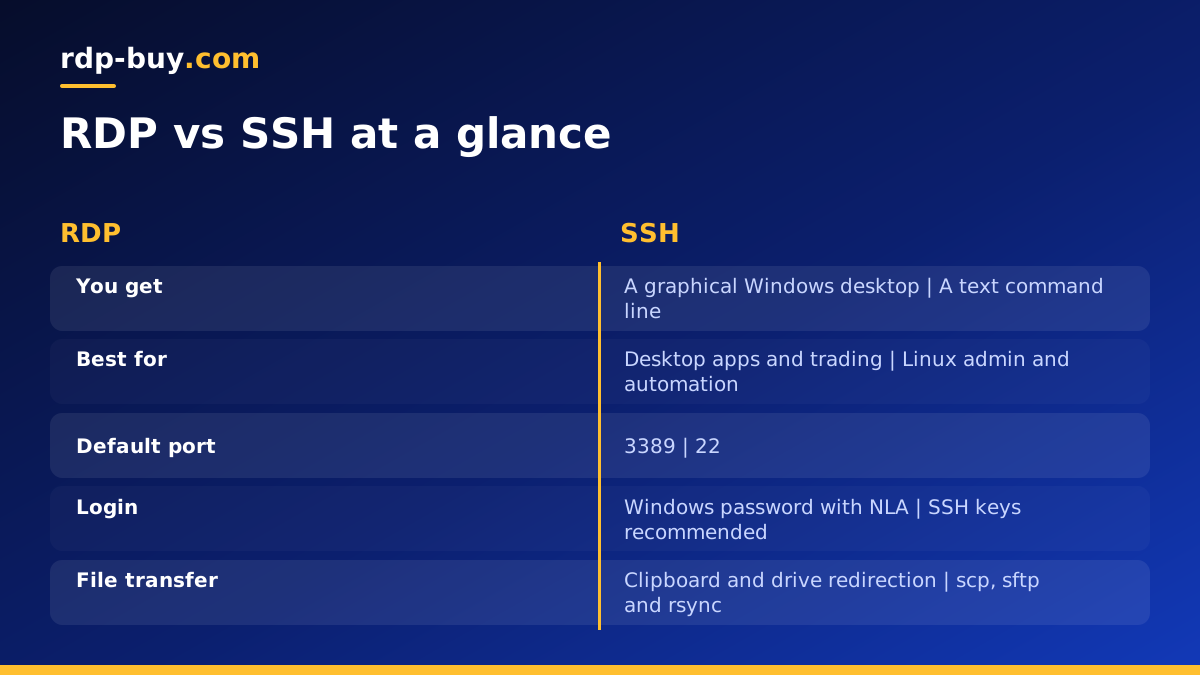
RDP vs SSH in one paragraph
Remote Desktop Protocol (RDP) is Microsoft's protocol for showing a remote Windows desktop on your screen and sending your keyboard and mouse back. Secure Shell (SSH) is an open protocol for logging in to a remote machine's command line, running commands and moving files, all over an encrypted connection. Both are secure remote access tools. The difference is what you get at the other end: a desktop you can see and click, or a terminal you type into.
That single difference drives everything else in the RDP vs SSH comparison, from bandwidth and security to which one suits a trading platform, a web server or an AI agent.
How RDP works
When you connect with RDP, the Windows server runs a full desktop session for your user. It sends compressed screen updates to your client, and your client sends keyboard and mouse events back. Modern RDP also carries sound, clipboard, printer and drive redirection, so you can copy text between your computer and the server or open a local folder inside the remote session.
RDP listens on port 3389 by default and encrypts the session. Network Level Authentication asks for your credentials before a session is created, which reduces load and exposure. Clients exist for Windows, macOS, iOS, Android and Linux, so you can reach a Windows desktop from almost any device. Our guide on the best RDP clients compares the options.
How SSH works
SSH opens an encrypted channel to a remote machine, usually on port 22. Once logged in, you get a shell where you type commands and read their output as text. There is no desktop and no mouse; everything is done through commands, scripts and configuration files.
SSH is also a toolbox. It can copy files with scp or sftp, forward ports so you can reach a service that is not exposed to the internet, and run commands non-interactively from scripts and automation tools. Authentication with SSH keys is standard and very strong. SSH is built into Linux, macOS and current versions of Windows, both as a client and, on Windows, as an optional server feature.
Key differences between RDP and SSH
Here is how the two compare on the points that usually decide the choice.
- Interface: RDP shows a graphical desktop. SSH gives a text terminal.
- Typical operating system: RDP is native to Windows. SSH is native to Linux and Unix, and available on Windows.
- Bandwidth: RDP sends screen images, so it needs more bandwidth and feels the effect of distance more. SSH sends text and stays responsive even on weak connections.
- Automation: SSH is ideal for scripts, deployment tools and remote commands. RDP is built for a person in front of a screen.
- File transfer: SSH has scp, sftp and rsync. RDP relies on clipboard and drive redirection.
- Default port: RDP uses 3389. SSH uses 22.
- Authentication: RDP usually uses Windows account passwords, often with Network Level Authentication. SSH supports passwords and key pairs, and keys are the recommended choice.
When to use RDP
RDP is the right tool whenever the work needs a graphical Windows environment.
- Running Windows desktop software such as trading platforms, accounting tools or browser based workflows that need a real browser window.
- Using MetaTrader or other platforms around the clock on a server close to your broker. Our page on forex RDP covers that use.
- Giving non-technical team members a remote Windows desktop that looks and feels familiar.
- Running AI agents that operate Windows apps through the screen, keyboard and mouse.
- Managing a Windows Server through its graphical tools, such as Server Manager and IIS Manager.
When to use SSH
SSH is the right tool for server administration and anything you want to automate.
- Managing Linux servers: installing packages, editing configuration files and reading logs.
- Deploying websites and apps with Git, Docker or deployment scripts.
- Running AI agents and tools such as n8n, OpenClaw or Claude Code (by Anthropic) on a Linux VPS.
- Copying files and backups between machines securely.
- Reaching private services through port forwarding without opening them to the internet.
Security: RDP vs SSH
Both protocols encrypt traffic, and both are safe when configured well. The risks come from exposure and weak credentials.
RDP on port 3389 is a frequent target of automated password guessing. Protect it with strong unique passwords, Network Level Authentication, account lockout policies and a firewall that limits which addresses can connect. Changing the default port reduces background noise in logs, although it is not a security control on its own. Our guide to running RDP as administrator also covers safe use of admin rights.
SSH is attacked in the same way on port 22. Switching to key-based logins and disabling password authentication removes most of that risk, since guessing a key is not practical. Tools such as fail2ban add a further layer by blocking addresses after repeated failures.
A good pattern for sensitive Windows servers is to combine them: allow RDP only through an SSH tunnel or VPN, so port 3389 is never open to the whole internet.
Can you use both on one server?
Yes. Windows Server and Windows 10 or 11 include an optional OpenSSH Server feature, so you can manage a Windows machine by command line and still log in with RDP when you need the desktop. On Linux, you can install a remote desktop server such as xrdp to get a graphical session over RDP in addition to SSH.
In practice, most people pick the native option for each system: RDP for Windows, SSH for Linux. Our guide to RDP vs VPS explains how that maps to the servers you can rent, and Windows or Linux helps you choose the operating system.
A typical day with each protocol
Picture a trader who runs MetaTrader on a remote Windows server. They open the Remote Desktop app on a laptop or phone, connect to the server and see the same charts and open trades they left the night before. They adjust a setting, close the window and the platform keeps running on the server. Everything happens through the desktop, and RDP is the only sensible tool.
Now picture a developer running a web app and an n8n instance on a Linux VPS. They open a terminal, type a short ssh command and land in a shell. They pull the latest code, restart a container, check a log file and log out, all in a minute or two, without ever seeing a desktop. A script on their laptop can do the same steps automatically over SSH. Here a desktop would only get in the way.
Many teams have both people. Giving each the server and protocol that matches how they work is usually simpler than forcing one approach on everyone.
Performance and distance
Because RDP streams the screen, distance between you and the server matters more than with SSH. A Windows server in a region near you feels smoother when you move windows and scroll. Lower display settings, such as reduced colour depth and turning off wallpaper and animations in the client, help on slower connections.
SSH barely notices distance for typical command line work, but the location still matters for what the server does. A server close to your users, your broker or the APIs your agents call finishes its own work faster, whichever protocol you use to manage it.
Choosing the right server
If your work needs a Windows desktop, choose a Windows RDP plan. The Windows licence is included in the price, you get full administrator access and a dedicated IPv4 address, and you connect with any RDP client. If your work is command line based, such as web hosting, Docker or Linux AI agents, a Linux VPS managed over SSH is the better fit.
Either way, rdp-buy.com offers 33 server locations, monthly, half-yearly or yearly billing, servers that are ready in minutes and 24/7 support. Start with the protocol that matches your daily work, and add the other later if your needs change.
