 Sign in
RDP Port: Default 3389 and How to Change It on Windows Server
The RDP port is the network port Windows Remote Desktop listens on, and by default it is TCP and UDP 3389. This guide explains what that means, when changing it helps, and the exact steps to move it on a Windows RDP server without locking yourself out.
What is the RDP port?
Every network service on a server listens on a numbered port so incoming traffic reaches the right program. Web servers usually listen on ports 80 and 443, SSH on port 22, and Windows Remote Desktop on port 3389. When you type a server address into Remote Desktop Connection without a port, the client assumes 3389 automatically.
Modern Windows versions use the same number for both TCP and UDP. TCP carries the main session and is always required. UDP is an optional transport that Windows uses when it is available, mainly to keep the session smooth on less stable connections. If UDP is blocked, Remote Desktop falls back to TCP and still works.
On a hosted RDP server, port 3389 is normally open from day one so you can log in straight away. Whether you leave it there or move it is a choice worth making deliberately, which is what the rest of this guide covers.
Should you change the default RDP port?
Changing the port is often described as a security measure. It is more accurate to call it noise reduction. Automated scanners on the internet constantly probe port 3389 looking for weak passwords. Moving Remote Desktop to another port makes your server invisible to the laziest of those scans, which means fewer failed login attempts in your event log.
It does not stop a determined attacker, because a full port scan will still find the service. Real protection comes from a strong unique password, Network Level Authentication, current Windows updates and, ideally, a firewall rule that only allows your own IP addresses. Think of a custom port as a useful extra layer on top of those, never a replacement for them.
- Good reasons to change it: cleaner logs, fewer brute force attempts, or a network that blocks 3389 outbound.
- Poor reasons to change it: believing it makes a weak password safe.
- Pick a port that is free: choose a high number not used by another service on the server, and write it down.
Before you start: avoid locking yourself out
The one real risk in this process is changing the port before the firewall allows the new one. If that happens, your current session ends after the service restarts and the new port is blocked, so you cannot get back in. Follow the order below and you will be fine.
It also helps to know your recovery options. Many hosts, including rdp-buy.com, provide a way to reach the server outside Remote Desktop, and 24/7 support can help if something goes wrong. Still, the simplest safety net is to add the firewall rule first and test before closing anything.
How to change the RDP port on Windows Server with PowerShell
PowerShell is the quickest and most repeatable method. Open PowerShell as Administrator on the server and run the steps in order. Replace 50123 with the port you chose.
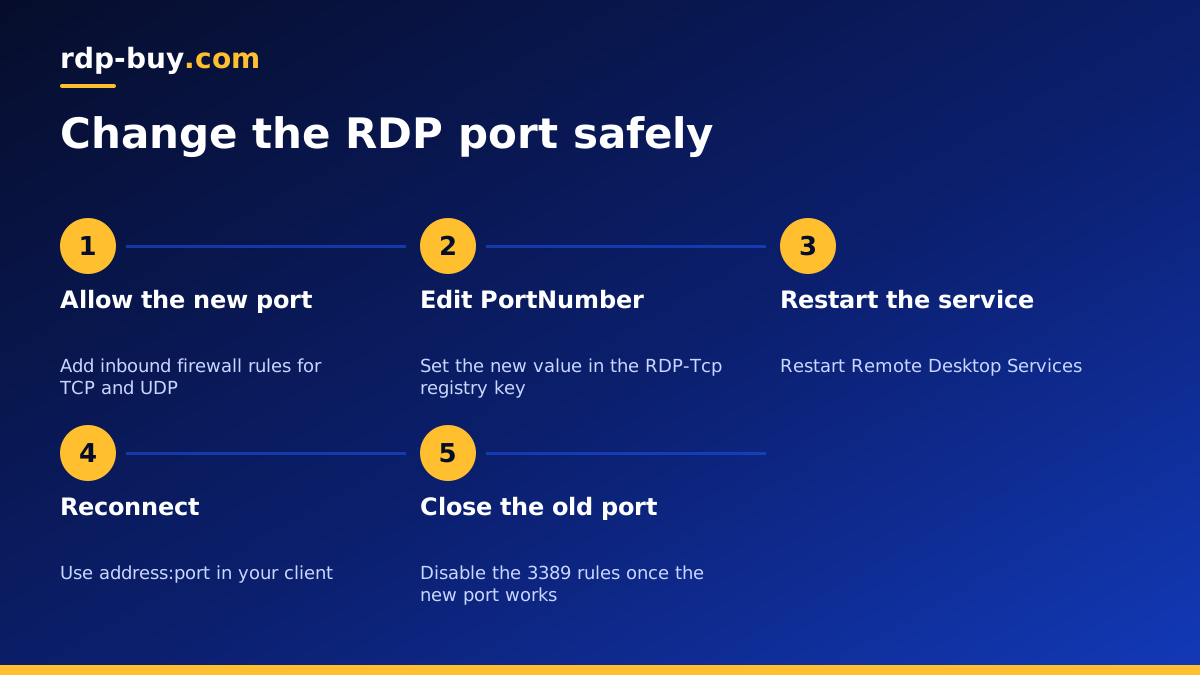
- Step 1, check the current port: run Get-ItemProperty -Path 'HKLM:\SYSTEM\CurrentControlSet\Control\Terminal Server\WinStations\RDP-Tcp' -Name PortNumber and confirm it shows 3389.
- Step 2, allow the new port in the firewall: run New-NetFirewallRule -DisplayName 'RDP custom TCP' -Direction Inbound -Protocol TCP -LocalPort 50123 -Action Allow, then repeat with -Protocol UDP and a different display name.
- Step 3, set the new port: run Set-ItemProperty -Path 'HKLM:\SYSTEM\CurrentControlSet\Control\Terminal Server\WinStations\RDP-Tcp' -Name PortNumber -Value 50123.
- Step 4, restart Remote Desktop Services: run Restart-Service TermService -Force. Your current session will drop, which is expected.
- Step 5, reconnect on the new port: in Remote Desktop Connection, type the server address followed by a colon and the port, for example your.server.ip:50123.
- Step 6, close the old port: once the new port works, disable the original Remote Desktop firewall rules for 3389 so the old door is shut.
Changing the port with the Registry Editor instead
If you prefer a graphical route, you can make the same change in the Registry Editor. Add the firewall rule first using Windows Defender Firewall with Advanced Security: create a new inbound rule, choose Port, select TCP, enter your new port, allow the connection and give it a clear name. Repeat for UDP.
Then open regedit, browse to HKEY_LOCAL_MACHINE\SYSTEM\CurrentControlSet\Control\Terminal Server\WinStations\RDP-Tcp, double click PortNumber, switch the base to Decimal, type the new port and click OK. Restart the server or the Remote Desktop Services service, then reconnect using the address and port together.
Connecting to a custom RDP port from any device
The client side is simple. On Windows, enter address:port in the Computer field of Remote Desktop Connection. In the Microsoft Remote Desktop apps for Mac, iPhone, iPad and Android, add the port the same way in the PC name field. If you save connections, update the saved entry so you do not keep trying the old port.
If the connection fails, check three things in order: the firewall rule exists for the right port and protocol, the registry value is correct in Decimal, and you restarted the service. Our guide on how to connect to your RDP server covers other common connection errors.
How to check which port Remote Desktop is listening on
If you inherited a server or forgot the number you picked, you can confirm the active port in a few seconds. In an administrator PowerShell window, the Get-ItemProperty command from Step 1 shows the configured value. To see what is actually listening, run netstat -ano | findstr LISTENING and look for the line whose process ID matches the TermService service, or run Get-NetTCPConnection -State Listen and check the local ports.
This check is also useful after a Windows update or a configuration change, because it tells you whether the service restarted on the port you expect. If the registry says one number and nothing is listening on it, the service has not picked up the change yet, and a restart of Remote Desktop Services usually fixes it.
RDP port on a home PC versus a hosted server
On a home or office PC behind a router, the port question has an extra layer. The PC has a private address, so reaching it from outside means forwarding a port on the router to that PC. Exposing Remote Desktop this way is a common source of trouble, because home routers rarely make it easy to restrict which addresses can connect, and the PC usually holds personal files.
A hosted Windows server avoids that layer. It has its own public IP address, so there is no router to configure, and you can set firewall rules directly on the machine. It also keeps your personal computer off the public internet entirely, which is a sensible separation if you only need a remote desktop for trading, bots or work tools.
Other ways to protect Remote Desktop
A custom port works best alongside other basic protections. None of these need extra software, and together they make a big difference.
- Restrict by IP: edit the firewall rule so only your home or office IP addresses can connect.
- Use Network Level Authentication: it requires sign in before a full session starts.
- Rename or disable unused accounts: attackers often try common user names first.
- Set an account lockout policy: limit repeated failed attempts.
- Keep Windows updated: install security updates promptly.
- Use SSH or a VPN for sensitive setups: the RDP vs SSH guide explains when tunnelling is worth it.
Choosing a Windows server you can configure freely
Changing the RDP port needs administrator rights on the server. Some shared or reseller remote desktops do not give you that, which means you cannot touch the registry or the firewall. Before you rent, make sure you get full control of the machine.
Every Windows plan at rdp-buy.com comes with full admin access, a dedicated IPv4 address and the Windows licence included, so you can set the port, firewall and accounts exactly as you like. Servers are ready in minutes in any of 33 locations. Compare options to buy RDP, or if you need elevated access for specific tools, look at admin RDP. Not sure which size fits? See which RDP plan you need.
