 Sign in
RDP Server for Linux: xrdp Setup and Linux RDP Clients
Linux can both host Remote Desktop sessions, using the open source xrdp server, and connect to Windows machines with clients such as Remmina and FreeRDP. This guide covers both directions, and explains when a ready made Windows RDP server saves you the setup entirely.
Two meanings of RDP server for Linux
People searching for an RDP server for Linux usually want one of two things. Some want to log in to a Linux machine with a graphical desktop, using the same Remote Desktop client they already use for Windows. Others run Linux on their own laptop and want to connect to a Windows server. Both are possible, and the tools are different for each.
For the first case, the standard answer is xrdp, an open source server that speaks Remote Desktop Protocol and hands you a Linux desktop session. For the second case, you need an RDP client for Linux, and Remmina and FreeRDP are the common choices.
There is also a third option that people often overlook. If what you really want is a Windows desktop you can reach from Linux, the simplest route is to rent an RDP server running Windows and connect to it from your Linux machine. No desktop environment to install, no display server to debug.
How xrdp works on a Linux server
Linux servers are usually headless. They have no desktop at all, because services such as web servers and databases do not need one. To get a graphical session over RDP, you install two pieces: a desktop environment, which draws the windows and menus, and xrdp, which accepts Remote Desktop connections and starts a desktop session for each user who logs in.
Lightweight desktops such as Xfce are the usual pick on a VPS because they use less memory than heavier desktops. xrdp listens on port 3389 by default, the same port Windows uses, so standard clients connect without extra settings. The project's source and documentation are on GitHub.
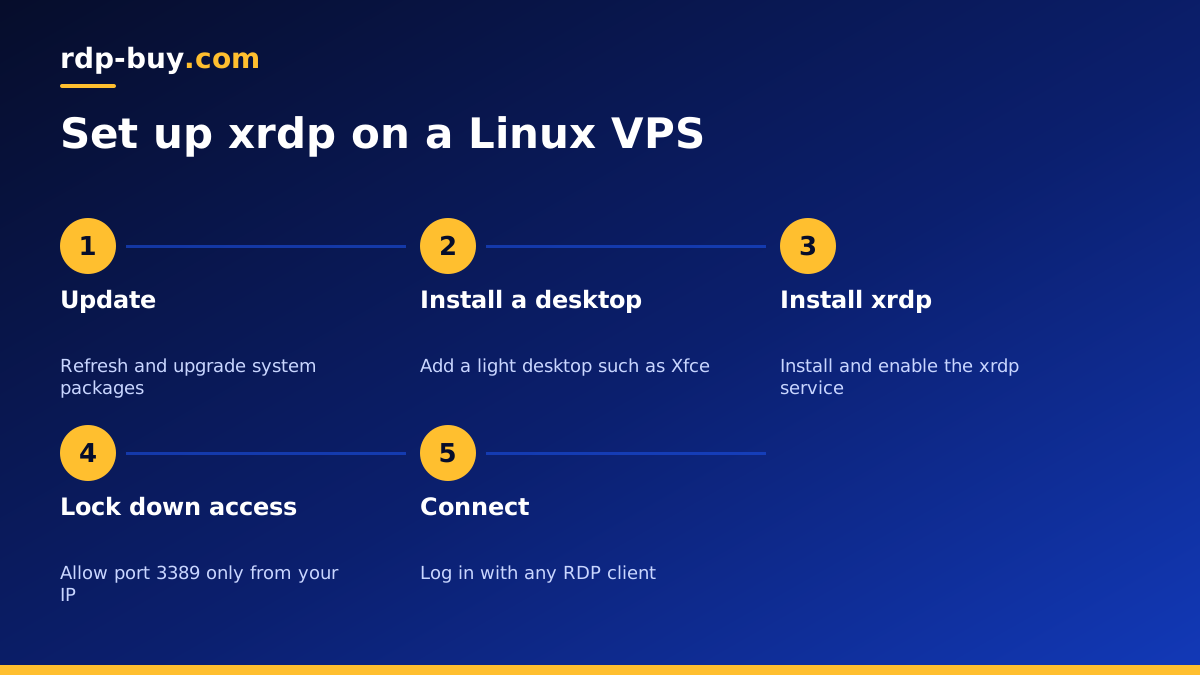
Install xrdp on Ubuntu or Debian step by step
These steps assume an Ubuntu or Debian VPS with root or sudo access. Connect over SSH first; if you have not done that before, read how to connect to a VPS over SSH.
- Step 1, update packages: run sudo apt update && sudo apt upgrade -y.
- Step 2, install a desktop: run sudo apt install -y xfce4 xfce4-goodies.
- Step 3, install xrdp: run sudo apt install -y xrdp.
- Step 4, tell xrdp which desktop to start: as the user who will log in, run echo xfce4-session > ~/.xsession.
- Step 5, allow xrdp to read its certificate: run sudo adduser xrdp ssl-cert.
- Step 6, start the service: run sudo systemctl enable --now xrdp and check it with systemctl status xrdp.
- Step 7, open the firewall carefully: with UFW, run sudo ufw allow from YOUR.IP.ADDRESS to any port 3389 so only your own address can connect.
- Step 8, connect: open any RDP client, enter the server IP and sign in with your Linux user name and password.
Common xrdp problems and fixes
Most xrdp issues fall into a small number of patterns, and each has a straightforward fix.
- Black or blank screen after login: the session file is missing or the same user is already logged in locally. Check that ~/.xsession exists and log the user out of other graphical sessions.
- Login window closes immediately: look at /var/log/xrdp-sesman.log for the reason; a missing desktop package is a frequent cause.
- Connection refused: confirm the service is running and the firewall allows your IP on port 3389.
- Slow or laggy desktop: use a lighter desktop, disable visual effects and lower the colour depth in your client.
- Authentication popups inside the session: some desktop policies ask for a password to manage colour profiles or network settings; these can be adjusted with a polkit rule.
Connecting from Linux to a Windows RDP server
If you run Linux on your laptop and need to reach Windows, you need a client rather than a server. Two tools cover nearly every case.
Remmina is a graphical remote desktop client available in the repositories of most distributions, and it is preinstalled on Ubuntu desktop. Create a new connection, choose RDP as the protocol, enter the server address, user name and password, and save it. Remmina handles clipboard sharing, shared folders and multiple monitors from its settings panel.
FreeRDP is the engine underneath many Linux RDP tools, and it has a command line client. A typical command looks like xfreerdp /v:your.server.ip /u:Administrator /dynamic-resolution. It is handy for scripts and for people who prefer the terminal. Both clients work well with hosted Windows servers; the guide on how to connect to your RDP server covers the details you receive after ordering.
xrdp on Linux vs a Windows RDP server
Running a desktop on a Linux VPS is useful when you want Linux tools with a graphical interface, for example a browser for testing, a GUI database tool, or a visual editor alongside your services. It is free of licensing costs and keeps you in an environment you may already know.
It is less useful when the programs you need only run on Windows. MetaTrader, many broker terminals and plenty of business software are Windows programs, and running them on Linux means compatibility layers and troubleshooting. In that case a Windows server with Remote Desktop already enabled is less work, and the Windows licence is included in rdp-buy.com Windows prices.
A simple way to decide: if your work is mainly services, scripts, Docker or AI agents, choose a Linux VPS and add xrdp only if you want a desktop. If your work is mainly Windows applications, choose Windows RDP. The guide on Windows or Linux server goes further.
Security tips for any Linux RDP setup
Exposing a graphical login to the internet deserves care. Limit port 3389 to your own IP addresses, use strong passwords for every account that can log in, and keep packages updated with regular apt upgrade runs. For extra protection, keep port 3389 closed and reach xrdp through an SSH tunnel, which means only SSH is exposed. Our RDP vs SSH guide explains how the two protocols compare.
How to tunnel xrdp over SSH
Tunnelling sounds advanced, but it takes one command. Leave port 3389 closed in the firewall so only SSH is reachable. On your own computer, run ssh -L 3390:localhost:3389 user@your.server.ip and keep that window open. Then point your RDP client at localhost:3390. The client talks to your own machine, SSH carries the traffic securely to the server, and xrdp receives it as if it came from inside.
On Windows, the built-in OpenSSH client supports the same command in PowerShell, and tools such as PuTTY offer the same feature in their tunnel settings. This setup is a good fit for anyone who only needs the Linux desktop occasionally, because nothing graphical is ever exposed to the open internet.
When a Linux desktop helps with AI agents and automation
Most agent tools run headless, but a desktop can still be useful. Watching a browser automation run, checking a page that an agent struggles with, or using a graphical tool to inspect a database are all easier with a screen in front of you. On a Linux VPS running n8n, OpenClaw or Hermes Agent, adding xrdp gives you that view without changing how the services themselves run. The AI agent hosting hub explains which server type suits each tool.
Pick the server that matches your desktop
If you want a Linux machine with an optional desktop, start with a plan to buy a VPS, install xrdp with the steps above, and you have full root access to configure everything. If you want a Windows desktop you can reach from Linux, Mac, Windows or a phone without installing anything on the server, choose a plan to buy Windows RDP instead.
Either way, you get a dedicated IPv4 address, a choice of 33 locations, monthly, half-yearly or yearly billing and 24/7 support, and the server is ready in minutes.
