 Sign in
Windows RDP How to Change Password: Every Method Explained
To change your password inside a Windows RDP session, press Ctrl+Alt+End and choose Change a password, or use Settings, net user or PowerShell as an administrator. This guide covers every method, plus the fixes for expired passwords, on any Windows RDP server.
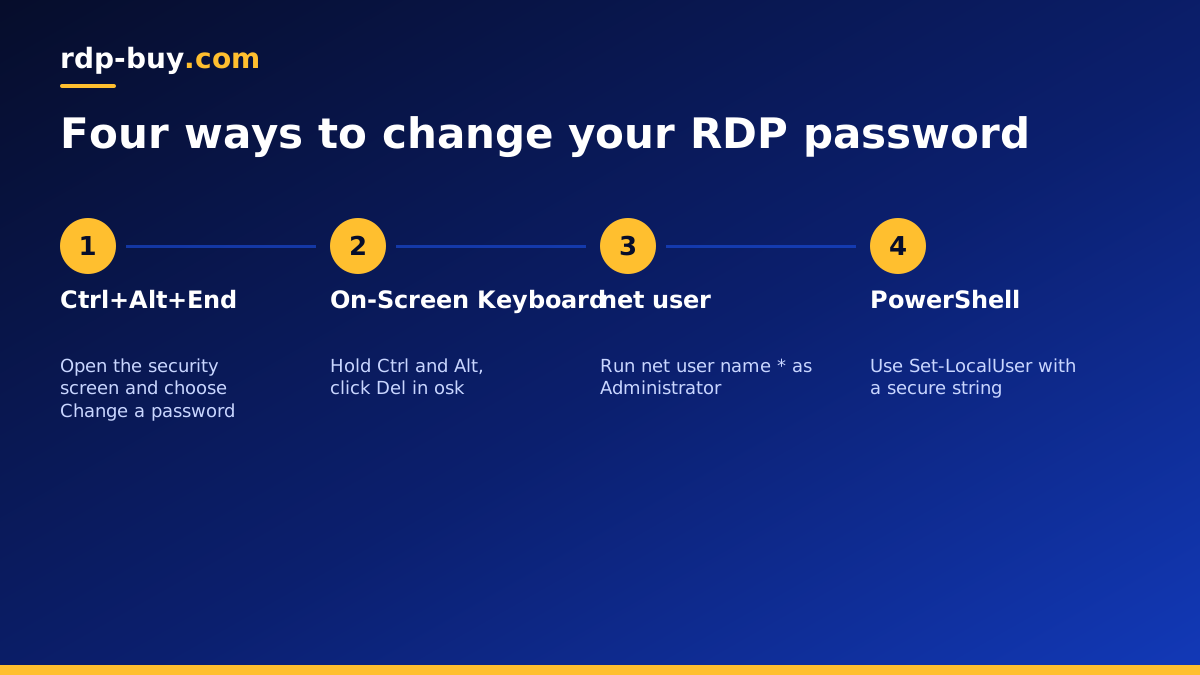
Why changing your Windows RDP password matters
When you rent a Windows server, the first login details usually arrive by email or in a client area. Changing that password straight away is one of the most useful security steps you can take, because the original credentials have passed through more places than a password you create yourself. It is also worth changing the password when someone who had access leaves a project, or whenever you suspect a device that saved the login may have been compromised.
On a Windows RDP server the job takes under a minute once you know where to look. The tricky part is that the usual shortcut, Ctrl+Alt+Delete, goes to your own computer instead of the remote one. The methods below get around that.
Method 1: Ctrl+Alt+End inside the RDP session
Remote Desktop maps a special shortcut to the security screen of the remote machine. While your session window is active, press Ctrl+Alt+End. The remote server shows the same blue screen you would see after Ctrl+Alt+Delete on a local PC.
- Step 1: click inside the Remote Desktop window so it has focus.
- Step 2: press Ctrl+Alt+End.
- Step 3: choose Change a password.
- Step 4: enter your current password, then the new password twice, and press Enter.
- Step 5: wait for the confirmation message and click OK.
Method 2: use the on-screen keyboard or Start menu
On a Mac keyboard, or inside a client that captures shortcuts differently, Ctrl+Alt+End may not reach the server. There are two easy alternatives.
The first is the on-screen keyboard. Open the Start menu on the remote server, type osk and open On-Screen Keyboard. Hold Ctrl and Alt on your physical keyboard, then click Del on the on-screen keyboard. The security screen appears and you can choose Change a password.
The second works on recent versions of Windows and Windows Server: open Settings, go to Accounts, then Sign-in options, and use the Password section to change it. Some server editions hide this page; if so, use one of the command line methods below.
Method 3: net user from the command line
If you have administrator rights, the quickest method is a single command. Open Command Prompt as Administrator and run net user YourUserName *. Windows asks you to type the new password twice without showing it on screen. Using the asterisk instead of writing the password in the command keeps it out of your command history.
To see the exact account names on the server first, run net user on its own. On rented servers the main account is often called Administrator, but some providers use a different name, so check before you change anything.
Method 4: PowerShell for local accounts
PowerShell is useful when you manage several accounts or want a repeatable step in a setup script. Open PowerShell as Administrator and run this single line, which prompts for the new password without showing it:
- Set-LocalUser -Name 'YourUserName' -Password (Read-Host -AsSecureString 'New password')
- Run Get-LocalUser first if you need to list the local accounts and confirm their exact names.
Changing another user's RDP password
If you added extra users so colleagues can log in, you can reset their passwords as an administrator with either net user or Set-LocalUser, using their account name. You can also open Computer Management, go to Local Users and Groups, then Users, right click the account and choose Set Password.
Windows warns that resetting another user's password this way can make some of their encrypted data unreadable, such as saved browser credentials protected by Windows. That is normal behaviour. Tell the user so they know to sign back in to those services.
What to do if your password has expired
Some servers enforce password expiry. When a password expires, the Remote Desktop client may refuse to connect with a message about needing to change your password, because Network Level Authentication checks the password before the session starts and cannot show the change screen.
There are a few ways forward. If another administrator account works, sign in with it and reset the expired one with net user. If not, many hosts offer console access from the client area that does not depend on Network Level Authentication, where you can sign in and change the password. On rdp-buy.com, 24/7 support can help you regain access if you are stuck. Once you are back in, decide whether expiry makes sense for a single user server; you can adjust it in Local Security Policy under Account Policies.
Update saved credentials after the change
After changing the password, every device that saved the old one will fail to connect until you update it. On Windows, open Remote Desktop Connection, select the saved computer and choose Edit under the saved credentials, or remove the entry in Credential Manager under Windows Credentials. In the Microsoft Remote Desktop apps for Mac, iPhone, iPad and Android, edit the user account attached to the saved PC.
Also update any scripts, password managers or trading tools that log in automatically. If you share access with a team, send the new password through a password manager rather than chat or email. Our guide on how to connect to your RDP server covers the client settings in more detail.
Choosing a strong RDP password
Internet facing Remote Desktop logins are a constant target for automated guessing, so the password deserves care.
- Use a long passphrase or a random password from a password manager.
- Never reuse a password from another site or service.
- Avoid names, dates and words linked to your business.
- Combine a strong password with other protections, such as limiting RDP to your IP or changing the RDP port.
- Set an account lockout policy so repeated wrong guesses are slowed down.
Give each person their own account instead of sharing one
A common habit on rented servers is to share the main Administrator login with everyone who needs access. It works until someone leaves, a laptop is lost, or you need to know who changed a setting. At that point the only fix is changing the shared password and sending it to everyone again.
A better pattern is one account per person. As an administrator, run net user NewName * /add to create a user, then net localgroup "Remote Desktop Users" NewName /add so they can log in over RDP. Add them to the Administrators group only if they truly need it. When someone no longer needs access, disable or delete just their account and everyone else keeps working.
Separate accounts also give each person their own desktop, browser profile and saved settings, which avoids people closing each other's programs. For trading or automation setups, keep the account that runs your always-on software separate from the accounts people use for maintenance, so a password change for one person never interrupts the program that has to keep running.
Get a Windows server you fully control
All of these methods depend on having administrator rights on the server. Some low cost shared remote desktops only give you a limited user account, which means you cannot reset passwords, add users or change security policies yourself.
Windows plans at rdp-buy.com include full admin access, a dedicated IPv4 address and the Windows licence, so you manage your own accounts from day one. Servers are ready in minutes in 33 locations, with monthly, half-yearly or yearly billing. Compare plans to buy RDP, see admin RDP if elevated access is your main need, or read which RDP plan you need to size it.
