 Sign in
Dedicated Server for Palworld: Setup Guide and What You Need
A dedicated server for Palworld keeps your world online even when the host player logs off, and gives everyone smoother play than hosting from a gaming PC. This guide covers what hardware to look for, how to install the server step by step and how to choose a dedicated server that suits your group.
Why run a dedicated server for Palworld
Palworld offers several ways to play together. In co-op, one player hosts the world from their own game, and when they quit, everyone else is disconnected. A dedicated server runs the world on a separate machine, so friends can join and keep building whenever they like.
Running the server on a rented machine rather than a spare home PC has clear advantages. It stays online 24/7 without heating your room or running up your power bill. It has a stable dedicated IPv4 address, so you do not have to deal with changing home IPs or router port forwarding. And you can place it in a location that is central for your players. If you want that without buying hardware, a dedicated CPU server is a natural fit.
What hardware a Palworld server needs
Palworld's dedicated server is known for being hungry for memory. The world keeps track of bases, Pals working at stations and items scattered across the map, and memory use tends to grow the longer the server runs and the more bases players build. Plan generously for RAM, and expect to restart the server on a schedule to keep memory in check.
CPU matters too. The main game simulation leans heavily on a single thread, so fast individual cores help more than a large number of slow ones. This is why dedicated cores are valuable: on a shared VPS, a busy neighbour can steal CPU time right when your players are fighting a boss. Fast SSD or NVMe storage helps the server save the world without hiccups.
The best approach is to start with a sensible plan for your group size, watch memory and CPU in the first week, then resize if needed.
Dedicated server vs community server in Palworld
Palworld uses the phrase community server for a dedicated server that is listed publicly in the in-game server browser. Technically, both are the same dedicated server software. The difference is visibility:
- Private dedicated server: not listed publicly. Friends join by typing your IP address and port, and you can add an admin password and server password.
- Community server: launched with the public lobby option so anyone can find it in the browser. Good for building a public community, but you will need moderation and a ban list.
- Both run on the same hardware and use the same configuration file, so you can switch later by changing the launch options.
Step by step: install a Palworld dedicated server on Linux
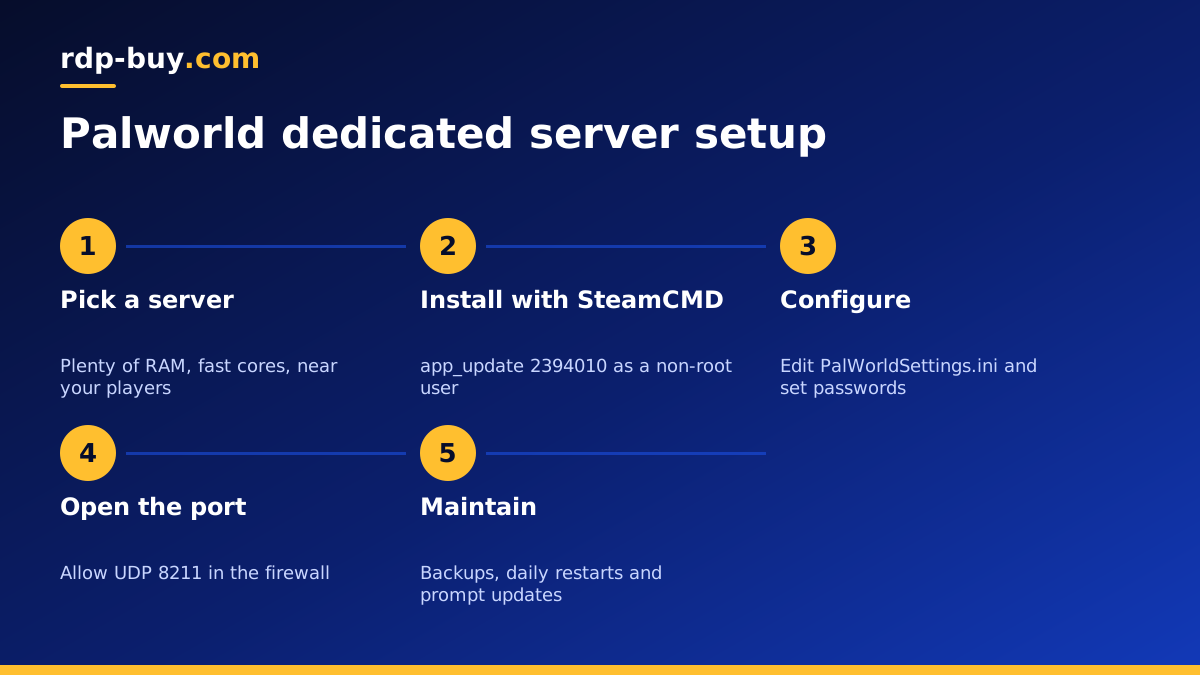
Ubuntu or Debian are good choices for the server. Connect to your server over SSH and follow these steps:
- Update the system and create a separate user for the game server, for example steam, rather than running it as root.
- Install SteamCMD from your distribution's packages or from Valve's download, which is documented on Valve's developer pages.
- Install the server files with steamcmd +login anonymous +app_update 2394010 validate +quit. The app ID 2394010 is the Palworld Dedicated Server tool on Steam.
- Change into the install folder and start the server once with ./PalServer.sh so it creates its configuration folders, then stop it.
- Copy DefaultPalWorldSettings.ini into Pal/Saved/Config/LinuxServer/PalWorldSettings.ini and edit it with your server name, passwords and gameplay settings.
- Open UDP port 8211 in the server firewall, the default game port.
- Start the server again, ideally as a systemd service so it restarts automatically after a crash or a reboot.
Setting up on Windows instead
If you prefer a desktop you can click around in, a Windows server works well too. Connect with Remote Desktop, install SteamCMD, run the same app_update 2394010 command, then launch PalServer.exe. The settings file lives under Pal\Saved\Config\WindowsServer. Allow UDP 8211 through Windows Firewall. On rdp-buy.com the Windows licence is included in Windows prices, and our guide on how to connect to your RDP server walks through the first login.
Key settings to review
The PalWorldSettings.ini file controls almost everything. Settings people usually change first include:
- ServerName and ServerDescription, shown to players.
- ServerPassword, so only your friends can join a private server.
- AdminPassword, which lets you use admin commands in game.
- ServerPlayerMaxNum, the player limit for your world.
- Experience, capture and drop rates, day and night speed, and death penalty rules.
- RCONEnabled and the RCON port, if you want to manage the server remotely with an RCON tool.
Connecting and inviting friends
In Palworld, choose Join Multiplayer Game, enter your server's IP address followed by a colon and the port, such as your-ip:8211, and connect. Enter the server password if you set one. Because your server has a dedicated IPv4 address, the address never changes, so friends can save it. For a friendlier address, point a domain name at the IP with a DNS A record.
Keeping your Palworld server healthy
A few routine tasks keep the world stable and safe:
- Back up saves regularly. Copy the Pal/Saved/SaveGames folder to another location on a schedule, and before every game update.
- Schedule restarts. A daily restart at a quiet hour clears memory build up. Warn players with an RCON broadcast first.
- Update promptly. When the game updates, clients and server must match. Stop the server, run the SteamCMD update command again and restart.
- Watch resources. Use tools such as htop to see memory and CPU, and resize the plan if the server struggles at peak times.
- Keep the firewall tight. Open only SSH or RDP, the game port and RCON if you use it, and restrict RCON to your own IP.
Common problems and how to fix them
Most Palworld server issues fall into a handful of patterns, and they are usually quick to solve once you know where to look.
If friends cannot see or join the server, first confirm the server process is running, then check that UDP 8211 is allowed in the operating system firewall and in any firewall offered by your host. Make sure players are typing the public IP address, not a private one, and that the port is included. A mismatch between the game version on the client and the server also blocks connections, so update both after every patch.
If the server becomes laggy after a few hours, memory is the usual cause. Check usage with htop or Task Manager. If it climbs steadily, shorten the restart interval and consider a plan with more RAM. Very large bases with many working Pals add load too, so agree some building limits with your group if the world gets heavy.
If the server crashes on start after an update, verify the files with the SteamCMD validate option, then compare your settings file with the latest default file, since new versions sometimes add or rename options. Keep a copy of your edited settings so you can restore them quickly.
Finally, if your world save seems to roll back, check that the server is shutting down cleanly. Stopping it through a proper service or an RCON save and shutdown command gives the game time to write the world to disk, while killing the process can lose recent progress.
Using Docker for an easier setup
If you are comfortable with containers, several community Docker images on GitHub package the Palworld server with automatic updates, backups and environment variable settings. That makes moving the server or rebuilding it much easier. Review the image's documentation and source before using it, and mount the save folder as a volume so your world survives container updates. Our Docker VPS page explains how Docker hosting works on our servers.
Choosing a server for your Palworld world
A Palworld dedicated server needs plenty of memory, fast single core performance and a location close to your players. Dedicated cores protect your world from slowdowns caused by other customers, and a stable IP makes joining simple for everyone.
When you are ready, buy a dedicated server in one of 33 locations, choose Linux or Windows, and get full root or admin access, a dedicated IPv4 address and 24/7 support, with the server ready in minutes. If your group is growing fast, see our guide to buying a dedicated server for sizing tips.
