 Sign in
Windows Server How to Enable RDP: A Safe Step by Step Guide
Remote Desktop is turned off on a fresh Windows Server install, but enabling it takes only a few clicks or one PowerShell command. This guide shows each method, the firewall and user settings that go with it, and how to keep your RDP server secure once it is reachable.
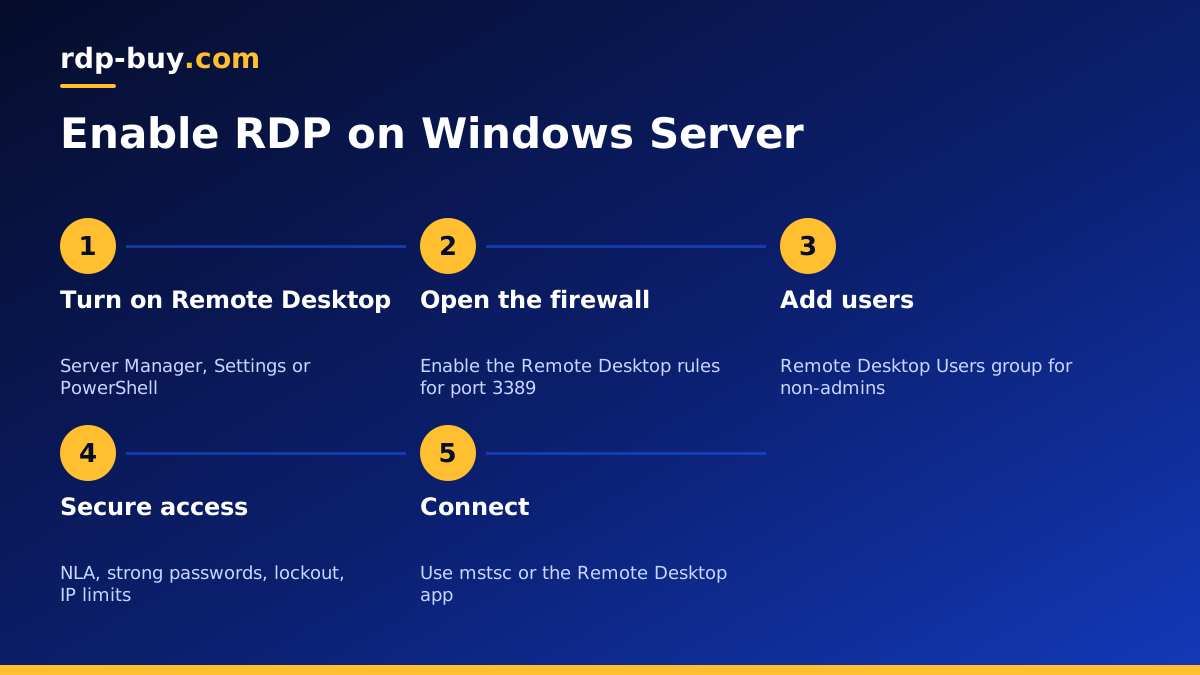
Before you start
To enable RDP on Windows Server, you need an account with administrator rights and some way to reach the server while Remote Desktop is still off. On a physical machine that means the local console. On a cloud server it usually means the provider's web console, or the server may already have RDP enabled for you.
If you rent a Windows server from us, Remote Desktop is already switched on and ready the moment the server is delivered, with full admin access and a dedicated IPv4 address. In that case you can skip straight to the security section. If you are setting up your own machine, or you turned RDP off and want it back, follow the steps below. Anyone still deciding where to host Windows can compare Windows RDP plans first.
The steps work on Windows Server 2016, 2019, 2022 and 2025, with small differences in menu names.
Method 1: Enable RDP with Server Manager
Server Manager is the dashboard that opens when you sign in to Windows Server. It is the most visual way to switch on Remote Desktop.
- Open Server Manager and select Local Server in the left pane.
- Find the Remote Desktop entry, which shows Disabled, and click it.
- In the System Properties window, choose Allow remote connections to this computer.
- Leave Allow connections only from computers running Remote Desktop with Network Level Authentication ticked.
- Click OK. Windows adds the firewall rules for you.
- Press F5 in Server Manager to refresh. Remote Desktop should now show Enabled.
Method 2: Enable RDP from Settings or System Properties
On newer versions with the Desktop Experience, you can also use the Settings app. Open Settings, go to System, then Remote Desktop, and switch Enable Remote Desktop on. Confirm the prompt.
The classic route works on every version: press Windows key and R, type sysdm.cpl, press Enter, open the Remote tab and choose Allow remote connections to this computer. This is handy when Server Manager is slow to load or you are on Server Core with limited tools.
Method 3: Enable RDP with PowerShell
PowerShell is the fastest method and works on Server Core, where there is no graphical interface. Open PowerShell as administrator and run these commands one at a time:
- Set-ItemProperty -Path 'HKLM:\System\CurrentControlSet\Control\Terminal Server' -Name fDenyTSConnections -Value 0 turns Remote Desktop on.
- Enable-NetFirewallRule -DisplayGroup 'Remote Desktop' opens the built-in firewall rules.
- Set-ItemProperty -Path 'HKLM:\System\CurrentControlSet\Control\Terminal Server\WinStations\RDP-Tcp' -Name UserAuthentication -Value 1 requires Network Level Authentication.
- On Server Core you can also run sconfig and choose the Remote Desktop option from the menu.
Enable RDP on many servers with Group Policy or remotely
If you manage several Windows servers in an Active Directory domain, switching Remote Desktop on one by one becomes tedious. Group Policy can do it for every server in an organisational unit at once. Open the Group Policy Management console, create or edit a policy linked to the servers, and go to Computer Configuration, Administrative Templates, Windows Components, Remote Desktop Services, Remote Desktop Session Host, Connections. Enable the setting Allow users to connect remotely by using Remote Desktop Services.
In the same policy, go to Computer Configuration, Windows Settings, Security Settings, Windows Defender Firewall with Advanced Security and add an inbound rule for Remote Desktop. While you are there, set Require user authentication for remote connections by using Network Level Authentication under the Security folder. The servers pick up the policy at their next refresh, or straight away if you run gpupdate /force on them.
For a single server you can reach over the network but not over RDP, PowerShell remoting is another option. From an administrator PowerShell on a machine that can reach it, run Enter-PSSession -ComputerName servername, then use the same registry and firewall commands shown in Method 3. This works when WinRM is enabled on the target, which is the default on recent Windows Server versions inside a domain.
Check the firewall and network
Remote Desktop listens on TCP port 3389 by default, and newer clients can also use UDP 3389 for smoother performance. The methods above enable the Windows Firewall rules automatically, but other layers can still block traffic.
If you cannot connect, check three places: the Windows Firewall rules named Remote Desktop, any firewall or security group at your hosting provider, and any router or corporate firewall between you and the server. Use Test-NetConnection your-server-ip -Port 3389 from another Windows machine to see whether the port answers.
Allow the right users to connect
By default, only members of the Administrators group can sign in over RDP. To let other people connect without making them administrators, add them to the Remote Desktop Users group. In System Properties, on the Remote tab, click Select Users and add their accounts. In PowerShell you can run Add-LocalGroupMember -Group 'Remote Desktop Users' -Member 'username'.
Windows Server allows two simultaneous administrative sessions without extra licensing. If you need many users working at once, you need the Remote Desktop Session Host role and Remote Desktop client access licences, which is a separate setup.
Lock down RDP once it is enabled
An RDP port that is open to the internet will be found by automated scanners quickly. These steps keep it safe:
Finally, decide how you will notice trouble. Windows records every sign in attempt in the Security event log, so review failed logons from time to time, or forward the log to a monitoring tool. A sudden stream of failures from unknown addresses is a sign that tighter IP rules or a VPN would be worthwhile. Keeping an eye on this costs a few minutes a week and catches problems early.
- Keep Network Level Authentication on so users authenticate before a session starts.
- Use long, unique passwords and rename or disable accounts you do not need.
- Turn on account lockout in Local Security Policy to slow down password guessing.
- Restrict source IPs in the firewall rule so only your office or home addresses can connect, when that is practical.
- Install updates promptly, because RDP vulnerabilities are patched through Windows Update.
- Consider a VPN or RD Gateway for teams, so the RDP port does not face the internet directly.
- Changing the port reduces log noise from scanners, but treat it as tidying, not as protection.
Connect to your server
On Windows, open Remote Desktop Connection by typing mstsc in the Start menu. Enter the server IP address, click Connect and sign in with your username and password. On macOS, iOS and Android, install the Microsoft Remote Desktop app, now called Windows App on some platforms, and add the server as a new PC.
Our guide on how to connect to your RDP server covers each client, saving connections and sharing local drives in more detail. If you are curious about how the protocol itself works, read What Is RDP?.
Troubleshooting common RDP errors
A few problems come up again and again:
- Remote Desktop cannot connect to the remote computer: RDP is still off, the firewall blocks port 3389 or the IP address is wrong.
- The user account is not authorised for remote login: add the user to Remote Desktop Users.
- CredSSP or authentication errors: update both client and server, as mismatched patch levels cause this.
- Too many users signed in: sign out idle sessions or set session time limits in Group Policy.
- Black screen after login: wait a moment, then try disconnecting and reconnecting, or lower display settings in the client.
Skip the setup with a ready Windows RDP server
Enabling RDP on Windows Server is quick with Server Manager, Settings or PowerShell, and the real work is in securing it afterwards. If you would rather start with a server where Remote Desktop already works, the licence is handled and the hardware is someone else's job, a hosted Windows server is the simplest path.
You can buy RDP in any of 33 locations, with the Windows licence included in Windows prices, full admin access, a dedicated IPv4 address, 24/7 support and a server ready in minutes. Our guide on which RDP plan you need helps you pick the right size.
