 Sign in
How Does Forex VPS Work? A Clear Guide for MT4 and MT5 Traders
A forex VPS is a remote Windows server that runs your trading platform and expert advisors around the clock, so trades do not stop when your computer does. Here is how it works in practice, what to look for, and how a Windows RDP server fits the job.
The short answer
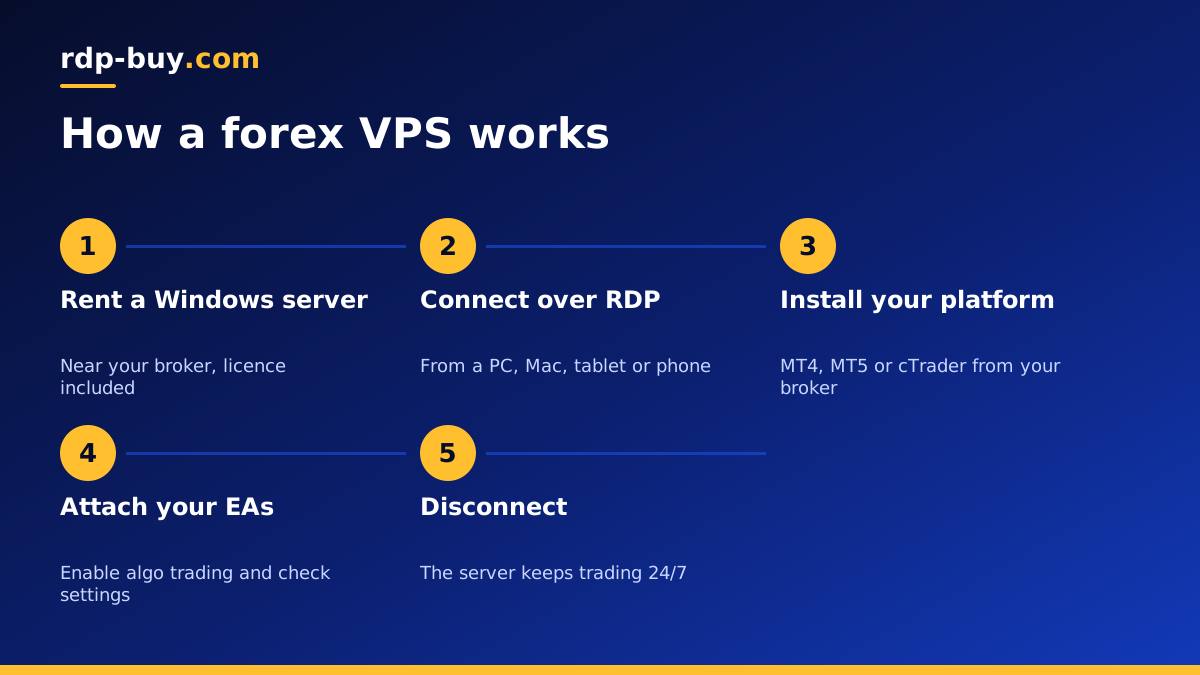
A forex VPS is a virtual Windows server in a data centre. You connect to it with Remote Desktop, install a trading platform such as MetaTrader 4, MetaTrader 5 or cTrader, log in to your broker account and attach your expert advisors or scripts. Then you disconnect. The server keeps the platform running day and night, sending and managing orders exactly as it would on your own computer, but without depending on your home power, internet or laptop lid.
Although people call it a forex VPS, what most traders actually use is a Windows server reached over RDP. That is why our forex RDP plans and general RDP server plans are the products for this job.
Why traders run platforms on a remote server
Automated strategies only work while the platform is running. On a home computer, many things can interrupt them: Windows updates that reboot overnight, sleep mode, power cuts, Wi-Fi drops or simply closing a laptop to travel. Any of these can leave an open trade without its stop management, or cause a strategy to miss entries.
A remote server removes most of these risks. It sits in a data centre with stable power and connectivity, runs 24/7 and is not used for anything else. You can check on it from your phone, tablet or another computer through Remote Desktop, but the platform itself never needs you to be online.
How a forex VPS works, step by step
Behind the scenes, the flow looks like this:
- The server: a virtual machine running Windows Server, with its own memory, storage and a dedicated IPv4 address.
- Remote access: you connect with the Remote Desktop client and see the server's desktop as a window on your device.
- The platform: you install MT4, MT5 or another terminal from your broker, just as on a normal PC.
- The broker connection: the platform connects from the server to your broker's trade servers over the internet.
- Automation: expert advisors, indicators and scripts run inside the platform on the server.
- Disconnecting: when you close Remote Desktop, your session stays alive and the platform keeps working.
Why server location matters
Every order travels from your platform to the broker's trade server. The physical distance between them adds delay, often called latency. For strategies that react quickly to price movements, a server close to the broker reduces that delay and can reduce slippage. For slower, swing style strategies, location matters less, but there is still no reason to place the server far away.
Find out where your broker hosts its trade servers. Many are in major financial hubs such as London, New York or Frankfurt, or in Asian centres like Singapore and Tokyo. Then choose a server location as close as you can. With 33 locations available, you can usually find one in the same region. Our server locations page lists them all, and dedicated pages exist for UK RDP and USA RDP.
To check, open your platform on the server and look at the connection indicator in the bottom corner, which shows the current ping to the broker. Compare locations if you are unsure.
What to look for in a forex VPS
Not every server suits trading. Check these points before you order:
- Windows included: MT4 and MT5 are Windows applications. On rdp-buy.com the Windows licence is included in Windows prices.
- Enough memory: each terminal, chart and expert advisor uses RAM. Several terminals or many charts need more.
- Location choice: a data centre near your broker's servers.
- Full admin access: so you can install any platform, tool or update.
- Stable IP: a dedicated IPv4 address helps with brokers or tools that check login locations.
- Support around the clock: markets open on Sunday night and close on Friday night, so 24/7 support matters.
- Flexible billing: monthly, half-yearly or yearly terms let you test first.
Setting up MT4 or MT5 on your server
Once your server is ready in minutes, setup takes a short while:
- Connect with Remote Desktop using the IP address and administrator details you received. Our guide on how to connect to your RDP server covers each device.
- Change the administrator password to a long unique one and install Windows updates.
- Download the trading platform from your broker's website, not from third party links.
- Log in to your trading account and open the charts your strategies need.
- Copy your expert advisors, indicators and templates into the platform's data folder, then restart the platform.
- Enable algorithmic trading and attach each expert advisor to its chart, checking the settings.
- Set the platform to start automatically with Windows, so it returns after any maintenance reboot.
Running several accounts or platforms
One server can run more than one terminal. Install each copy of MT4 or MT5 into its own folder, then log each one in to a different account. This is common for traders who run separate strategies, test on a demo account alongside a live one, or manage accounts for different brokers. Watch memory use in Task Manager as you add terminals, and move up a plan if the server becomes sluggish. Our guide on which RDP plan you need helps with sizing.
Keeping your trading server secure
Your server holds access to trading accounts, so treat its security seriously:
- Use a strong, unique Windows password and keep Network Level Authentication on.
- Do not browse the web or open email attachments on the trading server.
- Install only the platforms and tools you need, from trusted sources.
- Keep Windows updated, but schedule restarts for the weekend when markets are closed.
- Use two step verification on your broker account where it is offered.
Monitoring your server while you are away
Moving your platform to a server does not mean you can forget about it. A short routine keeps you confident that everything is working as intended.
Use the platform's own notifications. MetaTrader can send push alerts to the mobile app when trades open or close, or when an expert advisor reports an error. Link your MetaQuotes ID in the platform options and send a test message. That way, you hear about problems even when you are not logged in to the server.
Check in once a day through Remote Desktop, or at least before the weekly open. Look at the Experts and Journal tabs for errors, confirm the connection indicator shows a live link to the broker, and make sure algorithmic trading is still enabled. After any Windows update or server restart, confirm the terminals came back and the expert advisors are attached to the right charts.
Keep a simple backup of your platform data folder, including expert advisors, presets, templates and profiles. If you ever need to rebuild the server or move to a different location, you can restore everything in minutes rather than setting up each chart again.
Finally, keep a note of your broker login details and server details somewhere safe and offline, so you can act quickly from another device if you ever need to close positions manually.
Common myths about forex VPS
A server cannot make a losing strategy profitable. It only makes sure your strategy runs as designed, without gaps caused by your own computer. It also does not guarantee fills or remove slippage; it reduces delays that come from distance and unreliable home connections.
Another myth is that you need one only for high frequency strategies. In practice, even traders using simple expert advisors or trade copiers benefit, because any automation that stops when your PC sleeps is at risk. Manual traders can also use a server as a stable place to keep the platform and alerts running while they travel.
Choosing your forex server
A forex VPS works by moving your trading platform onto an always on Windows server close to your broker. You connect with Remote Desktop to set things up and check in, and the server does the rest around the clock.
To start, choose a forex RDP plan or any Windows RDP server in the location nearest your broker. You get the Windows licence included, full admin access, a dedicated IPv4 address, 24/7 support and a server ready in minutes, on monthly, half-yearly or yearly billing.
