 Sign in
How to Buy USA RDP: Step by Step, Including Paying With Crypto
Knowing how to buy USA RDP the right way saves you from the usual first-order problems: the wrong location, a plan that is too small, or a payment that stalls. Follow these steps to buy RDP in the USA, pay with the method you prefer, including crypto, and be working on your new Windows server the same day.
What a USA RDP is and who it suits
A USA RDP is a Windows server in a US data centre that you use through Remote Desktop. You see its desktop on your own screen, install programs on it as you would on any PC, and leave it running when you disconnect. It has its own dedicated IPv4 address in the United States.
People choose a US Windows server for a few common reasons. Some need a US IP address for business tools, ad platforms, marketplaces or services that expect a US connection. Others trade on US markets or with brokers whose servers are in US financial hubs. Many run browser based automation or AI agents that call APIs hosted in the US. And teams in North America use one as a shared desktop that is close to everyone.
If your main goal is the lowest cost for light use, our cheap RDP plans are the place to start. This guide covers the full buying process from start to finish.
Step 1: confirm a US location is right for you
Before you buy, check that the United States really is the best place for your server. The rule is simple: put the server near whatever it talks to most.
If the server works with US websites, US APIs, US customers or a US broker, a US location is the right call. If you mainly use the desktop yourself from another continent and the work is local to you, a closer location may feel more responsive. rdp-buy.com has 33 locations, so you can compare options on the server locations page.
Within the US, think about region too. The East Coast suits finance and traffic from Europe, central locations suit users spread across the country, and the West Coast suits Pacific users and traffic from Asia.
Step 2: choose the right plan size
Windows needs a little more memory than Linux just to run comfortably, so size your plan around what is open at the same time on top of Windows itself.
- Light: one browser, office tools, a chat app or a single trading terminal. An entry level plan is usually enough.
- Medium: several browsers with many tabs, a few trading terminals, or a couple of automation tools. Choose more memory.
- Heavy: browser automation at scale, many terminals, development builds or several AI agent tools. Choose more memory and CPU cores.
- Not sure: start smaller on monthly billing and upgrade after a week of watching Task Manager.
Using a USA RDP for AI agents and automation
A growing reason to buy a US Windows server is to run browser based automation and AI agents that need a desktop. Tools that drive a real browser, fill in forms or watch dashboards work well on Windows, and a US server keeps them close to the many APIs and web services hosted in the United States.
If you plan to use the server this way, give it a little more memory than a plain desktop needs, because each browser instance adds up. Keep each tool in its own folder, write logs to disk so you can see what happened overnight, and use Task Scheduler to start the tools after a reboot. Our page on Windows RDP for AI agents explains what these setups need.
Step 3: pick a billing period
rdp-buy.com offers monthly, half-yearly and yearly billing. Monthly billing is the safest choice for a first order, because it lets you test the location and plan size with your real work. Half-yearly or yearly billing suits a setup you already know is right.
Whatever the period, the Windows licence is included in Windows prices, and every plan comes with full admin access, a dedicated IPv4 address and 24/7 support.
Step 4: choose how to pay
You can pay by card, PayPal or crypto. Pick whichever is easiest for you. Each has its own page with the details: buying RDP with a card, buying RDP with PayPal and buying RDP with crypto.
Card and PayPal are the most familiar routes. If your card is new or rarely used abroad, check in your banking app that online and international payments are turned on before you check out.
How to buy USA RDP with crypto
Paying with crypto, including Bitcoin, is a popular option for people who prefer not to use a card online or whose cards struggle with foreign payments. The process is straightforward if you follow it carefully.
- Choose your plan and location: select a US location and the plan size, then go to checkout.
- Select crypto as the payment method: the checkout shows the amount to send, the coin and the wallet address for your order.
- Send the exact amount: copy the address rather than typing it, and check the first and last characters before you confirm. Remember that your wallet or exchange may add its own network fee on top.
- Use the right network: send the coin on the network shown at checkout. Sending on a different network can delay or lose the payment.
- Wait for confirmation: the payment is confirmed once the blockchain records it. After that, your server is set up and ready in minutes.
- Keep your records: save the transaction ID and the order confirmation email in case you need to contact support.
Step 5: connect to your new US server
When the server is ready, you receive its IP address, username and password. On Windows, open Remote Desktop Connection, enter the IP address and sign in. On a Mac, iPhone, iPad or Android device, install Microsoft's remote desktop app and add the server there. Our guide on how to connect to your RDP server shows each step.
Because the server is in the US, the session may feel slightly less immediate if you are far away. Lowering visual effects in your Remote Desktop client, such as turning off the desktop background and animations, makes it feel snappier over a long distance.
Step 6: secure and set up Windows
Spend the first few minutes on security before you install anything else. These steps protect your server and your US IP address from misuse.
- Change the password: use a long, unique password and keep it in a password manager.
- Run Windows Update: install pending updates and restart.
- Set the time zone: match it to your market or your team so logs and schedules line up.
- Keep Network Level Authentication on: it checks your login before a session opens.
- Install only what you need: fewer programs means fewer things to update and secure.
- Start tools automatically: set trading terminals or automation tools to open when Windows starts, and close the Remote Desktop window instead of signing out so they keep running.
Common mistakes when buying a US RDP
Most problems with a first US server come from a handful of choices. Choosing the US because it sounds right rather than because your work is there is the first. Buying a long term before testing is the second. Picking a plan too small for many browsers or terminals is the third. And sending a crypto payment on the wrong network, or without the full amount after fees, is the fourth. Each one is avoided by following the steps above in order.
Ready to buy your USA RDP
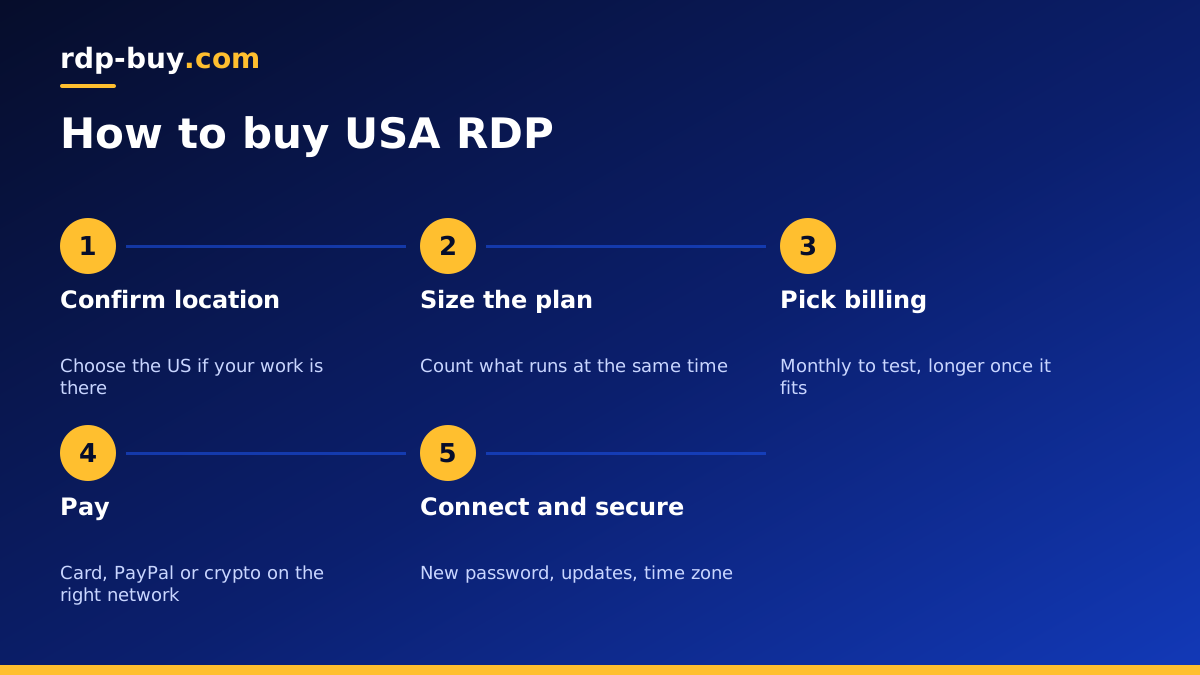
You now know how to buy USA RDP from start to finish: confirm the location, size the plan, choose a billing period, pay by card, PayPal or crypto, then connect and secure the server.
When you are ready, compare plans and order a US RDP server that fits your work. If you want to compare every Windows location first, the full range of Windows RDP plans is available too, and our guide on which RDP plan you need helps with sizing.
