 Sign in
Run AI Agent 24/7 on a VPS: Restarts, Logs and Alerts
Getting an AI agent to run once is easy. Keeping it running every hour of every day, through crashes, reboots and full disks, takes a little more care. This guide shows the practical steps to keep an agent such as n8n, OpenClaw, Hermes Agent or Claude Code (by Anthropic) online around the clock on a server from our AI agent hosting range.
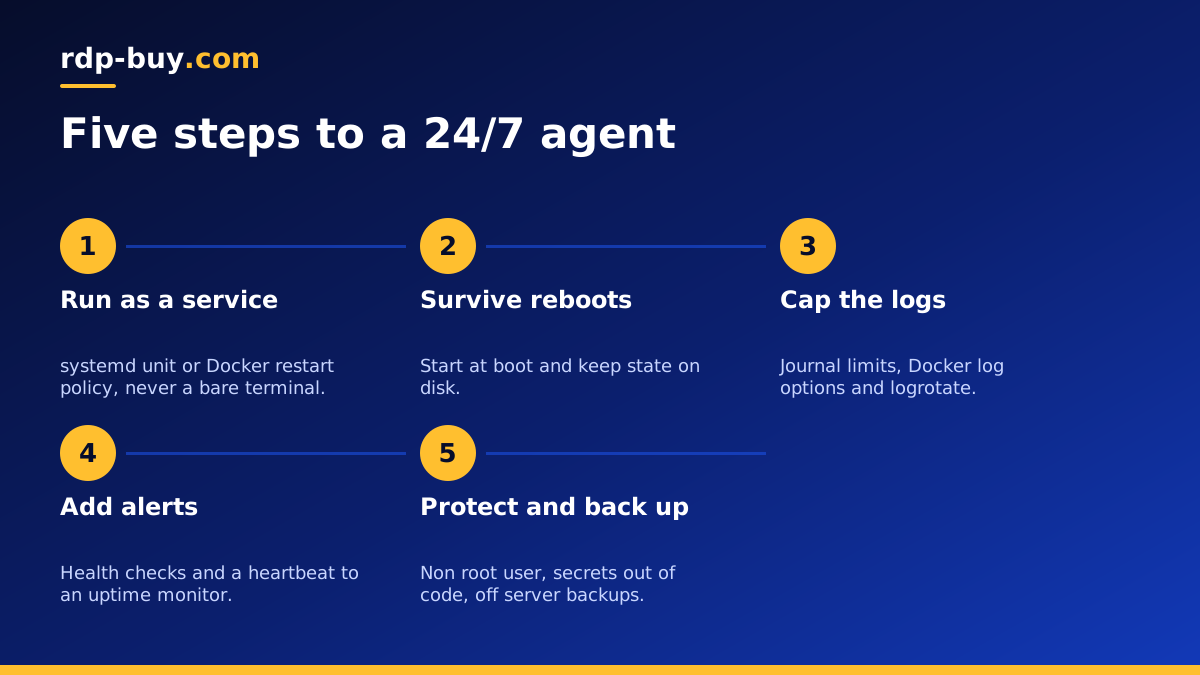
Why agents stop, and why a server fixes most of it
Most agents that people start on a laptop stop for boring reasons: the lid closes, the Wi-Fi drops, the machine restarts for updates or the battery runs out. Moving the agent to a VPS removes all of those at once, because the server sits in a data centre with steady power and networking and never goes to sleep.
But a server alone is not enough. Processes can still crash, the operating system will still need updates and restarts, and logs can quietly fill the disk. The goal of this guide is to make the agent recover from those events by itself, and to tell you when it cannot. If you have not set up a server yet, the agent hosting hub explains which plan fits which agent.
Step 1: run the agent as a service, not in a terminal
The most common mistake is starting the agent in an SSH window and leaving it there. When the SSH connection drops, the agent often goes with it. Instead, hand the process to something that is designed to keep it alive.
On a Linux VPS, systemd is the built in tool for this. You write a short unit file that names the command to run, the user to run it as and the folder to start in, then set it to restart on failure and to start at boot. After enabling the service, the agent comes back on its own after a crash or a reboot, and you can check it at any time with the systemctl status command.
If the agent runs in Docker, which is common for n8n and similar tools, use a restart policy instead. Setting the policy to unless-stopped in your Docker Compose file tells Docker to restart the container after a crash and when the server boots, unless you stopped it on purpose. Our Docker VPS page and the official docs on docker.com cover Compose in more detail.
For interactive agents such as a coding agent you want to come back to, a terminal multiplexer like tmux is a good middle ground. The session lives on the server, so you can disconnect and reconnect later and find everything as you left it.
Step 2: survive reboots and updates
You should install security updates, and some of them need a restart. Rather than avoiding restarts, make them harmless:
- Enable the service or restart policy at boot and test it once by rebooting the server yourself and checking the agent comes back.
- Keep state on disk, not only in memory. Queues, schedules and conversation history should be saved to a database or a mounted volume so a restart does not lose work.
- Use automatic security updates for the operating system, and schedule bigger upgrades for a time when you can watch.
- Pin versions of your agent and its Docker images, and upgrade on purpose after reading the release notes, rather than pulling the latest version blindly.
Step 3: keep logs from filling the disk
Agents can be chatty. Each run, tool call and error ends up in a log somewhere, and a full disk will stop the agent, its database and sometimes the whole server.
For systemd services, logs go to the journal, which can be limited in size through its settings. For Docker, set a log driver option that caps the size and number of log files per container. For any application that writes its own log files, use logrotate to compress and remove old files on a schedule. Check free space with the df command now and then, and set an alert, described below, so you hear about it before it becomes a problem.
Step 4: add health checks and alerts
A process can be running but stuck. A health check tests whether the agent is actually doing its job, and an alert tells you when it is not.
- Use the agent's own health endpoint where one exists, for example a status URL, and add a Docker healthcheck that calls it.
- Add a heartbeat. Have the agent or a small scheduled job ping an uptime monitoring service every few minutes. If the pings stop, the service emails or messages you.
- Watch the basics. Alerts for high memory use, low disk space and repeated restarts catch most real problems early.
- Send errors somewhere you read. Many agents, including n8n workflows, can send a message to chat or email when a run fails.
Step 5: protect the agent and its keys
An agent that runs all day usually holds API keys, tokens and access to other systems, so it is worth securing properly. Run it as a dedicated non root user. Store secrets in environment files readable only by that user, never in your code repository. Put a firewall in front of the server that allows only the ports you need, and place web interfaces such as the n8n editor behind HTTPS and a login. Our checklist of Linux server best practices covers the setup.
Finally, back up the data the agent depends on, such as its database, workflow exports and configuration files, to a location outside the server. A backup you can restore is the last line of defence against both mistakes and failures.
A short weekly check routine
Automation handles most problems, but a few minutes of attention each week catches the rest. Log in and look at the service or container status to confirm nothing is restarting in a loop. Check free disk space and memory use. Skim the last day of logs for repeated errors, such as an expired API key or a rate limit from a provider the agent calls.
Then look at the agent's own results. Did scheduled workflows run? Did the agent finish the tasks you expected? An agent can be technically healthy while quietly failing at its job, for example when an outside website changes its layout or a token stops working.
Finally, confirm your latest backup exists and, every so often, restore it to a test folder. Keeping a simple notes file with the commands you use for these checks makes the routine quick, and makes it easy to hand over to a colleague if someone else needs to look after the server.
Agent specific tips
Each popular agent has its own quirks, and our dedicated pages go deeper: VPS for n8n for workflow automation, VPS for OpenClaw, VPS for Hermes Agent and VPS for Claude Code. If your agent needs Windows software, the Windows RDP for AI agents page explains how to keep it running on a remote desktop, where the key habit is to disconnect rather than sign out.
Choosing a server that keeps your agent online
Size the plan for the agent plus everything around it: its database, any browsers it drives, Docker overhead and some free memory for spikes. Running several agents on one server is fine as long as you leave headroom. Pick a location close to the APIs and users the agent talks to, from our 33 server locations.
Every plan includes full root or administrator access, a dedicated IPv4 address and 24/7 support, and servers are ready in minutes. When you are ready, choose a plan on the AI agent hosting page or go straight to the Linux VPS plans, with monthly, half-yearly or yearly billing.
